Convert a lossless source to a separate portable-player copy
Use foobar2000 Converter with a supported format and separate destination, inspect DSP and ReplayGain processing and verify metadata and playback on the target device. Preserve originals and compare a small trial against playback results before applying the workflow to the whole collection.
Published · Updated · FaultNote editorial policy
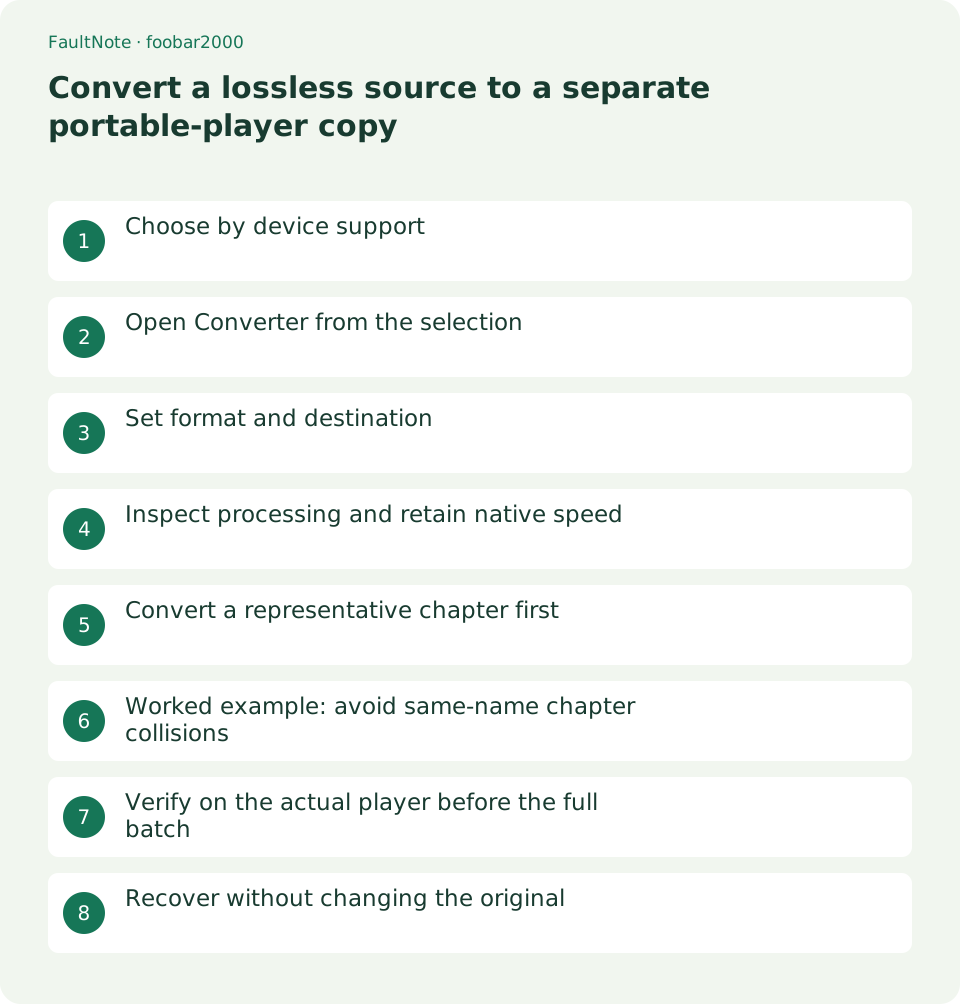
Who this guide is for and what to prepare
- Users making compatible listening copies while retaining lossless originals
What you need
- Preserve source audio and companion files and prepare a separate working copy
- Check the target player capabilities and begin with one representative work
Choose by device support
Check the target format, channel, sample-rate and storage requirements. Renaming FLAC to MP3 does not convert it. Lossy output from a lossless source changes the audio data.
Preserve originals and create a dedicated output folder. Keep the original after conversion so future copies can be generated from it rather than repeatedly transcoding a lossy derivative.
Open Converter from the selection
Load and select the intended chapters, then right-click Convert and choose the ellipsis for Converter Setup. It is a selection context-menu feature. If missing, check the official installer Converter component.
Use an appropriate official encoder source when requested. A modified player package is unnecessary. Inspect destination and processing before using an existing preset.
Set format and destination
Choose a supported Output format and quality and return to the overview. Use a separate Destination and individual output per chapter. Merge-all output is a different choice from chapter files.
Use Ask for initial filename conflicts. Unconditional overwrite can replace an existing copy or another work. Include chapter identity in the naming pattern so several chapters do not generate the same name.
- Check device support and prepare a separate destination.
- Inspect format, individual output and filename-conflict behavior.
- Inspect rendered processing, retain native speed and choose metadata transfer.
- Verify representative device playback and counts before converting every chapter.
Inspect processing and retain native speed
Inspect Active DSPs for speed changes, silence removal or other inherited processing. Use only processing required for compatibility and retain voice speed and chapter duration. A reused preset can carry unwanted previous-task DSPs.
Converter ReplayGain processing changes output audio permanently. Distinguish it from playback adjustment and from Other options transferring metadata or ReplayGain information. For a format-only copy, avoid accidental rendered gain.
Convert a representative chapter first
Trial a few varied entries, including a long chapter and non-ASCII metadata. Treat encoder errors and interrupted output as incomplete. Keep trial and final folders separate.
Check format, duration, title, album, track and artwork. Metadata transfer does not guarantee identical support for all custom fields. For CUE-derived chapters, listen to actual boundaries.
Worked example: avoid same-name chapter collisions
Two works both containing 01 and 02 can collide when output names contain only chapter numbers. Separate work folders or include work identity, keeping Ask enabled. A collision in the trial calls for reviewing destination and naming rather than blindly choosing Overwrite.
On the portable device verify actual ordering and content. Filename sorting may need padded numbers; metadata sorting needs transferred TRACK values. Check whether the saved preset fixes the destination, and inspect its overview for each new work.
Verify on the actual player before the full batch
Transfer the trial to the target and verify playback, seeking, chapter order and ending. PC playback alone is not evidence of device compatibility. Save the verified preset before expanding and compare output count with selected inputs.
Scroll horizontally to see the full table →
| Outcome | Next action |
|---|---|
| PC playback works, device fails | Recheck device format and parameter limits. |
| Chapter order changes | Check names, track metadata and device sorting. |
| Duration or voice speed changes | Inspect DSP and output settings and regenerate from source. |
Recover without changing the original
Remove only failed trial derivatives and retry from the original with another supported setting. Separate folders by settings to avoid mixing outcomes. Record format, quality, processing, metadata and device results without promising unmeasured quality or size improvements.
Limitations and requirements
- Keep native playback speed and avoid overwriting originals. Even metadata-only changes can change the file hash or modification time.
Frequently asked questions
Is an MP3 derivative identical to the original?
Lossy conversion changes data. Retain the original and treat it as a compatible derivative.
Why is Convert missing?
Check the selection context menu and installed Converter component from the official installer.
Does metadata transfer preserve every field identically?
Format and device behavior can differ. Verify titles, numbering and art in the actual output.
Sources and verification date
Sources checked: . These sources support the specifications, procedures or prices discussed here. Check each source for applicable conditions and current information.
Related practical guides
- Choose FLAC, WAV or MP3 for downloaded audio
- Fix spoken-audio chapter order with track and disc tags
- Use ReplayGain for spoken audio while preserving contrasts within a work
- Play chapters from a long audio file and CUE sheet
- Build an ordered spoken-audio playlist in foobar2000
- Diagnose garbled audio tags separately from filenames and ID3 encoding