Windows 11: Share Files Between Nearby PCs
Send files to two Windows PCs using short-distance sharing. Open [Settings] > [System] > [Nearby Sharing] on both PCs and select [Only my device] or [Everyone nearby] with the same intention. The sender indicates completion, and the file appears in the receiver's designated storage location with the same file name and size.
Published · Updated · FaultNote editorial policy
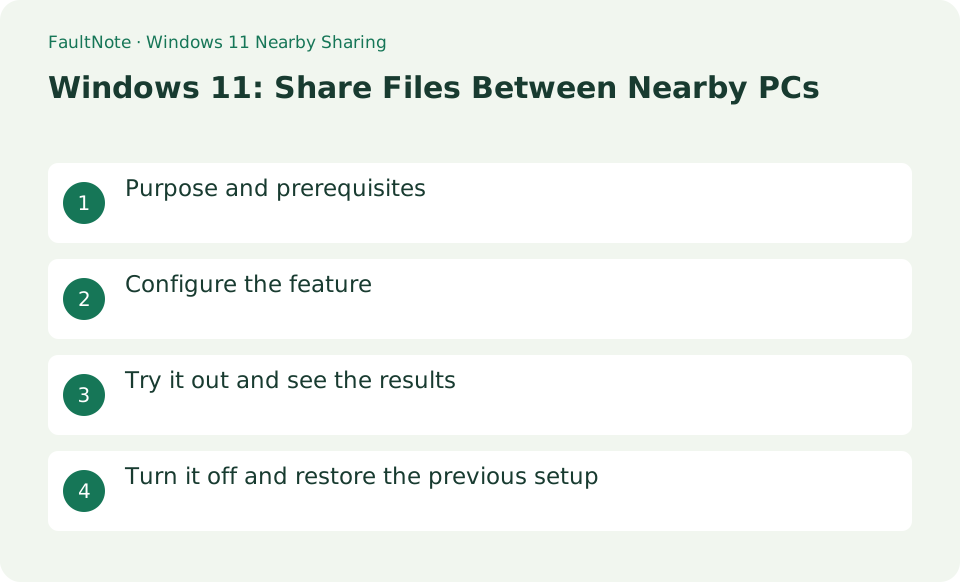
Who this guide is for and what to prepare
- Users who want to streamline daily operations with Windows 11
- Users who want to try out the feature in a way that allows them to restore the settings.
What you need
- Save the file you are working on and try it with test data that does not include personal information.
- Wi-Fi sharing between Windows 11 requires the same private Wi-Fi. [Everyone Nearby] will make your PC name and Bluetooth information public to those around you.
Choose a practical workflow
For a transfer between two Windows PCs, confirm the recipient PC name first to avoid a similarly named device. Start with a small nonconfidential file and decide who will respond to the receipt notification. Keep both screens available; sleep or an unattended approval request makes completion hard to judge.
Configure the feature
- Open [Settings] > [System] > [Nearby Sharing] on both PCs and select [Only my device] or [Everyone nearby] with the same intention.
Worked example: send a document to another PC
- Open Settings, System, Nearby sharing on both PCs. Choose My devices only for the same user or temporarily use Everyone nearby when sharing with another user.
- Check Bluetooth is on. Inspect the receiving folder in the receiver settings, then select the file in File Explorer on the sender.
- Open Share and choose the confirmed PC name. Accept the save action in the receiver notification and keep both PCs awake until the transfer finishes.
- Check the name, size and contents in the receiving folder. Restore any temporarily broadened discovery scope before sending the actual material.
Try it out and see the results
Right-click the file on the sending side > [Share] > select the recipient's PC name, and select [Save] or [Save and Open] in the notification on the receiving side. The sender indicates completion, and the file appears in the receiver's designated storage location with the same file name and size.
Turn on Wi-Fi and Bluetooth on both computers and send a small text file with no personal information. Select [Save] on the receiving side, and check the name and capacity on the save destination. Don't always use "All Nearby" in public places.
Have the receiving PC nearby and operate it with the screen unlocked. Don't decide based only on the name that appears on the sender's side; check it against the recipient's PC name before sending. After receiving the file, open it on the receiving side and check the contents. Since the feature to send to a smartphone is different, choose a different sharing method for transferring between Windows and Android.
Verify received files and device identity
Create a short text file on the sender and keep the receiver awake and signed in. After accepting the transfer, open the saved file and compare its contents. Seeing a device in the list is not proof that the transfer finished.
Verify completion on the receiving PC, not just the sender progress display. Open the received file and inspect the beginning and end of documents or relevant image content. Compare counts for multiple files. Use a unique trial filename so opening an older same-name file is not mistaken for failed transfer.
Check discovery scope, approval and connectivity
Place the PCs close together and review Bluetooth and Nearby sharing on both. With My devices only selected, check that the same Microsoft account is used. If you temporarily broaden discovery to everyone nearby for another user, restore the previous scope afterward.
If My devices only does not discover the PC, inspect account conditions. When broadening scope for a different account, confirm the intended PC name with the recipient. Appearing in the nearby list alone does not establish identity. Accept only expected sharing prompts and restore discovery scope afterward.
Choose methods for large collections and collaboration
Use Nearby sharing for sharing between Windows PCs. For a phone, consider Phone Link or cloud sharing instead. For a large collection, verify a small transfer first and then send manageable groups.
For repeated large collections, reconsider the method. A ZIP can preserve a folder structure but still needs extracted-count checks. Collaboration or version management may suit a shared folder or cloud permissions better. Choose for the task and compare actual speed using matching data and conditions.
Assess discovery, acceptance and transfer separately
Scroll horizontally to see the full table →
| Observed result | First check | Next action |
|---|---|---|
| The recipient is absent | Check discovery scope and Bluetooth on both | This is a discovery-stage problem rather than transfer speed. Check device names and account conditions too. |
| The recipient appears but transfer stalls | Inspect the receiving notification | Check approval waiting, sleep and a missed receiving prompt first. |
| Completion is shown but the file is missing | Open the configured receiving folder | Check that you are not searching another default location and open the file to compare contents. |
Turn it off and restore the previous setup
Return Nearby sharing to [off] on both PCs. You can change the receiving location by going to settings > [Save destination for received files] > [Change].
Limitations and requirements
- Wi-Fi sharing between Windows 11 requires the same private Wi-Fi. [Everyone Nearby] will make your PC name and Bluetooth information public to those around you.
- If the settings are fixed on an organization-managed PC, check with the administrator instead of using unofficial methods to circumvent the policy.
Frequently asked questions
Can I send it to my smartphone as well?
The Windows short-distance sharing we are dealing with here is sharing between Windows PCs. For sending to Android etc., please check smartphone integration and compatible apps.
What is the difference between only my device and everyone?
The former narrows the target to compatible PCs with the same Microsoft account. When sharing with PCs from different accounts, check with the other party, select everyone, and return after finishing.
Does using the same Wi-Fi guarantee a fast transfer?
The connection method and environment affect speed. Do not promise measured performance from a shared network alone. Verify a small transfer first and consider another route for large data.
Is the original removed after sending?
Treat sharing as giving the recipient a copy. If removal is needed, decide separately after verifying the received file opens. Sharing alone is not proof that a backup is complete.
Sources and verification date
Sources checked: . These sources support the specifications, procedures or prices discussed here. Check each source for applicable conditions and current information.
Related practical guides
- OneDrive vs Google Drive: Choosing the Right Workflow
- Windows 11: Automatically Lock Your PC with Dynamic Lock
- USB vs PCIe Wi-Fi Adapter: Check Installation Requirements, Bluetooth and Speed Labels Before Buying
- Connecting a Game Controller to a PC: USB Cable vs Bluetooth vs Xbox Wireless Adapter
- PC Headset Connections: USB, 3.5 mm, 2.4 GHz Dongle or Bluetooth, and What Happens to the Microphone
- Adding Bluetooth to a desktop PC: reading a USB adapter's version number, placement and limits