Windows 11: Automatically Lock Your PC with Dynamic Lock
Dynamic lock automatically locks your PC when you are away. Pair your smartphone with Bluetooth in [Settings] > [Bluetooth & devices] > [Add device]. Move your smartphone out of range and check in a safe place that Windows will change to the lock screen after a certain period of time.
Published · Updated · FaultNote editorial policy
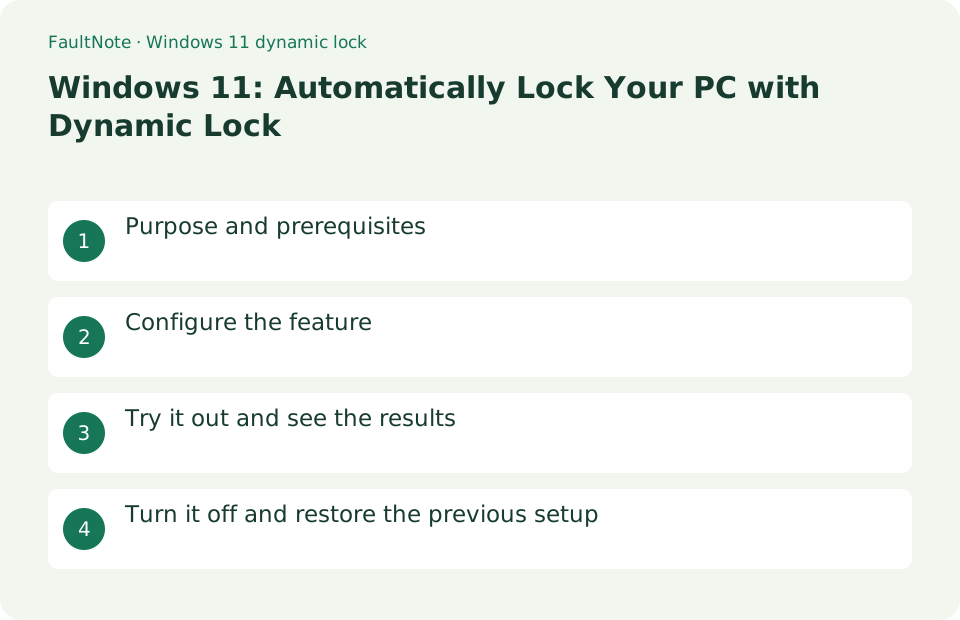
Who this guide is for and what to prepare
- Users who want to streamline daily operations with Windows 11
- Users who want to try out the feature in a way that allows them to restore the settings.
What you need
- Save the file you are working on and try it with test data that does not include personal information.
- It's not an immediate lock, so use Win+L when you leave your seat. It may not work as expected due to Bluetooth disconnection or battery exhaustion.
Choose a practical workflow
Assume you normally carry the phone away from the desk. Save work and confirm the sign-in method first. The phone is used for detecting absence, not unlocking. If material should be hidden immediately on leaving, use Win+L during the trial and daily use. Do not treat the detection delay as a safe unattended interval.
Configure the feature
- Pair your smartphone via Bluetooth in Settings > Bluetooth & Devices > Add Device
Worked example: verify a walk-away fallback
- Review phone pairing under Settings, Bluetooth and devices. If needed, add a Bluetooth device and confirm it is your phone.
- Open Accounts, Sign-in options, Dynamic lock and review the automatic-lock choice. Check that the intended phone is recognized.
- Open a nonconfidential document, take the phone away and check for a lock when returning. Record the outcome and approximate waiting approach.
- Unlock with the normal sign-in method. Use manual locking when leaving the phone on the desk, since it cannot represent your absence then.
Try it out and see the results
Open [Settings] > [Accounts] > [Sign-in options] > [Dynamic lock] and turn on [Let Windows automatically lock my device when I'm away]. Move your smartphone out of range and check in a safe place that Windows will change to the lock screen after a certain period of time.
Save your work, pick up your phone, move it out of Bluetooth range, and see if you get to the sign-in screen within about a minute. It is not an automatic sign-in function when returning, and it cannot be determined if the phone's battery is dead or Bluetooth is stopped, so Win+L is used when normally away.
After registering your smartphone via Bluetooth, physically hold the device, walk away from your PC, and then come back and check if the lock screen is displayed. The response changes depending on distance and radio wave conditions, and it is not a mechanism that will always lock the moment you leave. When you leave your seat in a hurry, press Win+L to lock it immediately, and use dynamic lock to make up for forgetting to lock.
Test pairing and departure after saving
Take the phone away from the PC and check for the lock screen when you return. Detection is not instant, so use Win+L when leaving your seat. Treat Dynamic lock as a fallback for forgetting the manual action.
Choose the phone used for a departure trial if several phones are paired. Review whether obsolete pairings are still needed. A phone moved away from the desk can remain within Bluetooth range. A failed lock alone does not establish a feature fault; inspect location and connection. Manual locking does not depend on this detection.
Separate range detection from other lock triggers
Check that the phone is the paired device used by the setting. If locking fails, verify that the phone was not left on the desk and was moved sufficiently far away. Radio conditions vary; do not expect a guaranteed trigger at a fixed distance.
If a trial locks the PC, consider other triggers such as display timeout, sleep or screen saver settings. Overlapping timers can obscure the cause. Record current conditions rather than disabling all safeguards. For immediate locking, Win+L remains available without waiting to analyze detection.
Review unlocking and shared-PC use
Unlock using your normal sign-in method and confirm your work remains open. Bringing the phone back does not automatically sign you in. After replacing the phone, verify its pairing and repeat the trial.
Finding your document intact after unlocking differs from verifying access is restricted. For shared use, decide whether to leave it locked or provide a separate Windows user. Returning the phone does not unlock, and there is no need to give another person your sign-in credentials. Continue manual departure locking even if Dynamic lock is disabled.
Separate different failure conditions
Scroll horizontally to see the full table →
| Observed result | First check | Next action |
|---|---|---|
| The intended phone is not shown | Check Bluetooth registration | Check for a different phone or obsolete pairing. |
| You left without the phone | Check its physical location | A phone beside the PC cannot detect your departure; use Win+L. |
| Returning does not unlock | Use the usual sign-in method | Automatic unlocking is not the feature, so this is expected. |
Turn it off and restore the previous setup
Uncheck Dynamic Lock, and if you don't need it, click [Delete Device] on the paired phone from [Bluetooth & Devices].
Limitations and requirements
- It's not an immediate lock, so use Win+L when you leave your seat. It may not work as expected due to Bluetooth disconnection or battery exhaustion.
- If the settings are fixed on an organization-managed PC, check with the administrator instead of using unofficial methods to circumvent the policy.
Frequently asked questions
Will it be automatically unlocked when I return?
Dynamic locking is a feature that locks when you leave. To cancel after returning, use normal sign-in methods such as Windows Hello or PIN.
Do you want it to lock as soon as you leave your seat?
It takes some time after it is determined that you are out of Bluetooth range. If you want to lock it immediately, use Win+L.
Does a depleted phone battery matter?
It changes the phone Bluetooth connection state, so do not expect identical detection. Make Win+L the basic departure action independently of phone state.
Is locking guaranteed after a specific number of seconds?
Detection depends on judging that the Bluetooth signal is out of range, rather than a guaranteed fixed delay from physically leaving. Verify behavior in the actual room and connection conditions.
Sources and verification date
Sources checked: . These sources support the specifications, procedures or prices discussed here. Check each source for applicable conditions and current information.
Related practical guides
- Windows 11: Share Files Between Nearby PCs
- USB vs PCIe Wi-Fi Adapter: Check Installation Requirements, Bluetooth and Speed Labels Before Buying
- Connecting a Game Controller to a PC: USB Cable vs Bluetooth vs Xbox Wireless Adapter
- PC Headset Connections: USB, 3.5 mm, 2.4 GHz Dongle or Bluetooth, and What Happens to the Microphone
- Adding Bluetooth to a desktop PC: reading a USB adapter's version number, placement and limits
- USB receiver or Bluetooth for a wireless mouse and keyboard: what each one actually requires