Which Storage Spaces resiliency should you choose? Minimum drive counts, and what to check before buying
You want to buy several drives so that losing one does not lose the data, and you have heard Windows Storage Spaces can do it. The purchase question is how many, and the answer is fixed by the resiliency type. Microsoft states that two-way mirror spaces require at least two drives, three-way mirror spaces at least five, and parity spaces at least three to survive one drive failure and at least seven to survive two. A second thing bites at the buying stage: physical disk eligibility. An external USB drive that works perfectly in File Explorer may never appear in the Storage Spaces list, and Microsoft says plainly that this is exclusion by design, not a bug. This guide works from the Windows 11 and Windows 10 guidance, and keeps it separate from the Windows Server and cluster pages that search results push to the top. Redundancy is not a substitute for backup.
Published · Updated · FaultNote editorial policy
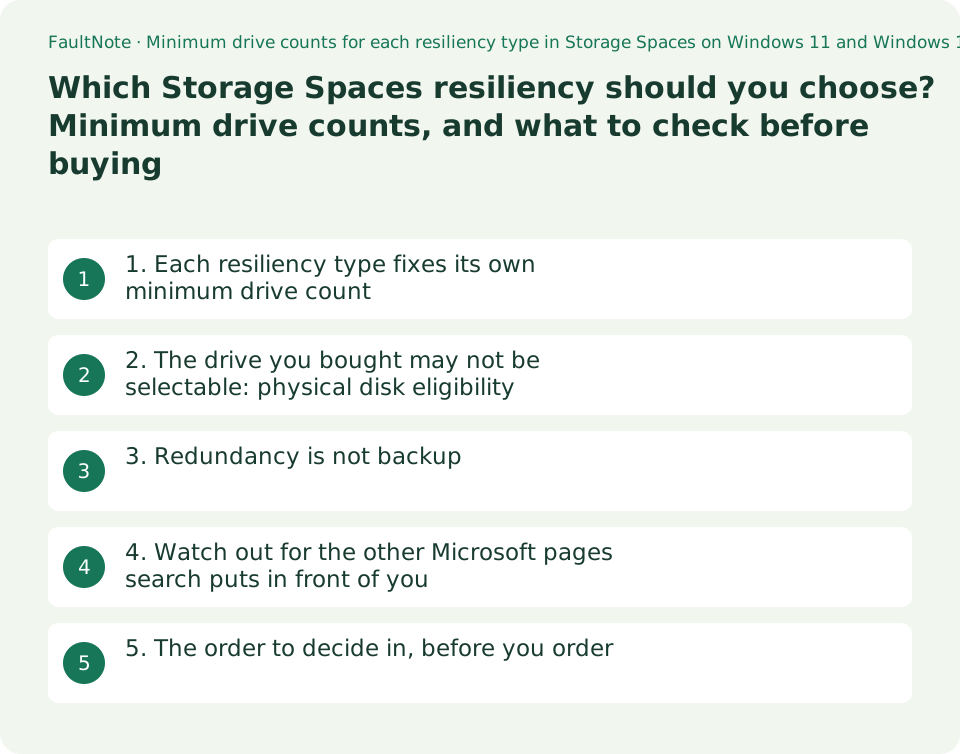
Who this guide is for and what to prepare
- Readers who want a setup where one drive failure does not stop the work, using built-in Windows features
- Readers who need to settle the number of drives before placing an order
- Readers whose external USB drives never appear as Storage Spaces candidates
What you need
- Write down how many drives you can supply, and of what capacity, not counting the drive Windows is installed on
- Note how each intended drive connects (internal SATA, internal NVMe, external USB, SAS)
- Note how much data you want to hold, and whether it also lives somewhere else as a backup
1. Each resiliency type fixes its own minimum drive count
Storage Spaces groups several drives into one pool and creates virtual drives - storage spaces - from it. Microsoft's description: "Windows Storage Spaces lets you combine multiple drives into a single storage pool to protect data from drive failures and expand storage over time."
Start with the baseline count. The same page says: "You need at least two extra drives (in addition to the drive where Windows is installed)." The drive Windows lives on does not count - that is the first thing people get wrong.
After that, the resiliency you pick at creation time sets the count. The creation steps list the choices as "Simple (no resiliency)", "Two-way mirror (default)", "Three-way mirror", "Parity", and "Dual-parity". The minimums are in the section headed "Should I create a simple, mirror, or parity space?".
For mirrors: "Two-way mirror spaces require at least two drives, and three-way mirror spaces require at least five." Three-way mirroring needing five rather than three changes the shopping list substantially, so check that before budgeting. For parity: "This storage layout requires at least three drives to protect you from a single drive failure and at least seven drives to protect you from two drive failures."
For capacity, reason from the number of copies. The same page says two-way mirror spaces make two copies of your files and can tolerate one drive failure, while three-way mirror spaces can tolerate two. If you are keeping two copies, you need twice the physical capacity of what you want to store. The arithmetic is that plain.
Scroll horizontally to see the full table →
| Resiliency | Microsoft's stated minimum drives | Failures tolerated | Use Microsoft suggests |
|---|---|---|---|
| Simple (no resiliency) | At least two to be useful | None - does not protect files from drive failure | Temporary data: video rendering files, image editor scratch files, intermediary compiler object files |
| Two-way mirror (default) | At least two | One drive | A broad range of data, from a general-purpose file share to a VHD library |
| Three-way mirror | At least five | Two drives | The same, as a mirror space |
| Parity (single-failure) | At least three | One drive | Archival data and streaming media such as music and videos |
| Parity (two-failure) | At least seven | Two drives | The same |
2. The drive you bought may not be selectable: physical disk eligibility
Having the right number of drives is no use if Storage Spaces will not list them, and this is a wall people actually hit after buying external USB drives. Microsoft gives it its own section and states outright that it is not a defect.
The text: "External USB drives can work normally in File Explorer but still not appear in Windows Storage Spaces. Storage Spaces only accepts disks that Windows recognizes as eligible physical disks, not just usable storage." It continues: "Many USB enclosures and hubs add an abstraction layer that causes Windows to treat drives as removable or to hide multiple disks behind a single device identity, which Storage Spaces excludes by design. This behavior is expected and not a Windows bug."
Three causes are named: USB enclosures that report drives as removable, RAID-capable or "smart" enclosures that hide individual disks, and USB hubs that collapse multiple drives into one device path. Then the sentence that saves a lot of wasted effort: "Reinstalling Windows, updating drivers, or changing power settings does not change disk eligibility when the limitation comes from the hardware." The cause is on the hardware side, so software steps will not move it.
The check is given too: "Users can check eligibility by selecting the disk itself (not the volume) in Device Manager or Disk Management and confirming whether Windows reports it as Fixed or Removable." Selecting the disk rather than the volume is the crux. The page adds: "USB drives depend on enclosure firmware. SATA drives that connect directly are usually eligible, as are enterprise-grade SAS drives."
The consequence for buying is clear. If you are buying several drives for Storage Spaces, directly connected internal SATA is the safest arrangement. Choosing external enclosures means accepting an uncertainty that rests on enclosure firmware. This site has not tested any particular enclosure for eligibility and therefore recommends no product by name.
Scroll horizontally to see the full table →
| How it connects | What Microsoft states | How to read it before buying |
|---|---|---|
| Directly connected SATA drive | Usually eligible | The most dependable. The default arrangement for a redundancy build |
| Enterprise-grade SAS drive | Usually eligible | Not a home purchase, but on the eligible side as written |
| External USB drive | Depends on enclosure firmware | No basis for assurance before you buy. Risky for a multi-drive set |
| RAID-capable or "smart" enclosure | Named as a cause: hides individual disks | Anything not visible as an individual disk cannot be used |
| Through a USB hub | Named as a cause: collapses multiple drives into one device path | Avoid consolidating drives behind a hub |
3. Redundancy is not backup
Before counting drives, settle what you are protecting against. Storage Spaces resiliency defends against exactly one event: a drive failing. Microsoft's own wording is "to protect data from drive failures", and it claims nothing beyond that.
A file you deleted by mistake. A file you overwrote. Files encrypted by ransomware. The whole machine lost to lightning or flood. None of these is helped by a mirror or by parity - a mirror faithfully replicates the deletion and the overwrite too.
This site covers the distinction in detail in its guide on sync versus backup, so it is not repeated here. Redundancy is a mechanism for not stopping; backup is a mechanism for going back. You need both.
One structural limit is worth knowing as well. Microsoft's Windows Server guidance states: "You can't use a storage space to host the Windows operating system." The drive Windows lives on sits outside this arrangement, and protecting it is a separate problem.
4. Watch out for the other Microsoft pages search puts in front of you
Searching for Storage Spaces resiliency and drive counts surfaces a second set of Microsoft Learn pages. They are full of numbers and look helpful, but they are about something else, and mixing them in will wreck a home budget.
The first is "Deploy Storage Spaces on a stand-alone server". Its Applies To line lists Windows Server 2025, 2022, 2019 and 2016 only - neither Windows 11 nor Windows 10. It has a disk-requirement table: simple "Requires at least one physical disk."; mirror "Requires at least two physical disks to protect from single disk failure. Requires at least five physical disks to protect from two simultaneous disk failures."; parity "Requires at least three physical disks to protect from single disk failure." The mirror and parity counts agree with the Windows guidance, but the simple count does not - one disk here against at least two to be useful there. The same page's prerequisites, "Physical disks must be at least 4 GB" and "Disks must be blank and not formatted. Don't create volumes.", are likewise server-page statements.
The second is the more misleading one. "Fault tolerance and storage efficiency on Azure Local and Windows Server clusters" is about Storage Spaces Direct, and its Applies To covers Windows Server releases and Azure Local. Its "fault domains" are servers, not drives - the page keeps restating this, as in "with Storage Spaces Direct, that means two servers". The storage-efficiency figures on it, 50 percent for two-way mirror, 33.3 percent for three-way mirror and 50 to 80 percent for dual parity, belong to that clustered context. Do not carry those numbers into a calculation about how many drives to put in a home PC.
In short: if the question is how many drives to add to one Windows 11 or Windows 10 machine, the page to read is the support-site article, and that alone. Sections 1 and 2 of this guide rest on nothing else.
Scroll horizontally to see the full table →
| Page | Its Applies To line | What its counts refer to | Applicable to a home PC? |
|---|---|---|---|
| Storage Spaces in Windows (support site) | Windows 11, Windows 10 | Physical drives attached to the PC | Yes - this is the one |
| Deploy Storage Spaces on a stand-alone server | Windows Server 2025 / 2022 / 2019 / 2016 | Physical disks inside a server | Background only; some statements, such as the simple minimum, differ |
| Fault tolerance and storage efficiency on Azure Local and Windows Server clusters | Windows Server releases, Azure Local | Fault domains, meaning servers | No. Do not import its storage-efficiency figures either |
5. The order to decide in, before you order
The same material, arranged as pre-purchase decisions.
First, decide what you are defending. If the goal is that one drive failure does not stop the work, this is a resiliency question. If the goal is getting back a file you deleted, it is a backup question. Building only the first and owning none of the second is the classic mistake.
Second, decide how many simultaneous failures you want to survive. One means a two-way mirror (2 drives) or parity (3). Two means a three-way mirror (5) or parity (7). The drive count falls out of this.
Third, decide capacity. A mirror consumes physical capacity in proportion to the number of copies: to hold 2 TB in a two-way mirror you need at least 4 TB of physical capacity. Parity is more capacity-efficient, and Microsoft's suggested uses for it are archival data and streaming media.
Fourth, decide how the drives connect. As section 2 shows, directly connected SATA is the most dependable. Choosing the drives themselves - CMR or SMR, NAS-rated or not - is a separate axis; reading this site's CMR versus SMR guide first saves deciding twice in one purchase.
Fifth, decide whether you plan to expand later. Microsoft states that when you need more capacity you can add drives to the pool without replacing existing storage. It also recommends upgrading existing pools after you upgrade to Windows, with the note that "Upgraded pools aren't compatible with previous versions of Windows."
Scroll horizontally to see the full table →
| Decision | How to make it | Easy to miss |
|---|---|---|
| The goal | Redundancy for not stopping, or backup for going back | Redundancy protects against none of deletion, overwriting or encryption |
| Simultaneous failures to survive | One, or two | A three-way mirror needs at least five drives, not three |
| Drive count | Follows uniquely from the resiliency type | The drive Windows is installed on does not count |
| Capacity | A mirror consumes capacity per copy | What you want to store and what you have to buy are different numbers |
| Connection | Directly connected SATA is dependable | External USB eligibility rests on the enclosure firmware |
| Future expansion | Drives can be added to the pool | An upgraded pool is not compatible with previous versions of Windows |
Limitations and requirements
- Resiliency is not a substitute for backup. It protects against drive failure only - not accidental deletion, overwriting, ransomware encryption, or loss of the whole machine.
- The counts here are Microsoft's stated minimums. Check that a three-way mirror needs at least five drives, and two-failure parity at least seven, before you budget.
- Microsoft states that external USB drives not appearing as Storage Spaces candidates is by design. Reinstalling Windows, updating drivers or changing power settings does not change eligibility.
- The Japanese edition of the support page is a translation of the English one and reads awkwardly in places, including the description of simple spaces. The Japanese edition of this guide quotes it only where the figures and conditions are unambiguous.
- The Windows Server and Azure Local pages that rank highly in search cover something else. In particular, the counts on the Storage Spaces Direct page are numbers of servers, not numbers of drives in a home PC.
- This site has not built such a configuration on hardware or reproduced a drive failure. This guide organises what Microsoft publishes.
- No particular drive or external enclosure has been tested for eligibility here, and no product is recommended by name.
Frequently asked questions
Can I make a three-way mirror with three drives?
No. Microsoft states: "Two-way mirror spaces require at least two drives, and three-way mirror spaces require at least five." The intuition that three copies means three drives does not hold. If you want to survive two simultaneous failures but cannot supply five drives, the remaining option is parity - which needs at least seven for two-failure protection.
Does the drive Windows is on count towards the total?
No. Microsoft says "You need at least two extra drives (in addition to the drive where Windows is installed)." The Windows Server guidance goes further and states that you cannot use a storage space to host the Windows operating system.
I connected two external hard drives and Storage Spaces does not show them.
Microsoft describes this as expected behaviour and not a bug. Many USB enclosures and hubs add an abstraction layer that makes Windows treat drives as removable, or hides several disks behind one device identity, and Storage Spaces excludes those by design. Select the disk itself - not the volume - in Device Manager or Disk Management and check whether Windows reports it as Fixed. No software-side step will change it.
I have read that parity is more capacity-efficient. Which should I choose?
Microsoft splits them by use. Mirror spaces are described as good for a broad range of data, from a general-purpose file share to a VHD library; parity spaces as best for archival data and streaming media such as music and videos. The drive counts differ too: for single-failure protection, two drives for a mirror against three for parity; for two-failure protection, five against seven. Note that the Microsoft page carrying storage-efficiency percentages is about server clusters and does not apply to a home PC.
Can I add drives later to increase capacity?
Microsoft states that when you need more capacity you can add drives to the pool without replacing existing storage. It recommends upgrading existing pools after upgrading to Windows, and notes that upgraded pools are not compatible with previous versions of Windows. It also notes that preparing a drive for removal can fail if there is not enough free space in the pool to hold the data from it.
Sources and verification date
Sources checked: . These sources support the specifications, procedures or prices discussed here. Check each source for applicable conditions and current information.
- Microsoft Support: Storage Spaces in Windows. Applies To Windows 11 and Windows 10. The required number of extra drives; why external USB drives may not appear and how to check eligibility; the resiliency choices (Simple, two-way mirror, three-way mirror, Parity, Dual-parity); the minimum drive count and suggested use for each; data integrity maintained when a mirror space is formatted with ReFS; and the guidance on upgrading a pool and adding or removing drives. Read 2026-09-20 ↗
- Microsoft Support: Storage Spaces in Windows, Japanese edition. A translation of the same page, and the source of the Japanese-language quotations in the Japanese edition of this guide. Because the translation is awkward in places, only passages whose figures and conditions are unambiguous were quoted. Read 2026-09-20 ↗
- Microsoft Learn: Deploy Storage Spaces on a stand-alone server. Applies To Windows Server 2025 / 2022 / 2019 / 2016. The per-resiliency disk requirements (simple at least one disk; mirror at least two for a single failure and at least five for two simultaneous failures; parity at least three for a single failure), the prerequisites that physical disks be at least 4 GB and blank and unformatted, and the statement that a storage space cannot host the Windows operating system. Read 2026-09-20 ↗
- Microsoft Learn: Fault tolerance and storage efficiency on Azure Local and Windows Server clusters. Applies To Windows Server releases and Azure Local. Covers Storage Spaces Direct, where fault domains are servers, and carries the storage-efficiency table (two-way mirror 50.0%, three-way mirror 33.3%, dual parity 50.0% to 80.0%). Cited here as the contrast that shows those figures do not apply to a home drive count. Read 2026-09-20 ↗
Related practical guides
- External SSD vs HDD for backups: capacity, speed and portability
- CMR vs. SMR Hard Drives: Tell Them Apart by Model Number for NAS, RAID and Backup
- Choosing an M.2 SSD enclosure: USB 10Gbps vs 20Gbps vs USB4 (40Gbps) vs Thunderbolt, and checking your PC's port
- How to Choose a USB-C Cable: 60W vs 240W Power Marks, 10Gbps to 80Gbps Data Rates and Video Output by Use
- USB vs PCIe Wi-Fi Adapter: Check Installation Requirements, Bluetooth and Speed Labels Before Buying
- Connecting a Game Controller to a PC: USB Cable vs Bluetooth vs Xbox Wireless Adapter