Storage Spaces reports a warning or degraded state
What to do first
Storage Spaces reports a warning or degraded state. A disconnected or failed pool drive, insufficient free capacity, or an unfinished repair job may have removed redundancy. Record the current state before changing it, use only the supported Windows path described below, and verify the same operation again after any required restart.
This is a general troubleshooting guide, not an announcement of a current outage.
Affected products and symptoms
- Product
- Windows Storage Spaces
- Versions and conditions
- Windows 11 (confirm the edition and hardware requirements for the feature)
- Error codes and identifiers
- Degraded
Symptoms
- Storage Spaces reports a warning or degraded state.
- The same condition can persist after a retry or restart.
Causes and conditions
A disconnected or failed pool drive, insufficient free capacity, or an unfinished repair job may have removed redundancy.
Before you start
- Save open documents and allow time for a Windows restart if required.
- Run administrative actions only on a personally managed PC or with administrator approval.
- Save the diagnostic command output so the before and after states can be compared.
Precautions
- Do not bulk-delete registry entries, system folders, credentials, or storage metadata.
- Do not run unofficial scripts or unknown drivers with administrator rights.
Tools and official pages used in this guide
Check the official requirements, interface names, and limitations for this step.
Step-by-step instructions
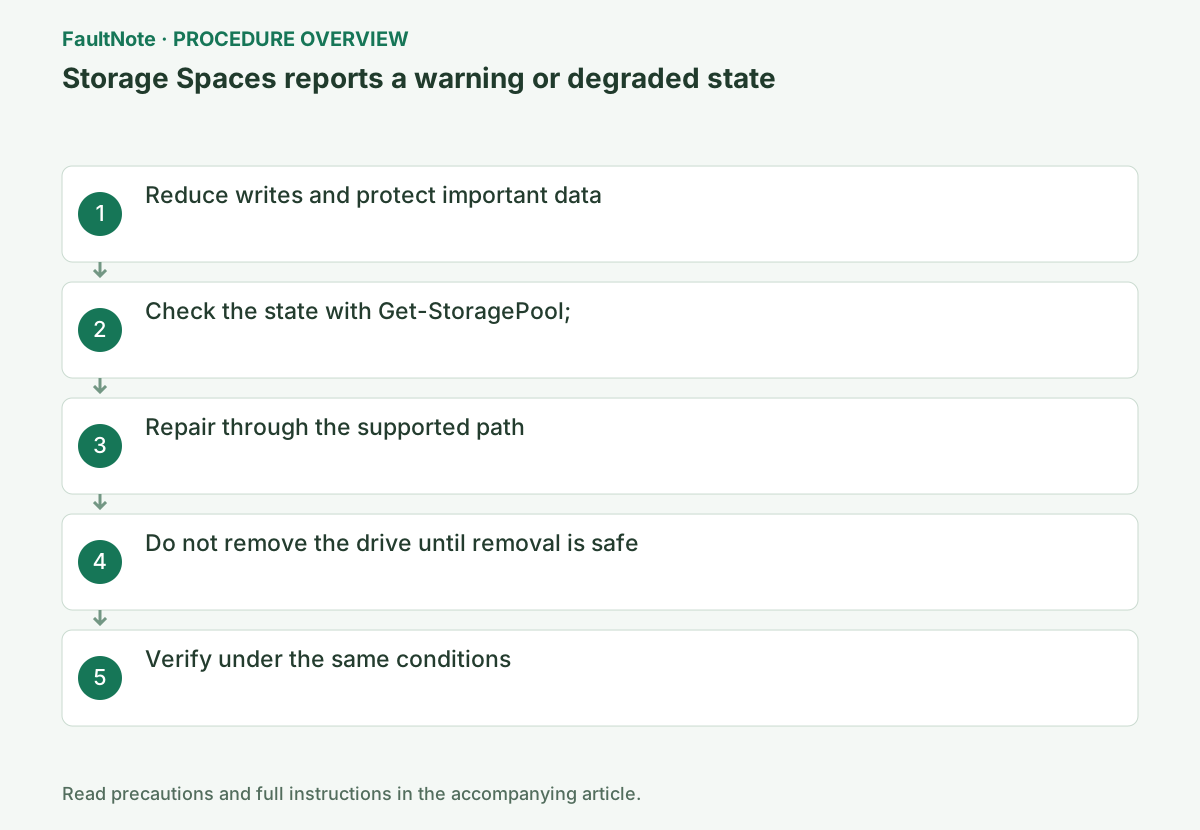
A degraded state can mean redundancy has been lost. Copy readable important files to separate healthy storage and stop unnecessary retries if reads fail or the drive makes unusual noises. Do not initialize disks or delete the pool to clear a warning.
Open Control Panel > System and Security > Storage Spaces and record the warning names for pool, virtual disk, and physical drive. If a repair, optimization, or rebuild job is active, do not shut down or remove drives; monitor completion percentage.
Save pool, virtual-disk and physical-disk identities and states. Capacity alone cannot identify one of several similar disks; match ports, labels and identifiers before removal. For external pools, review power and cables without identifying drives by unplugging live disks in sequence.
Record disk identity, capacity, connection and warning text. Do not treat a disconnected cable and a failed disk as identical replacement cases. While data is readable, copy important files outside the pool and verify the copies before planning repair.
Back up important data and record FriendlyName, SerialNumber, HealthStatus, and OperationalStatus for the pool, virtual disk, and each physical disk.
Healthy with an OK operational state confirms recovery. If Degraded, Detached, or Incomplete remains, prioritize copying readable data.
Copy important readable files outside the affected pool, starting with high-priority small files. Use an independent destination and open representative copies. Record unreadable files and errors before deciding about recovery or initialization. Resiliency is not a backup and the degraded pool may have reduced remaining protection.
Get-StoragePool; Get-VirtualDisk; Get-PhysicalDiskOpen Settings > System > Storage > Advanced storage settings > Storage Spaces, identify the warned disk, and add a compatible replacement with enough capacity. Do not remove the failed disk while repair work is active.
Review layout, used capacity and free capacity before replacement or removal. Migration needs space on other disks. Check replacement identity and avoid initializing a disk containing existing data. Maintain power during preparation; elapsed time alone does not justify interrupting migration. Retain originals until the management interface confirms completion.
Official links for this step
- Storage Spaces in Windows
Check the official requirements, interface names, and limitations for this step.
- Storage Spaces in Windows
Match the serial number to the physical drive, not just its name. Follow the management interface’s replacement, addition and prepare-for-removal instructions, and do not unplug healthy drives during processing. Recovery differs for mirror, parity and simple spaces and depends on available capacity. If the required action is unavailable or data is unreadable, record the configuration and seek specialist support.
Avoid restarting while repair or optimization is active, and use Get-StorageJob to confirm completion. Do not assume that adding a drive completed recovery; recheck the virtual disk's HealthStatus and OperationalStatus.
Mirror or parity layouts may still be unable to recover after multiple failures or insufficient capacity. Check the layout before removing or initializing a disk from the degraded pool. Confirm replacement capacity and connection, and retain the original disk until Windows confirms migration or removal completion.
Run Get-VirtualDisk | Select-Object FriendlyName,HealthStatus,OperationalStatus and repeat the original operation once under the same conditions. If it succeeds, verify again after a restart and record the setting that changed.
Healthy with an OK operational state confirms recovery. If Degraded, Detached, or Incomplete remains, prioritize copying readable data.
Compare post-repair pool and virtual-disk states with the originals and read important files. Stop if warnings shift, volumes vanish or capacity is unexpected. Provide layout, disk count, resiliency, warnings, connections, actions and backup state to recovery support. Dispose of an original disk only after confirming required data recovery.
Get-VirtualDisk | Select-Object FriendlyName,HealthStatus,OperationalStatus
Check the result
- Pool and virtual-disk warnings clear and protected files remain readable
- The verification command reports the expected enabled, healthy, or connected state.
- The result remains correct after a Windows restart and no new matching critical event appears.
If the problem continues
- If important data cannot be copied, avoid initialization and consult a recovery specialist
- If hardware requirements, organization policy, or server settings are responsible, ask the owner to make the change instead of bypassing it on the client.
Scope of this guide
Troubleshooting guide — Restore the feature so it starts, connects, or completes normally and passes the same verification after a Windows restart.
Frequently asked questions
Can I keep using a degraded storage space?
It may still read and write while redundancy is lost. Back up important data and arrange replacement and repair promptly.
Can I pull the failed drive immediately?
Do not remove it before checking mirror/parity state and replacement capacity. Match the physical disk by SerialNumber.
Will adding a disk always recover the data?
No. Recovery depends on layout, failure count, readable data and migration capacity. Protect important data first and wait for completed removal preparation before handling the affected disk.
Official sources and dates
Source publication or resolution date: Not specified. Sources checked: 2026-10-13. The check date is not the date the problem first occurred. Interface labels can vary between versions and display languages.
Related troubleshooting guides
Windows errors and troubleshooting →