OLED monitor burn-in warranty and care: how to check warranty length and burn-in coverage before you buy
ASUS explains that image persistence, or burn-in, can occur on an OLED display when a static high-contrast image is shown for a long time. Before buying, check the warranty row on the maker's product page for each model: how many years, and whether it says "including panel burn-in". In ASUS's FAQ the PG32UCDM has 36 months including burn-in, while earlier listed models such as the PG27AQDM and PG42UQ have 24 months; Dell states that Alienware QD-OLED panels have a warranty of up to 3 years that includes burn-in. Once in use, keep protection features such as Pixel Shift turned on and do not unplug the monitor while pixel cleaning runs.
Published · Updated · FaultNote editorial policy
Who this guide is for and what to prepare
- People considering an OLED gaming monitor who want to confirm before buying whether burn-in is covered by the warranty
- People who have started using an OLED monitor and want to know how to handle pixel cleaning and screen protection settings
What you need
- The exact model number of the monitor you are considering, including trailing letters
- The Tech Specs section of the maker's product page and the warranty terms for your country and retailer
- For a monitor already in use, access to the System Setup menu in the on-screen display (OSD)
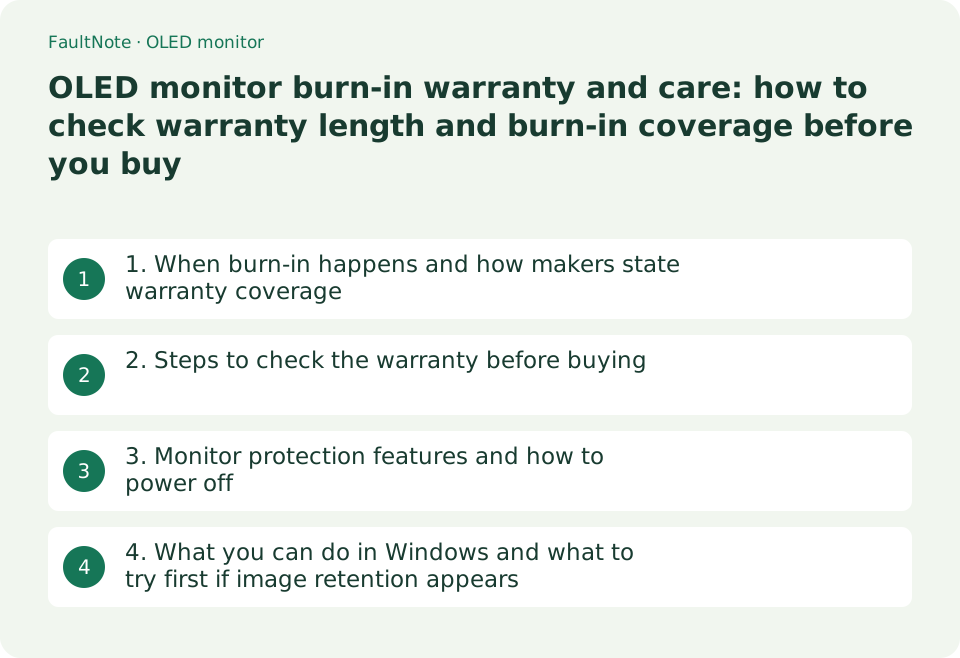
1. When burn-in happens and how makers state warranty coverage
ASUS explains that image persistence, or burn-in, on an OLED display can occur if a static high-contrast image is displayed for a prolonged period. Uses where the same image stays in the same place, such as the taskbar, a game's health bar or a fixed streaming overlay, need the most care.
Whether burn-in is covered depends not only on the maker but on the model. The table below reflects official pages checked on 13 September 2026. Warranty terms can differ by country and sales channel, so treat these global and US pages as those regions' statements and also check the warranty card for the country where you buy.
Scroll horizontally to see the full table →
| Maker / scope | Statement on the official page | What to watch for |
|---|---|---|
| ASUS ROG Swift OLED PG32UCDM | Tech Specs: "3 years (including panel burn-in)"; the FAQ also says 36 months | Per the FAQ, units are still covered for three years even if the box or warranty card says two years |
| Earlier ASUS OLED models (PQ22UC, MQ13AH, MQ16AH, PA27DCE, PA32DC, PG27AQDM, PG34WCDM, PG42UQ, PG48UQ, PG49WCD and others listed) | The FAQ states a 24-month warranty | When choosing used or older stock, check by model number whether it is one of the shorter-warranty models |
| Other ASUS OLED models | The FAQ says a 36-month warranty applies and that burn-in warranty information is in each product's Tech Specs | Check the Warranty row in the Tech Specs for each model |
| Dell Alienware QD-OLED monitors (US support page) | QD-OLED panels are limited to a 3-year maximum warranty term, including burn-in | This is US home-user support information; check Dell's page or warranty card for your country |
2. Steps to check the warranty before buying
A retailer listing that says "3-year warranty" does not tell you whether burn-in is included. Look in the Tech Specs on the maker's product page for a warranty row that gives both the length and how burn-in is treated. For the ASUS PG32UCDM, the warranty row reads "including panel burn-in".
Models in the same series that launched earlier can have shorter warranties. When comparing sale or clearance units, match the model number character by character.
Scroll horizontally to see the full table →
| Check | Where to look | What happens if you miss it |
|---|---|---|
| Warranty length | Tech Specs (Warranty) on the maker's product page | You assume 36 months for a 24-month model |
| Whether burn-in is covered | The warranty row in Tech Specs and the maker's warranty FAQ | You find out it is excluded only after burn-in appears |
| Terms in your country | Local warranty card, the maker's local support pages and the retailer's warranty terms | Terms on another region's page may not apply |
| Model number match | The model on the listing versus the model lists on the maker's pages and FAQ | You rely on the terms of a different model with a similar name |
- Note the exact model number of the monitor on the retailer listing.
- Open the maker's product page and check whether the warranty row in Tech Specs states the length and burn-in.
- If the maker's warranty FAQ lists models, check which warranty length includes your model.
- Check the warranty card or local support pages for the country where you buy to confirm the same terms apply. If unclear, ask the maker's support before buying.
3. Monitor protection features and how to power off
ASUS OLED monitors include Pixel Shift, which moves displayed pixels slightly, and it is on by default. ASUS suggests always keeping screen protection turned on.
Pixel cleaning takes about 6 minutes and runs automatically when the monitor is turned off. ASUS says not to unplug the power cable or cut power while it runs, and turning the monitor on interrupts it. If you switch everything off at a power strip every time, the process does not get to run.
Scroll horizontally to see the full table →
| Feature (ASUS name) | What it does | Usage notes |
|---|---|---|
| Pixel Shift / Screen Move | Moves displayed pixels slightly so the same static image does not stay in one place | On by default; keep it on |
| Screen Saver | Lowers brightness automatically when the screen content does not change | Does not work with HDR presets on ProArt models; turn it off only for optical measurements and back on afterwards |
| Pixel Cleaning | About 6 minutes; runs automatically at power-off and can be started from the OSD | Do not unplug during the process; on ROG models it starts five minutes after entering standby |
| Adjust Logo Brightness | Automatically adjusts logo brightness to correct potential picture quality issues | Set under Screen Protection in System Setup on PG series models |
4. What you can do in Windows and what to try first if image retention appears
Windows 11 has a setting to hide the taskbar automatically. Hiding a taskbar that otherwise stays at the bottom of the screen reduces how long the same element sits in the same place. Move the mouse pointer to the bottom edge of the screen to show it again.
For residual images or burn-in, ASUS gives two remedies: turn the screen off for at least one hour (one day recommended), or run pixel cleaning three times (stopping once the retention disappears). ASUS does not specify an order. The steps below try the lower-effort power-off first and move to pixel cleaning only if that does not help. If neither works, ASUS says warranty service can be requested through its customer service.
- Right-click an empty area of the taskbar, select Taskbar settings, then Taskbar behaviors, and turn on Automatically hide the taskbar.
- When you notice retention, photograph the screen content and the position of the retention with a phone as a record.
- Turn the monitor off with its power button, leave it plugged in, and wait at least one hour (ASUS recommends one day).
- If it has not improved, run pixel cleaning from the OSD. Use up to three runs as a guide and stop as soon as the retention disappears.
- If it remains, prepare the model number, proof of purchase date and your photos, and request warranty service from the maker's support.
Limitations and requirements
- Warranty length and burn-in coverage vary by model, country and sales channel. The table reflects official pages checked on 13 September 2026; the warranty card for the product you buy takes precedence.
- Warranty terms for makers whose official pages could not be checked for this guide, such as MSI, are not listed. Check each maker's product page and warranty policy.
- Keeping protection features on does not guarantee burn-in will never occur. Avoid long static displays and confirm the warranty as well.
Frequently asked questions
Is OLED monitor burn-in covered by the warranty?
It depends on the model. ASUS gives the PG32UCDM 36 months including burn-in and lists earlier models such as the PG27AQDM and PG42UQ at 24 months. Dell's US support page states that Alienware QD-OLED panels have up to 3 years including burn-in. Also check the warranty card for your country.
Can I switch an OLED monitor off at a power strip?
On ASUS monitors, pixel cleaning runs automatically for about 6 minutes at power-off, and ASUS says not to unplug the power cable or cut power during it. For daily use, turn the monitor off with its power button and cut mains power only after cleaning has finished.
How often should pixel cleaning run?
ASUS recommends pixel cleaning every four hours in daily use. On ROG models it starts automatically five minutes after entering standby, so when you finish, turn the monitor off and leave it plugged in.
Sources and verification date
Sources checked: . These sources support the specifications, procedures or prices discussed here. Check each source for applicable conditions and current information.
- ASUS: OLED Monitor Protection Mechanism & Warranty Service (FAQ 1048131) ↗
- ASUS: ASUS OLED Monitor Warranty Period and Policy (FAQ 1051914) ↗
- ASUS: ROG OLED Gaming Monitor Pixel cleaning process (FAQ 1053180) ↗
- ASUS: ROG Swift OLED PG32UCDM Tech Specs ↗
- Dell: Alienware Monitor Support Services (For Home Users) ↗
- Microsoft Support: Customize the Taskbar in Windows ↗
Related practical guides
- IPS vs VA vs TN vs OLED, and How to Read "1ms": Panel Type and Response Time on a Spec Sheet
- 1080p, 1440p or 4K: Plan a Gaming Monitor and GPU Budget Together
- USB-C Hub vs Thunderbolt Dock: Displays, Power, and Compatibility
- SSD Endurance (TBW) and Warranty: Compare Write Limits of Popular NVMe SSDs by Capacity and Check Wear in Windows
- Monitor Color Gamut Explained: sRGB and DCI-P3 Coverage vs Area Ratio for Photo and Video Editing
- Mouse Polling Rate vs DPI: Choosing Between 1000 Hz and 8000 Hz Using Manufacturer Documentation