Read the NAS drive compatibility list before you buy: what "not listed" costs depends on the model series
A NAS does nothing on its own; you buy the drives separately, and that is where the trap is. Synology publishes a drive compatibility policy for models released from 2025. The essential point is that whether a drive appears on the compatibility list decides whether you can perform a new installation and create a storage pool — and that this differs by model series and by drive type. Buy a cheap general-purpose HDD first and, on some series, you will not be able to create a pool with it at all. This guide reads the relevant Synology Knowledge Center page on 2026-09-20 and sets out the per-series table, the reasons the vendor gives for treating drive types differently, and the order to check things in before ordering. It covers one vendor's published policy; other NAS vendors publish their own lists. This site has not tested any NAS or drive.
Published · Updated · FaultNote editorial policy
Who this guide is for and what to prepare
- Anyone about to buy a NAS enclosure and its drives as separate purchases
- Anyone wondering whether a spare HDD can be reused in a NAS
- Anyone who wants to know, before buying, whether an M.2 SSD can be used for a cache or a pool
What you need
- Note the exact NAS model and which series it belongs to (DS Plus, RS Plus, Value/J, FS/HD and so on)
- Note the exact model number of the drive you intend to use — capacity alone will not let you search the list
- Have the vendor's drive compatibility list page open
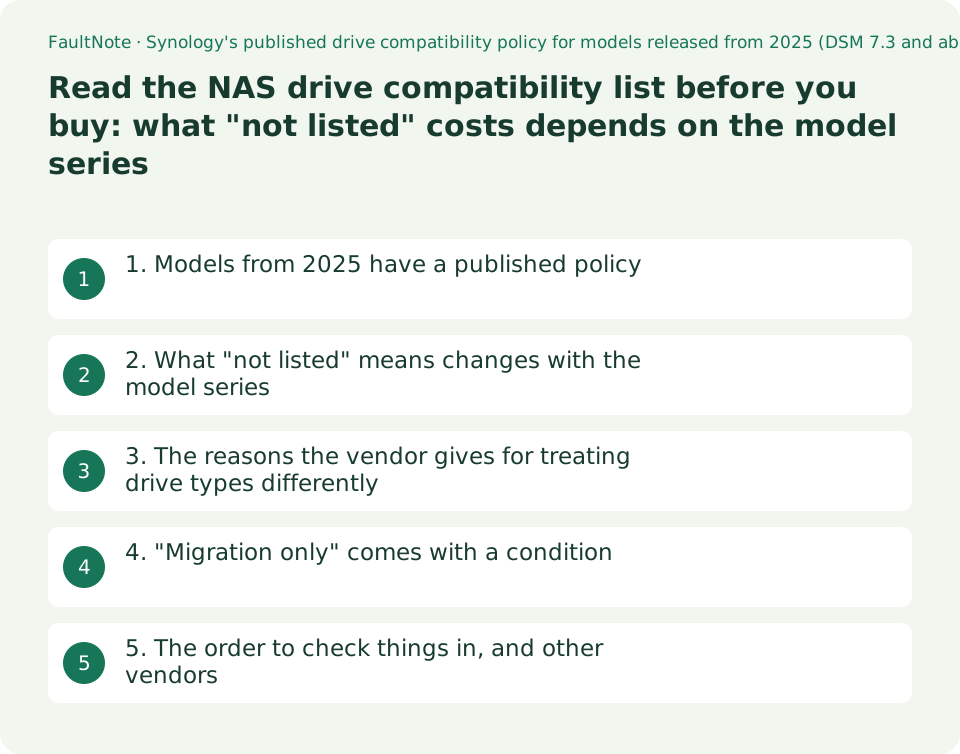
1. Models from 2025 have a published policy
The Synology Knowledge Center page on drive compatibility policies for storage systems from 2025 (DSM 7.3 and above) states: "Starting with 2025 models, Synology has introduced new compatibility policies for HDDs and SSDs to enhance system reliability, performance, and user experience."
Its scope is stated explicitly too: "The new drive compatibility policies apply only to new models starting in 2025 and do not apply retroactively to previously launched systems." So this is not a change to how an older unit behaves today. Establish which side of that line your candidate model sits on first.
The page gives three stated objectives: reliability — drives on the list undergo testing that "includes simulations of abnormal shutdowns, extreme temperatures, functional stress, and power cycling" — cost efficiency, and a consistent experience. This site is not in a position to verify that testing and presents it as the vendor's own description.
2. What "not listed" means changes with the model series
This is the part to read before buying. The page sorts drives into three states — On Compatibility List, Not Listed, and On Incompatibility List — and tabulates them per model series and drive type. Restricted to the HDD rows, as displayed on 2026-09-20, it comes out as below.
The Value and J series deserve particular attention: there, neither an unlisted HDD nor an unlisted 2.5" SATA SSD is supported for new installation and storage pool creation, cache creation or migration from an existing Synology system. On the DS Plus series and the desktop models of the FS series, by contrast, an unlisted HDD is shown as supported for new installation, storage pool creation and migration. Same vendor, same generation, opposite answer by series.
M.2 NVMe SSDs carry the tightest wording everywhere. An unlisted M.2 NVMe SSD is shown as supported only for migration from an existing Synology system, and not for new installation, pool creation or cache creation. A note adds that only certain Synology systems support using M.2 SSDs to create storage pools at all.
Scroll horizontally to see the full table →
| Series (DSM 7.3) | HDD on the compatibility list | HDD not listed | HDD on the incompatibility list |
|---|---|---|---|
| FS, HD, SA, UC, XS+, XS, DP and DVA/NVR series | New installation and storage pool creation; migration from existing Synology systems | Migration from existing Synology systems only; not new installation, pool creation or cache creation | Not supported for new installation, pool creation, cache creation or migration |
| RS Plus series | New installation and storage pool creation; migration | Migration only; not new installation or pool creation | Not supported for any of them |
| DS Plus series and desktop models of the FS series | New installation and storage pool creation; migration | New installation and storage pool creation; migration (for HDDs, the same as being listed) | Not supported for any of them |
| Value and J series | New installation and storage pool creation; migration | Not supported for new installation, pool creation, cache creation or migration | Shown merged into the same column as "not listed" |
3. The reasons the vendor gives for treating drive types differently
The page also explains why the rules differ by type. These are its statements, not inferences.
For HDDs against 2.5" SATA SSDs, two factors are given. One is availability: the compatibility list carries a broad selection of NAS-grade and enterprise-grade HDDs, whereas only enterprise-grade 2.5" SATA SSDs are on it, so buyers are left room to choose third-party units. The other is that "The mechanical nature of HDDs has a more significant effect on overall system performance and reliability."
For M.2 NVMe SSDs, the page states that in NAS environments they are primarily used for caching, handling "sustained random IOPS workloads with intensive and continuous read/write operations", that these workloads "place far greater stress on the drives than regular volume operations", and that most M.2 SSDs are designed for lighter, short-burst usage and degrade quickly under them — so only drives meeting strict performance, endurance and thermal requirements are supported for pools and caches.
This site has not verified those claims, but they are usable for a purchase decision: choosing a NAS cache drive from the cheap end of the consumer laptop M.2 market sits outside what the vendor designed for. How to read SSD endurance figures is covered separately on this site.
Scroll horizontally to see the full table →
| Drive type | Reason the vendor gives | What that means when buying |
|---|---|---|
| HDD | Its mechanical nature has a larger effect on overall system performance and reliability | On some series an unlisted drive cannot create a pool; search the list by exact model number |
| 2.5" SATA SSD | Only enterprise-grade units are on the list, so buyers need room to choose | Treated more leniently on some series; expect a warning message |
| M.2 NVMe SSD | Used for caching under sustained random IOPS; typical M.2 SSDs degrade quickly there | Unlisted units are good only for migration, and only certain systems can build pools on M.2 at all |
4. "Migration only" comes with a condition
The cells that read "migration only" carry a note: "Drives must be migrated directly from an existing Synology system. If the original storage pool or SSD cache is removed from the drive, the drive will no longer be usable in your current Synology system."
So "an HDD pulled out of my old NAS will work even if it is unlisted" holds only conditionally. Wiping the drive first and then installing it — the obvious thing to do — closes that route. Buying a used drive on its own does not qualify for it either.
The same note adds that "The drive is displayed as Unverified in Storage Manager." What to do once that appears is the subject of a separate article the page links under Further reading, titled "Storage Manager shows my drive as "Incompatible", "Unverified", or "Unrecognized". What can I do?". This site could not retrieve that article's body and therefore describes none of its content.
5. The order to check things in, and other vendors
The sequence is: identify the candidate NAS model and its series; look up that series against the drive type you want in the policy table; then search the vendor's compatibility list for the exact model number of the drive itself. Capacity, or a "NAS" label on the box, is not a substitute — the list works by model number.
It also changes how you budget. If the series you choose accepts only listed drives, then choosing the enclosure fixes your drive options at the same time. Picking the enclosure first and hunting for a cheap HDD afterwards is the risky order here. This guide handles no prices; compare those yourself.
What this guide read is one vendor's published policy. Other NAS vendors publish their own compatibility lists and structure their policies differently. The step that carries across is the same: open the vendor's compatibility list page and look up your model and your drive's model number. QNAP publishes an equivalent compatibility list page. This guide has not read other vendors' conditions and makes no comparison between them.
Scroll horizontally to see the full table →
| Step | Where to look | What it will not tell you |
|---|---|---|
| 1. Identify the model series | The vendor's product page (the model number identifies the series) | Per-model exceptions within a series |
| 2. Check series against drive type | The drive compatibility policy FAQ (the source of the table above) | Whether one specific drive qualifies — that is the next step |
| 3. Search the list by drive model number | The vendor's compatibility list page | Whether absence from the list blocks use — that depends on the series |
| 4. If you plan to migrate drives from an existing NAS | The note on the policy page about direct migration | Nothing once the original pool has been removed — the note states the drive is then unusable |
Limitations and requirements
- This guide reads one vendor's published policy. This site has tested neither a NAS nor a drive and reports no operational results.
- The vendor states that the policy applies only to models from 2025 and is not applied retroactively to earlier systems. Establish which your model is first.
- The per-series table reflects the page as displayed on 2026-09-20. Policies and DSM versions change; open the page again at the time you buy.
- Other vendors' conditions were not read here. No comparison or ranking between vendors is made.
- What to do once a drive shows as Unverified is covered in a separate vendor article whose body this site could not retrieve; none of its content is described here.
- Drive endurance and recording technology are outside this guide's scope; see this site's separate guides on SSD TBW and on CMR versus SMR.
Frequently asked questions
Can an HDD that is not on the list be used in a NAS at all?
It depends on the series. In the table read on 2026-09-20, the DS Plus series and the desktop models of the FS series show unlisted HDDs as supported for new installation, storage pool creation and migration from an existing Synology system. The Value and J series show unlisted HDDs as not supported for new installation, pool creation, cache creation or migration. Check the series of the model you are buying.
Can I move drives straight from an old NAS into a new one?
The note states the condition: drives must be migrated directly from an existing Synology system, and if the original storage pool or SSD cache is removed from the drive, the drive is no longer usable in the current system. Wiping the drive first and then installing it does not use this route.
I have a spare M.2 SSD — can I use it as a cache?
M.2 NVMe SSDs carry the tightest rules in the table: an unlisted one is shown as supported only for migration from an existing Synology system. The vendor's stated reason is that NAS caching applies sustained random IOPS workloads and that most M.2 SSDs, designed for lighter short-burst usage, degrade quickly under them. A separate note adds that only certain systems can create storage pools on M.2 SSDs at all.
Does this policy apply to the NAS I already own?
The page states that the new policies apply only to new models starting in 2025 and are not applied retroactively to previously launched systems.
Do other vendors have no such restrictions?
This guide did not read other vendors' policies and makes no comparison. The procedure carries across: open the vendor's compatibility list page and look up your model and your drive's model number. QNAP publishes such a list.
Sources and verification date
Sources checked: . These sources support the specifications, procedures or prices discussed here. Check each source for applicable conditions and current information.
- Synology: Drive compatibility policies FAQs for Synology storage systems starting from 2025 (DSM 7.3 and above). The introduction of the policy for 2025 models, the statement that it is not retroactive, the per-series tables by drive type (HDD, 2.5" SATA SSD, M.2 NVMe SSD) and list state (On Compatibility List, Not Listed, On Incompatibility List), the stated reasons for treating drive types differently, and the notes on direct migration and the Unverified state in Storage Manager. Read 2026-09-20 ↗
- Synology: "Storage Manager shows my drive as "Incompatible", "Unverified", or "Unrecognized". What can I do?", the article linked under Further reading on the page above. This site could not retrieve its body and quotes nothing from it; only the URL response was checked on 2026-09-20 ↗
- QNAP: Compatibility List page, cited as an example that other NAS vendors also publish a compatibility list as the pre-purchase reference point. Its conditions were not read and are not compared. Read 2026-09-20 ↗
Related practical guides
- SSD Endurance (TBW) and Warranty: Compare Write Limits of Popular NVMe SSDs by Capacity and Check Wear in Windows
- M.2, NVMe and SATA SSDs: check compatibility before upgrading
- PCIe 4.0 or 5.0 SSD for gaming? Check load times, capacity and slot sharing
- NAS vs cloud backup: costs, recovery time and maintenance
- CMR vs. SMR Hard Drives: Tell Them Apart by Model Number for NAS, RAID and Backup
- Choosing an M.2 SSD enclosure: USB 10Gbps vs 20Gbps vs USB4 (40Gbps) vs Thunderbolt, and checking your PC's port