VLC: Play Video, Audio, and Network Streams
Play a variety of formats and switch between speeds, subtitles, audio tracks and network streams. This guide covers installation, practical steps, limitations, and how to stop using the app.
Published · Updated · FaultNote editorial policy
Who this guide is for and what to prepare
- First-time users of VLC media player
- People who want to check the storage location and safety of data while reducing manual work
What you need
- Check the processing target and storage location, and preserve the original data in another location
- Check the official distribution source, supported OS, and required permissions
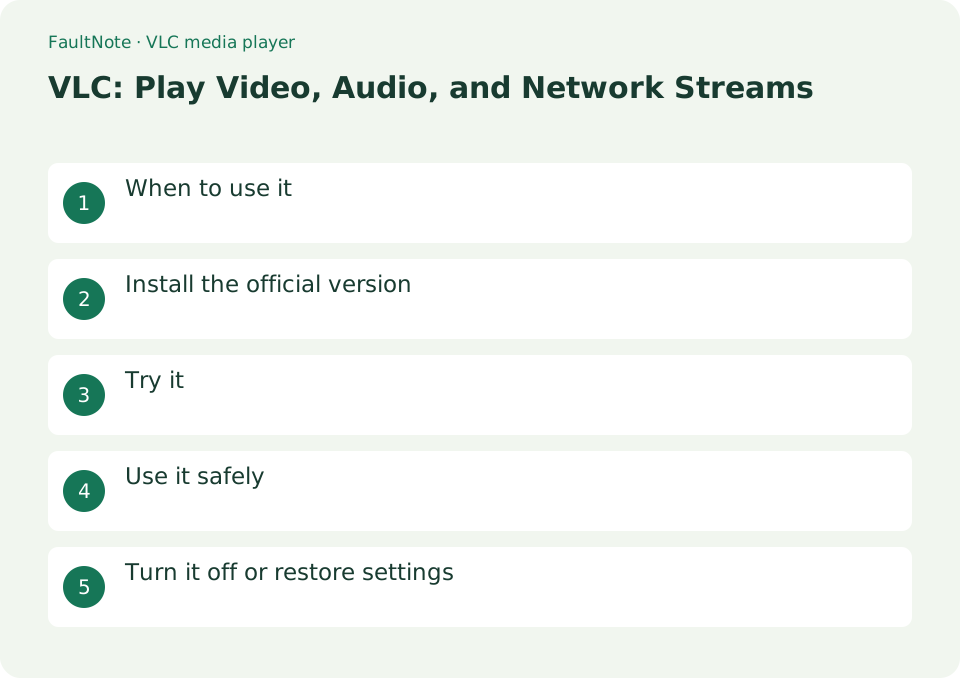
When to use it
Play a variety of formats and switch between speeds, subtitles, audio tracks and network streams.
Install the official version
- Obtain the OS version from videolan.org/vlc and select only the file associations you need.
Identify the media URL
Use the media URL supplied by the publisher. A webpage containing a player is not necessarily a playable stream URL. Do not assume authenticated or DRM-protected services work; consult their supported viewing method.
Isolate public-stream stalls
Separate local playback from stream availability. Record URL, segment and original settings and change one item at a time. Settings cannot revive expired or ended streams.
- Test a local file for picture, sound and duration before blaming the URL.
- Use Media, Open Network Stream with the media URL, not merely its webpage.
- Record the failure mode and redact credentials and temporary tokens before reporting.
- Check publisher status and supported viewing methods separately from network settings.
- Record the original value, restore unsuccessful changes and compare identical conditions.
Try it
Play by selecting [Media] → [Open File]. Specify SRT etc. in [Subtitles] → [Add subtitle file]. Check the format in [Tools] → [Codec Information]. Paste the URL in [Open network stream]. If something goes wrong, use [Settings] → [Reset Settings].
- Play with [Media] → [Open file]
- Specify SRT etc. in [Subtitles] → [Add subtitle file]
- Check the format in [Tools] → [Codec Information]
- Paste the URL to [Open network stream]
- If you have a problem, use [Settings] → [Reset settings]
Separate local and stream issues
Play a short local file first. If only streaming fails, check URL expiry, publisher availability and the connection. Change one setting at a time and replay the same segment to avoid confusing several causes.
Respect stream boundaries
Playback does not establish permission to retain a stream. Check the intended use and publisher terms. Before sharing a URL or error report, remove credentials and temporary tokens.
Scroll horizontally to see the full table →
| Observation | Decision and next action |
|---|---|
| Local playback fails too | Try another known-good file and inspect application/output issues separately. |
| Local playback works | Check URL, publisher, authentication and connection before reinstalling. |
| Only browser works | Check supported authentication/protection rather than guessing direct URLs. |
| Playback stalls | Check availability and connection and record repeatability with single changes. |
Use it safely
Codec support does not mean DRM removal. Check the source before opening unknown network URLs or subtitle files.
Turn it off or restore settings
If you just want to finish playing, press the stop button and close the VLC window. If you change the subtitle position, etc., only the relevant settings will be restored. Resetting settings also initializes other settings, so don't use it when you simply want to stop playback.
Limitations and requirements
- Codec support does not mean DRM removal. Check the source before opening unknown network URLs or subtitle files
- Check the current specifications in the official documentation and reconfirm on-screen what you want to delete or overwrite.
Frequently asked questions
Why will a network URL not play?
A regular web page URL and a stream URL that can be played directly are different. Check whether the distribution side provides playback on external players such as VLC, and check the authentication and DRM conditions.
Subtitles are garbled
Check whether the subtitle file supports the text encoding. Make a copy of the original SRT, save the copy as UTF-8, and check VLC's subtitle text-encoding setting.
Can I paste the page URL?
Use a supported media URL; authenticated player pages may require their official viewing method.
Does cache always fix it?
Cache cannot fix expiry, authentication, unsupported formats or ended streams; record each trial.
Sources and verification date
Sources checked: . These sources support the specifications, procedures or prices discussed here. Check each source for applicable conditions and current information.
Related practical guides
- Select the required audio track and convert video with HandBrake
- Record microphone and PC audio on separate tracks with OBS
- What it takes to play a DVD or Blu-ray on a PC: what Windows leaves out, and what to check before buying
- Record game audio only in OBS and test notification exclusion
- Check voice and reading order for calibre read-aloud
- HandBrake: Compress Video with a Device Preset