What it takes to play a DVD or Blu-ray on a PC: what Windows leaves out, and what to check before buying
You buy an external DVD or Blu-ray drive, connect it, insert a retail disc, and nothing plays. That is not a fault: Windows does not include a way to play retail video discs in the first place. This guide assembles the conditions you can check before buying from four primary sources. Microsoft limits free access to the Windows DVD Player app to upgrades from specific editions that include Media Center, and states plainly that it is not available after a clean installation. VideoLAN's VLC features page lists DVD Video among its supported input media and does not list Blu-ray. CyberLink's PowerDVD 24 requirements say that for Blu-ray titles with AACS and DVD titles with CPRM, output is allowed only over DVI, HDMI and DisplayPort. And on Buffalo's drive product pages, Ultra HD Blu-ray alone carries requirements of a different order. Put together, that fixes a concrete list of things to check before you buy.
Published · Updated · FaultNote editorial policy
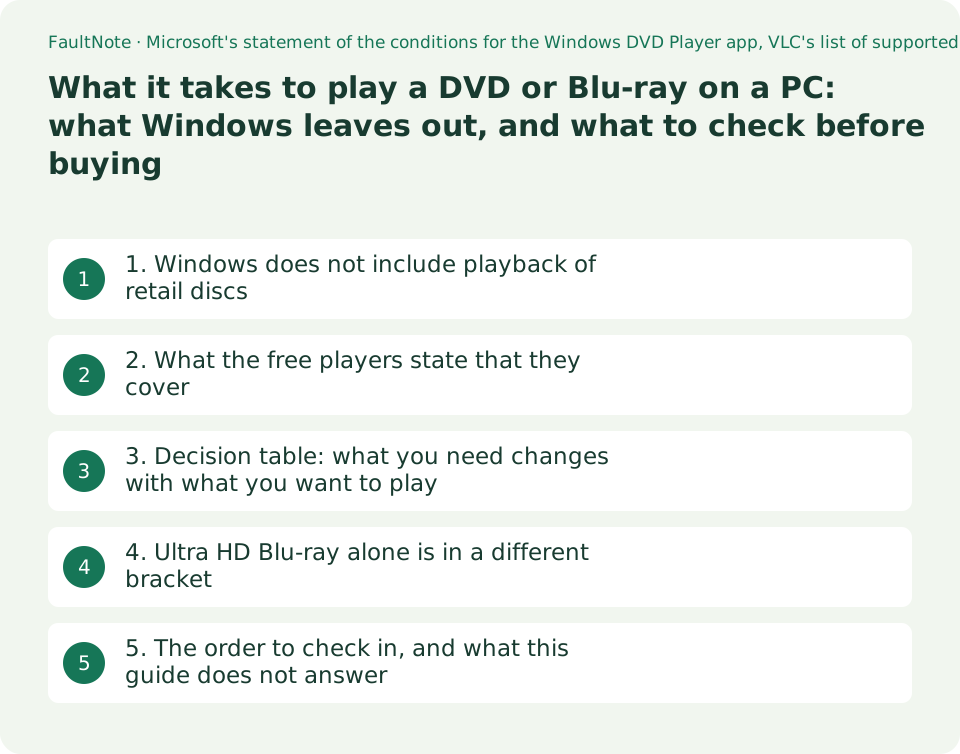
Who this guide is for and what to prepare
- Anyone about to buy an external DVD or Blu-ray drive who wants to know whether the drive alone will play retail discs
- Anyone whose retail DVD or Blu-ray will not play after connecting a drive, and who suspects a fault
- Anyone who wants to work out from the requirements, before buying, whether a PC can play Ultra HD Blu-ray (4K)
What you need
- Decide first which kind of disc you want to play: data you burned yourself, a retail DVD, a retail Blu-ray, Blu-ray 3D, or Ultra HD Blu-ray
- Be able to check what video outputs your PC has (HDMI, DisplayPort, DVI) and what resolution the attached display supports
- Be able to open the operating-environment section of the drive product page you are considering, and the part that names the bundled software and its version
1. Windows does not include playback of retail discs
The first thing to hold on to is that the drive being recognised and the disc's video playing are two different things. Reading and writing files works with Windows alone; retail video discs do not play.
Microsoft's support article "The Windows DVD Player app is available for free for eligible Windows 10 upgrades" (Applies To: Windows 10) lists the conditions for getting the Windows DVD Player app free. The route has to be an upgrade to Windows 10 from Windows 7 Home Premium, Windows 7 Professional, Windows 7 Ultimate, Windows 8 Pro with Media Center, or Windows 8.1 Pro with Media Center.
The notes on the same page carry three statements that bear directly on a purchase: "This free offer is available for a limited time.", "The app isn't available if you do a clean installation of Windows 10 instead of an upgrade.", and the advice that if you upgrade from an edition of Windows 7 or Windows 8 that does not include Media Center, you may buy the Windows DVD Player or another app that plays DVDs in the store.
So the free offer is tied to a particular historical route, and it is not something someone setting up a PC today can count on. That page's Applies To line reads Windows 10, and no Microsoft page stating an equivalent free offer for Windows 11 was reachable here. This site asserts neither free nor paid availability on Windows 11. What could be established is the single point that you should not buy on the assumption that this comes with Windows.
2. What the free players state that they cover
"Just install VLC, it is free" is a common answer. Here is what VideoLAN's own published features page says.
The Input Media list on the VLC Features page reads: "UDP/RTP Unicast, UDP/RTP Multicast, HTTP / FTP, MMS, TCP/RTP Unicast, DCCP/RTP Unicast, File, DVD Video, Video CD / VCD, SVCD, Audio CD (no DTS-CD), DVB (Satellite, Digital TV, Cable TV), MPEG encoder, Video acquisition." DVD Video is listed. Blu-ray is not in that list.
That does not mean VLC certainly cannot play a Blu-ray. What this site can state is the observed fact that Blu-ray does not appear in the list of supported input media VideoLAN itself publishes. The project list on the same page does carry libbluray and libaacs as separate projects, so Blu-ray-related components plainly exist. How to set them up, how the necessary keys are handled, and whether a retail disc will play are not addressed anywhere on that features page, and this site does not fill in the rest.
The practical conclusion is this. If retail DVDs are all you want, a free player whose supported inputs name DVD Video is an option. If retail Blu-ray is the aim, it is safer to plan around player software that clearly covers Blu-ray playback in its published material — in practice, software bundled with the drive or bought separately.
3. Decision table: what you need changes with what you want to play
Here is the material so far in a form you can use before buying. Each cell carries only conditions that the cited page actually states; where a page states nothing, the cell says so.
Scroll horizontally to see the full table →
| What you want to play | Drive | Player software | Display and output conditions | What to check |
|---|---|---|---|---|
| Data and video files you burned yourself | A drive that can read the medium | Built into the OS, or VLC and similar (VLC states File among its inputs) | Nothing specific stated | Whether the drive supports the disc type (DVD-R, BD-R and so on) |
| A retail DVD Video | DVD-ROM, DVD+-R/RW, DVD-RAM or DVD Super Multi combo (PowerDVD's wording) | Needed separately. VLC lists DVD Video among supported inputs | For CPRM discs, output limited to DVI, HDMI or DisplayPort (PowerDVD's wording) | Windows includes no playback function as standard |
| A retail Blu-ray | BD-ROM/BD-RE or Super Multi Blu combo (PowerDVD's wording) | Software that covers Blu-ray playback. VLC's supported input list does not name Blu-ray | AACS titles limited to DVI, HDMI or DisplayPort output; HDCP-capable graphics and monitor required (Buffalo's wording) | The version of any bundled software, and its support status |
| Blu-ray 3D | As above | Software that states 3D support (Buffalo's products state PowerDVD 14 and 12 are bundled) | A 3D-capable display, glasses and graphics board are separately required (Buffalo's wording) | A whole set of equipment is needed; the drive alone does not get you there |
| Ultra HD Blu-ray (4K) | A drive that states Ultra HD Blu-ray support | Software that supports it | An Intel 200-series motherboard supporting Intel SGX, HDCP2.2/HDMI2.0a output, and a 4K (3840x2160 or above) display (Buffalo's wording) | The platform-side conditions are the heaviest. See the next section |
4. Ultra HD Blu-ray alone is in a different bracket
The product page for Buffalo's portable Blu-ray drive BRUHD-PU3-BK (released April 2017) states the operating environment for Ultra HD Blu-ray playback separately. Memory goes from 2 GB or more in general to 4 GB or more for Ultra HD Blu-ray playback, with 6 GB or more recommended, and free space is given as 25 GB or more, with 50 GB or more recommended.
The heavy parts are the motherboard and display conditions. The same page names, for Ultra HD Blu-ray playback, an Intel 200-series motherboard supporting Intel SGX, and a motherboard supporting HDCP2.2 / HDMI2.0a output from Intel integrated graphics for HDMI output. On the display side it names 4K resolution (3840x2160 or above) with HDMI2.0a support requiring HDCP2.2, and HDR support, noting that without HDR the content is played with HDR-to-SDR conversion. These name a particular chipset generation and particular features; it is not a matter of "I have a 4K display, so it will work".
Here is what this site could not establish, stated plainly. Whether that condition can be met on a current PC could not be judged from the material read. The Intel product specification pages read on 2026-09-20 (Core Ultra 9 285K and Core Ultra 7 265F) carry no field corresponding to Intel Software Guard Extensions at all. The absence of a field does not mean unsupported, and it does not mean supported either. This guide therefore says neither that Ultra HD Blu-ray can be played on a current-generation platform nor that it cannot. What is needed is to ask the maker of the drive and the player software whether that specific CPU and motherboard are covered.
There is something to look at about bundled software as well. The same Buffalo page and the page for the company's BRXL-16U3V (released January 2016) both carry a notice about the bundled software saying that CyberLink's support ends from 18 April 2020, and that the functions can continue to be used after support ends. Software being bundled does not mean it is still supported.
The BRXL-16U3V page also states a more basic condition: for output of Blu-ray video, HDCP-capable graphics and a monitor are required. And, separately, that an internet line is required in order to use the copyright protection functions. That playback may require an internet connection is easy to overlook.
5. The order to check in, and what this guide does not answer
Fixing an order makes the decision quicker. First, narrow to one kind of disc. Whether you stop at DVD, at Blu-ray, or at Ultra HD Blu-ray changes what you need. Second, check on the drive's product page whether that kind is named as supported for playback — reading and writing support is a separate statement. Third, check whether player software is bundled or must be bought, and if bundled, its version and support status. Fourth, check the output and display conditions. Where AACS or CPRM is involved, the type of output connector is itself a condition.
This guide recommends no specific product. It makes no price or value comparison either. The two Buffalo products used here were chosen because their operating-environment statements are concrete and easy to read, not as a claim that they are better than equivalents from other makers.
This site carried out no playback testing on hardware. There is no report here of which software played which disc. Every condition given is one the maker states in its own published material.
Finally, one factual note about what to do if the conditions cannot be met. For Ultra HD Blu-ray the platform-side conditions are strict, as above, and this site has not been able to confirm whether a current PC satisfies them. That playback devices other than a PC exist is worth saying; specific products or approaches are not recommended here. Methods concerned with working around encryption or regional restrictions are outside the scope of this guide.
0Limitations and requirements
- A drive being recognised and a retail disc playing are two different things. Windows does not include a function for playing retail video discs as standard.
- Free access to Windows DVD Player is limited to upgrades from particular editions that include Media Center, and Microsoft states that it is not available after a clean installation. That page's Applies To line reads Windows 10.
- VideoLAN's VLC features page lists DVD Video among its supported input media and does not list Blu-ray. That is an observed statement, not a ruling on whether playback is possible.
- For Blu-ray with AACS and DVD with CPRM, CyberLink states that output is allowed only over DVI, HDMI and DisplayPort. Analogue output and some connection methods do not meet the condition.
- What Buffalo names for Ultra HD Blu-ray playback includes an Intel 200-series motherboard supporting Intel SGX — a condition naming a particular generation. Whether a current-generation CPU and motherboard can satisfy it could not be judged from the material read here.
- No playback testing on hardware was carried out for this guide. Methods for working around copy control or regional restrictions are not covered.
Frequently asked questions
If I buy an external DVD drive, can I watch retail DVDs?
The drive alone is not enough, because Windows does not include a function for playing retail video discs as standard. Microsoft limits free access to the Windows DVD Player app to upgrades from particular editions that include Media Center, and states that it is not available after a clean installation. Plan either on a drive that comes with player software, or on obtaining it separately. VideoLAN's VLC features page does list DVD Video among its supported input media.
Can VLC play Blu-ray?
The list of supported input media on VideoLAN's published VLC features page does not carry Blu-ray. DVD Video, Video CD / VCD, SVCD and Audio CD are listed. The project list on the same page does carry libbluray and libaacs as separate projects, but that features page says nothing about whether a retail Blu-ray will play. This site likewise does not fill in the rest by inference.
If I am connected over HDMI, does that satisfy the Blu-ray conditions?
The connector type alone does not settle it. CyberLink's PowerDVD 24 requirements say that for Blu-ray titles with AACS and DVD titles with CPRM, output is allowed only to display devices using DVI, HDMI and DisplayPort in order to be compliant with copy protection (HDCP). Buffalo's product page adds that HDCP-capable graphics and a monitor are required for the output of Blu-ray video. So the graphics side and the monitor side both have to support HDCP, on top of the connector.
Will Ultra HD Blu-ray play on a PC I have just built?
This guide cannot judge that. What Buffalo names as the operating environment for Ultra HD Blu-ray playback is concrete: an Intel 200-series motherboard supporting Intel SGX, HDCP2.2/HDMI2.0a output support, and a 4K display. Meanwhile, the product specification pages for the two current desktop Intel CPUs read on 2026-09-20 carry no field corresponding to Software Guard Extensions. The absence of a field means neither supported nor unsupported. Before buying, ask the maker of the drive and the player software about your specific CPU and motherboard.
If player software is bundled with the drive, am I safe?
Being bundled and still being supported are different things. The pages for the two Buffalo products used as examples carry a notice about the bundled CyberLink software stating that CyberLink's support ends from 18 April 2020 and that the functions can continue to be used after support ends. Before buying, check the name and version of the bundled software, and whether the product page carries a notice of this kind.
Sources and verification date
Sources checked: . These sources support the specifications, procedures or prices discussed here. Check each source for applicable conditions and current information.
- Microsoft: The Windows DVD Player app is available for free for eligible Windows 10 upgrades. Applies To: Windows 10. Lists upgrades from Windows 7 Home Premium, Windows 7 Professional, Windows 7 Ultimate, Windows 8 Pro with Media Center and Windows 8.1 Pro with Media Center as eligible. The notes carry "This free offer is available for a limited time." and "The app isn't available if you do a clean installation of Windows 10 instead of an upgrade.", together with the advice that after upgrading from an edition without Media Center you may buy the Windows DVD Player or another app that plays DVDs in the store. Read 2026-09-20 ↗
- VideoLAN: VLC Features. Input Media is given as "UDP/RTP Unicast, UDP/RTP Multicast, HTTP / FTP, MMS, TCP/RTP Unicast, DCCP/RTP Unicast, File, DVD Video, Video CD / VCD, SVCD, Audio CD (no DTS-CD), DVB (Satellite, Digital TV, Cable TV), MPEG encoder, Video acquisition." Blu-ray does not appear in that list. The project list on the same page carries libbluray and libaacs as separate projects. Read 2026-09-20 ↗
- CyberLink: PowerDVD 24 Minimum System Requirements. Disc Drive is given as "Blu-ray Disc playback: BD-ROM/BD-RE or Super Multi Blu combo disc drive." and "DVD playback: DVD-ROM, DVD+-R/RW, DVD-RAM or DVD Super Multi combo disc drive."; Display Device carries "For Blu-ray titles with AACS and DVD titles with CPRM playback, PowerDVD only allows output to display devices using DVI, HDMI and DisplayPort connector in order to be compliant with copy protection (HDCP)." Read 2026-09-20 ↗
- Buffalo: BRUHD-PU3-BK portable Blu-ray drive (released April 2017) product page, in Japanese. The operating environment states 2 GB or more memory in general and 4 GB or more (6 GB or more recommended) for Ultra HD Blu-ray playback; for the motherboard, an Intel 200-series motherboard supporting Intel SGX and a motherboard supporting HDCP2.2 / HDMI2.0a output from Intel integrated graphics for HDMI output; for the external display, 4K resolution (3840x2160 or above) with HDMI2.0a support requiring HDCP2.2; and 25 GB or more free space (50 GB or more recommended). It also carries a notice that CyberLink's support for the bundled software ends from 18 April 2020 while the functions remain usable, and that 3D viewing separately requires a compatible display, glasses and graphics board. Read 2026-09-20 ↗
- Buffalo: BRXL-16U3V external Blu-ray drive (released January 2016) product page, in Japanese. States that HDCP-capable graphics and a monitor are required for the output of Blu-ray video, and separately that an internet line is required in order to use the copyright protection functions. Names CyberLink PowerDVD 12 as the bundled software and carries the same notice about the end of CyberLink support. Read 2026-09-20 ↗
- Intel: Intel Core Ultra 9 processor 285K product specifications. As read on 2026-09-20 this page carries no field corresponding to Intel Software Guard Extensions, which is why this guide cannot judge whether a current platform meets the Intel SGX condition named in the Ultra HD Blu-ray operating environment. Read 2026-09-20 ↗
Related practical guides
- VLC: Play Video, Audio, and Network Streams
- Intel B860 vs. Z890 vs. H810: Choose an LGA1851 Motherboard by CPU Support, M.2, USB and Overclocking
- Buy HDMI and DisplayPort cables by certification name, not by version number: Ultra96, Ultra High Speed, DP40/DP54/DP80
- Do you need a Copilot+ PC? The 40 TOPS / 16 GB / 256 GB requirement set, and whether your software runs on an Arm model
- How to read a CPU model name: Core Ultra and Core suffixes, and why the same model performs differently
- CPU value in Japan, September 2026: five gaming candidates ranked