Select the required audio track and convert video with HandBrake
For the free and open source HandBrake desktop version. Each source has a different audio track, so check the language and content on the Audio tab instead of relying on presets.
Published · Updated · FaultNote editorial policy
Who this guide is for and what to prepare
- People who want to keep only Japanese audio from multilingual videos
What you need
- Prepare a video with conversion privileges and sufficient free space.
Create a single-language delivery version
To retain only English from a bilingual source, keep the original and use a new output name. Review every row in the Audio tab and remove unwanted tracks. Changing one default row does not remove other rows. Recheck audio after selecting another title.
Record language, track name, codec and channel count. Encode a short dialogue segment before a full run, listening for the intended language and correct channels. This reduces selection mistakes but does not verify the entire source.
After encoding, inspect the audio menu and remaining track count. Subtitles are separate: verify required subtitles and unintended burn-in. HandBrake does not create a translated audio track absent from the input.
Review audio rows for every queued source. A preferred-language rule does not guarantee the language exists; check the actual selection and unique output names.
Confirm the selected video title and duration before finalizing audio. If output content is wrong, investigate title selection rather than repeatedly changing audio settings.
- Choose a separate output name
- Inspect all audio rows
- Encode a short dialogue segment
- Verify output track count and subtitles
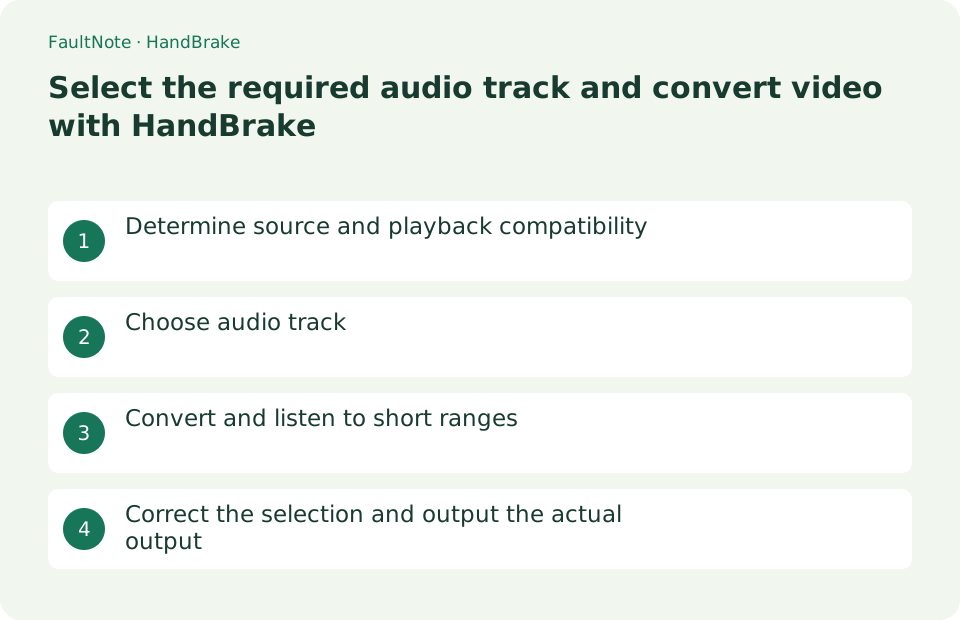
Determine source and playback compatibility
Select the video under Open Source > File and check the title and length. If you want wide compatibility, use Presets like Fast 1080p30 as a starting point. Depending on the preset, the audio will be stereo, so decide on the final use first.
- Open video
- Check title and length
- Choose a preset that suits your needs
Choose audio track
Open the [Audio] tab, delete unnecessary automatically added lines, and select the desired audio such as Japanese from [Track]. If necessary, specify settings such as AAC, Stereo, 160kbps, etc. that match the playback destination. If the language display is Unknown, you can hear the content with a short preview.
- Open audio tab
- Select the desired source track
- Check codecs and mixes
Convert and listen to short ranges
Set [Range] to seconds or chapters, specify about one minute, set the destination to test-audio.mp4, and choose [Start Encode]. Play the converted video in a regular player and check the language, channel assignment, volume, and audio/video sync.
- Specify a short range
- encode with a different name
- Check audio content and synchronization
Correct the selection and output the actual output
If the voice is incorrect, reload the original video and change to another track under [Audio]. If you want to leave multiple voices, add a line, but check if it is possible to switch on the player side. The preset voice selection behavior can be set to language priority in [Selection behavior].
- Change to another track if necessary
- Add rows when holding multiple lines
- Output in full range
Distinguish the main audio from commentary
The same language may have main audio, commentary or audio description tracks. Inspect track names and channel counts, then encode a short dialogue segment to identify the intended audio. Language alone is not enough.
To retain two alternatives, add both source tracks in the Audio tab. Open the result in a player and verify that each can be selected through its audio menu; normal playback plays one alternative at a time.
- Inspect track names and channels
- Test a segment containing dialogue
- Check track switching in the output
Recheck every new source
Presets store selection rules rather than a fixed track shared by every source. Track order and languages can change on the next video. Review its Audio tab before adding it to the queue.
An incompatible passthru selection can use the fallback encoder. If avoiding audio re-encoding matters, compare the source codec, passthru choice and output audio information. Also listen to a short output when prioritizing size or compatibility.
- Review audio selection for each source
- Compare passthru with the source codec
- Inspect and listen to the output audio
Choose the next action from the result
Scroll horizontally to see the full table →
| State | Interpretation | Next check |
|---|---|---|
| Language matches but content differs | Commentary may be selected | Inspect names and listen to dialogue |
| Unwanted language remains | Another audio row is present | Review all Audio-tab rows |
| Passthru output is re-encoded | Source codec does not match | Inspect fallback settings and output |
Limitations and requirements
- We do not circumvent copyright protection and only handle materials that we have permission to transform.
Frequently asked questions
Even though I chose Japanese, there is an audio explanation.
Language tags alone cannot distinguish between the main story and the commentary. Give each track a short try and listen to it.
The original 5.1ch is now 2ch.
The selected preset or mixdown is Stereo. Check compatible containers and playback devices and choose Surround compatible settings or appropriate passthrough.
Does choosing audio also choose matching subtitles?
Audio and subtitle selection are separate. Review both and verify their menus in the output.
Can I always select track 2?
Track order varies by source. Identify the required track using language, name and a short listening check.
Sources and verification date
Sources checked: . These sources support the specifications, procedures or prices discussed here. Check each source for applicable conditions and current information.
Related practical guides
- Create a constant-frame-rate editing copy with HandBrake
- Export subtitles with HandBrake: burn-in or selectable tracks
- Convert multiple videos with the HandBrake Queue and verify each job
- HandBrake: Compress Video with a Device Preset
- VLC: Play Video, Audio, and Network Streams
- Record microphone and PC audio on separate tracks with OBS