Joplin: Organize Notes and Web Clippings
Organize notes in Joplin desktop and capture articles with Web Clipper. Enable the desktop service as well as the browser extension, then export a JEX archive and test importing it in a separate profile without sync configured.
Published · Updated · FaultNote editorial policy
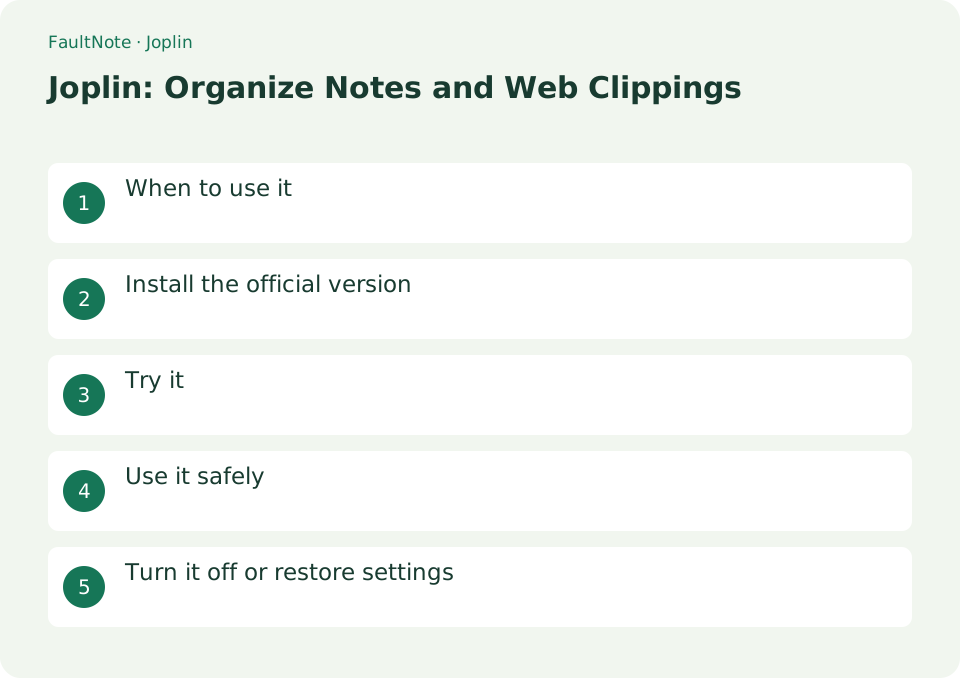
Who this guide is for and what to prepare
- People organizing web research alongside their own notes
- People who want to verify an exported copy of their notes
What you need
- Prepare Joplin desktop and a supported browser. Start with a public page.
- Choose a test notebook and an export destination separate from your sync folder.
1. Create a destination and a sample note
Cloud synchronization is not required for the initial organization and capture. Prepare a destination and distinguish your own summary from the source material.
- Create a test notebook and a new note inside it.
- Enter a heading and a short list; try a checklist item using Markdown such as '- [ ] Review'.
- Switch to another note and back to verify the content.
Add your interpretation to clipped research
Inspect clipped text, figures and URL. Separate source content from your interpretation and verify export recovery independently.
- Create a test notebook and record research purpose without unnecessary secrets.
- Enable the desktop clipper service and connect the official extension, inspecting status and port if needed.
- Choose a capture mode and inspect the saved text, figures and URL.
- Add separate summary and open-question headings, checking omitted figures against the source.
- Export JEX and verify text and attachments in a separate non-sync profile.
2. Enable the desktop Web Clipper service
The browser extension communicates with a service in the desktop app. Installing the extension alone does not complete setup.
- On Windows or Linux, open Tools → Options; on macOS, open Joplin → Preferences.
- Open Web Clipper, enable its service, and follow the on-screen link to install the supported official extension.
- Keep Joplin running and open the extension. If authorization is requested, confirm it is for the extension you installed.
3. Capture an article and inspect the note
A capture may not reproduce the original layout perfectly. Decide whether you need the article text, images, links, or a combination.
- Open the extension on a public page, select the appropriate capture mode, and choose your test notebook.
- Open the resulting note in Joplin and check its title, text, images, and source URL.
- Add your own summary or tags so the note remains identifiable without reopening the page.
4. Export JEX and test it in another profile
JEX is an export format for reimporting notes, notebooks, attachments, and metadata. It is not a complete backup of application settings, plugins, or the computer.
- Export the selected notebook as JEX and check that the file exists in the chosen destination.
- Use File → Switch profile → Create new profile to create a restore-test profile. Leave sync unconfigured there.
- Import the JEX file and open notes and attachments. Return to your original profile through Switch profile when finished.
Choose the next action from the result
Scroll horizontally to see the full table →
| Result or symptom | Decision and next action |
|---|---|
| Clipping succeeds | Verify figures and URL before assuming completeness. |
| Extension cannot connect | Check desktop service, port and proxy without disabling overall protection. |
| Figure absent | Compare source and capture mode, retaining essential source context. |
| Import creates duplicates | Check repeated imports and isolate recovery tests. |
5. Diagnose clipping or stop the service
For connection errors, inspect the running service, its configured port, and proxy restrictions. Setup does not require disabling the computer's firewall or opening a router port.
- Check the service status and actual port shown in Joplin's Web Clipper settings against the extension error.
- To stop clipping, disable the service and, if no longer needed, the browser extension. Your saved notes remain available.
Limitations and requirements
- Profiles share some preferences, including language and theme. A restore test does not need changes to those preferences.
- Check access permissions and captured content before saving or sharing a page that requires sign-in.
Frequently asked questions
Can the extension save without the desktop app?
Web Clipper connects to the running desktop service. Check that service as well as the extension.
Should I test a JEX import in my usual profile?
A separate test profile keeps imported material out of your everyday notes. Leave sync unconfigured and inspect the text and attachments there.
Can I publish clipped material?
Capture availability does not grant redistribution permission; check terms and use your own summary and attribution.
Does JEX fully restore settings?
JEX is not a complete PC/settings/plugin backup; preserve separate recovery requirements.
Sources and verification date
Sources checked: . These sources support the specifications, procedures or prices discussed here. Check each source for applicable conditions and current information.
Related practical guides
- Obsidian vs Joplin: Data Storage, Sync, and Encryption
- Obsidian: Connect Local Markdown Notes
- Bitwarden: Create Your First Password Vault
- KeePassXC: Create an Offline Password Database
- Bitwarden Free vs Premium: sync, authentication codes and emergency access
- How to read a CPU model name: Core Ultra and Core suffixes, and why the same model performs differently