Diagnose tiny text and offset clicks in a high-DPI game
Separate small text from mismatched hit areas. Compare center and edge controls and record Windows scale and display mode.
Published · Updated · FaultNote editorial policy
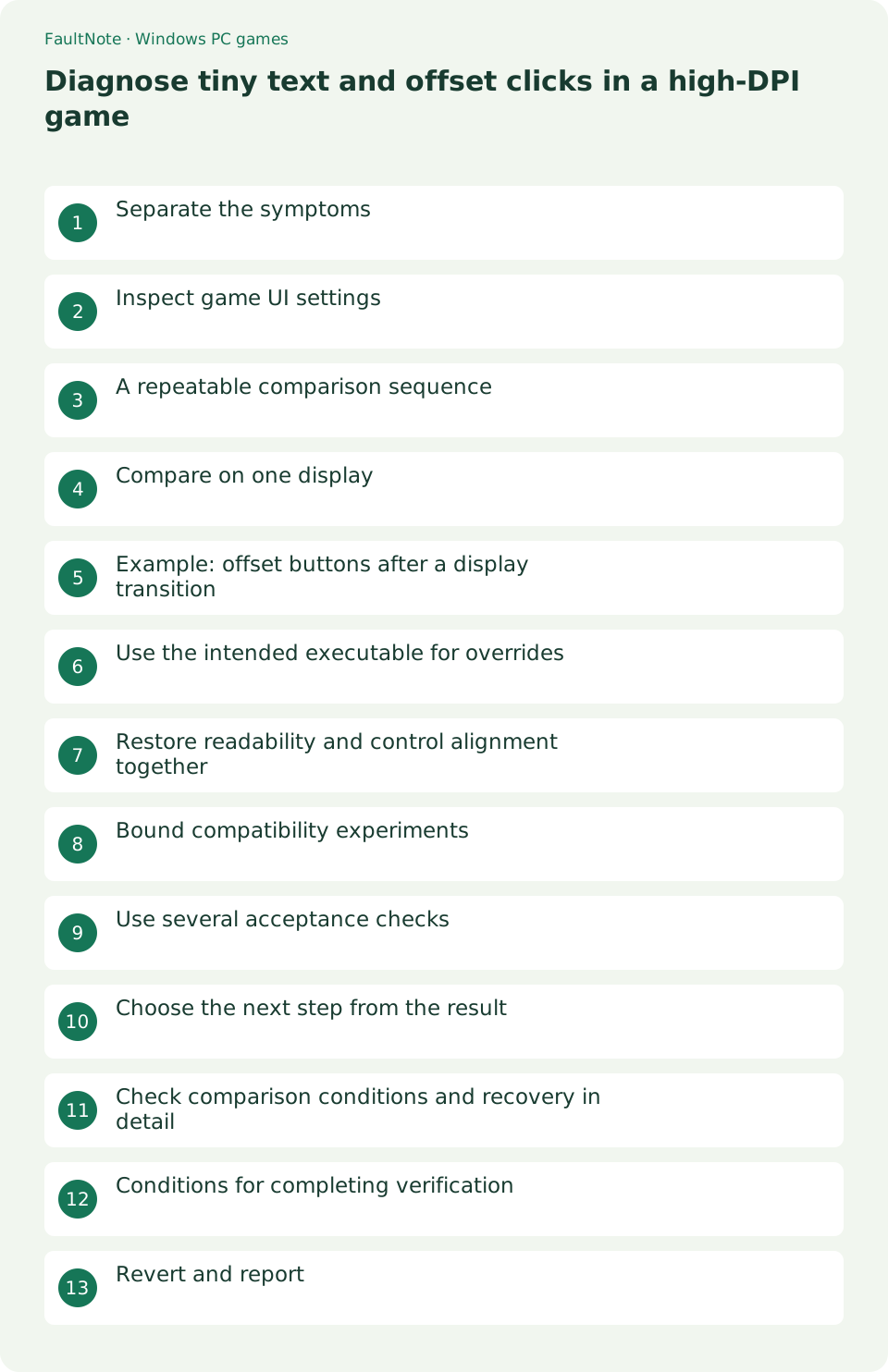
Who this guide is for and what to prepare
- Players setting up a Windows game
- Players isolating a specific symptom
What you need
- Read publisher requirements and the game Readme
- Close the game and record original settings
Separate the symptoms
Separate small text from mismatched hit areas. Compare center and edge controls and record Windows scale and display mode.
Inspect game UI settings
Try game text or UI scale first. Before changing desktop scale, close the game and record the original value. Relaunch to compare.
A repeatable comparison sequence
Record scale, resolution, mode and display transitions together. Change one factor at a time. Compare central and edge clicks and report differences between mouse and controller navigation.
- Record resolution, scale and game mode.
- Compare one offered text or UI setting.
- Test entirely on one monitor.
- Try publisher-recommended DPI options individually.
- Check several controls and revert unsuccessful changes.
Compare on one display
If display transitions trigger the issue, launch and test on one monitor without moving the window. Record whether different scale factors are required to reproduce it.
Example: offset buttons after a display transition
If controls align on the first display but become offset after moving to another scale, record both scales and game mode. Relaunch entirely on the problematic display and compare the same controls to distinguish startup from transition behavior. This is an illustrative condition, not a universal game defect. Report the transition as well as scale values.
Use the intended executable for overrides
When trying a documented override, use properties for the intended executable. Record which file was changed: modifying a shortcut or unrelated launcher may not affect the actual game process. Compare one executable and one setting, rather than editing several candidates together. Without publisher guidance, inspect game UI and display options first.
Restore readability and control alignment together
Clickable controls with unreadable text are not a usable everyday solution. Compare game text options while retaining comfortable desktop scale. Restore only changed compatibility settings and relaunch to verify alignment. Report center-versus-edge and menu-versus-gameplay differences to distinguish a general coordinate issue from one affected UI component.
Bound compatibility experiments
If publisher guidance recommends it, inspect executable high-DPI compatibility settings. Record original checkboxes, test one option and revert if input alignment worsens.
- Open Windows Settings → System → Display, select the intended display and record its Scale value.
- Right-click the intended EXE → Properties → Compatibility → Change high DPI settings.
- Change only the publisher-recommended option, apply it and relaunch.
- Compare central and edge controls; restore the original checkboxes if behavior worsens.
Use several acceptance checks
Check confirm buttons, sliders, edge controls and in-game selections. Require readable text and aligned hit areas; one working central button is insufficient.
Choose the next step from the result
Check whether text scale differs from whole-UI scale. Verify readable text and usable hit areas separately. Use documented keyboard access for unusable sliders and test menus and gameplay.
Scroll horizontally to see the full table →
| Observed result | Next check |
|---|---|
| Small text only | Inspect UI enlargement |
| Offset hit areas | Record mode and DPI comparisons |
| Offset after moving displays | Report display-scale transition conditions |
Check comparison conditions and recovery in detail
Photograph original compatibility options. Try one DPI option and relaunch; revert before another candidate. Check publisher updates and save compatibility before accumulating unrelated overrides.
Report starting display, destination, scales and affected controls. Describe edge-versus-center and menu-versus-gameplay differences. Do not keep an unreadable desktop scale merely because clicking temporarily works.
Conditions for completing verification
Evaluate readability, click alignment, saved settings and display transitions separately, including gameplay UI. A stable single-display workflow does not establish successful transitions. Do not retain unreadable desktop scale. Verify the intended executable if restoring overrides changes nothing, and report center-versus-edge clicking with recorded settings.
Revert and report
Restore unsuccessful scale and compatibility changes. Report resolution, scale, display count and affected controls. An override cannot add a missing game UI feature.
Limitations and requirements
- Preserve original files and settings; compare one change at a time.
- A general workaround cannot add an unsupported game feature.
Frequently asked questions
Does this apply to every game?
No. Input, display options and dependencies vary. If an option is absent, return to the game Readme and publisher guidance.
What should I record?
Record game and Windows versions, the complete error, settings before and after changes, and menu and gameplay results. Do not publish purchase identifiers or personal data.
Should Windows stay at 100 percent?
Do not impose a permanent change that hurts everyday readability. Record the original value and try game options first.
Is enlargement enough?
No. Edge controls and sliders must remain aligned with their clickable areas.
Sources and verification date
Sources checked: . These sources support the specifications, procedures or prices discussed here. Check each source for applicable conditions and current information.
Related practical guides
- First launch of a ZIP-distributed indie game
- Diagnose MSVCP and VCRUNTIME errors by game architecture
- Check legacy DirectX libraries for d3dx9 and XInput1_3 errors
- Check XInput and DirectInput when an indie game ignores a controller
- Isolate double navigation and duplicate players from one controller
- Choose windowed or fullscreen presentation for an indie game