Choose windowed or fullscreen presentation for an indie game
Decide whether the goal is readable text or easier app switching. Record original resolution and display mode, then establish the same checks for each comparison.
Published · Updated · FaultNote editorial policy
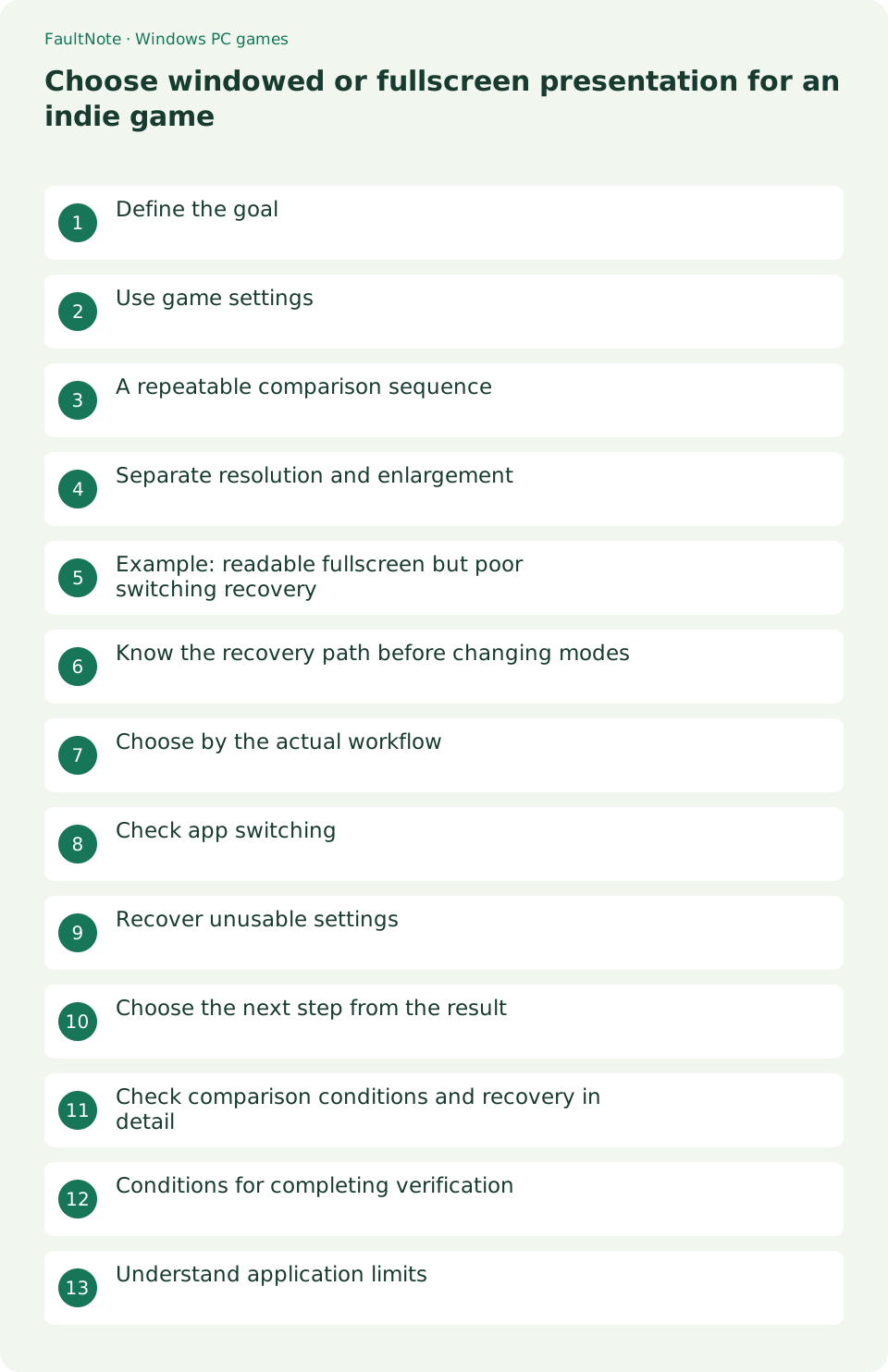
Who this guide is for and what to prepare
- Players setting up a Windows game
- Players isolating a specific symptom
What you need
- Read publisher requirements and the game Readme
- Close the game and record original settings
Define the goal
Decide whether the goal is readable text or easier app switching. Record original resolution and display mode, then establish the same checks for each comparison.
Use game settings
Save first and try the available windowed, fullscreen or borderless options individually. Confirm a display change only while its confirmation dialog is visible.
A repeatable comparison sequence
Use the same scene to compare text and controls. Verify settings access and exit after switching. Read recovery instructions before confirming any invisible or unusable display.
- Record original resolution and mode.
- Save and try windowed mode.
- Compare other offered modes on the same scene.
- Switch away and check recovery.
- Relaunch to check saved presentation settings.
Separate resolution and enlargement
Enlarging low-resolution artwork can blur text. Compare integer scaling when offered. Inspect game window-size controls before changing the entire desktop resolution.
Example: readable fullscreen but poor switching recovery
If fullscreen is readable but recovery after switching fails, evaluate readability and recovery separately. Open the same saved scene in windowed and fullscreen modes and perform the same transition. A reliably recovering windowed mode is a workflow candidate. Without measurement, record recovery behavior rather than claiming improved performance.
Know the recovery path before changing modes
Before a mode change, check whether the publisher documents configuration reset. Read any timed confirmation and avoid pressing confirm blindly on an invisible display. After recovery, record the original values again. If relaunch remains unusable, reset only the documented configuration rather than deleting all save data.
Choose by the actual workflow
Compare readable text, accurate clicking, recovery and persistence after restart, not simply image size. Test on the intended display and treat moving between displays as a separate experiment. If borderless is absent, evaluate the supplied modes against the workflow rather than assuming the option must exist.
Check app switching
Switch away and back, checking display and input recovery in both menus and a short gameplay scene. Choose a reliably behaving mode for workflows requiring frequent switching.
Recover unusable settings
Let a display confirmation timer revert an unusable change. Otherwise follow the publisher reset procedure. Copy configuration files before editing and check whether they also contain save progress.
Choose the next step from the result
Distinguish window enlargement from render resolution. Compare offered text size, UI scale and integer scaling on the same scene rather than assuming a missing feature can be added universally.
Scroll horizontally to see the full table →
| Observed result | Next check |
|---|---|
| Blurred text | Compare game scaling and resolution |
| Input fails after switching | Try another supported display mode |
| Invisible display change | Use timed reversion or publisher reset |
Check comparison conditions and recovery in detail
Verify keyboard, mouse and click position after returning from another app. Compare one supported mode at a time. Record observed recovery instead of an unmeasured speed claim.
For reset, use only documented configuration files and preserve copies. Settings may share a file with saves. Keep reinstalling the game separate from resetting configuration so the outcome stays interpretable.
Conditions for completing verification
Check startup, gameplay, app switching, exit and relaunch with the chosen mode. Evaluate pause recovery and offered mouse capture controls where applicable. Test on the intended display and treat movement to another display separately. Report resolution, mode and failing transition, retaining reset instructions and original configuration copies.
Understand application limits
Alt+Enter is not universally supported, and fullscreen does not guarantee better performance. Check publisher guidance when a usable presentation mode is absent.
Limitations and requirements
- Preserve original files and settings; compare one change at a time.
- A general workaround cannot add an unsupported game feature.
Frequently asked questions
Does this apply to every game?
No. Input, display options and dependencies vary. If an option is absent, return to the game Readme and publisher guidance.
What should I record?
Record game and Windows versions, the complete error, settings before and after changes, and menu and gameplay results. Do not publish purchase identifiers or personal data.
Is failed Alt+Enter a fault?
Some games do not implement that shortcut. Consult the settings menu and control documentation.
Is borderless always faster?
No universal improvement is established; compare readability, recovery and stability for your game.
Sources and verification date
Sources checked: . These sources support the specifications, procedures or prices discussed here. Check each source for applicable conditions and current information.
Related practical guides
- First launch of a ZIP-distributed indie game
- Diagnose MSVCP and VCRUNTIME errors by game architecture
- Check legacy DirectX libraries for d3dx9 and XInput1_3 errors
- Check XInput and DirectInput when an indie game ignores a controller
- Isolate double navigation and duplicate players from one controller
- Diagnose tiny text and offset clicks in a high-DPI game