Launch apps from the keyboard with Flow Launcher
Instantly open a search window on Windows and launch from a few letters of the app name. Check the search source and plugin permissions to use safely.
Published · Updated · FaultNote editorial policy
Who this guide is for and what to prepare
- People who want to start apps without opening the start menu
- Windows users who want to reduce mouse operations
What you need
- Make sure you're using Windows 10 or later
- Check if there are any existing apps that use Alt+Space
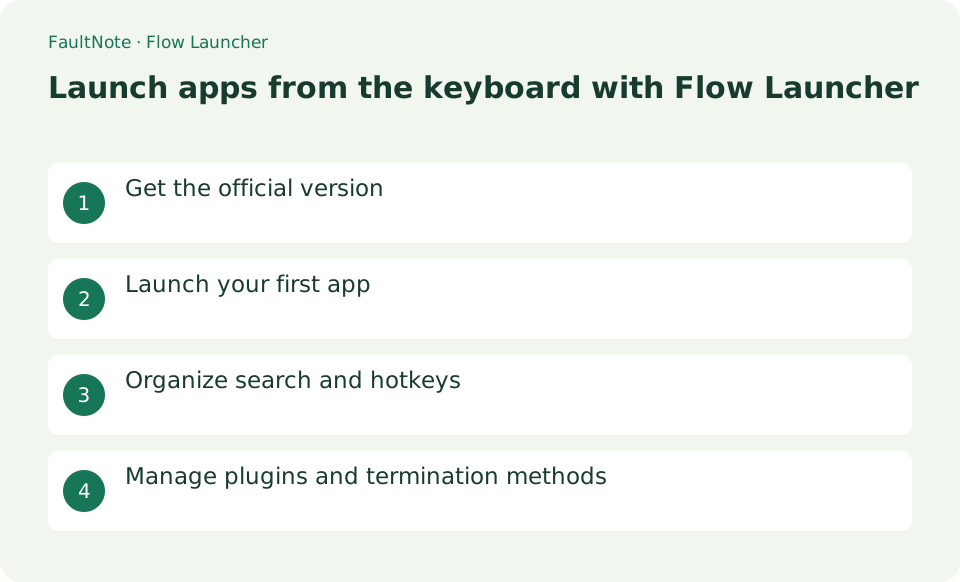
Get the official version
Flow Launcher is a free and open source (MIT) launcher for Windows 10 and later. Select Installer EXE or Portable ZIP from the official website, or install "Flow Launcher" with winget. Avoid distribution sites with similar names and use flowlauncher.com or the official Flow-Launcher GitHub. Please note that in the portable version, the settings and shortcut references will change if you move the deployment location.
Open the intended app by keyboard
Inspect candidate paths, especially duplicate shortcuts and portable versions. Start with built-in Program and verify hotkey activation separately from correct launch.
- Invoke with Alt+Space and resolve competing launchers one binding at a time.
- Search notepad, inspect candidate and path, select and verify launch.
- Try your work app and inspect Program search locations for missing portable apps.
- Test changed bindings for conflicts and accidental invocation during normal typing.
- Exit, disable autostart if needed and isolate plugins individually.
Launch your first app
After installation, start Flow Launcher and press the default shortcut, [Alt] + [Space]. Type "notepad" in the search box, check the suggested app's name and path, and press [Enter] to launch it. Use the Up and Down arrow keys to choose another result. If no result appears, open [Settings] > [Plugins], confirm that [Program] is enabled, and check whether its search paths include the application.
- Open the search window with [Alt] + [Space]
- Enter a few letters of the app name
- Select a candidate using the up and down keys and press [Enter]
Organize search and hotkeys
Change the launcher shortcut under [Settings] > [Hotkey]. If Alt+Space conflicts with PowerToys Run or another tool, assign a different combination to one of them. In addition to apps, Flow Launcher can search files and settings, perform calculations, and search the web using Windows Search or Everything. Begin with the built-in features and use the Plugin Store only when you need an additional capability.
Choose the next action from the result
Scroll horizontally to see the full table →
| Result or symptom | Decision and next action |
|---|---|
| Launcher opens | Verify candidate and launched application separately. |
| Another launcher appears | Inspect competing bindings and change only one. |
| Application absent | Check Program and paths before reinstalling the app. |
| Wrong version launches | Compare paths and shortcuts and remove obsolete references if appropriate. |
Manage plugins and termination methods
Community plugins may access external services or local files, depending on their purpose. Check each plugin's author, description, and required settings before installing it. To restore the previous shortcut behavior, remove or change Flow Launcher's hotkey in [Settings], then exit Flow Launcher from the notification area. You can also disable automatic startup in [Settings]. Before deleting the portable version, decide whether to retain its saved settings.
Limitations and requirements
- Understand the contents of shell commands and candidates for administrator execution before executing them.
- Check the author, permissions, and update status of community-made plugins
Frequently asked questions
It does not appear even if I press Alt+Space
Check for apps that use the same key, such as PowerToys Run. Specify a different key in Flow Settings → Hotkey, or change the assignment on the competing side.
The desired app does not appear in search suggestions
Check whether the Plugins Program is enabled and reconsider the search target location. If the shortcut or executable file is in an unusual location, add it to the target path.
Can I move a portable installation?
Preserve settings and verify shortcuts, launch and search paths after moving.
Can plugins search everything?
Inspect each plugin's capabilities, permissions, external access and configuration before adding it.
Sources and verification date
Sources checked: . These sources support the specifications, procedures or prices discussed here. Check each source for applicable conditions and current information.
Related practical guides
- USB-C Monitor Not Working or Stuck at a Low Refresh Rate: Check DP Alt Mode and Lane Allocation
- PowerToys for Windows: Essential Productivity Tools
- Thunderbird: Manage Multiple Email Accounts in One App
- Firefox: Use Containers and Reader View
- Rufus: Create a Bootable USB from an Official ISO
- When Smart App Control blocks an app: there is no per-app exception to find