Add arrows and annotations to screenshots with Flameshot
Perform range selection and annotation on the same screen and save as PNG. Avoid OS shortcut conflicts with upload operations.
Published · Updated · FaultNote editorial policy
Who this guide is for and what to prepare
- People who want to quickly annotate images for procedure manuals
- People who want to use the same operational experience on Windows, macOS, and Linux
What you need
- Prepare a screen that does not display notifications or personal information
- Decide the save destination folder
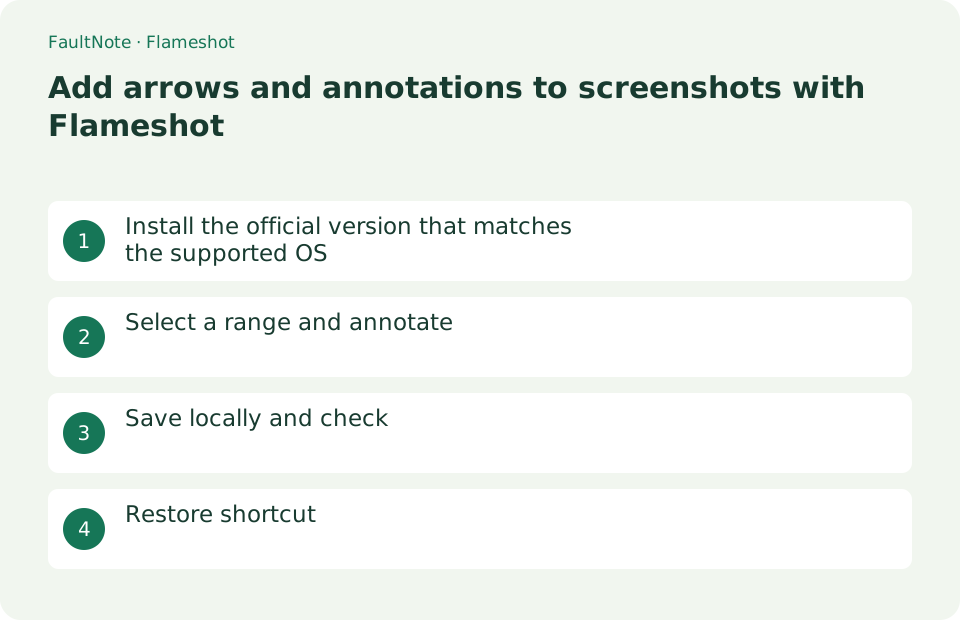
Install the official version that matches the supported OS
Flameshot is a free and open source cross-platform screen capture tool. The official website provides information on Windows 64-bit Installer/Portable, macOS 64-bit dmg or Homebrew, and Linux 64-bit AppImage and packages. Select the one that matches your OS from the official downloads.
Save one annotated image locally
Capture the relevant region and use clear annotations. Save explicitly rather than assuming Enter is local-only. Inspect the flattened output before sharing.
- Use Take Screenshot and select a region excluding sensitive information.
- Annotate without covering error text and adjust color and thickness.
- Undo with Ctrl+Z or cancel with Esc to recapture.
- Save PNG explicitly and distinguish upload actions.
- Inspect saved PNG and any pasted image for readability and redaction.
Select a range and annotate
Start Flameshot and select [Take Screenshot] from its notification-area icon. Drag to select a region, then use the surrounding tools to add arrows, rectangles, text, highlights, or pixelation. Right-click to change the color and use the mouse wheel to adjust line thickness. Press [Ctrl] + [Z] to undo one change, or [Esc] to cancel the capture.
- Select [Take Screenshot] from the notification area
- Drag the required range
- Place arrows and text
- Undo incorrect operation with [Ctrl] + [Z]
Save locally and check
After annotating, press [Ctrl] + [S] or select the save icon, then choose a folder and PNG filename. Open the saved file and confirm that the text is legible, arrows do not cover their targets, and no personal information remains visible. Press [Ctrl] + [C] to copy the image to the clipboard. For sensitive images, explicitly use the save icon because, depending on the settings, Enter may upload the image to Imgur.
Choose the next action from the result
Scroll horizontally to see the full table →
| Result or symptom | Decision and next action |
|---|---|
| Readable | Match annotations to text and add missing context. |
| Annotation obscures content | Adjust before saving; flattened PNG does not preserve obscured content separately. |
| Sensitive content visible | Recapture or crop and do not rely solely on pixelation. |
| Shortcut invokes another tool | Compare OS invocation bindings separately from editing shortcuts. |
Restore shortcut
Assigning Print Screen or Win+Shift+S to Flameshot can conflict with the operating system's default shortcut. When you no longer need the assignment, remove it from Flameshot's [Settings] > [Shortcuts] and the OS keyboard settings so the key can return to Snipping Tool or another default action. Select [Quit] from the notification area to exit Flameshot. Blur and pixelation do not guarantee that information is unrecoverable, so hide or crop sensitive content before capturing the screen.
Limitations and requirements
- Do not accidentally upload to Imgur by pressing Enter; explicitly save sensitive images locally
- Do not rely on pixelation alone; exclude credentials and other secrets from the captured region
Frequently asked questions
Flameshot does not open with Print Screen
Key assignment may be required on the OS side. Set an assignment to resolve conflicts with existing screen capture shortcuts and launch the Flameshot GUI.
Can I cancel just one annotation?
Press Ctrl+Z on the capture screen to undo the last annotation. Ctrl+Shift+Z clears all annotations so you can start again. A saved PNG is flattened, so inspect it before saving if you may need to revise the annotations.
Can I remove only an arrow after saving?
PNG is flattened; review before saving and recapture if necessary.
What if I do not want Imgur uploads?
Use explicit saving and review upload bindings and final actions before pressing Enter.
Sources and verification date
Sources checked: . These sources support the specifications, procedures or prices discussed here. Check each source for applicable conditions and current information.
Related practical guides
- Windows 11: Copy Text from Images with Snipping Tool Text Actions
- Export calibre highlights and annotations to a separate file
- Save and verify PDF reading notes in Firefox
- Find and copy original Steam screenshots before editing
- Everything: Search Windows File Names Instantly
- ShareX: Capture, Annotate, and Save Screenshots