Bluetooth options or the on/off switch are missing in Windows 11
What to do first
If Bluetooth itself is missing, check hardware support, airplane mode, adapter recognition, and driver updates in order.
This is a general troubleshooting guide, not an announcement of a current outage.
Affected products and symptoms
- Product
- Windows 11
- Versions and conditions
- Windows 11
Symptoms
- Bluetooth is missing from Quick Settings
- The on/off switch does not appear under Bluetooth & devices
Causes and conditions
The PC may not have Bluetooth hardware, airplane mode or a physical switch may be active, the Bluetooth adapter may be disabled, or its driver may not be loading correctly.
Before you start
- Check the PC model and manufacturer specifications
- If using a USB Bluetooth adapter, note its model and connected port
- Save your open work
Precautions
- Do not install drivers from unknown download sites
- Settings changes alone cannot add Bluetooth to a PC without Bluetooth hardware
Tools and official pages used in this guide
This is a built-in Windows app. You can also launch it with Open Get Help on the official page. If prompted to open the app, open it on the affected PC.
Check the official requirements, screen names, and limitations for this procedure.
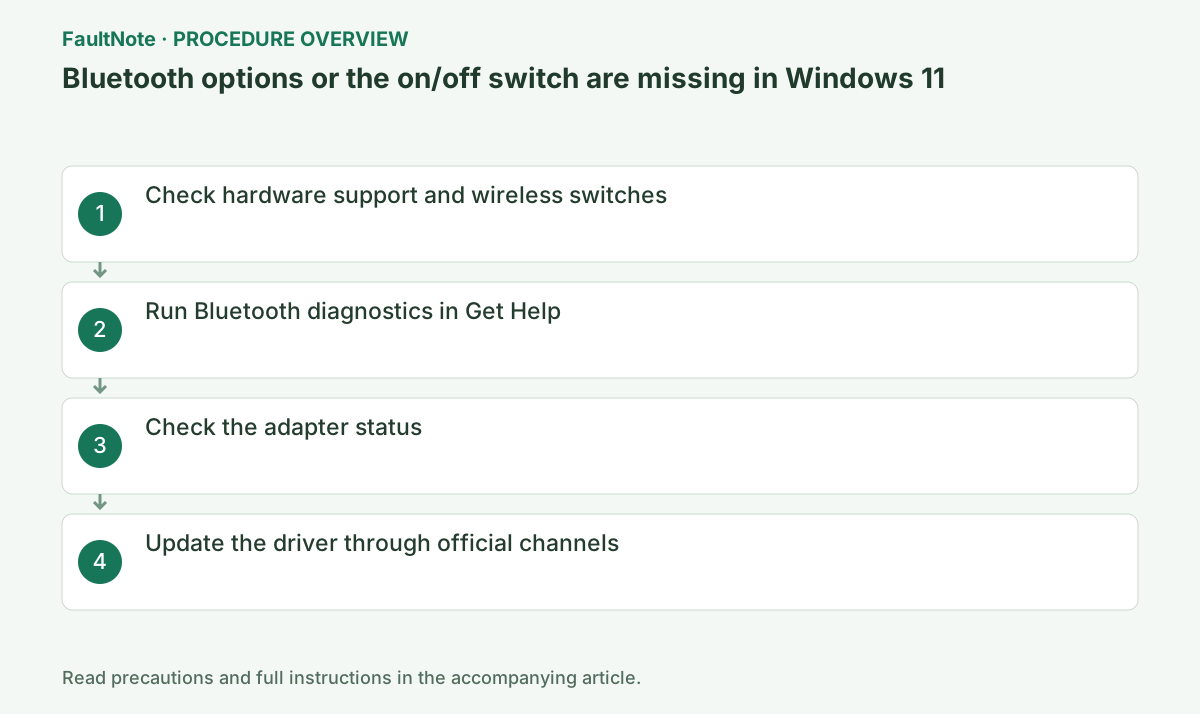
Step-by-step instructions
Check for the toggle in Settings > Bluetooth & devices. If only the Quick Settings button is missing while Settings can enable Bluetooth, that differs from a missing adapter. Test adding a device there. Investigate hardware support/detection when both locations lack the toggle and adding devices is unavailable.
Exact models within a PC series may have different wireless configurations. Check the full model/specifications; working Wi-Fi alone does not prove Bluetooth support. Record the model, port and hub path for a USB adapter. Settings cannot add hardware absent from the PC.
Check the manufacturer specifications to confirm that Bluetooth is included. PCs without it need a compatible USB adapter. If the PC has a wireless switch on its side or an Fn key, turn it on, and turn off Airplane mode in the network/volume/battery area at the right end of the taskbar.
Press Windows key+I to open Settings and select Bluetooth & devices on the left. Distinguish a missing on/off switch here from a button missing only in Quick Settings. If you can turn Bluetooth on in Settings, there is no need to uninstall the driver.
Open Get Help from Start, enter "Bluetooth troubleshooting," and follow the diagnostic steps. Apply only the suggested changes. If the Bluetooth switch appears, proceed to verification at that point.
Get Help is the Windows help app. Press the Windows key, type "Get Help," and select the app search result. Enter the symptoms in the app's input box and start once Bluetooth diagnostics appear. Opening general search results in a browser does not start the troubleshooter.
Official links for this step
- Official Get Help information and launch link
This is a built-in Windows app. You can also launch it with Open Get Help on the official page. If prompted to open the app, open it on the affected PC.
- Official Get Help information and launch link
Right-click Start and open Device Manager. Expand Bluetooth. If the wireless adapter has a down arrow, right-click it and select Enable device. If the category itself is missing, also check View > Show hidden devices.
Faded hidden entries may be records of previously connected devices. Do not assume these mean the current adapter has been detected. Double-click the entry and read the status on the General tab. If a code appears, record its number.
Official links for this step
- Fix Bluetooth problems in Windows
Check the official requirements, screen names, and limitations for this procedure.
- Fix Bluetooth problems in Windows
Read the adapter name and General status in Device Manager. A disabled device, a warning, and an absent entry require different next actions. A faint hidden entry may be an earlier connection record, not current detection. Retain any Code 10 or 43.
For a USB adapter, compare a direct connection and a hub, then another usable port if needed. Confirm the toggle returns after detection. For an internal adapter, consult the PC manufacturer switch and model-specific driver guidance. Avoid substituting similarly named adapters or packages for another PC model.
Right-click the adapter and choose Update driver > Search automatically for drivers. Then, if a Bluetooth driver is available under Settings > Windows Update > Advanced options > Optional updates, install it and restart.
After updating, select Start > Power > Restart and check the on/off switch in the same Settings screen. Once it is available, connect one known device to test communication. If you need a manufacturer driver, verify the model using Settings > System > About and the label on the PC before searching.
Restart normally after updating and check the same Settings page. Once the toggle returns, connect one known charged accessory nearby and test its actual function. If only one is missing, inspect its pairing mode and other-device connection before deleting the adapter again.
If an update worsens the problem, record provider/date/version and confirm a manufacturer-supported version. Consider available rollback when appropriate. Restore required wireless/enable settings. If never detected, provide the manufacturer with specifications and connection-test results.
Check the result
- The Bluetooth switch appears under Settings > Bluetooth & devices
- The adapter has no warning symbol in Device Manager
If the problem continues
- If the adapter never appears, use diagnostics from the PC or adapter manufacturer
- If the option is disabled on an organization-managed PC, ask the administrator to check policy settings
Scope of this guide
Troubleshooting guide — Restore recognition of the Bluetooth radio in Windows and the switch in Settings.
Frequently asked questions
Bluetooth is missing only from Quick Settings. Is the hardware faulty?
If there is a switch under Settings > Bluetooth & devices, the radio is recognized. Its appearance in Quick Settings alone cannot establish a hardware fault.
Bluetooth is also missing from Device Manager.
Check the hardware specifications and physical switch. For a USB adapter, try another port. If it still does not appear, contact the manufacturer.
Does a hidden Bluetooth entry establish detection?
A faint entry may be a previous connection record. Check current device status, the Settings toggle and a known accessory together. Read the General status/error rather than judging solely by the entry name.
Does driver rollback restore everything?
Available rollback concerns the selected driver, not proof that pairing and every setting reverted. Retest communication and Settings. If unavailable, consult the manufacturer-supported version rather than forcing an old package from an unrelated site.
Official sources and dates
Source publication or resolution date: Not specified. Sources checked: 2026-09-05. The check date is not the date the problem first occurred. Interface labels can vary between versions and display languages.
Related troubleshooting guides
Windows errors and troubleshooting →
- External drive disconnects in the middle of a large copy: check power delivery, the removal policy and USB power management in that order
- External SSD not reaching USB 20Gbps or USB4 speed: check PC ports, cables, hubs and Windows indicators
- USB-C connection notifications: is the port, the cable, the device or the power the missing piece?
- USB devices repeatedly disconnect after idle or sleep