Troubleshoot Windows Update Error Codes Safely
What to do first
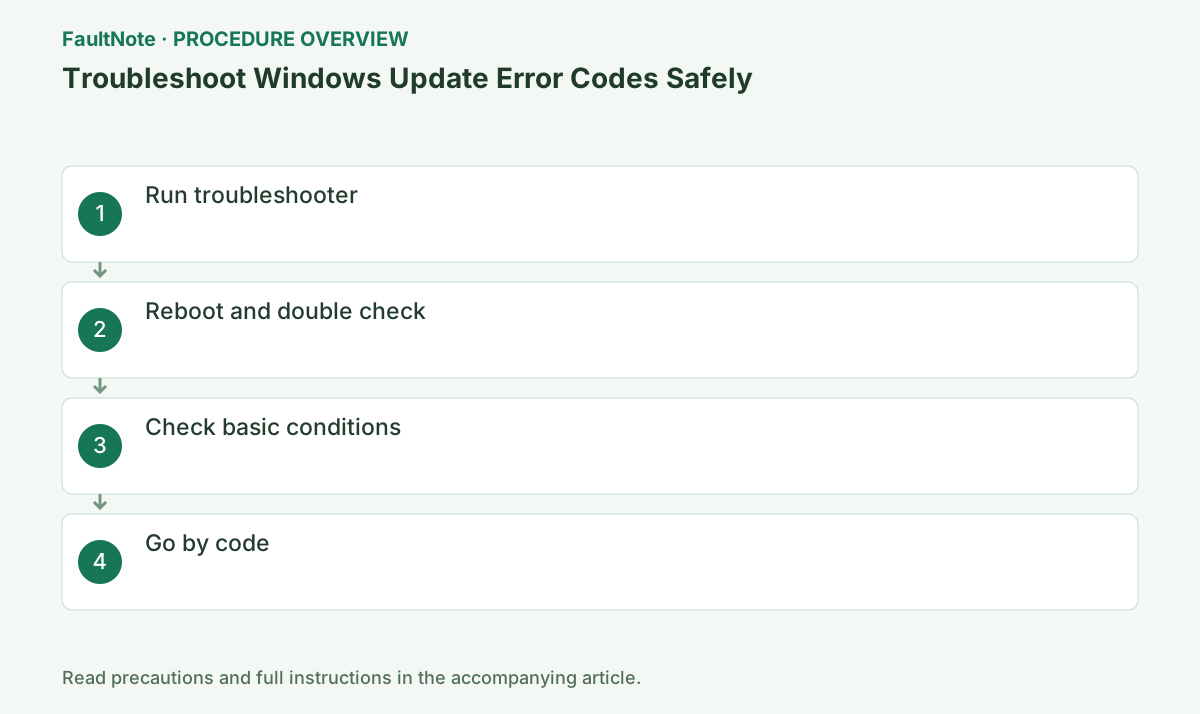
Record the code and check in the order of troubleshooting, restart, capacity/communication.
This is a general troubleshooting guide, not an announcement of a current outage.
Affected products and symptoms
- Product
- Windows
- Versions and conditions
- Windows 11 / Windows 10
- Error codes and identifiers
- 0x800705b40x800F081F0x800737120x800704220x80070020
Symptoms
- Updates fail to download or install
- Stuck at the same percentage or a code appears
Causes and conditions
Possible causes include communication, capacity, pending restarts, corrupted files, and stopped services.
Before you start
- Back up important files
- Record error codes, KB numbers, and update history
Precautions
- Back up important files in advance
- Check the impact before deleting, initializing, or resetting the network.
Tools and official pages used in this guide
Review the official requirements, screen names, and limitations for this procedure.
Step-by-step instructions
Open Settings > Windows Update > Update history and record the failed update, KB number, date and error. Distinguish a download that never starts, installation failure, and rollback during restart. If the error changes, record the new result rather than continuing instructions for the old code.
For example, a successful cumulative update with one failed driver update does not prove the entire update system is broken. Several updates failing before download point instead toward connectivity or the update source. Keep the full update name and the last completed stage before considering broader recovery.
Record the displayed error code, KB number, and failure time in [Settings] > [Windows Update] > [Update history]. In Windows 11, open [Settings] > [System] > [Troubleshoot] > [Other troubleshooters], or in Windows 10, open [Settings] > [Update & Security] > [Troubleshoot] > [Additional troubleshooters], and select Run under Windows Update. If you go to Get Help, complete the troubleshooter and record the reported problem and result.
Save work and complete any restart requested by Windows Update using Restart. Connect a laptop to AC power and check system-drive space in Settings > System > Storage. If other web pages also fail, investigate connectivity first. Do not override organization-managed update settings using consumer instructions.
Stopping services or deleting update caches during an active attempt makes its result harder to interpret. Run one diagnostic, read its result, and then choose the next action. Move to DISM/SFC or guidance for the specific error when the same update still fails after restart.
Restart your PC normally even if the diagnosis is ``Fixed'' or ``Unspecified problem.'' Open [Settings] > [Windows Update], complete any pending [Restart now] first, and then select [Check for updates]. Check if the original KB progresses from "Downloading" to "Installing" or immediately stops at the same code.
Connect your laptop to AC power and make sure you aren't using a metered connection or a VPN that's easy to disconnect. Check the free space on your C: drive in Settings > System > Storage, and if the update screen indicates insufficient space, check cleanup recommendations. Safely remove any USB memory or external disk that is not the installation destination, and use only necessary devices such as the keyboard and mouse.
Official links for this step
- Windows Update troubleshooter
Review the official requirements, screen names, and limitations for this procedure.
- Windows Update troubleshooter
If the error is still 0x800F081F or 0x80073712 after retrying, suspect component store corruption and proceed to the DISM/SFC procedure on this site. Since 0x80070422 is related to the organization's policy or an invalid update service, give the code to the administrator without changing the service settings on the management PC. 0x80070020 may cause conflicts between files in use, so try again immediately after restarting. If the same code remains, save the update history screen and time and submit it to Microsoft Support.
A completed diagnostic does not establish that the update installed. Check for updates, confirm success for the target KB in history, and complete any required restart. Check whether the update is requested again and whether the original function works. A different KB succeeding is not equivalent evidence.
If the same error returns, provide the KB, Windows version/build, free space, diagnostic result and failed stage. Attempt times help an administrator correlate logs. Recovery that retains apps/files differs from a reset that removes them; secure backups and recovery keys before choosing the next route.
Check the result
- The target KB is displayed as [Installed successfully] in [Update history]
- After rebooting, [Windows Update] displays [You are up to date] or the following specific instructions.
If the problem continues
- 0x800F081F/0x80073712 goes to DISM/SFC guide
- For 0x80070422 on an organization-managed PC, check the policy with the administrator without manually changing the service.
- If the same code continues, pass the KB, code, and time to Microsoft Support.
Scope of this guide
Troubleshooting guide — General diagnostic procedures. It does not describe a specific current incident.
Frequently asked questions
Do you turn off the power immediately when it stops at 0% or 100%?
Keep the network connection and AC power stable first. If there is no change after waiting a long time and Windows is operational, try troubleshooting after a normal reboot.
Would you like to manually reset the update service?
Don't make it the first step. Even after troubleshooting and rebooting it still fails and only with administrator guidance.
Does repeatedly pressing update help?
More attempts do not remove a pending restart or connection problem. Retry once after diagnosis and compare the error and stage. Repeated failure for the same KB at the same stage calls for recording the evidence and investigating that error.
Should an update failure lead straight to a reset?
First determine whether one or several updates fail. Narrow the cause with update diagnostics, storage checks and system repair, and consult the administrator for managed PCs. A reset affects apps or stored data and should not be the default first response.
Official sources and dates
Source publication or resolution date: Not specified. Sources checked: 2026-09-05. The check date is not the date the problem first occurred. Interface labels can vary between versions and display languages.
Related troubleshooting guides
Windows errors and troubleshooting →
- Repair Corrupted Windows System Files with DISM and SFC
- Adding a Windows optional feature fails because source files are missing
- Enabling .NET Framework 3.5 fails with 0x800F081F
- Laptop is slow only on battery: check the power mode, energy saver and the maker's cooling mode in that order