Repair Corrupted Windows System Files with DISM and SFC
What to do first
Complete DISM at an administrator command prompt and then run SFC.
This is a general troubleshooting guide, not an announcement of a current outage.
Affected products and symptoms
- Product
- Windows
- Versions and conditions
- Windows 11 / Windows 10
- Error codes and identifiers
- DISMSFC0x800F081F0x80073712
Symptoms
- Windows functions do not work
- System errors, freezes, and update failures continue
Causes and conditions
The likely cause is missing or corrupted protected system files or component stores.
Before you start
- Apply Windows Updates and restart
- Connect to AC power and do not interrupt processing
Precautions
- Back up important files in advance
- Check the impact before deleting, initializing, or resetting the network.
Tools and official pages used in this guide
Review the official requirements, screen names, and limitations for this procedure.
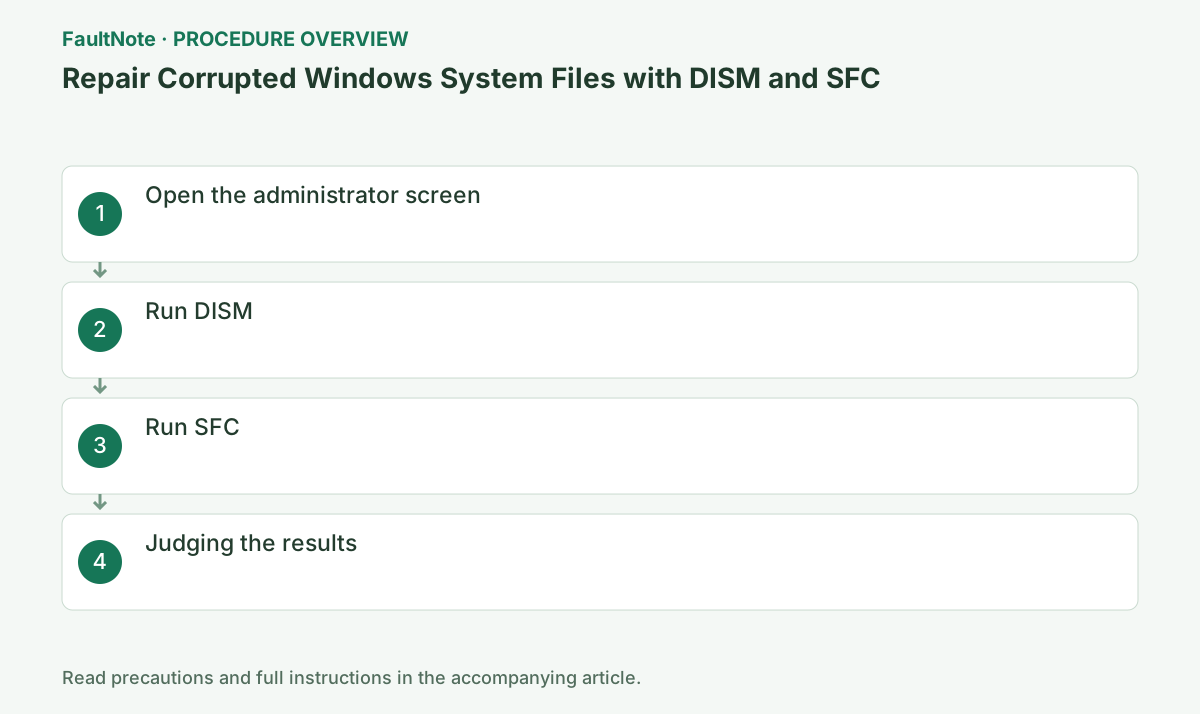
Step-by-step instructions
DISM repairs the Windows component store used for servicing; SFC checks protected system files. They are not backup tools for documents, game saves or application settings. Record the failed operation before starting so you can compare afterward. A problem limited to one unrelated app may also need that app official diagnostics.
The /Online option here targets the currently running Windows installation. Commands from a recovery environment require different target/source handling; this is not a procedure to paste unchanged there. If Windows cannot reach sign-in, use startup recovery guidance instead of combining unrelated commands.
Select Yes to confirm User Account Control. If you need administrator authentication and are unsure, ask your administrator before proceeding.
Make sure it has "Administrator" in the title and maintain power and internet during the process.
Check before continuingVerdict: Search for ``Command Prompt,'' right-click, and select ``Run as administrator.'' Select Yes to confirm User Account Control. If you need administrator authentication and are unsure, ask your administrator before proceeding.
This may take several minutes. Confirm the successful completion message before proceeding to the next step, and if you receive an error such as a source file not being found, record the code.
Check for either "The operation completed successfully", a restart request, or an error code when the command finishes. If it fails, do not repeat the operation and save the display code and C:\Windows\Logs\DISM\dism.log.
Even if RestoreHealth progress appears to have stalled, keep the window open and wait for a specific error such as exit code 0 or 0x800f081f.
DISM.exe /Online /Cleanup-image /RestorehealthCheck before continuingVerdict: Run DISM.exe /Online /Cleanup-image /Restorehealth and keep the window open until the command completes. This may take several minutes. Confirm the successful completion message before proceeding to the next step, and if you receive an error such as a source file not being found, record the code.
After DISM completes successfully, run SFC and do not restart until the final message "Verification 100% completed" appears.
sfc /scannowOfficial links for this step
- Using System File Checker in Windows
Review the official requirements, screen names, and limitations for this procedure.
Check before continuingVerdict: Run sfc /scannow and wait until verification is 100%. After DISM completes successfully, run SFC and do not restart until the final message "Verification 100% completed" appears.
- Using System File Checker in Windows
No integrity violations means this scan found no corruption in protected files. Return to the original function and investigate apps, drivers or connections. A successful repair calls for restart and retesting. A progress display reaching 100% is not itself a successful repair; read the final result.
If some files could not be repaired, preserve the time, full message and CBS.log for the next recovery decision. An inability to perform the requested operation means the scan did not finish, which differs from confirmed unrepairable files. Consider the documented Safe Mode retry. Neither result establishes successful repair.
Save the result by copying the last message on the command screen. The log is located at C:\Windows\Logs\CBS\CBS.log. Even if there are no integrity violations, not all app defects have been ruled out.
If SFC reports no integrity violations, system-file corruption is less likely. If repairs complete successfully, reboot and check the original symptom, and if some parts cannot be repaired, save CBS.log.
Check before continuingJudgment: If SFC reports no integrity violations or successfully repairs the files, restart. If Windows cannot repair the files, preserve the results and CBS log. Save the result by copying the last message on the command screen. The log is located at C:\Windows\Logs\CBS\CBS.log. Even if there are no integrity violations, not all app defects have been ruled out.
For a source-related error such as 0x800F081F, record the command, Windows edition/language/build and update source. Tell the administrator if organizational restrictions apply. Do not randomly supply an ISO or another PC folder with /Source; confirm a matching repair source and documented syntax first.
After successful repair, restart and repeat the operation recorded before repair. Documents or app settings still need their own backups if recovery is needed. Keep DISM and SFC results separate when reporting continued failure. More executions or an existing log file do not prove repair success.
Check the result
- DISM completes with "The restore operation completed successfully" equivalent
- SFC shows no integrity violations or successfully repaired corrupted files
- Retest the original function/update once after restarting
If the problem continues
- Retry in safe mode if SFC cannot perform requested operation
- If DISM cannot retrieve the repair source, save the error code and ask your administrator to specify your organization's update source or Microsoft repair source.
- If Windows cannot repair the files, check whether reinstallation is possible using Windows Update in [Settings] > [System] > [Recovery]
Scope of this guide
Troubleshooting guide — General diagnostic procedures. It does not describe a specific current incident.
Frequently asked questions
Which comes first, DISM or SFC?
DISM repairs the component store used for recovery; run SFC after DISM completes successfully.
It looks like it stopped in the middle.
The progress rate may not change for a long time. Keep AC power on and don't close the window until the completion message.
Does DISM success make SFC unnecessary?
The tools serve different roles here. After DISM succeeds, use SFC to verify protected files, then test the original symptom separately. If DISM ends with an error, investigate that code rather than treating both tools as successful.
Is there a command to undo the repair?
There is no simple reverse command to restore the previous corrupted state. Back up important files beforehand and save results. If another issue appears, investigate with the execution time, results and recent updates kept distinct.
What should accompany a repair log?
Include execution time, final output, Windows version/build and the originally failed operation. Distinguish DISM from CBS logs and follow support requests for relevant portions. Review usernames or paths before publicly posting complete logs.
Official sources and dates
Source publication or resolution date: Not specified. Sources checked: 2026-09-05. The check date is not the date the problem first occurred. Interface labels can vary between versions and display languages.
Related troubleshooting guides
Windows errors and troubleshooting →
- Troubleshoot Windows Update Error Codes Safely
- Adding a Windows optional feature fails because source files are missing
- Enabling .NET Framework 3.5 fails with 0x800F081F
- Hyper-V is missing from Windows Features or cannot be enabled