Adding a Windows optional feature fails because source files are missing
What to do first
Adding a Windows optional feature fails because source files are missing. The component store may lack the payload and cannot reach Windows Update, WSUS, or the specified repair source. Record the current state before changing it, use only the supported Windows path described below, and verify the same operation again after any required restart.
This is a general troubleshooting guide, not an announcement of a current outage.
Affected products and symptoms
- Product
- Windows optional features / DISM
- Versions and conditions
- Windows 11 (confirm the edition and hardware requirements for the feature)
- Error codes and identifiers
- 0x800f081f
Symptoms
- Adding a Windows optional feature fails because source files are missing.
- The same condition can persist after a retry or restart.
Causes and conditions
The component store may lack the payload and cannot reach Windows Update, WSUS, or the specified repair source.
Before you start
- Save open documents and allow time for a Windows restart if required.
- Run administrative actions only on a personally managed PC or with administrator approval.
- Save the diagnostic command output so the before and after states can be compared.
Precautions
- Do not bulk-delete registry entries, system folders, credentials, or storage metadata.
- Do not run unofficial scripts or unknown drivers with administrator rights.
Tools and official pages used in this guide
Check the official requirements, interface names, and limitations for this step.
Step-by-step instructions
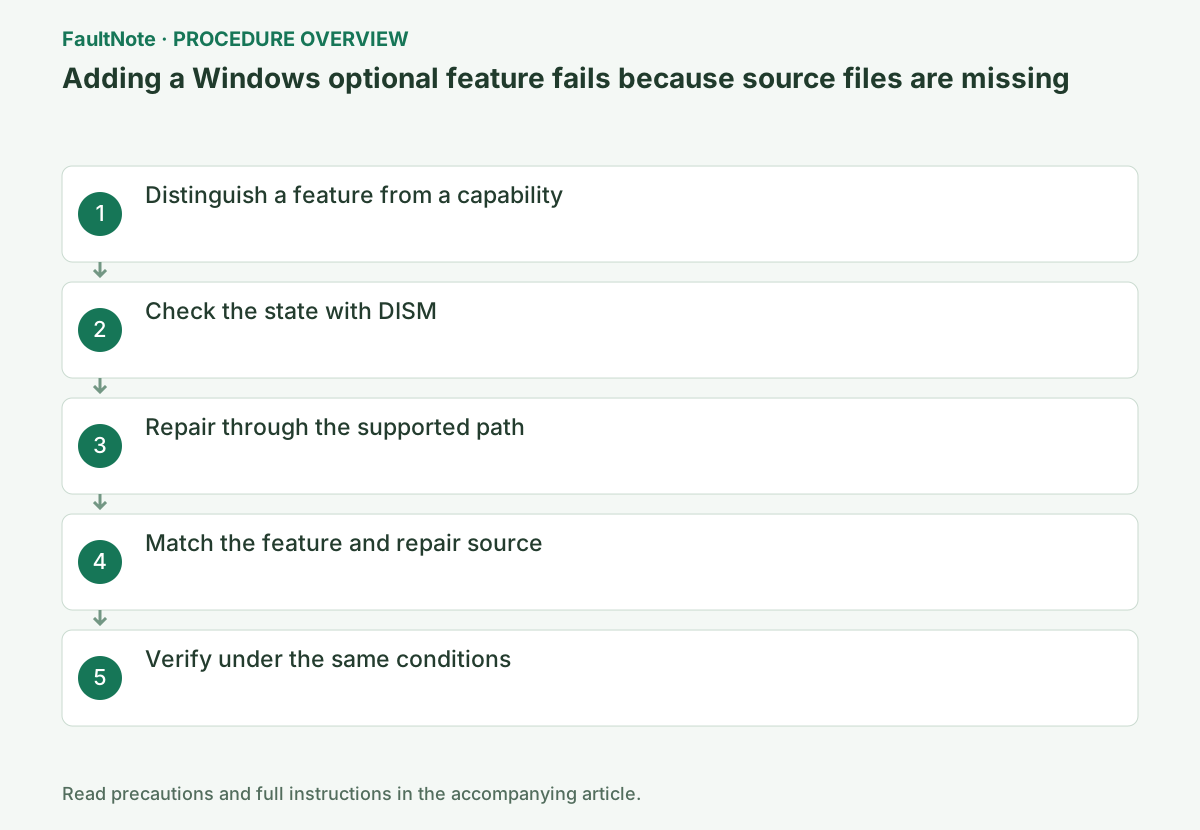
Record the feature name, the code such as 0x800f081f, and the Settings page that failed. DISM Get-Features lists Windows features; language packs and Features on Demand may use a different servicing mechanism. Do not guess FeatureName when the target is unclear.
Items added through Settings > System > Optional features > View features can be Capabilities. They use different DISM identifiers and source rules from Features in Turn Windows features on or off, so record the exact name and error code.
Record the affected feature and operation. Feature installation, image scanning and component repair are related but distinct; a clean ScanHealth does not establish source availability for a feature. Save feature state, exact command and full errors, replacing example names only with the intended feature.
Save the complete error and feature name and obtain an approved source matching the Windows build, edition and language. Do not substitute files copied from a similarly named ISO or another Windows generation. On managed PCs, check policies controlling Windows Update and repair sources.
Record the exact feature name, Windows edition, version, build, and the organization's WSUS or repair-source policy.
At completion, check for “The operation completed successfully,” a restart request, or an error code. On failure, preserve the code and C:\Windows\Logs\DISM\dism.log instead of repeating the command.
Confirm whether online retrieval or an administrator-provided source is intended. Do not bypass managed source policy by collecting arbitrary files. Match ISO version, build, language and image target; source-file presence alone is insufficient. Separate inability to read an approved location from missing source content.
DISM /Online /Get-Features /Format:TableCheck Windows Update reachability and component-store health first. Use only official media matching the installed Windows build, language, and edition as a repair source.
At completion, check for “The operation completed successfully,” a restart request, or an error code. On failure, preserve the code and C:\Windows\Logs\DISM\dism.log instead of repeating the command.
Check source path spelling and access under the executing account, including share permissions. /LimitAccess can prevent online supplementation. Review unexplained arguments with the administrator and change one at a time. Wait for completion; slow progress alone does not justify forced termination. Save errors and logs rather than rerunning continuously.
DISM /Online /Cleanup-Image /ScanHealthOfficial links for this step
- Enable or Disable Windows Features Using DISM
Check the official requirements, interface names, and limitations for this step.
- Enable or Disable Windows Features Using DISM
On a managed PC, provide IT with the feature name and DISM log location C:\Windows\Logs\DISM\dism.log and ask for the approved repair source. On a personal PC, do not use an ISO from another Windows release. In step 5, use the exact FeatureName from Get-Features and check for Enabled or a restart-pending state.
Record success, pending restart and source retrieval failure separately. /LimitAccess restricts online retrieval; adding it without supplying a source is not a general fix. After successful completion, perform any requested restart and verify both feature state and actual startup.
Replace FEATURE_NAME with the actual value for your system before using this example.
Run DISM /Online /Get-FeatureInfo /FeatureName:<FeatureName> and repeat the original operation once under the same conditions. If it succeeds, verify again after a restart and record the setting that changed.
At completion, check for “The operation completed successfully,” a restart request, or an error code. On failure, preserve the code and C:\Windows\Logs\DISM\dism.log instead of repeating the command.
After successful completion and any restart, inspect feature state and open the intended application. Enabled state and functional startup are separate results. Provide build, feature, source identity, command, error and relevant DISM/CBS times. Limit publicly shared internal names and paths; the repair source itself need not be published.
DISM /Online /Get-FeatureInfo /FeatureName:FEATURE_NAME
Check the result
- The target feature is reported enabled and its required application starts
- The verification command reports the expected enabled, healthy, or connected state.
- The result remains correct after a Windows restart and no new matching critical event appears.
If the problem continues
- For repeated source errors, provide DISM/CBS logs and the source details to the administrator
- If hardware requirements, organization policy, or server settings are responsible, ask the owner to make the change instead of bypassing it on the client.
Scope of this guide
Troubleshooting guide — Restore the feature so it starts, connects, or completes normally and passes the same verification after a Windows restart.
Frequently asked questions
Can I use an ISO from another Windows version as Source?
No. A mismatched build, language, or edition can fail or create inconsistency.
Can a WSUS-managed PC bypass policy and contact Windows Update?
Follow organization policy. Give the administrator the feature name, 0x800f081f, and DISM logs to obtain an approved source.
Does a clean ScanHealth prove that the source is sufficient?
ScanHealth checks image condition, separately from retrieving required feature sources. Verify the feature, source and actual enablement result and investigate retrieval errors independently.
Official sources and dates
Source publication or resolution date: Not specified. Sources checked: 2026-10-13. The check date is not the date the problem first occurred. Interface labels can vary between versions and display languages.