Enabling .NET Framework 3.5 fails with 0x800F081F
What to do first
For 0x800F081F, check that the .NET 3.5 source matches the Windows version. On 26H1 and later, use the dedicated installer instead of Windows Features.
This is a general troubleshooting guide, not an announcement of a current outage.
Affected products and symptoms
- Product
- Windows 11 / .NET Framework 3.5
- Versions and conditions
- Windows 11 25H2 and earlier. Windows 11 26H1 (build 28000) and later use a standalone installation method and are outside this scope
- Error codes and identifiers
- 0x800F081FNetFx3
Symptoms
- .NET Framework 3.5 cannot be enabled in Windows Features
- DISM reports that source files cannot be found
Causes and conditions
This occurs when the alternate source lacks the required files, read access is unavailable, or the installation media does not match the running Windows version.
Before you start
- Record the version and OS build using winver
- On an organization-managed PC, ask the administrator how features should be added
- Prepare official Microsoft media matching the Windows version, language, and architecture
Precautions
- Do not mix sources\sxs from different Windows versions
- Do not use the old DISM procedure on 26H1 or later
- Do not use .NET packages distributed by third parties
Tools and official pages used in this guide
Download the official Microsoft executable. It is for Windows 11 26H1. Do not use it on 25H2 or earlier.
Confirm how installation differs between 26H1 and 25H2 or earlier.
- .NET Framework 3.5 installation errors: 0x800F0906, 0x800F081F, 0x800F0907, 0x800F0922 ↗See step 4 ↓
Check the official requirements, screen names, and limitations for this procedure.
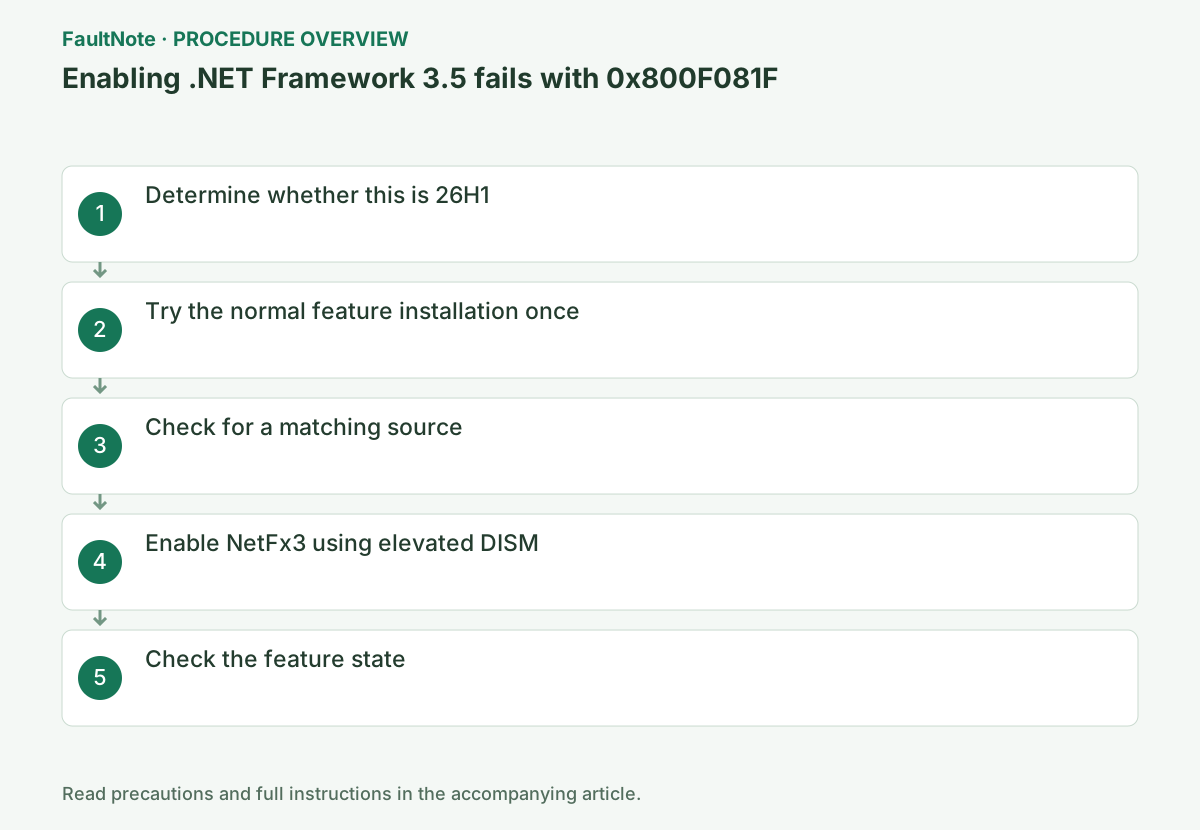
Step-by-step instructions
Record winver version/build and confirm the app specifically requires .NET Framework 3.5. Installing a newer .NET package does not universally replace legacy requirements. Read the app requirement rather than adding similarly named packages. General DISM repair differs from enabling NetFx3.
Windows 11 25H2-and-earlier feature installation differs from the standalone route for 26H1/build 28000 onward. Do not continue component installation on the latter. Separate runtime installation from extra IIS/web-app configuration; a runtime alone does not establish all app requirements.
Press Windows key+R to open Run, type winver, and press Enter. Record the version and OS build shown. For Windows 11 26H1 (build 28000), use the dedicated installer below and do not run the subsequent Windows Features/NetFx3/DISM procedures.
On 26H1, save DotNet35Setup.exe from the official download below, run it, and follow Microsoft's installation screens. After it finishes, launch the affected app to check. This file is only for the specified Windows version. On 25H2 or earlier, do not download it; proceed to Try the normal feature installation once.
Official links for this step
- .NET Framework 3.5: dedicated installer for Windows 11 26H1
Download the official Microsoft executable. It is for Windows 11 26H1. Do not use it on 25H2 or earlier.
- Installation methods by Windows 11 version
Confirm how installation differs between 26H1 and 25H2 or earlier.
Check before continuingOn 26H1, install using the dedicated installer, check the affected app, and finish. On 25H2 or earlier, proceed to Try the normal feature installation once.
- .NET Framework 3.5: dedicated installer for Windows 11 26H1
On 25H2 or earlier, open Turn Windows features on or off from Start and select .NET Framework 3.5 (includes .NET 2.0 and 3.0). If it can be obtained from Windows Update, complete the process and restart.
After selecting the checkbox, click OK. If prompted to obtain additional files, choose to download them from Windows Update. If this succeeds, restart and check the affected app; there is no need to additionally run the source-specification procedure.
For 0x800F081F, mount official media matching the running Windows version, build, language, and architecture. In File Explorer, check the assigned drive letter and confirm that the sources\sxs folder is readable.
Right-click the ISO in File Explorer and select Mount. Note the letter of the DVD drive added under This PC. If you do not have media matching your current Windows installation, do not substitute the latest ISO. On a managed PC, ask the administrator for media for the relevant build.
Official links for this step
- .NET Framework 3.5 installation errors: 0x800F0906, 0x800F081F, 0x800F0907, 0x800F0922
Check the official requirements, screen names, and limitations for this procedure.
- .NET Framework 3.5 installation errors: 0x800F0906, 0x800F081F, 0x800F0907, 0x800F0922
Open Terminal (Admin), replace D: with the actual media drive letter, and run the command. Wait for "The operation completed successfully."
When the command finishes, check for "The operation completed successfully," a restart request, or an error code. If it fails, do not repeat the same operation; save the displayed code and C:\Windows\Logs\DISM\dism.log.
Press Windows key+X and select Terminal (Admin). Replace only D: in the example below with the actual DVD drive letter, then press Enter. /LimitAccess specifies using the supplied media without contacting Windows Update, so do not try to fix a media-mismatch error solely by changing the internet connection.
DISM /Online /Enable-Feature /FeatureName:NetFx3 /All /Source:D:\sources\sxs /LimitAccessConfirm the mounted drive letter and open its sources\sxs folder. Existence alone does not prove compatibility; compare version, language and architecture. Replace D: in the example only after confirming the complete path points to the intended medium.
For recurring 0x800F081F, inspect syntax, readability and source suitability. /LimitAccess avoids Windows Update, so reconnecting Wi-Fi cannot repair an unsuitable medium. Ask IT for a matching source or deployment method when organization settings apply; do not arbitrarily bypass policy.
Reopen Windows Features, confirm that .NET Framework 3.5 is enabled, and start the app that needed it. If 0x800F081F recurs, recheck the source version and read permissions.
For 25H2 and earlier, confirm feature installation success and enabled state. For 26H1 onward, confirm standalone installer completion rather than an old DISM state. Complete any restart and test the requesting app and needed functions. Installation alone does not prove every app feature works.
Save any new error. If the requirement remains, provide app, build, route and installer/DISM results. Avoid repeated removal of a shared runtime that other apps may need. Remove diagnostic media after completion and review logs for unnecessary personal details before sharing.
Check the result
- On 25H2 and earlier, feature installation or DISM completes successfully and .NET Framework 3.5 is enabled in Windows Features
- On 26H1 onward, the matching standalone installer completes; do not use the old NetFx3 display as the success condition
- After any required restart, the target app performs needed operations without a missing .NET message
If the problem continues
- On an organization-managed device, ask the administrator for a compatible Features on Demand source or deployment method
- If the media does not match, stop and obtain the correct version from Microsoft officially
Scope of this guide
Troubleshooting guide — Install .NET Framework 3.5 using the applicable method so the required legacy app starts.
Frequently asked questions
Should I run a general DISM repair first for 0x800F081F?
In this case, check for a mismatched alternate .NET 3.5 source first. This serves a different purpose from a general image repair.
Can I also install through Windows Features on Windows 11 26H1?
No. Starting with build 28000, use Microsoft's standalone installer dedicated to that Windows version.
Does a readable sources\sxs prove a suitable source?
It establishes existence/readability, not OS compatibility. Match the medium to the current Windows conditions and check the example drive letter. Do not continue with an unsuitable source.
Is absence from Windows Features on 26H1 proof of failure?
26H1 onward uses a standalone installer. Verify its completion and the target app rather than old Windows Features/NetFx3 expectations. Check additional app configuration separately.
Official sources and dates
- .NET Framework 3.5 installation errors: 0x800F0906, 0x800F081F, 0x800F0907, 0x800F0922 ↗
- .NET Framework 3.5 on Windows 11 FAQ ↗
- Install .NET Framework 3.5 on Windows 11 ↗
Source publication or resolution date: Not specified. Sources checked: 2026-09-05. The check date is not the date the problem first occurred. Interface labels can vary between versions and display languages.