Fix a Printer That Shows as Offline
What to do first
Check connection, queue, spooler, re-registration.
This is a general troubleshooting guide, not an announcement of a current outage.
Affected products and symptoms
- Product
- Windows
- Versions and conditions
- Windows 11 / Windows 10
Symptoms
- Displays as offline even though the power is on
- Job remains in queue
Causes and conditions
Possible causes include power supply/communication, a different Wi-Fi network, stopped queue, Print Spooler, etc.
Before you start
- Check the contents of unprinted jobs
- Check the network printer connection destination
Precautions
- [Cancel All] deletes unprinted jobs in the same queue, so confirm the contents.
- Do not change shared printers or company-managed Print Spoolers without permission.
Tools and official pages used in this guide
Open the Windows Contact app and search for printer troubleshooting.
Review the official requirements, screen names, and limitations for this procedure.
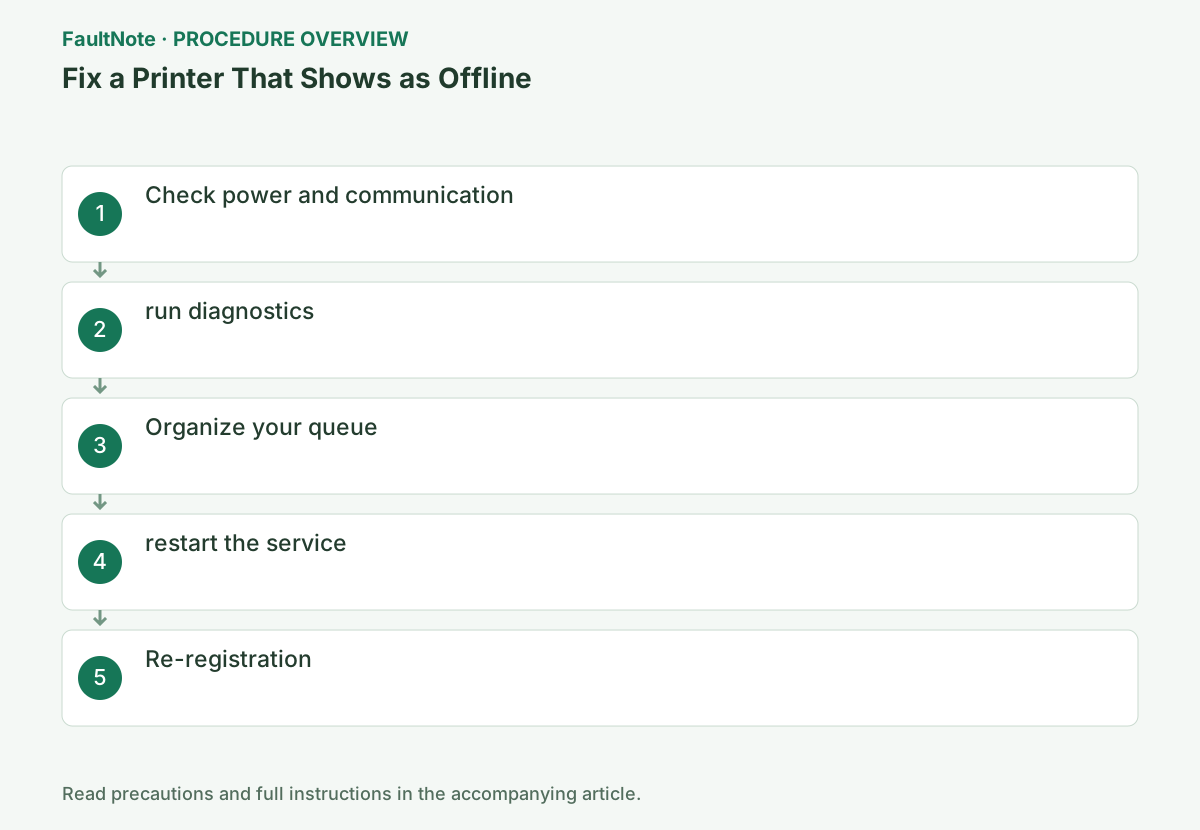
Step-by-step instructions
Check printer power, displayed errors, paper and ink or toner first. If the manufacturer provides a standalone test-print procedure, print one page that way. Windows queue cleanup cannot fix a paper jam that prevents standalone printing. Investigate the connection and queue after isolating failure to printing from the PC.
Check the USB connection or the shared usable network for network printing. Distinguish the previously working printer from a new registration; several entries may use the same model name. Record which registration receives the stalled job and do not delete another entry merely because its name is similar.
Check the printer's power supply and error display, and if it's a USB, reconnect both ends. If you are using wireless, check the SSID on the printer's network screen, and match it with the SSID displayed in [Settings] → [Network & Internet] → [Wi-Fi] on your PC. If different, fix the connection first without deleting the queue.
Open Start and type Contact to launch Microsoft's Contact app. Enter "Printer offline" in the search field and select "Run printer troubleshooting tool." Read the diagnosed printer name and the proposal, and if the target printer is different, select the correct device again.
Official links for this step
- Open Get Help guidance
Open the Windows Contact app and search for printer troubleshooting.
- Open Get Help guidance
In Windows 11, go to [Settings] → [Bluetooth and devices] → [Printers and scanners] → target device → [Open print queue]. For Windows 10, go to [Settings] → [Devices] → [Printers & Scanners] → Target device → [Open Queue]. Check the document name and owner and cancel only the jobs you don't need.
Official links for this step
- Troubleshooting offline printer problems in Windows
Review the official requirements, screen names, and limitations for this procedure.
- Troubleshooting offline printer problems in Windows
Open the queue and inspect the stalled document and status. Save needed originals before cancellation, because canceled jobs will not print. Compare one small document without private information. Failure limited to a large PDF differs from failure even with a test page and points toward a different next investigation.
Repeated submissions can produce multiple copies when printing resumes. Send one job and observe both the queue and printer. If the job disappears without paper output, inspect printer errors or held jobs. Before removing and adding a printer again, record required duplex and tray settings.
Run services.msc with Win+R, right-click Print Spooler and click Restart. Wait until the status returns to Running. If the service fails to start, do not leave the service stopped and report the displayed error number to the administrator.
If the problem does not improve, delete the target printer from the same [Printers and Scanners] screen, check that the printer is online, and then re-register it from [Add Device]. After re-registering, run [Printer Properties] → [Print Test Page] just once to check whether the job disappears from the queue and the test page prints.
If a Windows test page works but one app fails, inspect that app printer, page range and paper settings. If another PC also cannot print, prioritize printer or network investigation. If only your PC fails, retain registration, driver and queue results. Mark comparisons unavailable in your environment as untested.
After recovery, print one copy of the original and check orientation, paper size and duplex. Restore diagnostic settings that are not needed. For recurrence, provide the model, USB/network connection, document/time and error. An offline label alone does not establish one hardware or Windows cause.
Check the result
- The target machine is online or in standby mode in [Printers and Scanners]
- Windows prints a test page
- All jobs in the print queue are completed with [Error]
If the problem continues
- If you cannot reach the printer using the same Wi-Fi, check the printer's network status and IP according to the manufacturer's instructions.
- If it is a shared printer, check with the administrator that the host PC is running and that the share name and network search are enabled.
- If it still fails after re-registration, check Windows Update or the manufacturer's driver for the model.
Scope of this guide
Troubleshooting guide — General diagnostic procedures. It does not describe a specific current incident.
Frequently asked questions
Will the original document be deleted if I re-register it?
The original file will not be deleted, but any unprinted jobs in the queue may be lost.
Manufacturer installer fails on ARM PC.
Microsoft advises that you prioritize Add a device in Settings > Bluetooth & Devices > Printers & Scanners.
Does deleting a print job delete the original document?
Canceling a queue job differs from deleting a stored document. The canceled job will not print; verify the original before resubmission. Save unsaved work in its app and avoid sending duplicate copies during recovery.
Is clearing the offline label sufficient?
Verify actual output from a small test document and then the original with the needed paper, orientation and duplex settings. A disappearing job without output or one failing app needs further investigation. Check both status and physical output.
Official sources and dates
Source publication or resolution date: Not specified. Sources checked: 2026-09-05. The check date is not the date the problem first occurred. Interface labels can vary between versions and display languages.
Related troubleshooting guides
Windows errors and troubleshooting →
- Laptop is slow only on battery: check the power mode, energy saver and the maker's cooling mode in that order
- A driver can't load on this device: what memory integrity is blocking, and the choices that leaves
- Printer outputs blank pages after an ink or toner change: packing material, seating, nozzle check and the new-supply test
- A print job remains stuck on Deleting