PC will not boot after a CPU swap: check ASUS CPU support and required BIOS
What to do first
Determine whether a CPU replacement needs a firmware update. Compare the support list, installed revision and update prerequisites before selecting a method available on your board.
This is a general troubleshooting guide, not an announcement of a current outage.
Affected products and symptoms
- Product
- ASUS Motherboard
- Versions and conditions
- ASUS desktop motherboards after a CPU replacement; compatibility checks when startup does not reach BIOS
Symptoms
- Startup checks stop after a processor replacement
- The socket fits but support in the installed BIOS is unknown
Causes and conditions
The installed firmware may predate support for the new processor. A matching socket does not establish support for every CPU; check the exact board and processor combination.
Before you start
- Record the exact board model, old and new processors and any known BIOS revision
- Before updating, preserve important data and recovery keys for encrypted drives
Precautions
- Do not disconnect power or USB during firmware writing; follow the documented completion indication
- Do not use another model's firmware or attempt to add CPU support through TPM clearing or a CMOS reset
Tools and official pages used in this guide
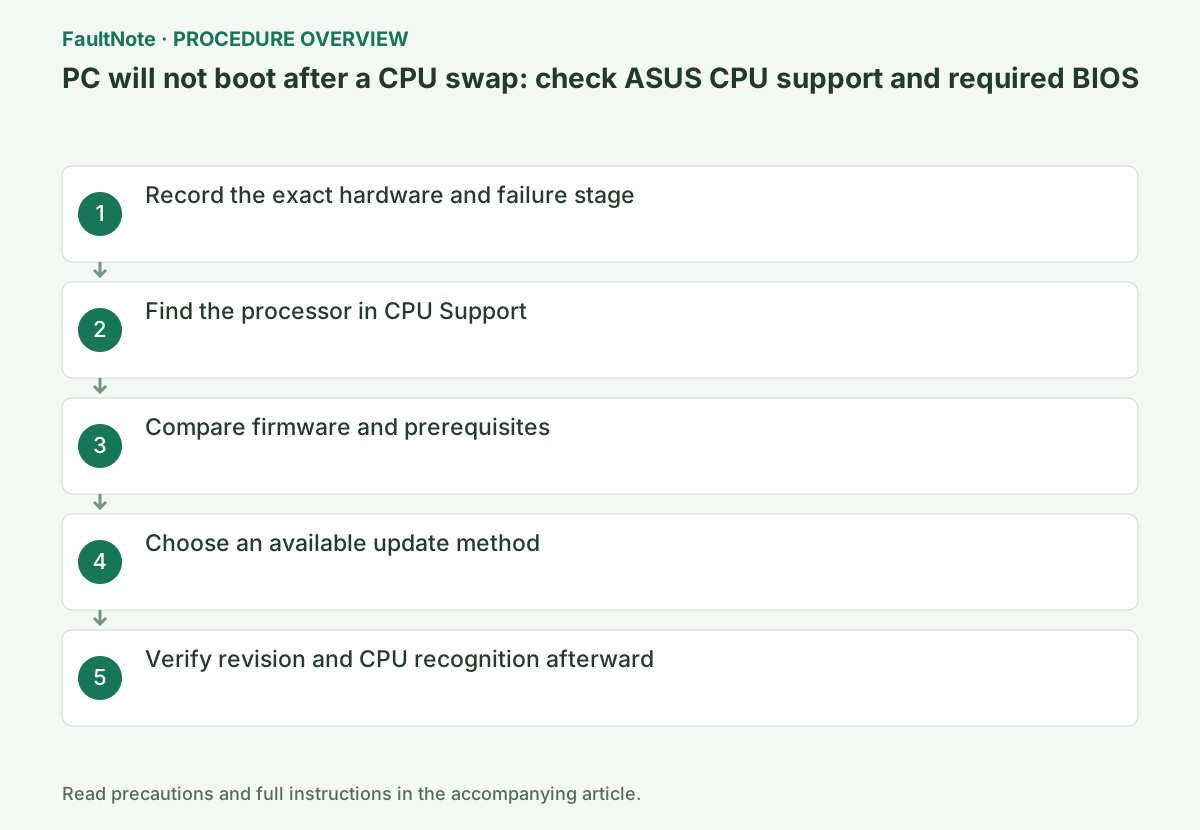
Step-by-step instructions
Include model suffixes such as Wi-Fi in the motherboard name. Record both processors, whether the old configuration worked and the current diagnostic indication.
Stop using the system if cooling fails or a temperature warning appears. A CPU indicator alone does not prove that firmware support is missing.
Open the exact product's Support > CPU / Memory Support > CPU Support page and search for the complete processor model.
Record the required revision, often labeled Validated since BIOS, and any notes. If the CPU is absent, do not assume installing the newest BIOS will add support.
Official links for this step
If a supported configuration can reach BIOS, read the installed revision there. Otherwise record it as unknown instead of assuming an update is already present.
Read the exact model's BIOS & FIRMWARE notes under Driver and Utility. Check prerequisite revisions and rollback restrictions before choosing an update path.
Official links for this step
A working supported-CPU configuration can use the documented EZ Flash process. Without BIOS access, check whether this exact board supports USB BIOS FlashBack.
FlashBack is model-dependent. Follow the official port, filename, USB format, power-state and completion instructions; request update service if neither route is available.
Official links for this step
Save CPU, minimum BIOS, notes and board identity together. Without a current version, a BIOS deficit is not confirmed. Treat packaging or purchase records separately from a version verified after subsequent updates.
A bootable old CPU can allow version checking, but restoring it also requires correct cooler mounting. Plan that only when competent to perform it; do not assume repeated socket work is necessary merely to discover the version.
Check suffixes, Wi-Fi variants and revisions where distinguished by the maker. Similar chipsets or appearance do not establish BIOS-file compatibility. Record the official page and version and read extraction or renaming requirements.
Renaming does not make an incompatible file appropriate. If prerequisites or rollback restrictions are unclear, resolve them with the manufacturer before writing firmware.
AC disconnection for component work and FlashBack power requirements are different stages. Follow the selected firmware method and identify its dedicated port and indicators; ordinary USB ports or case lights are not substitutes.
After starting, wait for the documented completion state. Do not alter filenames or remove media during writing. Record unexpected indicator behavior and use the official branch rather than inventing a universal timeout or rapidly cycling power.
The intended BIOS version can coexist with power, seating, memory or cooling problems. Check CPU identity, required memory and stable cooling. If encryption recovery is requested, use the owner’s preserved key rather than clearing TPM to evade it.
Record a working old configuration and failing new one. If the required version is already present, report CPU and indicators rather than repeatedly rewriting it. Define a safe recovery route before more changes.
After completing the chosen update method, check the BIOS revision and detected CPU name. Any processor replacement must follow the power-disconnection and cooler-installation instructions.
If the required revision detects the CPU but booting still fails, investigate other causes. Record indicators, memory detection and cooling rather than repeatedly flashing the same firmware.
Check the result
- CPU support requirements can be compared with the installed BIOS revision
- After an update, verify the new CPU name and record the restart result
If the problem continues
- If a supported combination still fails, provide component models and diagnostic indicators to support
- Without a working supported CPU or FlashBack, use retailer or manufacturer update service
Scope of this guide
Troubleshooting guide — Check connections and compatibility for the actual components, then choose further diagnosis based on the observed result.
Frequently asked questions
Does a matching CPU socket guarantee startup?
No. Check the board's CPU support entry, required firmware and notes.
Can BIOS be updated without a display?
A board with USB BIOS FlashBack may support that route. Otherwise a working supported CPU or update service is needed.
Does the newest BIOS support every CPU?
Use the exact CPU support row and notes; latest does not establish support for an unlisted CPU.
Is FlashBack duration identical on every model?
Use documented indicators and completion conditions, not an invented universal duration.
Official sources and dates
- How to update motherboard BIOS, including different CPU generations ↗
- How to query CPU and memory QVL lists ↗
- ASUS Intel 600/700 series CPU support and required BIOS ↗
- How to use USB BIOS FlashBack ↗
Source publication or resolution date: 2026-04-23. Sources checked: 2026-10-13. The check date is not the date the problem first occurred. Interface labels can vary between versions and display languages.
Related troubleshooting guides
Related how-to guides and comparisons
- Before dropping in a newer CPU: check the specification for a button that flashes the BIOS with no CPU fitted
- CPU value in Japan, September 2026: five gaming candidates ranked
- B650 vs. B850 vs. X870: Check USB4, M.2 Sharing and CPU Support
- Check PC-Part Compatibility Before Buying: CPU, BIOS, RAM, Case and Power