Troubleshoot Black screen in Steam Remote Play
What to do first
Check local host rendering, then compare display mode, host encoding and client decoding individually. Verify video, audio, input and reconnection.
This is a general troubleshooting guide, not an announcement of a current outage.
Affected products and symptoms
- Product
- Steam Remote Play
- Versions and conditions
- Steam-supported host and client devices
- Error codes and identifiers
- Black screen
Symptoms
- The operation fails with Black screen.
- The same failure is reproducible in Steam Remote Play.
Causes and conditions
Possible causes include local host launch, video capture, graphics drivers or hardware encoding.
Before you start
- Exit the game and launcher normally; record the account, title, complete error, and occurrence time.
- Before changing local saves or settings, find the developer-documented save location and copy it to another folder.
Precautions
- Do not infer a cause after changing encoding and decoding together
- Restore display settings that did not improve the test
Step-by-step instructions
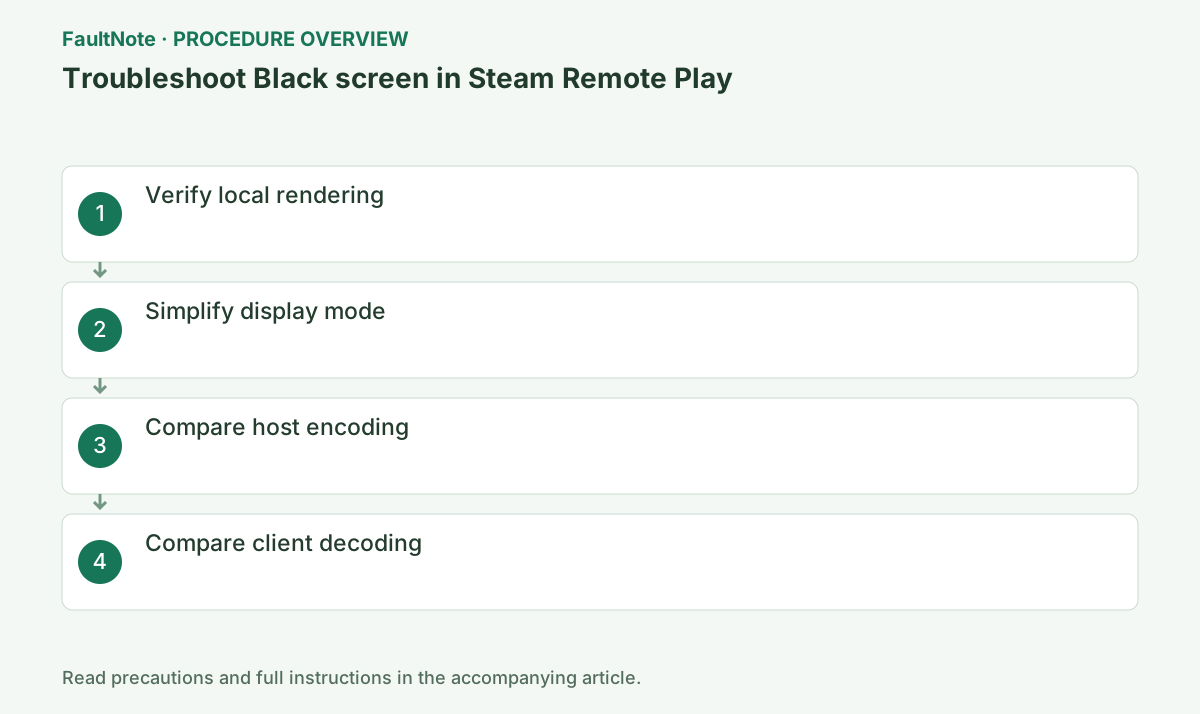
Launch on the physical host and inspect its menu. If it is black locally too, address game/GPU/display first. If only the client is black, distinguish capture, transfer and decoding. Record audio, host response to input and cursor visibility; separate video-only faults from complete connection failure.
Record host/client resolution, display mode, HDR and Remote Play settings. Use the same menu or safe scene and reconnect between tests. Changing game, bandwidth and mode together obscures the cause. For multiple monitors, record which one displays the game and treat moving it as a separate change.
Try windowed/borderless mode and restore it if unchanged. Compare HDR and recording/overlays one at a time with original values recorded. Do not bypass protection or anti-cheat; check supported streaming conditions. Comparing another known-working game narrows whether the fault is game-specific.
In host Settings > Remote Play advanced host options, toggle the available hardware encoding control once. End the stream normally and retry without changing client settings in the same test. If video appears, check load, audio and input too. If the control is absent, use documentation for the actual platform instead of forcing another OS workflow.
Return host settings to the selected baseline, then compare available client hardware decoding. Restore it if unchanged, then test lower resolution and bandwidth as separate changes. Software processing may display video with unacceptable delay; black-screen removal does not guarantee playable performance. Record side and value for each trial.
Test original video, audio and input, then end and reconnect to check persistence. A connection drop is also a network result; retain its time. Recurrence on restoring a setting is useful evidence, not proof by itself of failed GPU hardware.
Report game, both OS/GPU/Steam versions, display mode and which side change mattered. Restore unsuccessful trial settings and collect logs from the actual Steam installation when requested. Retain comparisons before removing drivers. Do not claim performance on untested settings or devices.
Check the result
- The same scene renders on the client
- Audio and input work
- Video still appears after reconnection with the selected settings
If the problem continues
- Retain local host display and encoding/decoding comparisons for Steam and game-developer support.
Scope of this guide
Troubleshooting guide — A general diagnostic guide based on official support. It does not claim a current incident or a version-specific fix.
Frequently asked questions
Should I change encoding if the host is black locally?
Repair local host launch/rendering first. Missing source video differs from failed transfer.
Should encoding and decoding be toggled together?
Compare individually. Changing both obscures which caused improvement or regression.
Does visible video prove the settings are optimal?
Check audio, input, delay and reconnection too. Software video output may still be insufficient for the intended game.
What if only one game is black?
Inspect mode, capture conditions and game support. Keep the failing scene evidence instead of expanding immediately to whole-driver removal.
Official sources and dates
Source publication or resolution date: Not specified. Sources checked: 2026-10-13. The check date is not the date the problem first occurred. Interface labels can vary between versions and display languages.
Related troubleshooting guides
Steam errors and troubleshooting →
- Troubleshoot Cloud conflict in Steam Client / Steam Cloud
- Troubleshoot Unable to sync in Steam Client / Steam Cloud
- Troubleshoot Host not found in Steam Remote Play
- Clear Steam's download cache when downloads or game startup stall