Clear Steam's download cache when downloads or game startup stall
What to do first
Confirm your sign-in details, then clear the cache under Steam → Settings → Downloads. Sign in again and retry.
This is a general troubleshooting guide, not an announcement of a current outage.
Affected products and symptoms
- Product
- Steam Client
- Versions and conditions
- Steam Client (no specific release)
Symptoms
- A game download will not start or finish
- A game will not launch after downloading
- An update remains stuck in the same state
Causes and conditions
The state of Steam's download cache may be interfering with downloading or launching.
Before you start
- Confirm access to your sign-in methods, including Steam Guard
- Record the affected download's game name and state
- Finish saving in-game data
Precautions
- You will need to sign in again afterward
- Installed games are unaffected, but do not proceed without confirming access to your sign-in methods
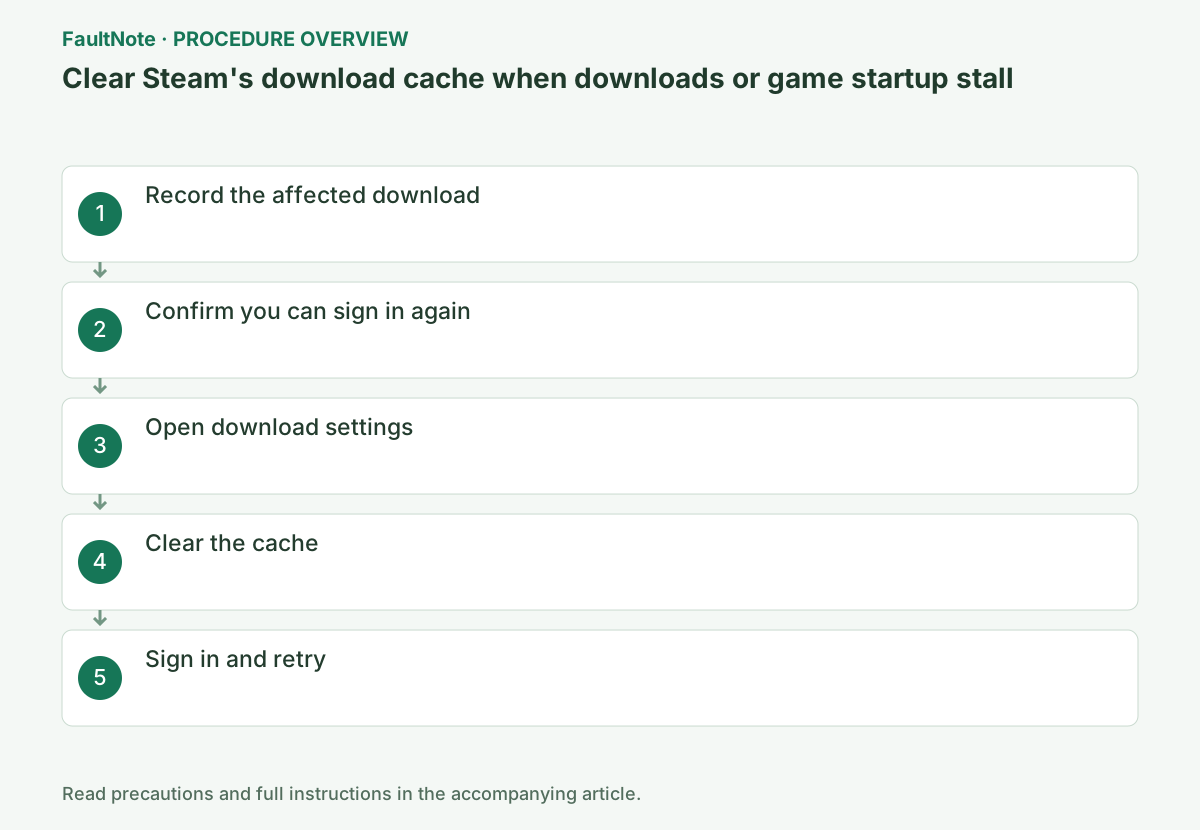
Step-by-step instructions
Record game, network transfer, disk activity, progress and error. Zero network speed can occur during unpacking or update writes. Distinguish continuing disk work from unchanged progress with an error. If another download works, a game-specific problem remains possible; clearing cache is not a universal repair.
Clearing cache requires signing in again. Have account credentials and Steam Guard access ready and finish game/save operations normally. Resolve missing authentication access first. The official statement about installed games does not guarantee unsaved work or login state is preserved.
Open Steam > Settings > Downloads > Clear Download Cache. Read the sign-in notice and wait for logout or restart. This is not manual deletion of Steamapps, userdata or download folders. If game storage is disconnected, check that connection before blaming cache.
Sign into the same account and resume only the affected download. Compare resumed transfer, disk work or a new code with the previous failure. Do not clear cache again while work is active. If more data must be downloaded, check available space and connection conditions before continuing.
For one game, check verification and developer guidance. For connection errors across games, compare network and Steam access. For disk-write errors, inspect destination, space and connection. Authentication failure after clearing belongs to sign-in troubleshooting. Do not label every remaining stop as cache corruption.
Launch after download/update completion. Resumed transfer and a functioning game are separate checks; test the original launch operation. If Cloud applies, check exit synchronization before moving devices. If installed games appear absent, check account and storage recognition before immediately reinstalling.
Record game, time, before/after screens, sign-in result and remaining code. Preserve results on the same network and storage before changing many settings. If another device works, note different client/network conditions. More cache-clearing repetitions do not create a stronger repair.
Check the result
- The target operation completes without the original error
- The original game launch or update completes with normal privileges and connectivity
- Saved data and required functions show no new faults
If the problem continues
- If it does not improve, report the download problem through Steam Support's help wizard
- If only one game is affected, use integrity verification and that game's support
Scope of this guide
Troubleshooting guide — Rebuild the download cache, sign in to Steam again and complete the update or launch.
Frequently asked questions
Should I clear cache whenever speed reads zero?
Check disk activity and progress too. Unpacking can show no transfer; speed alone is not a reason to interrupt.
What if I cannot sign in again?
Resolve account and Steam Guard access first. Further clearing does not let you verify downloads without authentication.
Is this a step before reinstalling games?
It is the official option when cache may contribute. It differs from deleting a game; choose verification, connectivity or storage checks from the remaining error.
Does this resolve a Cloud conflict too?
That is a separate issue requiring save preservation and selection. Cache clearing is not an overwrite decision.
Official sources and dates
Source publication or resolution date: Not specified. Sources checked: 2026-10-13. The check date is not the date the problem first occurred. Interface labels can vary between versions and display languages.
Related troubleshooting guides
Steam errors and troubleshooting →
- Fix Steam's Failed to Start Game (Missing Executable) error
- Repair Steam crashes or missing content by verifying game files
- Troubleshoot Cloud conflict in Steam Client / Steam Cloud
- Troubleshoot Unable to sync in Steam Client / Steam Cloud