Troubleshoot Unable to sync in Steam Client / Steam Cloud
What to do first
Do not bypass the warning. Preserve progress on local and other devices, check Cloud settings and connectivity, then verify synchronization and in-game progress separately.
This is a general troubleshooting guide, not an announcement of a current outage.
Affected products and symptoms
- Product
- Steam Client / Steam Cloud
- Versions and conditions
- Steamsupported Windows / macOS / Linux
- Error codes and identifiers
- Unable to sync
Symptoms
- The operation fails with Unable to sync.
- The same failure is reproducible in Steam Client / Steam Cloud.
Causes and conditions
A temporary service or network problem prevents local files from synchronizing with the cloud.
Before you start
- Exit the game and launcher normally; record the account, title, complete error, and occurrence time.
- Before changing local saves or settings, find the developer-documented save location and copy it to another folder.
Precautions
- Do not bypass the warning to create new progress on another device
- Disabling Cloud is not the same as repairing synchronization
Tools and official pages used in this guide
Preserve only files available to the legitimate account. Availability of all files or historical versions is not guaranteed.
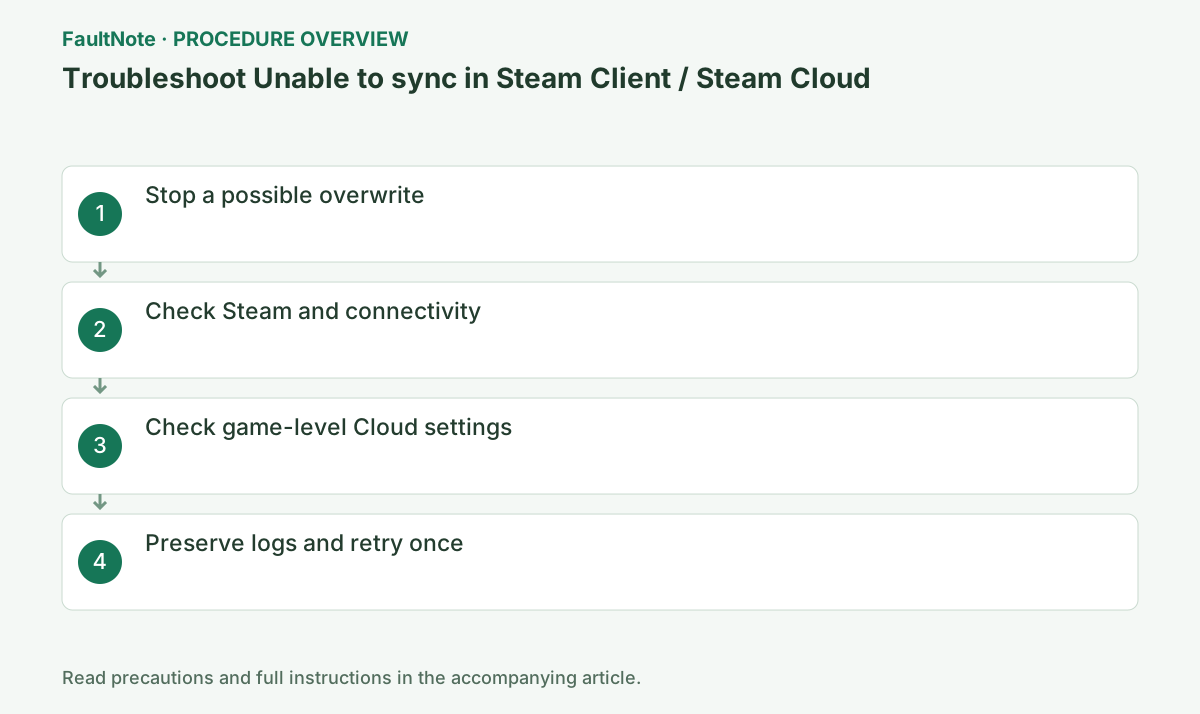
Step-by-step instructions
Unable to Sync means synchronization has not completed. Before choosing Play Game, stop the game on all devices. New progress here may diverge from progress not yet uploaded from another device. Record the warning, game, account and last device played and identify the progress to retain.
Locate saves using developer documentation and copy candidates with the game and Steam closed. Use non-synced folders named by device and time; leave originals intact. Preserve downloadable Remote Storage candidates separately too. Keep multi-file saves as sets and do not discard a candidate based solely on size or timestamp.
Official links for this step
- Steam account Remote Storage
Preserve only files available to the legitimate account. Availability of all files or historical versions is not guaranteed.
- Steam account Remote Storage
Check both Steam Settings > Cloud and game Properties > General. Store Cloud support does not establish that every save or cross-OS transfer is supported. For transfers between Windows and another OS, verify developer scope. Record settings before changes and do not repeatedly toggle them without backups.
A Go Offline menu item is normally the action offered while online; do not mistake it for a status saying Offline. Check actual Steam connection state. Compare another game Cloud operation and browser access. Do not remove required organizational VPN or controls; report time and affected scope to the administrator.
If desired progress remains on the old device, back it up, then open only its Steam online and inspect sync state. You need not play again. After sync, open Steam on the destination and wait for retrieval. If conflict appears, stop treating it solely as connectivity and use candidate preservation and progress comparison.
Copy cloud_log.txt under the actual Steam installation logs folder and note warning time and game. The default is C:\Program Files (x86)\Steam\logs; inspect your actual installation if different. Log existence is not success. Distinguish completed sync, conflict and a new connection error for each retry; review account and path details before public sharing.
After completed sync, verify the desired slot and progress, exit normally and check sync again. If the warning clears but progress is old, stop further saves and retain candidates. Wait for upload before changing devices. Permanent Cloud disabling is not sync repair; treat local-only saving and its limitations as a separate decision.
Check the result
- The warning clears and Cloud synchronization completes
- The intended save and progress remain intact
- Synchronization also completes after exit
If the problem continues
- Save cloud_log.txt and warning time. If conflict appears, switch to candidate preservation and selection.
Scope of this guide
Troubleshooting guide — A general diagnostic guide based on official support. It does not claim a current incident or a version-specific fix.
Frequently asked questions
Will toggling Cloud always repair synchronization?
No. Disabled settings, connection failures and conflicts differ. Preserve candidates and follow the branch matching the actual state.
Will later synchronization merge continued offline progress?
Automatic merging is not guaranteed. Offline progress may conflict with changes elsewhere; preserve desired candidates before deciding.
Does working browser access prove Steam connectivity?
Routes and permissions can differ. Compare another game Cloud result and record warning time and managed-network conditions.
Are saves always shared across operating systems?
It is game-specific. A Cloud label does not establish cross-OS compatibility for all files; check developer scope.
Official sources and dates
Source publication or resolution date: Not specified. Sources checked: 2026-10-13. The check date is not the date the problem first occurred. Interface labels can vary between versions and display languages.
Related troubleshooting guides
Steam errors and troubleshooting →
- Troubleshoot Cloud conflict in Steam Client / Steam Cloud
- Troubleshoot Black screen in Steam Remote Play
- Troubleshoot Host not found in Steam Remote Play
- Clear Steam's download cache when downloads or game startup stall