Identify the source of Chrome “Managed by your organization”
What to do first
Inspect policy names, values, and Source behind Chrome management labels. Connect them to blocked settings, distinguish platform and cloud management, and verify updates at the management source.
This is a general troubleshooting guide, not an announcement of a current outage.
Affected products and symptoms
- Product
- Google Chrome
- Versions and conditions
- Chrome for Windows, macOS, and Linux
- Error codes and identifiers
- chrome://policychrome://management
Symptoms
- A personal PC shows a managed notice
- Homepage or extensions cannot be changed
Causes and conditions
Use chrome://policy Source to distinguish Cloud, Platform, and Enterprise default policy.
Before you start
- Before changes, record and preserve the chrome://policy Export to JSON result and a screenshot of the management notice.
- Change one item at a time and record the original symptom after each stage.
Precautions
- Do not bulk-delete unrelated settings or data.
- Exclude personal data and credentials; share only the necessary parts of the chrome://policy Export to JSON result and a screenshot of the management notice.
Tools and official pages used in this guide
Check the official page for exact setting names, limitations, and updated decision paths.
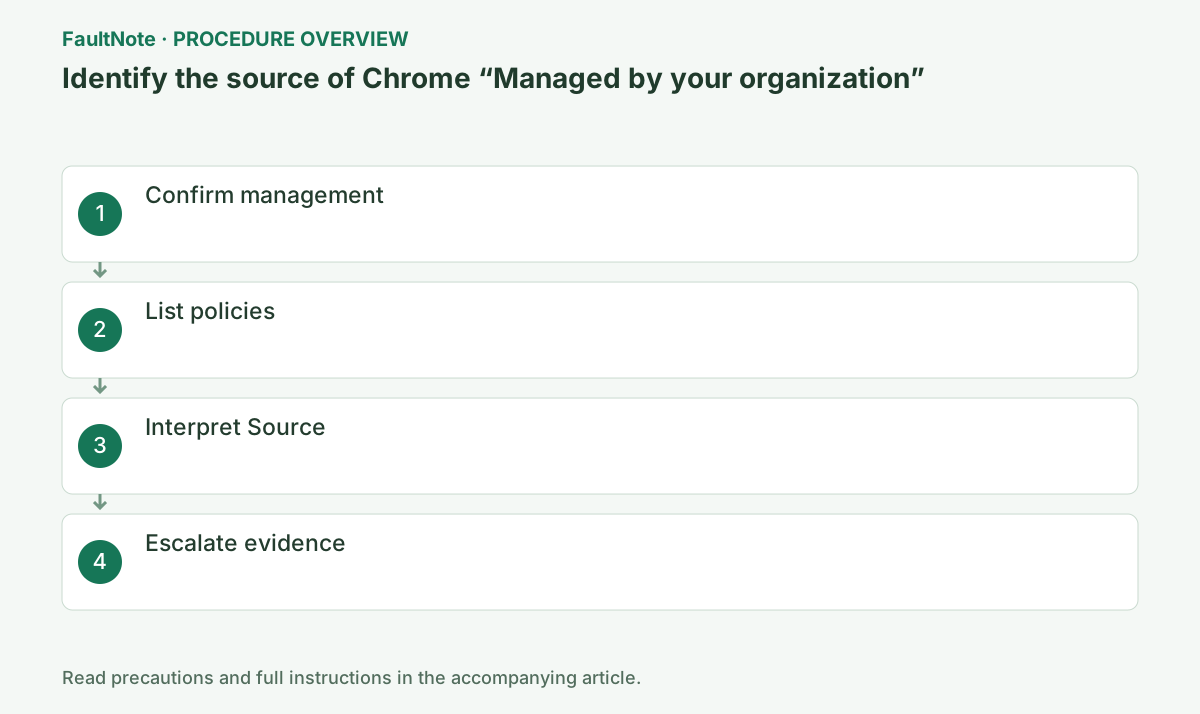
Step-by-step instructions
Check the bottom of the Chrome menu and chrome://management.
Contact the administrator for work/school accounts or supplied devices.
Open the Chrome menu, check its bottom for the management notice, then enter chrome://management in a new tab and record the displayed domain or explanation.
Use chrome://management for management status and chrome://policy for values. For a reverting startup page, inspect the relevant URL policy. Connect policies to the symptom instead of removing unrelated restrictions.
Official links for this step
- Official Google Chrome troubleshooting
Check the official page for exact setting names, limitations, and updated decision paths.
- Official Google Chrome troubleshooting
Open chrome://policy and choose Reload policies.
Turn off Show policies with no value set to focus on active values. Record Value and Level as well as policy name.
Filter by the setting that cannot be changed.
Platform means delivery outside Chrome, such as Windows registry/Group Policy or macOS management. Chrome settings cannot override it.
Clear the name filter to inspect the list. Showing unconfigured policies adds empty entries, so count is not a measure of danger. Compare actual values before and after reload and investigate the management source when unchanged.
Cloud means account management; Platform means OS policy such as Group Policy.
Enterprise default is a Chrome-provided enterprise default.
Cloud comes from a managed Google account or enrolled browser. Switching profiles does not necessarily remove device-level policy.
OS or cloud management can reapply organization settings. Provide the owner, account type, and blocked operation to the administrator. On personal devices, inspect recently changed browser-protection software without diagnosing surveillance or infection from the label.
Record the policy name, value, Source, and Applies to (scope) from chrome://policy for the legitimate administrator.
On a personal PC with no expected manager, inspect recent software and run a security scan.
Bulk registry deletion can damage legitimate management and other software. Establish device and policy ownership before removal.
Open chrome://policy, reload policies, and locate names relevant to the setting you cannot change. Record the value and Source as well as the name. A listed policy with no configured value is different from an actively enforced restriction.
Platform refers to settings supplied through OS management mechanisms and can appear without a managed account sign-in. Cloud indicates managed account or cloud administration; Enterprise default indicates enterprise defaults. Source alone does not identify the specific management software.
On a personal computer with recently installed security software, consult that product's browser protection settings and documentation. The management label alone does not establish malware infection or employer monitoring.
Provide the administrator with the blocked setting, policy name, value, and Source. Remove internal URLs from screenshots intended for public posts.
After an authorized change at the management source, reload policies and verify both the new value and actual setting behavior. Repeated Chrome resets may leave policies redistributed by the OS or cloud administration intact.
Check the result
- after Reload policies, confirm Source, Scope, and Level point to the expected manager
- Check adjacent basic functions for side effects from the change.
If the problem continues
- send the policy name to the legitimate administrator, or to security support for an unexpectedly managed personal PC
- When continuing with a workaround, preserve original files or account data separately.
Scope of this guide
Troubleshooting guide — Inspect policy names, values, and Source behind Chrome management labels. Connect them to blocked settings, distinguish platform and cloud management, and verify updates at the management source.
Frequently asked questions
Will Chrome reset remove it?
OS and cloud policies override ordinary preference reset.
Can I remove it on a work PC?
Users should not bypass controls intentionally applied by their administrator.
Why does the label remain after signing out?
Platform policies can apply without managed-account sign-in. Inspect Source and value before repeatedly removing accounts, then investigate the OS or installed software.
Can I share policies containing internal URLs?
Omit internal URLs, device names, and account details from public questions. Share necessary policy names and value types, and use internal channels for the administrator.
Official sources and dates
Source publication or resolution date: Not specified. Sources checked: 2026-10-13. The check date is not the date the problem first occurred. Interface labels can vary between versions and display languages.