Troubleshoot 175 in AMD Software: Adrenalin Edition
What to do first
Record 175, verify the affected product and environment, correct the confirmed prerequisite, and retry once under the same conditions.
This is a general troubleshooting guide, not an announcement of a current outage.
Affected products and symptoms
- Product
- AMD Software: Adrenalin Edition
- Versions and conditions
- Windows 10 / 11, AMD Graphics
- Error codes and identifiers
- 175
Symptoms
- The operation fails with 175.
- The same failure is reproducible in AMD Software: Adrenalin Edition.
Causes and conditions
The official article identifies a product, compatibility, storage, update, network, file, or configuration condition that must be resolved before retrying.
Before you start
- Close applications and record the exact PC or GPU model, Windows build, current driver version, and complete error.
- For a laptop or branded PC, check its model support page and obtain a recovery OEM driver before making changes.
Precautions
- Use signed GPU or PC-maker packages, not unofficial drivers, individual DLL downloads, or registry tools.
- Do not open a laptop or bulk-remove a healthy multi-GPU configuration that includes integrated graphics.
Tools and official pages used in this guide
Select the exact product and OS. Do not substitute a latest generic driver when an OEM, legacy, rollback, or fixed version is required.
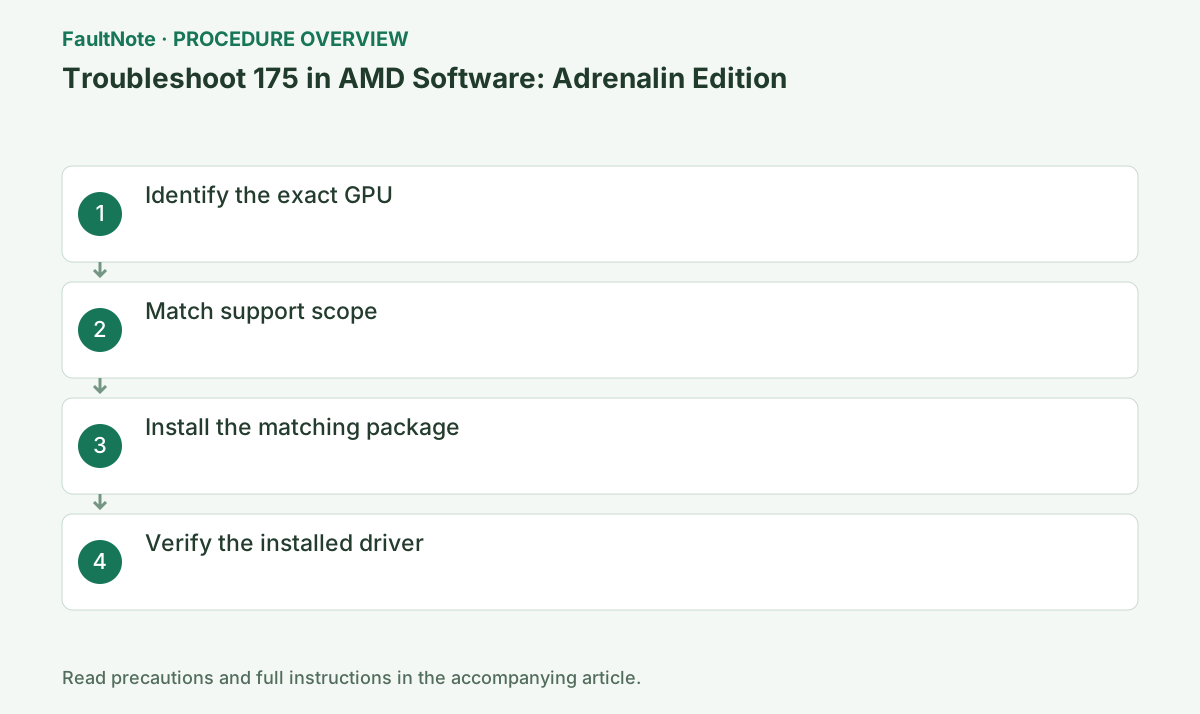
Step-by-step instructions
In Device Manager open the GPU's Properties > Details > Hardware Ids and record its product name and VEN/DEV values.
Record the complete code, AMD Software version, and GPU name from the same session. If the code changes, stop using this guide and move to the official article for the new code.
Similar desktop and mobile names can belong to different supported products. Compare the full model with KB175 and the product download page. Also check the PC model OEM driver for laptops.
Unsupported means outside this package support scope, not necessarily failed hardware. Before downloading another installer, compare the OS requirements of the official legacy release.
Select the exact family in AMD Drivers & Support. Legacy, embedded, Boot Camp, and OEM-only products can require a dedicated path.
On an OEM PC, check the model support page before choosing AMD's generic package. Switchable graphics, integrated GPUs, and handhelds may require an OEM build, so preserve the current version and recovery package.
Official links for this step
- AMD Drivers and Support
Select the exact product and OS. Do not substitute a latest generic driver when an OEM, legacy, rollback, or fixed version is required.
Check before continuingThe official page or signed package for AMD Drivers and Support opens and its product/version conditions match this device.
- AMD Drivers and Support
Record the full GPU name and CPU/APU model for integrated graphics. Do not confuse mobile suffixes or different generations within a broad Radeon family. If OEM specifications differ from Device Manager, check replacement history and hardware IDs instead of guessing. Otherwise unsupported-package retries can continue.
If the product is in the official legacy list, record supported OS and package version. An old final release is not automatically counterfeit or broken. Conversely, a search result called latest may belong to another product family. Open the actual legacy guidance and download requirements.
Download a fresh package matching both GPU and Windows architecture. Prefer the PC maker's package where required.
Close games, recording, GPU monitoring, and other installers. Wait for completion or a specific new code; temporary display flicker can occur, so do not power off during setup.
After restart, check provider, date, and version in Device Manager and confirm AMD Software can display GPU information.
After restart, open Device Manager > Display adapters > target GPU > Properties > Driver and verify provider/version. If it is not the intended state, preserve Install.log instead of repeatedly rerunning setup.
Check before continuingDecision: After restart, check provider, date, and version in Device Manager and confirm AMD Software can display GPU information. After restart, open Device Manager > Display adapters > target GPU > Properties > Driver and verify provider/version. If it is not the intended state, preserve Install.log instead of repeatedly rerunning setup.
After installing the matching older package, check GPU identity, resolution and the intended application. Limit expectations about newer features or game fixes to what its release notes actually document.
If no package supports the intended OS, preserve the working environment and ask the OEM about supported options. Eliminating 175 through an unsigned modified package is not an adequate success criterion.
Check before continuingAfter installing the matching older package, check GPU identity, resolution and the intended application. Limit expectations about newer features or game fixes to what its release notes actually document.
Decide whether the goal is basic display recovery or a particular game. For display recovery, check resolution and multiple monitors. For games, compare published minimum requirements with the GPU; successful setup may still leave missing capabilities. Treating game failure as the same problem as 175 leads to repeated driver installation.
Retain the official legacy recovery package and record settings and GPU identity before and after. Forced unsigned drivers do not prove compatibility even when the goal is a new game. Give the OEM OS, application and GPU details together. Evaluate OS or hardware changes as separate decisions based on those requirements.
Check the result
- 175 no longer appears and the operation completes.
- The selected version and settings remain after restart.
- A second test shows no new display, input, save, or synchronization problem.
If the problem continues
- Restore reversible settings from the notes and escalate without deleting user data.
- Prefer the PC maker or administrator procedure for OEM drivers and managed networks.
- Protect account names, tokens, and save contents before sharing logs.
Scope of this guide
Troubleshooting guide — A general diagnostic guide based on official support. It does not claim a current incident or a version-specific fix.
Frequently asked questions
Will auto-detect always avoid error 175?
It helps with mainstream supported products, but OEM-only or legacy products may still require a dedicated package.
Why does 175 appear although the hardware ID is AMD?
The package may target another generation. Match the exact DEV value and support list.
Does 175 mean that I must replace the graphics card?
Check the official legacy package first. If the intended OS or game requirements cannot be met, evaluate that environment separately from the installer problem.
Will a successful legacy installation make the newest game work?
Not necessarily. Compare GPU capabilities, game requirements and driver support. Verify basic display recovery separately from game compatibility.
Official sources and dates
Source publication or resolution date: Not specified. Sources checked: 2026-10-13. The check date is not the date the problem first occurred. Interface labels can vary between versions and display languages.
Related troubleshooting guides
AMD Radeon / Adrenalin errors and troubleshooting →
- Smart Access Memory becomes disabled after installing Adrenalin 26.8.1
- Clean and reinstall the graphics driver with AMD Cleanup Utility
- Troubleshoot 173 in AMD Software: Adrenalin Edition
- Troubleshoot 174 in AMD Software: Adrenalin Edition