Configure VS Code for the first time
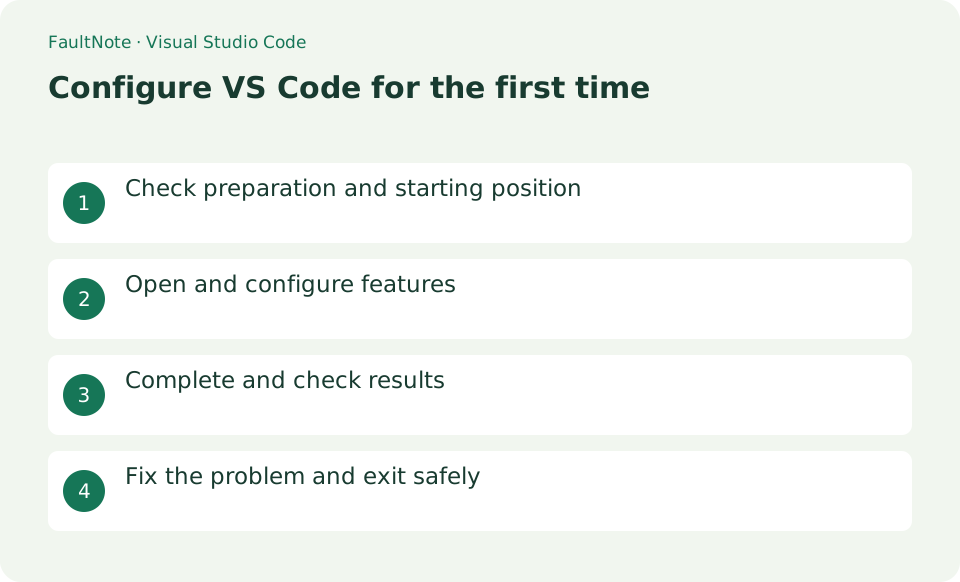
The steps are to set the theme, save, auto format, terminal, and open the first folder. We will explain in detail the starting position, setting values, completion confirmation, and how to review in case of problems.
Published · Updated · FaultNote editorial policy
Who this guide is for and what to prepare
- First-time users of Visual Studio Code
- People who want to safely confirm the operations for configuring the initial settings of VS Code
What you need
- Create a web-practice folder in Documents and install VS Code from the official website.
Open a practice folder and review trust
Create a web-practice folder in Documents and install VS Code from the official website.
Adjust display and saving preferences
Select [File] > [Open Folder] and select web-practice. Create index.html with [New File] in Explorer, enter html:5, confirm the candidate, and create Save with Ctrl+S.
Open settings with Ctrl+,. User is common to all projects, and Workspace is applied only to this folder, so on the Workspace side, turn on Auto Save afterDelay, Auto Save Delay to 1000, and Format On Save.
- Select User or Workspace in Settings
- Choose the default formatter for the practice HTML
Check saved files and formatting results
Break the indentation of index.html to press Shift+Alt+F. Open [Terminal] > [New Terminal] and confirm that your current location is web-practice.
- Open the saved HTML in a browser
Isolate and reverse settings or extensions
If the HTML is not formatted, right-click [Format Document] > [Configure Default Formatter] and select HTML Language Features.
Do not easily allow Workspace Trust on folders obtained from external sources. Workspace settings may be shared as .vscode/settings.json.
- Revert changed settings individually and compare
Choose the correct settings scope
Use User settings for personal preferences such as font size and theme, and Workspace settings for project conventions such as indentation. Check the selected scope before making changes. If behavior differs only in one folder, inspect its .vscode/settings.json for an override. Avoid putting a personal absolute filesystem path into shared settings because another machine may not have that path.
For example, handle small text and HTML formatting as separate problems. Change the font size and verify readability first, then test formatting on the practice HTML. Record the previous values so a later reversal does not require resetting all your other preferences.
Verify saving and formatting with a small HTML file
Create index.html in a practice folder, add a heading and a short paragraph, and save it. Confirm that the unsaved indicator disappears, then run Format Document and inspect the indentation. If asked to choose a default formatter, select one appropriate to the file language. Formatting does not run a program or verify its output; open the HTML in a browser to check the text as well.
Add extensions with a controlled comparison
Verify basic opening, editing, and saving with built-in features first, then add required extensions one at a time. Read the description and publisher information, and avoid installing several competing formatters without a reason. If saving becomes slow or formatting changes after an installation, disable that extension and compare the same practice file. Investigate its settings before re-enabling it; deleting your project is not a useful diagnostic step.
Scroll horizontally to see the full table →
| Observed result | Next action | Success condition |
|---|---|---|
| Only one folder behaves differently | Compare User and Workspace values | You can identify the folder-specific override |
| Formatting produces unexpected output | Check the default formatter and extensions | One intended formatter produces the expected result |
| The tab shows unsaved changes | Check the filename and destination, then save | Reopening the file preserves the edit |
Limitations and requirements
- Do not easily allow Workspace Trust on folders obtained from external sources. Workspace settings may be shared as .vscode/settings.json.
Frequently asked questions
What if you can't find the item you want in Visual Studio Code?
If the HTML is not formatted, right-click [Format Document] > [Configure Default Formatter] and select HTML Language Features.
What should I be especially careful about when configuring the initial settings of VS Code?
Do not easily allow Workspace Trust on folders obtained from external sources. Workspace settings may be shared as .vscode/settings.json.
Why does a changed setting not take effect?
Check its User or Workspace scope and whether another scope overrides it. Language-specific settings may affect only files of that language. Save and compare the same file before adding further settings whose effect is unclear.
Should I enable Auto Save?
Try it in a small practice folder and observe when saving occurs. Auto Save does not verify execution or create a backup by itself. A shared project may have save-triggered actions, so inspect its README and existing settings before making the change.
Sources and verification date
Sources checked: . These sources support the specifications, procedures or prices discussed here. Check each source for applicable conditions and current information.
Related practical guides
- Record game audio only in OBS and test notification exclusion
- Diagnose OBS recording stutter with rendering and encoding statistics
- Record one game in OBS with a specific Game Capture window
- Control OBS Window Capture matching when application titles change
- Crop and frame a source in OBS without stretching the image
- Remux an OBS MKV recording to MP4 before importing it into an editor