Create a constant-frame-rate editing copy with HandBrake
When an editor requires constant frame rate, retain the original and create a CFR copy. Raising the rate does not recreate missing motion; conversion changes frame timing and may duplicate or drop frames.
Published · Updated · FaultNote editorial policy
Who this guide is for and what to prepare
- People who want to complete the task and inspect the saved result
What you need
- Choose an output name different from the original
- Check the frame rate expected by the editor
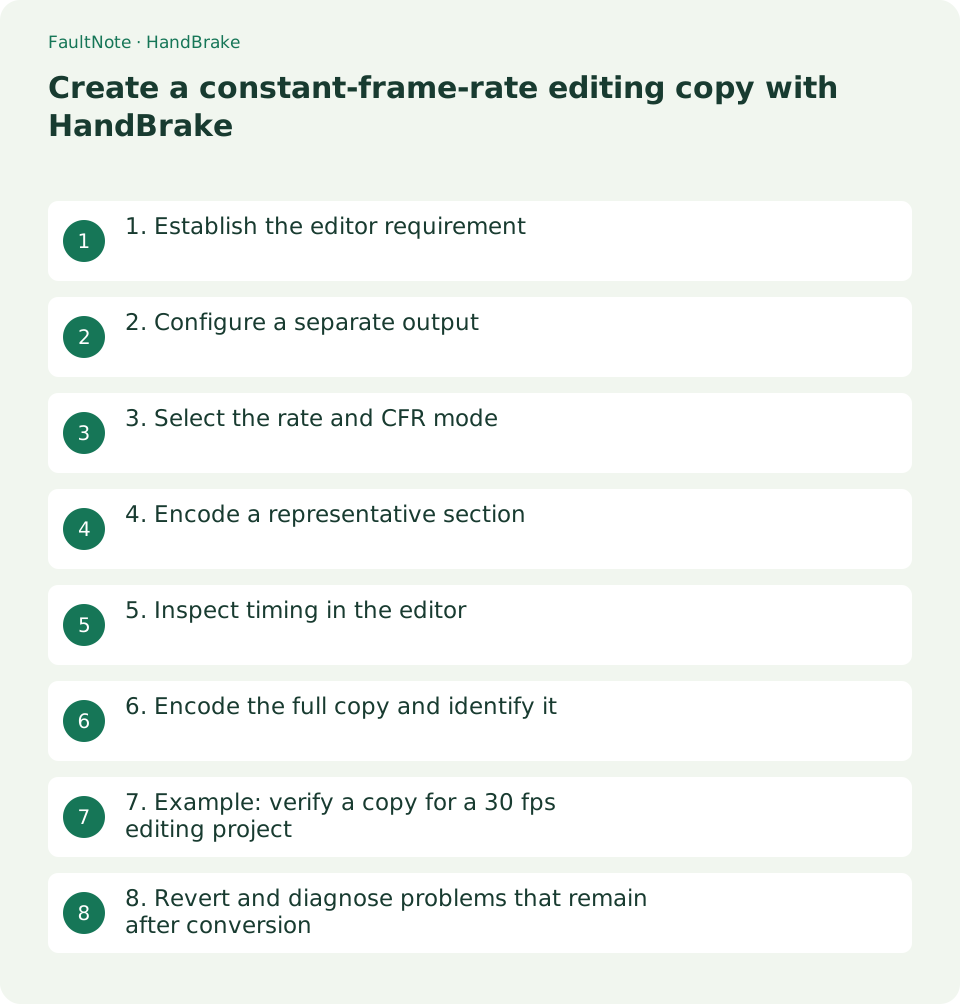
1. Establish the editor requirement
Check whether the project expects 30, 60, 29.97 fps, or another rate. Similar numbers represent different timing bases; do not substitute 30 for 29.97 without a reason.
Do not assume variable frame rate is the cause of every sync issue. If the same drift occurs in original playback, investigate the source recording too.
- Note the exact project frame-rate notation
2. Configure a separate output
Open the source, choose a suitable preset, and select a separate destination. Review dimensions, audio, and subtitles so a frame-rate fix does not silently introduce unrelated changes.
HandBrake re-encodes the video, so this is not a bit-for-bit preservation operation. Choose quality using a short sample containing important text and motion.
- Review preset framing and required tracks
3. Select the rate and CFR mode
Under Video, choose the required Framerate and select Constant Framerate. CFR can also be combined with Same as source, but specify the rate when the target requirement is known.
Same as source with Variable Framerate preserves varying source timing. Peak Framerate imposes a ceiling and should not be confused with a constant-rate requirement.
- Verify both CFR mode and the explicit rate
4. Encode a representative section
When a range selection is available, export a short interval with scrolling or visible movement and a recognizable synchronization cue. Record the settings before encoding it.
CFR conversion arranges frames at regular intervals. Lower rates can drop frames and higher rates can repeat them; this is not motion interpolation.
- Export a short interval with recognizable sync cues
5. Inspect timing in the editor
Import the output and check that the reported rate matches your choice. Compare duration and synchronization with the original, including late speech or click cues rather than only the opening.
If drift remains, investigate source audio delay and editor interpretation before repeatedly changing CFR settings. Frame-rate conversion is not a guaranteed sync repair.
- Compare late cues against the original too
6. Encode the full copy and identify it
Use the verified settings to export the full recording separately. Include a marker such as cfr30 in the filename and check whether the project references the original or the editing copy.
Check seeking through the ending. If another conversion is needed, work from the original rather than a previously compressed copy to avoid accumulating generations of loss.
- Save the full output separately from the source
7. Example: verify a copy for a 30 fps editing project
For a phone recording destined for a 30 fps project, first select an interval with speech and visible movement. If the editor imports the original, inspect its timing there too. Without a baseline, it is difficult to tell whether CFR conversion helped or introduced a different issue.
Use a distinct name such as sample-cfr30.mp4 and choose 30 fps with Constant Framerate. For portrait footage, inspect dimensions and orientation so a timing change does not accidentally become a landscape conversion. Verify the displayed orientation in the short result.
Place the output on the 30 fps timeline and compare early and late cues such as lip motion or a finger tap. Comparing the same recognizable events in source and copy is more informative than judging synchronization from general listening alone.
Regular frame timing can produce adjacent repeated images; that alone is not failure. Lost critical motion or unreadable scrolling is a practical problem, however. Recheck the editor rate requirement and choose another configuration if the content suffers.
After encoding the full copy, compare duration and ending with the source. Save and reopen the project to verify the correct file is referenced. Keep source and editing-copy roles clear in filenames and notes so reverting remains straightforward.
8. Revert and diagnose problems that remain after conversion
If the rate is unexpected, review the selected rate and CFR state under Video. Reselecting a preset may alter choices. Record settings before encoding so you can compare them with output properties.
For missing audio, inspect required Audio tracks before blaming frame rate. Do the same under Subtitles for missing captions. A preset change can introduce several changes together; restore needed choices and test a separately named short result.
For unexpectedly short duration, check whether the range remains set to the test interval. Restore full timing or chapter selection before encoding the complete source. Do not mistake the successful sample for the full deliverable.
Keep a reversible path to the original when editor problems persist. Record the CFR copy location and inspect timeline start and end after switching references. Distinguish source problems from import-only behavior; conversion alone is not proof of a fix.
Limitations and requirements
- Keep the original material until the exported result works in the intended application.
Frequently asked questions
Will converting 30 fps to 60 fps make motion smoother?
It does not create missing intermediate motion. Frames may repeat, and size or processing time may increase without improved motion detail.
How does Same as source interact with CFR?
Same as source chooses the rate basis; CFR specifies constant timing throughout. Together they detect the source rate and regularize variable sections, unlike the VFR combination.
Should every source be converted to CFR?
Use it when required by an editor or device. Material that already works does not automatically need another encode; consider quality and processing cost.
Sources and verification date
Sources checked: . These sources support the specifications, procedures or prices discussed here. Check each source for applicable conditions and current information.
Related practical guides
- Export subtitles with HandBrake: burn-in or selectable tracks
- Convert multiple videos with the HandBrake Queue and verify each job
- HandBrake: Compress Video with a Device Preset
- Select the required audio track and convert video with HandBrake
- Record one game in OBS with a specific Game Capture window
- Control OBS Window Capture matching when application titles change