Convert multiple videos with the HandBrake Queue and verify each job
The Queue runs multiple configured encodes in sequence. Verify source and destination per job, then inspect the first output before committing to a long batch.
Published · Updated · FaultNote editorial policy
Who this guide is for and what to prepare
- People who want to complete the task and inspect the saved result
What you need
- Retain inputs and create a separate output folder
- Verify settings using a short representative video first
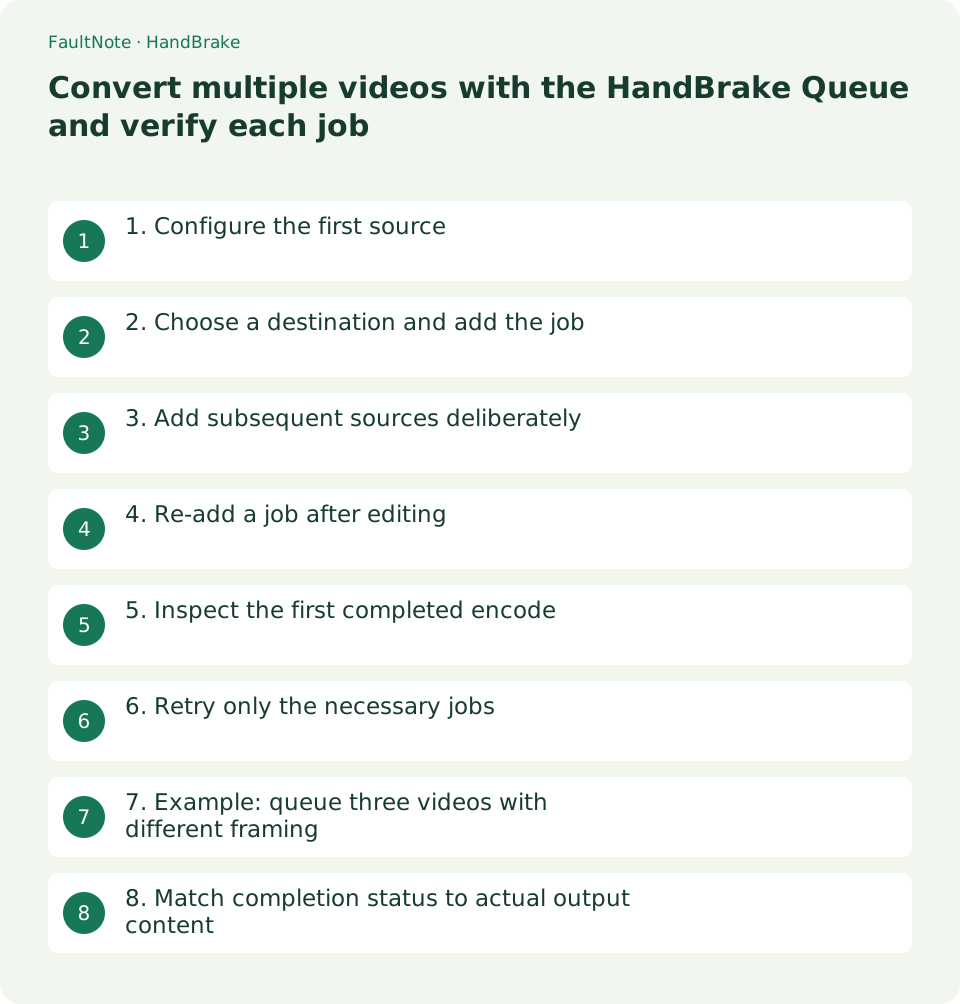
1. Configure the first source
Open the source, inspect Title and duration, and choose a preset. For sources with multiple titles, use the preview rather than assuming the first item is the desired content.
Review Dimensions, Video, Audio, and Subtitles. Different sources can carry different tracks; do not apply the first setup to every source without checking.
- Use Title and duration to identify the correct source
2. Choose a destination and add the job
Set Save As to a separate output location and confirm the name is unused. Select Add to Queue to create a job from the current settings.
Adding a job does not begin encoding. Open Show Queue and inspect input and destination before moving to the next source.
- Look for destination filename collisions
3. Add subsequent sources deliberately
Open the next source and review its title, preset, filename, and required tracks before selecting Add to Queue again. Use distinct names for alternate-quality outputs from one source.
If using multi-job addition, review selected titles and generated names. Sources with identical filenames from different folders can collide in a shared destination.
- Select required audio and subtitles for each source
4. Re-add a job after editing
The official guide states that editing a job opens its source in the main window and removes the job from the Queue. After changing settings, use Add to Queue again and confirm it is listed.
Do not confuse changes in the main window with changes to an already queued job. Identify the intended input and destination before editing.
- Confirm the edited job has been re-added
5. Inspect the first completed encode
Start Queue and inspect the first completed file for duration, framing, captions, and image readability. Decide whether the remaining jobs should continue with those settings.
A batch consumes computing resources and disk space. If other work becomes sluggish, inspect pause or stop controls before intervening, and do not treat an interrupted file as completed output.
- Inspect representative scenes in the first completed output
6. Retry only the necessary jobs
After completion, compare queue status with output files. For failed jobs, check source availability, destination write access, and free space, then re-add only the required items.
Use a new name when re-encoding a successful output so you can compare settings. Even with successful queue status, play representative middle and ending sections before sharing.
- Retry only failed jobs with a deliberate destination name
7. Example: queue three videos with different framing
Consider a landscape screen recording, a portrait phone clip, and a subtitled video. Verify text readability on the screen recording first and queue it. The same preset can produce different dimensions from different inputs, so inspect Dimensions for each source.
For the phone clip, inspect orientation and edge content and use a clear name such as phone-export.mp4. Check for unintended crop or resolution choices carried from the screen recording before adding this job.
For the subtitled source, choose required tracks and decide between burn-in and selectable output. Do not discard captions simply because the first video had none. Review source-to-destination mapping per job, not only the queue count.
Inspect the output folder for existing names before starting. Re-added jobs can create duplicate work if an earlier job remains, so confirm the queue contains only the intended three encodes. Verify the first output before relying on the rest.
If the destination fills during encoding, distinguish completed files from partial ones. Consider a destination with sufficient space rather than removing source material. Fix the cause before re-adding failed jobs and avoid overwriting successful outputs with the same name.
8. Match completion status to actual output content
For a missing output, distinguish pending from failed status. Added jobs still require Start Queue. For a failure, check moved inputs or disconnected destinations and correct the cause before repeating the same attempt.
For incorrect framing, review source-specific dimensions and crop. Fixed choices applied to both portrait and landscape material can remove required content. Identify the affected job, edit it, re-add it, and review the resulting queue entry.
If a correction appears ineffective, verify that you are not opening the earlier output. Compare filenames and modification times and keep distinct versions. Review the actual queued job rather than assuming a main-window change updated it.
After completion, compare intended outputs with actual files. Multiple-quality versions increase output count, so do not assume one source always means one output. Label output roles and keep partial or unverified files out of the delivery folder.
Limitations and requirements
- Keep the original material until the exported result works in the intended application.
Frequently asked questions
Does changing the preset after adding jobs update them all?
Do not assume existing jobs have adopted the new settings. Edit the intended job, re-add it after adjustment, and inspect its configuration.
Does queue order matter?
Putting a representative short source first allows early output inspection. Prioritize urgent or validation jobs, without claiming a completion time that has not been measured.
Can I share a stopped encode?
A partial output is not necessarily complete. Check job status and the ending; re-encode from the original if required content is missing.
Sources and verification date
Sources checked: . These sources support the specifications, procedures or prices discussed here. Check each source for applicable conditions and current information.
Related practical guides
- Create a constant-frame-rate editing copy with HandBrake
- Export subtitles with HandBrake: burn-in or selectable tracks
- HandBrake: Compress Video with a Device Preset
- Select the required audio track and convert video with HandBrake
- Record one game in OBS with a specific Game Capture window
- Control OBS Window Capture matching when application titles change