Identify left and right audio content and preserve stereo export
Inspect left and right content in Audacity and export a verified stereo copy without accidental mono mixing, swapped channels or extra tracks. Preserve originals and compare a small trial against playback results before applying the workflow to the whole collection.
Published · Updated · FaultNote editorial policy
Who this guide is for and what to prepare
- Listeners preserving distinct left/right content or binaural audio
What you need
- Preserve source audio and companion files and prepare a separate working copy
- Check the target player capabilities and begin with one representative work
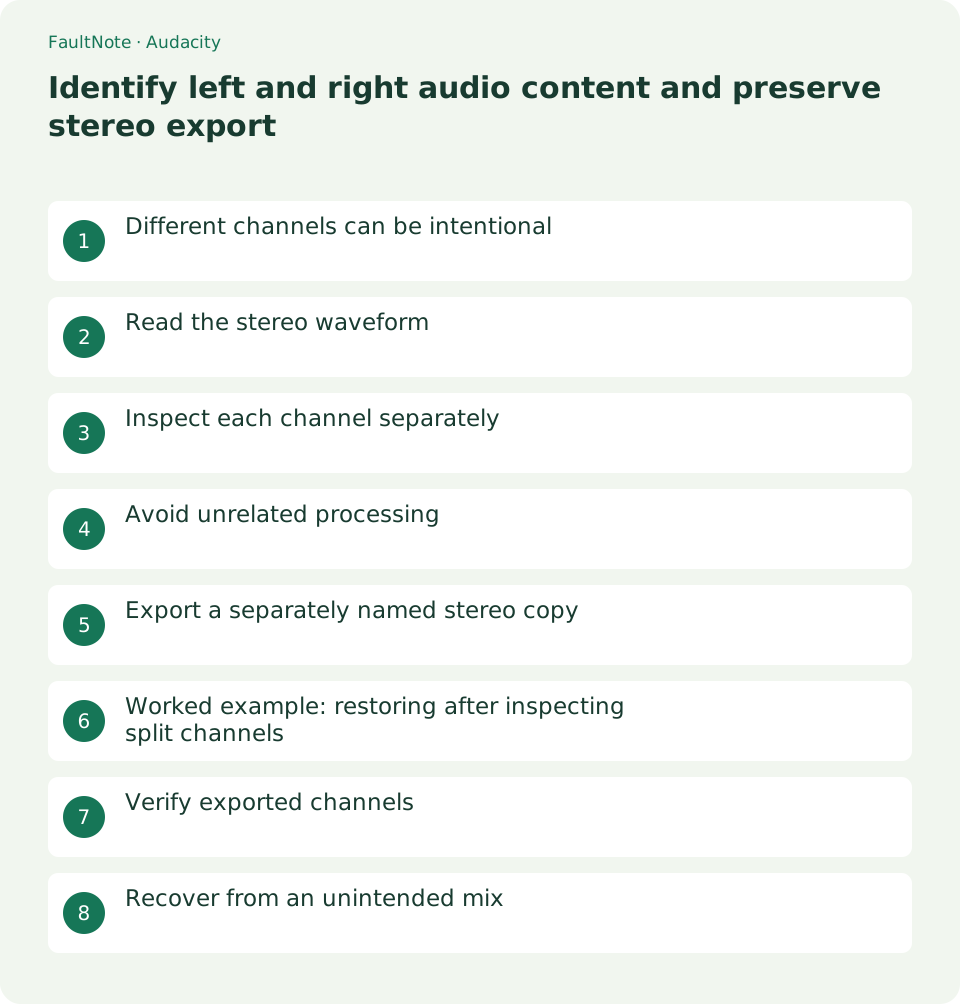
Different channels can be intentional
Different speakers or distance cues may be an intentional stereo design. Independently maximizing a quieter channel can change that design. Check supplied notes and headphone orientation before correcting an apparent imbalance.
Import the source without changing speed. A player or Windows mono setting can make a stereo file sound identical on both sides. Separate file structure from the output environment before exporting.
Read the stereo waveform
Import audio through File. In a stereo track the upper waveform is left and the lower is right. Two waveforms do not establish different content; identical signals can occupy both channels. Listen as well.
If the track is mono, verify the source channel count. Exporting mono as stereo does not recreate lost channel differences. Check for the correct supplied edition when stereo content was expected.
Inspect each channel separately
Split Stereo Track in a copied project separates left and right while retaining their respective pan positions. Split Stereo to Mono centers both and is a different operation.
Use Solo to inspect each channel, then release it and verify pan and order. Make Stereo Track uses the upper track as left and lower as right, so do not rejoin a accidentally reordered pair.
- Import a copy and verify source channel count and waveform sides.
- Inspect sides with Split Stereo Track and Solo when needed, then restore both channels.
- Exclude unintended tracks or mono processing and export the whole intended stereo content.
- Compare duration, distinctive channel content and the ending against the source.
Avoid unrelated processing
Do not downmix or swap channels when preservation is the goal. Independent stereo normalization can change relative channel levels. For inspection alone, leave effects, gain and pan unchanged.
Importing several tracks can produce overlapping content at export. Ensure only the intended source is active, especially when a comparison track remains. Duplicate playback can raise levels and introduce clipping.
Export a separately named stereo copy
Export Audio to a separate folder and verify Stereo channels and format. WAV or FLAC can avoid another lossy encoding for the trial, but the output is not necessarily byte-identical. Lossless output does not restore information lost in an MP3 source.
Confirm whole-project versus selected-range export and check expected duration. A lingering selection can produce only a short excerpt. Saving an Audacity project differs from exporting playable audio.
Worked example: restoring after inspecting split channels
After Solo inspection of split channels, release Solo and verify order and pan before rejoining. The original left channel belongs above the right. If track labels no longer establish identity, compare distinctive content with a fresh source in a separate project.
Check muted state before export. Keeping comparison audio in another project prevents overlapping exports. For diagnosis alone, using the unmodified source after inspection can be preferable to creating an unnecessary derivative. Export only when an actual change is needed.
Verify exported channels
Open the export in another player at the same headphone level. Check distinctive left and right content plus middle and end. Reimport to confirm two channels and duration, but assess audible placement rather than approving display metadata alone.
Scroll horizontally to see the full table →
| Outcome | Next action |
|---|---|
| Both sides sound identical | Check source, downmix and output mono settings. |
| Sides are swapped | Check split-track order and pan. |
| Export is unexpectedly short | Check selected-range versus whole export. |
Recover from an unintended mix
For swapped sides check order and pan; for identical sides check downmixing and output mono settings. Do not promise to recover original separate content from an already mixed file. Reload the preserved source and remove unintended processing before retrying.
Limitations and requirements
- Keep native playback speed and avoid overwriting originals. Even metadata-only changes can change the file hash or modification time.
Frequently asked questions
Do similar waveforms mean mono?
Appearance alone is insufficient. Check channel count and listen to content.
Should I normalize the quieter side independently?
It can change intended channel contrast. Trial a copy only when correction is appropriate.
Can a normal player use the saved project?
Normally export audio; the project stores editing state.
Sources and verification date
Sources checked: . These sources support the specifications, procedures or prices discussed here. Check each source for applicable conditions and current information.
Related practical guides
- Cut unnecessary parts of audio with Audacity
- Distinguish clipping from quiet audio and understand normalization limits
- Use ReplayGain for spoken audio while preserving contrasts within a work
- Play chapters from a long audio file and CUE sheet
- Diagnose garbled audio tags separately from filenames and ID3 encoding
- Check cover-art format and size before embedding it in audio