Windows 11: Automatically Clean Temporary Files with Storage Sense
Review Storage Sense targets and retention periods before enabling it, then check free-space changes. Distinguish deletion from Downloads from making a OneDrive file online-only. Turning automatic cleanup off does not restore files already deleted.
Published · Updated · FaultNote editorial policy
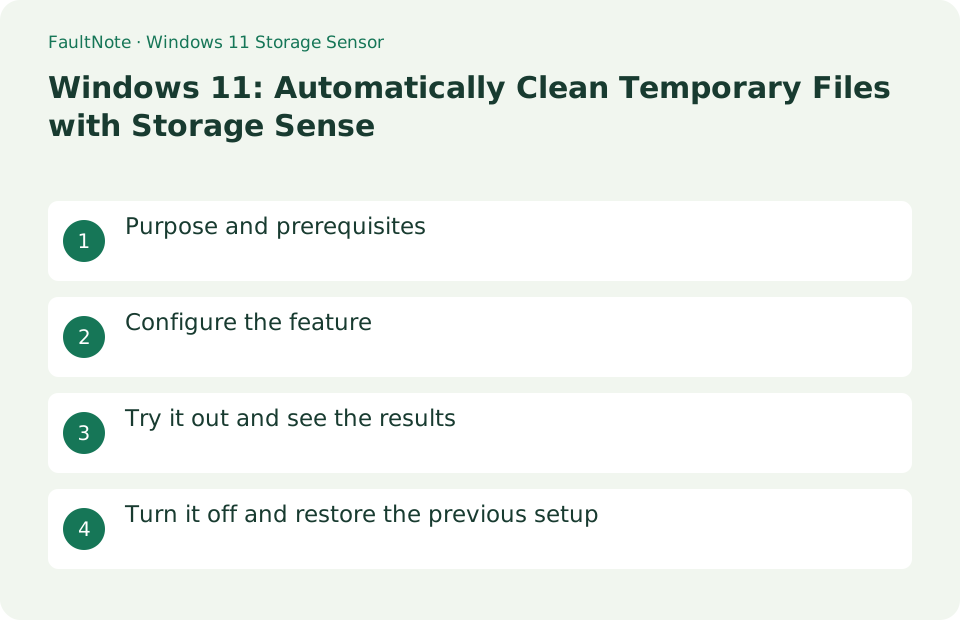
Who this guide is for and what to prepare
- People maintaining free space on their Windows system drive
- People who need to preserve downloads or offline cloud files
What you need
- Record current free space in Settings → System → Storage.
- Identify downloads you need to keep and OneDrive files needed offline.
Choose a practical workflow
Clean temporary data while retaining downloads you need. Record system-drive free space and read the selected options before running. Reclaimed space varies with usage; no fixed increase is guaranteed. Restore needed Recycle Bin items beforehand rather than relying on recovery after automatic cleanup.
2. Review Downloads and Recycle Bin retention
- For the initial setup, set automatic deletion from Downloads to Never and inspect files you want to keep.
- Review Recycle Bin retention and the run schedule, choosing intervals that fit how often you review files.
- Organize ongoing reference material into an appropriate folder instead of relying on Downloads indefinitely.
Worked example: limit cleanup and verify free space
- Open Settings, System, Storage and inspect usage categories. Open Storage Sense details and review frequency, targets and retention periods.
- Decide whether download cleanup is needed. Move retained material to a managed folder and verify it opens; restore needed Recycle Bin files before running.
- Review cloud-content settings. Confirm OneDrive files needed offline are kept on the device and distinguish them from material allowed to become online-only.
- Run manually, then check free space and retained files. If results match the intent, choose a frequency; otherwise inspect the largest storage categories.
3. Understand online-only OneDrive files
Cloud-content cleanup can release local space while retaining the cloud file. Opening an online-only file normally requires connectivity to download its content.
4. Review the policy and run it once
Review targets and retention before running cleanup. The amount released depends on eligible temporary files and other managed content.
- After reviewing the settings, use Run Storage Sense now and wait for completion.
- Compare free space before and after, then check the downloads and offline files you intended to keep.
- If the change is small, inspect the storage categories for other causes, such as large apps or personal files.
Review Recycle Bin retention and retained files
Review downloads and Recycle Bin contents that must remain before freeing space. Read the selected cleanup settings, run manually and record available space before and after. If little changes, inspect storage categories instead of repeating the same cleanup.
Choose Recycle Bin retention based on how long it takes to notice accidental deletion. A short period reduces the recovery window even if it simplifies space management. Do not use Recycle Bin as storage for needed material. Restore important files to managed folders and clean only confirmed unwanted data.
Review Downloads and large storage categories
If applications or videos dominate usage, reconsider where they are stored. Do not assume Storage Sense organizes arbitrary project folders. Check ownership and need before removal. When moving files, verify they open from the other drive before deleting originals.
Downloads can contain invoices and purchased documents, not only installers. Check whether old files can be reacquired and whether access requires an account or entitlement. Move long-term material into organized folders and verify it opens. Browser history does not guarantee the source remains downloadable.
Check recurring cleanup and repeated space growth
Record retention periods and selected categories and confirm a manual run cleans only the intended data before enabling recurring use. Check that cloud files needed offline are retained locally. A synchronized status and opening a file without a network connection are different checks.
If free space quickly decreases again, inspect the growing category rather than repeatedly cleaning. Updates, caches and video exports can change usage. Record the activity preceding growth. Begin with storage categories and supported application cleanup rather than deleting system folders directly.
Find the appropriate check when cleanup is ineffective
Scroll horizontally to see the full table →
| Observed result | First check | Next action |
|---|---|---|
| Another drive does not shrink | Check the target drive | Storage Sense targets the system drive; inspect and manage other-drive usage separately. |
| Applications dominate usage | Review installed applications and their storage | Temporary cleanup does not necessarily reduce application binaries substantially. |
| Cloud files cannot open | Check connectivity and local retention | Distinguish online-only status from deletion and download required files again. |
5. Check what happens when you disable it
Disabling the feature stops future automatic processing. It neither reverses earlier deletions nor downloads every online-only file again.
- Turn Storage Sense off when no longer needed.
- Mark needed OneDrive files Always keep on this device individually and wait for downloads to finish.
Limitations and requirements
- Read the current policy shown on your computer rather than assuming default or organizational settings.
- Ordinary deletion of a OneDrive file can propagate to the cloud; it is different from releasing only its local copy.
Frequently asked questions
Is Downloads cleanup based on the download date?
The policy uses time since the file was last opened. Move ongoing material to an appropriate destination and review the deletion conditions.
Does a OneDrive cloud icon mean the file was deleted?
It indicates online-only availability while the cloud file remains. Download the content beforehand if you need offline access.
Is an online-only OneDrive file deleted?
Removing a local copy while retaining cloud data differs from deleting the entire file. Confirm local-retention settings for offline work and verify the file actually opens without networking.
Should I make cleanup more aggressive when little space is gained?
First inspect what uses the space. Shortening retention for important downloads may have little effect if large apps dominate. Choose cleanup suited to the category while protecting needed data.
Sources and verification date
Sources checked: . These sources support the specifications, procedures or prices discussed here. Check each source for applicable conditions and current information.
Related practical guides
- System & reserved is eating the drive: what reserved storage is for, and how it affects the capacity you buy
- How much SSD does a gaming PC need? Windows requirements, published game sizes, library placement
- Move installed Steam games to another SSD and check the result
- Everything: Search Windows File Names Instantly
- ShareX: Capture, Annotate, and Save Screenshots
- 7-Zip: Create an Encrypted 7z Archive