A self-encrypting SSD is not automatically an encrypted hard drive for Windows
An SSD advertised as self-encrypting looks like it will give you Windows hardware encryption. Microsoft says otherwise, in a warning: self-encrypting hard drives and encrypted hard drives for Windows are not the same type of device. The Windows kind carries compliance requirements the other does not, and further conditions apply to the drive's state, the firmware configuration, the controller it is attached to and the Windows edition. This guide was written on 2026-09-21 from Microsoft's page and sets out what to confirm before buying and before first use. Nothing was tested on hardware here.
Published · Updated · FaultNote editorial policy
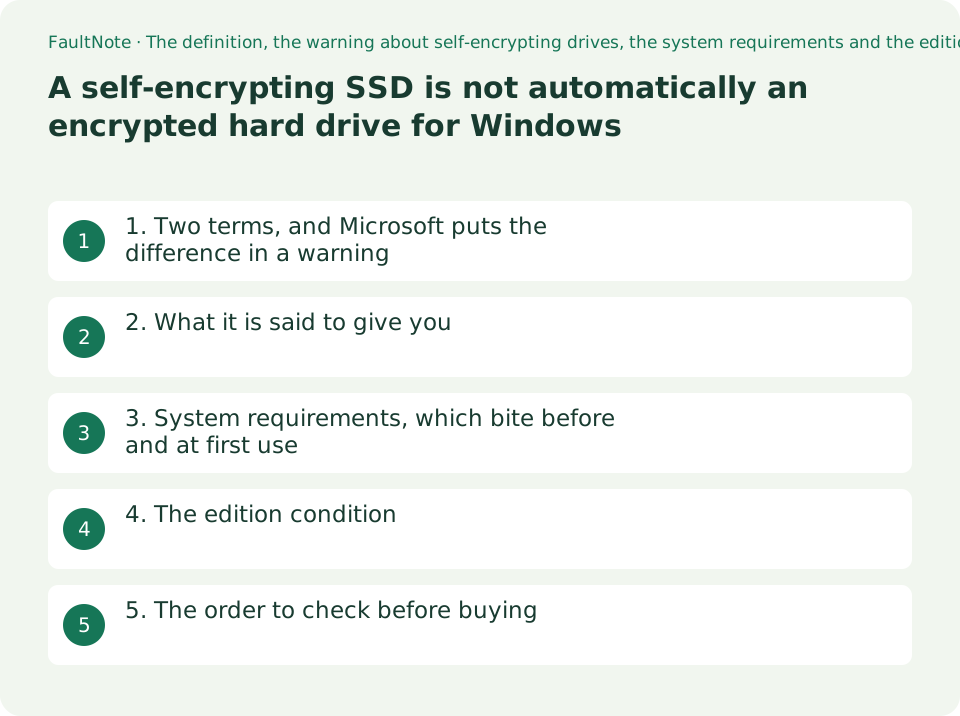
Who this guide is for and what to prepare
- People considering an SSD advertised as self-encrypting who want to know whether Windows can use it that way
- People trying to work out whether they will end up with hardware or software encryption
- People planning to use such a drive as the startup drive
What you need
- Note the exact encryption wording on the product page for any drive you are considering
- Check your Windows edition (Settings > System > About)
- If it will be the startup drive, be able to inspect the UEFI configuration, CSM included
1. Two terms, and Microsoft puts the difference in a warning
Microsoft defines the Windows kind first: Encrypted hard drives are a class of hard drives that are self-encrypted at the hardware level and allow for full disk hardware encryption while being transparent to the user. These drives combine the security and management benefits provided by BitLocker Drive Encryption with the power of self-encrypting drives.
Read that far and the two sound identical. Then comes a warning on the same page: Self-encrypting hard drives and encrypted hard drives for Windows are not the same type of devices: encrypted hard drives for Windows require compliance for specific TCG protocols as well as IEEE 1667 compliance self-encrypting hard drives don't have these requirements
The Windows kind requires compliance with specific TCG protocols and with IEEE 1667; a self-encrypting drive carries neither requirement.
And then the instruction: It's important to confirm that the device type is an encrypted hard drive for Windows when planning for deployment. That is where this guide starts. Self-encrypting on a product page is not evidence that Windows will treat the drive as an encrypted hard drive.
2. What it is said to give you
The page lists four benefits for the case where the conditions are met. They are worth reading first, because they decide whether meeting those conditions is worth the effort.
These are Microsoft's statements about the design. Nothing was measured here — no speed, no power draw — so no figure is quoted.
Scroll horizontally to see the full table →
| Benefit as listed | What the page states |
|---|---|
| Better performance | Encryption hardware integrated into the drive controller allows the drive to operate at full data rate with no performance degradation |
| Strong security based in hardware | Encryption is always on and the keys never leave the hard drive; user authentication is performed by the drive before it unlocks, independently of the operating system |
| Ease of use | Encryption is transparent and the user does not need to enable it; the drive is easily erased using the on-board encryption key, with no need to re-encrypt data |
| Lower cost of ownership | No new infrastructure to manage keys, because BitLocker uses existing infrastructure for recovery information, and processor cycles are not spent on encryption |
3. System requirements, which bite before and at first use
The requirements are split between using the drive for data and using it to start the machine. The data case is two lines; the startup case adds firmware conditions.
The two lines shared by both cases are the ones to notice: The drive must be in an uninitialized state and The drive must be in a security inactive state. This is not something applied later to a drive that has been in use with data on it. It is decided when the drive is new.
For a startup drive, three more conditions apply: the computer must be UEFI 2.3.1 based with EFI_STORAGE_SECURITY_COMMAND_PROTOCOL defined, must have the compatibility support module (CSM) disabled in UEFI, and must always boot natively from UEFI. That CSM condition points the same way as the one in this site's TPM guide.
There is also a warning about what it is plugged into: All encrypted hard drives must be attached to non-RAID controllers to function properly.
Scroll horizontally to see the full table →
| Use | Requirements as stated |
|---|---|
| As a data drive | Uninitialized state; security inactive state |
| As a startup drive | Both of the above, plus UEFI 2.3.1 based with EFI_STORAGE_SECURITY_COMMAND_PROTOCOL defined; CSM disabled in UEFI; always booting natively from UEFI |
| Connection (either use) | Attached to a non-RAID controller |
4. The edition condition
One more condition bears directly on a purchase. The page gives a table of supported Windows editions, and it lists four: Windows Pro, Windows Enterprise, Windows Pro Education/SE and Windows Education.
So if this capability is the reason you are choosing a drive, the edition check comes first. Home is not in that table. This guide does not rephrase that absence as either works or does not work — the fact is that it is not listed.
What else differs between editions is covered in this site's Home against Pro comparison, and the distinction between Device Encryption and BitLocker is set out in the TPM guide.
05. The order to check before buying
In order, and most people stop at the first one.
And what this guide cannot answer: whether a specific SSD qualifies as an encrypted hard drive for Windows. Look for compliance with TCG protocols and IEEE 1667 in the product's specification, or for the maker stating that Windows can treat it as an encrypted hard drive, and ask the maker before buying.
Scroll horizontally to see the full table →
| Order | Where to look | What it settles |
|---|---|---|
| 1. Your Windows edition | Settings > System > About | The table lists Pro, Enterprise, Pro Education/SE and Education |
| 2. Whether the product is an encrypted hard drive for Windows | The product specification, and the maker | Self-encrypting alone does not settle it. TCG and IEEE 1667 compliance are stated as requirements |
| 3. The drive's state | Whether it is uninitialized and security inactive | Not something to switch to after the drive has been in use |
| 4. Whether it will be the startup drive | UEFI version, CSM, how the machine boots | Three further conditions apply in that case |
| 5. What it is attached to | The SATA or NVMe controller configuration | A non-RAID controller is stated as required |
Limitations and requirements
- Nothing was tested on hardware for this guide. The definition, requirements and edition conditions quoted are from Microsoft's published document.
- This site cannot determine whether a specific SSD qualifies as an encrypted hard drive for Windows. That takes the product's own wording and a question to the maker.
- Because the requirements include an uninitialized state, do not read this as something to apply to a drive that already holds data.
- The wording quoted was read on 2026-09-21. Microsoft's pages are revised.
Frequently asked questions
If I buy a self-encrypting SSD, do I get Windows hardware encryption?
Not necessarily. Microsoft warns that self-encrypting hard drives and encrypted hard drives for Windows are not the same type of device, and that the Windows kind requires compliance with specific TCG protocols and with IEEE 1667, which self-encrypting drives do not.
How do I tell them apart?
Microsoft says it is important to confirm that the device type is an encrypted hard drive for Windows when planning for deployment. Read the product's own wording and ask the maker if needed. This site does not assess individual products.
Can I apply this to an SSD I already use?
The requirements state that the drive must be in an uninitialized state and in a security inactive state. That is not the description of something switched on later.
Are there extra conditions for a startup drive?
Yes: the machine must be UEFI 2.3.1 based with EFI_STORAGE_SECURITY_COMMAND_PROTOCOL defined, must have CSM disabled in UEFI, and must always boot natively from UEFI.
Does Windows Home support it?
The supported editions table lists Windows Pro, Windows Enterprise, Windows Pro Education/SE and Windows Education. Home is not in that table, and this guide does not rephrase the absence any further.
Sources and verification date
Sources checked: . These sources support the specifications, procedures or prices discussed here. Check each source for applicable conditions and current information.
Related practical guides
- Before you swap in a new SSD: check whether the drive is encrypted, and where the recovery key lives
- SSD Endurance (TBW) and Warranty: Compare Write Limits of Popular NVMe SSDs by Capacity and Check Wear in Windows
- Windows 11 runs but the feature is missing: checking the per-feature requirements before you buy
- Three ceilings to check before adding memory: your Windows edition, the board, and what is actually usable
- Read the NAS drive compatibility list before you buy: what "not listed" costs depends on the model series
- Before you buy a second SSD: the M.2 slots on your board are not interchangeable