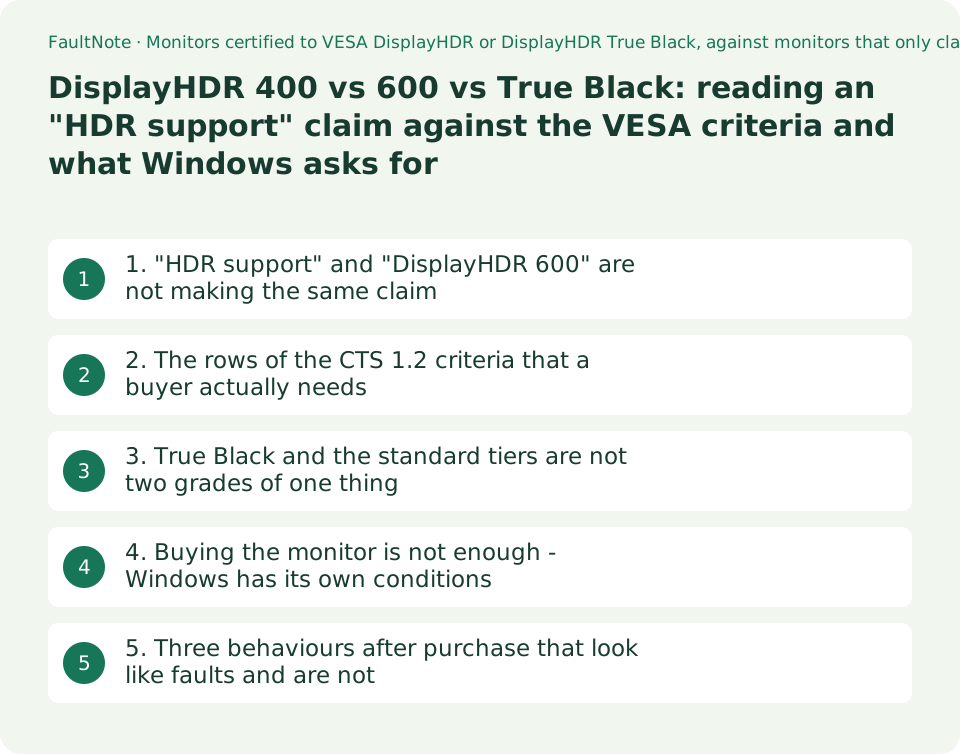
DisplayHDR 400 vs 600 vs True Black: reading an "HDR support" claim against the VESA criteria and what Windows asks for
The words "HDR support" can be printed by a maker that passed a certification and by one that tested nothing at all. What separates them is whether the spec sheet names a DisplayHDR tier - 400, 600, True Black 400 and so on. VESA publishes the pass criteria as a CTS 1.2 summary table, and that table also says what the tier number actually measures: the minimum luminance of an 8% centre patch shown against a 2% APL background. The figure for a screen held bright all over is a different row: 320 cd/m² at DisplayHDR 400, and 250 cd/m² at True Black 400. This guide pulls out the rows a buyer should read, shows what the True Black tiers trade against the standard ones, and then sets out the conditions Windows requires before HDR appears at all (an HDR10 display, the connection, codecs, PlayReady) plus the documented behaviour that is easy to mistake for a fault. No measurements and no product recommendations.
Published · Updated · FaultNote editorial policy
Who this guide is for and what to prepare
- Anyone weighing two differently priced monitors that both say "HDR support" and unsure what the extra money buys
- Anyone who cannot tell whether DisplayHDR 400 or True Black 400 is the higher grade
- Anyone whose desktop looked washed out after turning HDR on, or whose laptop turns HDR off by itself, wondering whether that is a defect
What you need
- Check whether the candidate’s spec sheet names a DisplayHDR tier, or only says "HDR" or "HDR10"
- Whether the panel is LCD or OLED - the True Black tiers are the black-level-led family
- The connection on your PC (DisplayPort 1.4, HDMI 2.0 or higher, USB-C or Thunderbolt) and what the screen will mostly show: full-screen bright content, or games and films with dark scenes
1. "HDR support" and "DisplayHDR 600" are not making the same claim
"HDR support" on a box or a product page guarantees nothing on its own: it can mean a display passed a test, or merely that it accepts an HDR10 signal. DisplayHDR, by contrast, is a certification whose criteria and test methods VESA publishes, with pass conditions fixed per tier (400, 500, 600, 1000, 1400, and the same five steps under True Black). Whether the spec sheet names a tier is therefore the first fork in the road.
Microsoft lists four certifications to look for when buying an HDR-capable display: AMD FreeSync Premium Pro, Dolby Vision, NVIDIA G-SYNC ULTIMATE and VESA DisplayHDR. For DisplayHDR it adds two tips - "Look for the latest DisplayHDR certification—version 1.2 certified displays" and "Look for displays that meet the DisplayHDR 500 or higher tiers". That is Microsoft’s buying advice, not a requirement for using HDR in Windows.
The version matters because the criteria themselves have been revised. VESA states that its table summarises the specifications as updated by CTS 1.2, released on 7 May 2024, and links a summary of the previous CTS 1.1 from the same page. So two displays can both say "DisplayHDR 400" and have been tested against different criteria - and the tier number alone does not tell you which.
2. The rows of the CTS 1.2 criteria that a buyer actually needs
The table below takes from VESA’s published CTS 1.2 summary only the rows that bear directly on a purchase. The complete table and the test conditions are on VESA’s page. Every figure is VESA’s published requirement; nothing here was measured by this site.
The most important thing about reading it: the number in the tier name is the minimum luminance of an 8% centre patch shown with a 2% APL background - a small bright area, not the whole screen. The figure for a screen held bright all over is the full-screen long-duration row, and at DisplayHDR 400 it drops to 320 cd/m². Product pages almost never print that row.
One more asymmetry: DisplayHDR 400 is the only tier allowed 8 frames to rise from black to maximum luminance; every other tier is capped at 2. On static contrast, VESA’s own notes say the test requires 1D local dimming (or better) for the 500 and 600 levels and 2D (or better) for 1000 and above, while at the 400 level it requires "either a substantial increase in native panel contrast ratio versus CTS v1.1, or 1D local dimming".
Scroll horizontally to see the full table →
| CTS 1.2 test | DisplayHDR 400 | DisplayHDR 600 | DisplayHDR 1000 | True Black 400 |
|---|---|---|---|---|
| 8% centre patch (2% APL background), minimum luminance = the tier number | 400 cd/m² | 600 cd/m² | 1000 cd/m² | 400 cd/m² |
| Full-screen flash test, minimum luminance | 400 cd/m² | 600 cd/m² | 1000 cd/m² | 250 cd/m² |
| Full-screen long-duration test, minimum luminance | 320 cd/m² | 350 cd/m² | 600 cd/m² | 250 cd/m² |
| Dual corner box test, screen centre maximum luminance (black level) | 0.4 cd/m² | 0.1 cd/m² | 0.05 cd/m² | 0.0005 cd/m² |
| DCI-P3 (D65) coverage | 90% | 90% | 95% | 90% |
| BT.709 coverage | 99% | 99% | 99% | 99% |
| Maximum frames to rise from black to maximum luminance | 8 | 2 | 2 | 2 |
| Static contrast ratio, 1D backlight | 1,300 : 1 | 8,000 : 1 | N/A (2D: 30,000 : 1) | N/A |
| Active dimming ratio, 5 cd/m² checkerboard (stops) | 12 | 13 | 14 | N/A |
3. True Black and the standard tiers are not two grades of one thing
Read the table down its columns and the gap between True Black 400 and DisplayHDR 400 is obvious. The black level - the maximum luminance permitted at the screen centre in the dual corner box test - is 0.0005 cd/m² against 0.4 cd/m², three orders of magnitude apart. Yet the full-screen flash minimum is 250 cd/m² against 400 cd/m², which is lower for True Black. The active dimming and checkerboard ratios are listed as not applicable for True Black altogether.
The conclusion is that the same number in two names does not put the two on one scale. The useful question is not which is higher but which column matters for what you watch: the black-level row if you mostly play games or watch films with dark scenes, the full-screen long-duration row if you keep bright full-screen content on a screen in a bright room. That reading is this guide’s interpretation of the table, not a statement VESA makes in those words.
Also worth noting: going from 400 to 600 buys luminance, black level and rise time - not gamut. DCI-P3 (D65) coverage is 90% up to the 600 tier and reaches 95% only at 1000 and 1400, and BT.709 coverage is 99% across every tier. If a wider gamut is what you are after, the gamut figures on the spec sheet, not the DisplayHDR tier, are what to read; this site’s guide to monitor colour gamut covers how those are stated.
4. Buying the monitor is not enough - Windows has its own conditions
Microsoft publishes display requirements for HDR video. A built-in display needs a resolution of 1080p or more and a recommended maximum brightness of 300 nits or more. For an external one, "the HDR display or TV must support HDR10, DisplayPort 1.4, HDMI 2.0 or higher, USB-C, or Thunderbolt".
There are conditions beyond the display. Protected HDR content needs a graphics card that supports PlayReady hardware digital rights management, and the codecs for 10-bit video decoding must be installed. Microsoft names HEVC (plus a premium subscription) for HDR on Netflix and VP9 for HDR on YouTube.
What Windows makes of your monitor is visible under Settings > System > Display > Advanced display, where there is an HDR certification field. Microsoft explains that "Not found" there can mean either that the display has no HDR certification or that the manufacturer has not published the certification information - so a blank field is not evidence that a panel is uncertified. Microsoft’s advice is to check the manufacturer’s website instead.
5. Three behaviours after purchase that look like faults and are not
First: turning HDR on can make the desktop and SDR apps look washed out or dim. Microsoft’s guidance is to use the SDR content brightness slider under Display > HDR (called HDR content brightness on a built-in display) to get the right balance between HDR and SDR content. Note the wording, though: on an external HDR display the setting "will change the brightness of SDR content relative to HDR content". Nothing promises that SDR will look exactly as it did with HDR off.
Second: on a laptop, HDR switching off the moment you unplug. That is documented behaviour - "If HDR is turned on when your laptop is plugged in, HDR will be turned off to help save battery power when you unplug it." To change it, go to Settings > System > Display > HDR and clear the Turn off HDR when my PC is running on battery checkbox (there is a separate one for HDR video streaming). Microsoft also notes the display may go black temporarily when HDR turns on or off.
Third: trouble over HDMI. Microsoft advises using DisplayPort instead if the display supports HDR over DisplayPort, and, if HDMI is the only option, reducing the refresh rate or the resolution. Separately, Windows chooses Dolby Vision automatically on Dolby Vision certified monitors, but Microsoft notes that some monitors limit peak brightness in Dolby Vision mode and that the mode can be disabled to use an HDR10 mode instead. For games that have no HDR of their own, Auto HDR is a separate setting.
Limitations and requirements
- Every luminance, black level, contrast and gamut figure in this guide is a pass criterion VESA publishes in its CTS 1.2 summary. This site does not measure displays. What a particular product actually achieves is not something these criteria tell you.
- This guide does not call DisplayHDR 400 "not real HDR". It is a certification with published, testable criteria, and the honest way to present it is to show what it does and does not require. What is wrong is reading the tier number as the brightness of the whole screen.
- Certification is per model and per CTS version. Check whether a specific product is certified on VESA’s certified-products list and the manufacturer’s page. A Windows HDR certification field reading "Not found" does not by itself mean uncertified.
Frequently asked questions
Which is higher, DisplayHDR 400 or True Black 400?
Neither, on one scale. In VESA’s table the black level - the maximum luminance permitted at the screen centre in the dual corner box test - is 0.0005 cd/m² for True Black 400 and 0.4 cd/m² for DisplayHDR 400, so True Black is required to be three orders of magnitude darker. But the full-screen flash minimum is 250 cd/m² for True Black 400 against 400 cd/m² for DisplayHDR 400, which is the lower requirement. The two trade depth of black against full-screen brightness; they are not two rungs of one ladder.
Does a "DisplayHDR 400" monitor put 400 cd/m² on the screen?
No. The 400 is the minimum luminance of an 8% centre patch shown against a 2% APL background. What is required when the whole screen stays bright is the full-screen long-duration row, which is 320 cd/m². The same row reads 320 cd/m² at DisplayHDR 500, 350 at 600 and 600 at 1000. If full-screen brightness is what you care about, that row rather than the tier name is the one to read.
My desktop looks washed out since I turned HDR on. Is the monitor faulty?
That symptom alone does not show a fault. Microsoft directs you to the SDR content brightness slider under Settings > System > Display > HDR to balance the brightness of HDR and SDR content. On an external HDR display the setting is described as changing the brightness of SDR content relative to HDR content. You may still not like the result, but judging the panel before moving that slider once is premature. Separately, a laptop turning HDR off when you unplug it is documented default behaviour, not a fault.
Sources and verification date
Sources checked: . These sources support the specifications, procedures or prices discussed here. Check each source for applicable conditions and current information.
- VESA: DisplayHDR Performance Criteria (CTS 1.2 summary, released 7 May 2024; read 2026-09-20) ↗
- Microsoft: What is HDR in Windows? (display requirements, codecs, certifications to look for, the HDR certification field) ↗
- Microsoft: HDR settings in Windows (SDR content brightness, battery behaviour, HDMI and Dolby Vision) ↗
- Microsoft: Use Auto HDR for better gaming in Windows ↗
Related practical guides
- 1080p, 1440p or 4K: Plan a Gaming Monitor and GPU Budget Together
- USB-C Hub vs Thunderbolt Dock: Displays, Power, and Compatibility
- OLED monitor burn-in warranty and care: how to check warranty length and burn-in coverage before you buy
- Monitor Color Gamut Explained: sRGB and DCI-P3 Coverage vs Area Ratio for Photo and Video Editing
- Mouse Polling Rate vs DPI: Choosing Between 1000 Hz and 8000 Hz Using Manufacturer Documentation
- USB-C Monitor Not Working or Stuck at a Low Refresh Rate: Check DP Alt Mode and Lane Allocation