Scan paper to searchable PDF with NAPS2
Save scanner settings to your profile and enable OCR to create searchable PDFs. Also check where language data is obtained and the limitations of OCR.
Published · Updated · FaultNote editorial policy
Who this guide is for and what to prepare
- People who want to convert paper documents to PDF
- People who want to search for text in scanned PDFs
What you need
- Connect the scanner and install the manufacturer's driver
- Prepare an original with horizontal and clear text.
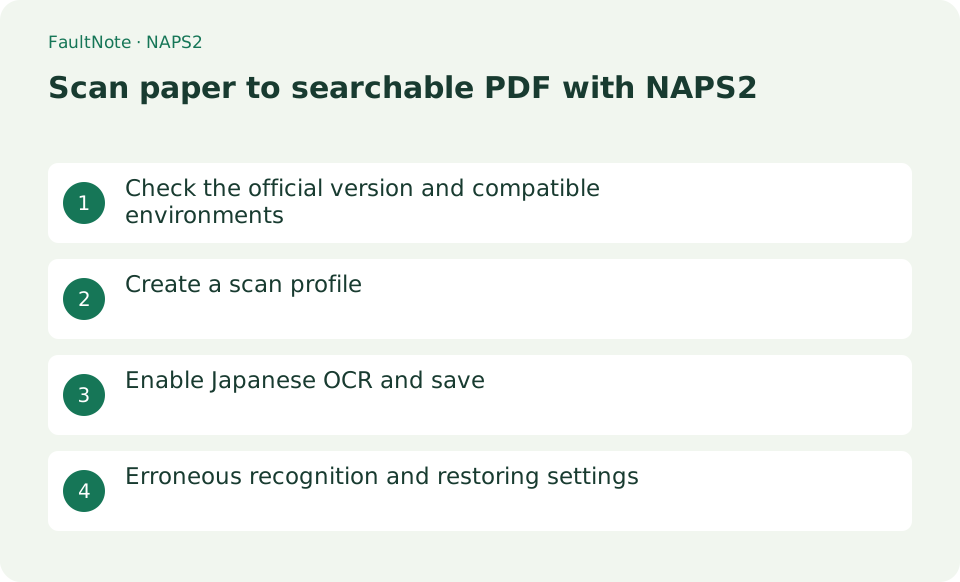
Check the official version and compatible environments
NAPS2 is a free, open-source app with no ads or feature restrictions. Official downloads are available for Windows x64 and Arm64, macOS, and Linux in formats including deb, rpm, and Flatpak; older Windows releases are listed separately. In most cases, use the recommended package on the official download page. An MSI is also available for managed deployment.
Make three paper pages searchable
Scan three pages to searchable PDF. OCR completion does not guarantee accuracy; compare names, numbers and dates with images and retain originals.
- Configure a profile and test one page for orientation and clarity.
- Scan the remainder and verify order, required backs and blank-page purpose.
- Download required languages and configure searchable PDF and mixed-language choices.
- Save separately and compare searched/copied text with the page image.
- Check skew, resolution and language and test one page before reprocessing everything.
Create a scan profile
Open [Profiles] > [New] and select the connected scanner. On Windows, choose WIA or TWAIN; if feeding or duplex scanning fails with one driver, try the other. As a starting point, select the flatbed or feeder, A4 paper, color or grayscale, and 300 dpi, then save the profile. Scan one page and check its orientation, margins, and text sharpness.
- Select the device and driver in [Profiles] → [New]
- Specify paper source, paper, color, and resolution
- Try using [Scan]
Enable Japanese OCR and save
The first time you select [OCR] on the toolbar, NAPS2 opens the language download screen. Choose the document language, such as Japanese, and select [Download]. In [OCR Setup], enable [Make PDFs searchable using OCR] and confirm the OCR language. For multilingual documents, download at least two languages and choose [Multiple Languages...] from the list. Put the pages in order, use [Save PDF] to save under a new name, and search for a distinctive word in a PDF viewer.
- Select the required language with [OCR] and press [Download]
- Enabling searchable PDF settings and languages
- Save with [Save PDF]
- Search for words in PDF viewer
Choose the next action from the result
Scroll horizontally to see the full table →
| Result or symptom | Decision and next action |
|---|---|
| Keyword found | Compare text with image; searchability is not accuracy. |
| Search fails | Check OCR settings/language and image-only output. |
| Numbers misrecognized | Verify values against the image before consequential transcription. |
| Backs missing | Check feeder/duplex settings; OCR cannot recreate unscanned pages. |
Erroneous recognition and restoring settings
OCR adds a searchable text layer over each scanned image. NAPS2 does not directly export the recognized text as a text file; if necessary, select and copy it in a PDF viewer. If recognition is poor, straighten the document, rescan at about 300 dpi, and try [OCR Best], white balance, or noise removal. To disable OCR, turn off the searchable-PDF option in [OCR Setup]. Keep the paper originals and unprocessed scans until verification is complete.
Limitations and requirements
- The OCR language must be downloaded separately for the first time. For offline distribution, use the method where traineddata is placed by the administrator.
- Since OCR characters can be misrecognized, check the amount, name, and contract number against the image.
Frequently asked questions
How do I set up a document that mixes Japanese and English?
First, get both from [Get more languages] in [OCR]. If there are two or more languages, [Multiple Languages...] will be displayed, so select Japanese and English.
Can OCR results be saved as TXT?
NAPS2 does not have the ability to save directly to TXT. Save searchable PDFs and select and copy text in a compatible PDF viewer.
Can I discard the paper?
Check retention requirements as well as saving and recovery; searchability does not establish replacement of originals.
Does OCR improve the visible scan?
OCR text and image quality differ; rescan for readability before recognizing text.
Sources and verification date
Sources checked: . These sources support the specifications, procedures or prices discussed here. Check each source for applicable conditions and current information.
Related practical guides
- Acrobat Standard vs Pro: do you need OCR, redaction or PDF comparison?
- Windows 11: Copy Text from Images with Snipping Tool Text Actions
- Read small PDF text with fit-width and continuous view
- LibreOffice Writer: Create a Document and Export It as PDF
- SumatraPDF: Read PDFs and E-books Quickly
- Export One Excel Sheet to PDF with All Columns on One Page Width