WSL 2 error 0x80370102 prevents a distribution from starting
What to do first
WSL 2 error 0x80370102 prevents a distribution from starting. CPU virtualization in UEFI/BIOS, Virtual Machine Platform, or nested virtualization may be disabled. Record the current state before changing it, use only the supported Windows path described below, and verify the same operation again after any required restart.
This is a general troubleshooting guide, not an announcement of a current outage.
Affected products and symptoms
- Product
- WSL 2
- Versions and conditions
- Windows 11 (confirm the edition and hardware requirements for the feature)
- Error codes and identifiers
- 0x80370102
Symptoms
- WSL 2 error 0x80370102 prevents a distribution from starting.
- The same condition can persist after a retry or restart.
Causes and conditions
CPU virtualization in UEFI/BIOS, Virtual Machine Platform, or nested virtualization may be disabled.
Before you start
- Save open documents and allow time for a Windows restart if required.
- Run administrative actions only on a personally managed PC or with administrator approval.
- Save the diagnostic command output so the before and after states can be compared.
Precautions
- Do not bulk-delete registry entries, system folders, credentials, or storage metadata.
- Do not run unofficial scripts or unknown drivers with administrator rights.
Tools and official pages used in this guide
Check the official requirements, interface names, and limitations for this step.
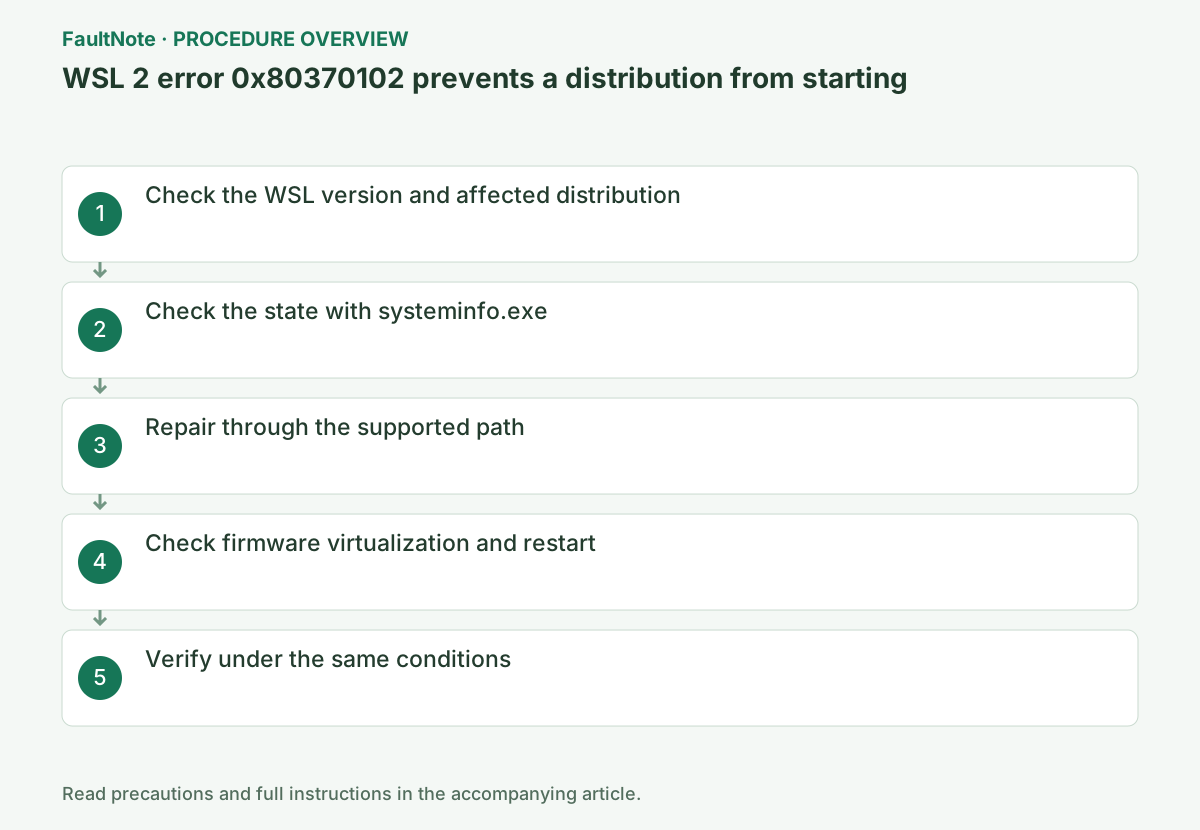
Step-by-step instructions
In Windows PowerShell, run wsl --list --verbose and check that the affected distribution uses VERSION 2. Do not apply CPU virtualization changes to a WSL 1 issue. Save the full 0x80370102 message before continuing.
If Ubuntu fails while Windows Terminal opens, distinguish the terminal UI from Linux startup. Try the same distribution from ordinary PowerShell and record whether the code matches. Compare the name and VERSION of another working distribution if available; do not merge different results into one diagnosis.
Inside a managed virtual desktop, guest Task Manager cannot change the host configuration. For a physical PC, check the manufacturer firmware procedure; for a VM, ask the host administrator about nested virtualization. A CPU without SLAT cannot meet WSL 2 requirements by adding Windows features.
Check Hyper-V Requirements in systeminfo.exe and the virtualization state under Task Manager > Performance > CPU.
Read each Hyper-V Requirements item and virtualization state. If any requirement is No or disabled, check the PC maker's model-specific UEFI requirements before retrying Windows feature installation.
Right-click Start > Terminal (Admin), then run systeminfo.exe. Under Hyper-V Requirements, if Virtualization Enabled In Firmware is No, stop repeating DISM and follow the PC maker’s UEFI/BIOS instructions.
Use this order: identify the version, identify physical PC or VM, inspect virtualization and feature states, change only a missing prerequisite, restart when requested, then launch the same target. Repeated enablement is unhelpful when a feature is already enabled. For firmware changes, match manufacturer instructions and record original values; hand off restricted devices to the administrator.
systeminfo.exeIn an elevated PowerShell window, enable Virtual Machine Platform with the command below. If it fails, record the error and make no further setting changes.
At completion, check for “The operation completed successfully,” a restart request, or an error code. On failure, preserve the code and C:\Windows\Logs\DISM\dism.log instead of repeating the command.
Verify more than wsl --status: open the original distribution shell and read a small existing work file. If startup works but networking fails, record a separate DNS or VPN problem rather than undoing virtualization or deleting Linux. Retest the same distribution after Windows restarts and relate the result to the specific change.
dism.exe /online /enable-feature /featurename:VirtualMachinePlatform /all /norestartOfficial links for this step
- Troubleshooting Windows Subsystem for Linux
Check the official requirements, interface names, and limitations for this step.
- Troubleshooting Windows Subsystem for Linux
The DISM command below enables Virtual Machine Platform only. If CPU virtualization is disabled, follow the PC manufacturer’s model-specific UEFI instructions. Have your BitLocker recovery key available and leave unrelated Secure Boot and TPM settings unchanged. Restart Windows after feature installation succeeds.
If systeminfo reports a detected hypervisor, missing requirement rows do not establish that virtualization is disabled. Record that output and the distribution name. Do not use wsl --unregister as a diagnostic shortcut: it deletes the distribution data.
Run wsl --status and repeat the original operation once under the same conditions. If it succeeds, verify again after a restart and record the setting that changed.
Confirm that the distribution, WSL release, or default version is displayed. If the command is not recognized, check WSL installation without resetting the distribution.
If unresolved, collect the PC model, Windows build, WSL version, distribution, full errors, virtualization state, feature changes and restart time. Keep both old and new errors when the code changes. Avoid reset or unregister operations while Linux data must be preserved; tell support which requirements were checked and which remain unknown.
wsl --status
Check the result
- The affected WSL 2 distribution opens a shell and existing files are readable
- The verification command reports the expected enabled, healthy, or connected state.
- The result remains correct after a Windows restart and no new matching critical event appears.
If the problem continues
- For a VM, provide its host product, CPU and nested virtualization availability to the administrator
- If hardware requirements, organization policy, or server settings are responsible, ask the owner to make the change instead of bypassing it on the client.
Scope of this guide
Troubleshooting guide — Restore the feature so it starts, connects, or completes normally and passes the same verification after a Windows restart.
Frequently asked questions
Why does 0x80370102 persist when firmware virtualization is enabled?
Check Virtual Machine Platform and complete the required restart. If Windows itself is a VM, nested virtualization must be exposed by the physical host.
Does WSL 1 require CPU virtualization?
WSL 1 uses a different architecture. Run `wsl --list --verbose` first to confirm the distribution VERSION.
Why can the error remain after feature enablement succeeds?
Successful Windows feature installation does not guarantee firmware virtualization or host nested virtualization. Check the requested restart and any remaining physical-host or VM-host prerequisites.
Official sources and dates
Source publication or resolution date: Not specified. Sources checked: 2026-10-13. The check date is not the date the problem first occurred. Interface labels can vary between versions and display languages.
Related troubleshooting guides
Windows errors and troubleshooting →
- WSL 2 or Hyper-V cannot run inside a Hyper-V virtual machine
- Hyper-V is missing from Windows Features or cannot be enabled
- Windows Sandbox is missing or cannot start
- Laptop is slow only on battery: check the power mode, energy saver and the maker's cooling mode in that order
WSL, Hyper-V and virtualization will not start →