WSL 2 or Hyper-V cannot run inside a Hyper-V virtual machine
What to do first
WSL 2 or Hyper-V cannot run inside a Hyper-V virtual machine. The host may not expose CPU virtualization extensions to the guest, or the setting may be attempted while the VM is running. Record the current state before changing it, use only the supported Windows path described below, and verify the same operation again after any required restart.
This is a general troubleshooting guide, not an announcement of a current outage.
Affected products and symptoms
- Product
- Hyper-V nested virtualization
- Versions and conditions
- Windows 11 (confirm the edition and hardware requirements for the feature)
- Error codes and identifiers
- 0x80370102
Symptoms
- WSL 2 or Hyper-V cannot run inside a Hyper-V virtual machine.
- The same condition can persist after a retry or restart.
Causes and conditions
The host may not expose CPU virtualization extensions to the guest, or the setting may be attempted while the VM is running.
Before you start
- Save open documents and allow time for a Windows restart if required.
- Run administrative actions only on a personally managed PC or with administrator approval.
- Save the diagnostic command output so the before and after states can be compared.
Precautions
- Do not bulk-delete registry entries, system folders, credentials, or storage metadata.
- Do not run unofficial scripts or unknown drivers with administrator rights.
Tools and official pages used in this guide
Check the official requirements, interface names, and limitations for this step.
Step-by-step instructions
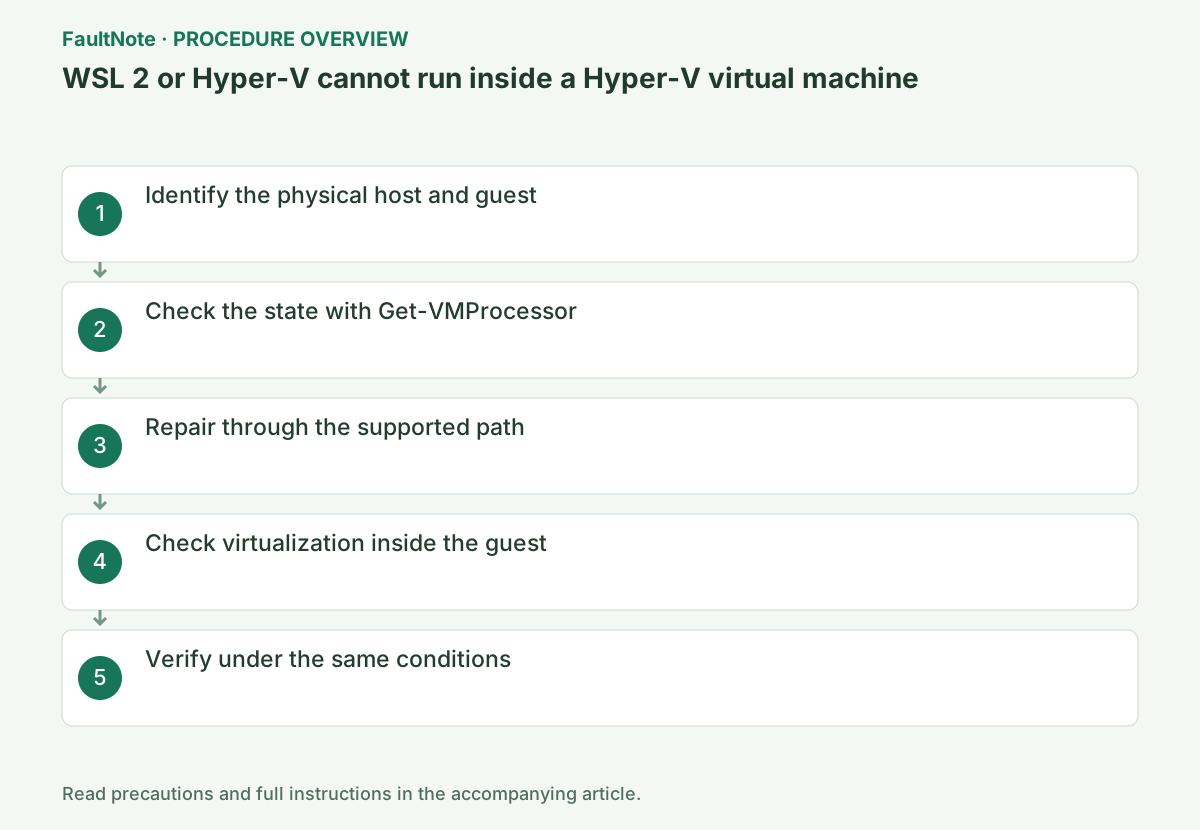
Run the configuration commands on the Hyper-V host, not inside the VM. Check the target name in Hyper-V Manager, shut down the guest normally, and confirm its state is Off. Do not proceed from Saved or Paused state.
Run Set-VMProcessor on the Hyper-V host managing the guest, rather than inside the guest that needs WSL. Match the VM name against the host inventory and turn that VM off before changing it. Do not apply the command indiscriminately to running or saved VMs.
Shut down the target VM and check the exposure setting in an elevated PowerShell window on the host.
Get-VMProcessor -VMName "VMName" | Select-Object ExposeVirtualizationExtensionsExpose CPU virtualization extensions to that VM, start the guest, and then enable the required Windows virtualization feature inside the guest.
Run Set-VMProcessor in elevated PowerShell on the physical Hyper-V host, not inside the guest, while the target VM is off. Replace VMName with the exact Hyper-V Manager name and verify Get-VM reports State Off first.
Set-VMProcessor -VMName "VMName" -ExposeVirtualizationExtensions $trueOfficial links for this step
- Run Hyper-V in a Virtual Machine with Nested Virtualization
Check the official requirements, interface names, and limitations for this step.
- Run Hyper-V in a Virtual Machine with Nested Virtualization
Replace VMName with the actual Hyper-V Manager name, retaining quotes around names with spaces. Start only that VM, then check systeminfo.exe and launch WSL or Hyper-V inside the guest. Cloud VMs also require support from the provider.
Check the host CPU, OS and VM configuration version against official requirements. Successful virtualization inside the guest does not establish network reachability for an inner VM. NAT or MAC address spoofing changes affect network design; validate only required traffic with the administrator after startup works.
Run systeminfo.exe and repeat the original operation once under the same conditions. If it succeeds, verify again after a restart and record the setting that changed.
Read each Hyper-V Requirements item and virtualization state. If any requirement is No or disabled, check the PC maker's model-specific UEFI requirements before retrying Windows feature installation.
systeminfo.exe
Check the result
- WSL 2 or the inner VM starts inside the intended guest
- The verification command reports the expected enabled, healthy, or connected state.
- The result remains correct after a Windows restart and no new matching critical event appears.
If the problem continues
- If the host is inaccessible, ask the cloud or VDI administrator to check requirements
- If hardware requirements, organization policy, or server settings are responsible, ask the owner to make the change instead of bypassing it on the client.
Scope of this guide
Troubleshooting guide — Restore the feature so it starts, connects, or completes normally and passes the same verification after a Windows restart.
Frequently asked questions
Can I change ExposeVirtualizationExtensions while the VM runs?
Fully shut down the target VM first and change it from the host. A saved or running VM may reject the setting.
Should I enable it on every VM?
Enable it only where required because nested virtualization affects performance and security design.
Official sources and dates
Source publication or resolution date: Not specified. Sources checked: 2026-10-13. The check date is not the date the problem first occurred. Interface labels can vary between versions and display languages.