Only the WinRE update keeps failing: confirm event ID 4502 before you touch the recovery partition
What to do first
When Windows Update fails on the same update again and again and freeing space on C: makes no difference, the shortage can be somewhere else entirely: the recovery partition. In KB5028997 Microsoft explains that WinRE is now serviced by the monthly cumulative update, and that "Some PCs might not have a recovery partition that is large enough to complete this update." It also publishes the way to recognise it - a system event with ID 4502 whose details show an ErrorPhase of 2. This guide walks that check first, then the condition Microsoft attaches to its fix (the recovery partition must sit after the OS partition), and then what the published procedure actually does: disable WinRE, shrink the OS partition by 250 MB, delete the recovery partition and create a new one. Because it deletes and recreates a partition, it is not something to run before those checks are done.
This is a general troubleshooting guide, not an announcement of a current outage.
Affected products and symptoms
- Product
- PCs whose WinRE (Windows Recovery Environment) is serviced through Windows Update, on the versions KB5028997 lists under Applies To
- Versions and conditions
- KB5028997 lists Windows 10 (version 1607, 21H2, 22H2 and others), Windows 11 version 21H2, 22H2 and 23H2, and Windows Server 2016 / 2019 under Applies To (page read on 2026-09-20). Microsoft does not state that the same procedure applies to versions that are not on that list.
Symptoms
- The same update fails over and over in Windows Update, and retrying only adds another failure to the history
- Freeing space on the C: drive, running Disk Cleanup or deleting files changes nothing
- Event Viewer shows ID 4502, "Windows Recovery Environment servicing failed.", under Windows Logs then System
Causes and conditions
Microsoft states that from the Windows 11, version 22H2 cumulative update of 27 June 2023 it changed how WinRE (the Windows Recovery Environment) is updated: WinRE is serviced by the monthly cumulative update, on PCs that get their updates from Windows Update (WU) or Windows Server Update Services (WSUS). In the same document it says plainly that "Some PCs might not have a recovery partition that is large enough to complete this update. Because of this, the update for WinRE might fail." The shortage is therefore not on the C: drive but in the recovery partition that holds WinRE. Microsoft also publishes how to tell: if a system event with an ID of 4502 appears in C:\Windows\System32\winevt\logs\system.evtx and its details show "Windows Recovery Environment servicing failed." with an ErrorPhase of 2, it is likely an error due to insufficient space on that partition. The manual fix Microsoft publishes carries a condition of its own - it "requires your device to have the recovery partition after the OS partition" - so on a layout that does not meet it, the published steps do not apply as written.
Before you start
- The KB number of the update that keeps failing, and your Windows version and build (winver, or Settings then About)
- The ability to open Command Prompt as an administrator - every check below assumes administrator rights
- A backup of anything important. Not needed for the checks themselves, but have one ready before any partition work
Precautions
- This guide is not based on reproducing the problem on hardware. The conditions, steps and warnings quoted are what Microsoft publishes; screen names and command output can differ between environments.
- If your version is not in the KB5028997 Applies To list, there is no stated basis for applying the procedure. Microsoft does not say whether it applies to versions that are not listed.
- delete partition override lets DiskPart remove a partition that is normally protected, regardless of type. Back up anything you need to another drive before moving on to partition work.
Tools and official pages used in this guide
Step-by-step instructions
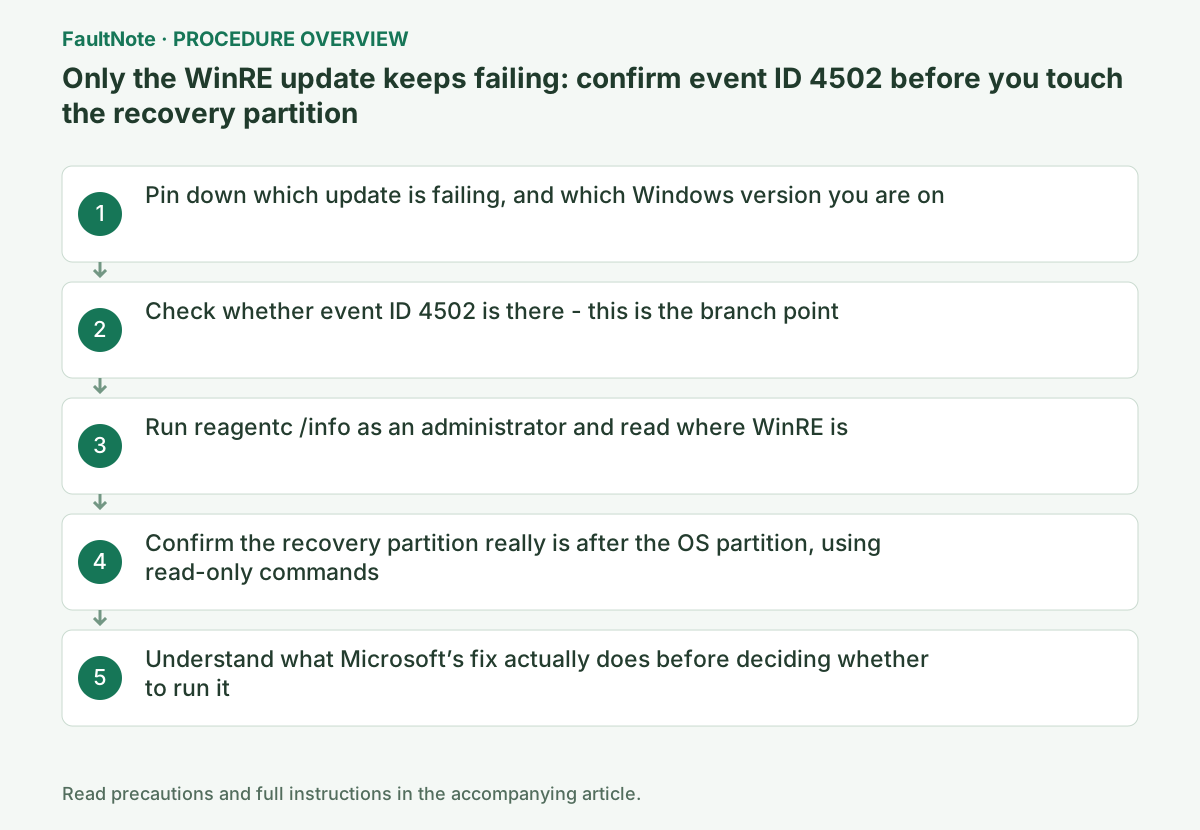
Open Settings, Windows Update, Update history and note the KB number of the update that keeps failing. Whether a different update fails each time or one single update fails repeatedly matters: this guide is about the second case.
Then check your Windows version - type winver into the search box and run it, or open Settings, System, About. KB5028997 lists Windows 10 (version 1607, 21H2, 22H2 and others), Windows 11 version 21H2, 22H2 and 23H2, and Windows Server 2016 / 2019 under Applies To.
If your version is not on that list, Microsoft does not state that this procedure applies to it. In that case the support page for the failing KB number itself, and its known issues, is the more reliable place to look.
Official links for this step
Open Event Viewer, expand Windows Logs on the left and select System. Use Filter Current Log on the right and enter 4502 as the event ID.
Microsoft states the condition precisely: a system event with an ID of 4502 in C:\Windows\System32\winevt\logs\system.evtx, whose details show "Windows Recovery Environment servicing failed." with an ErrorPhase of 2, is likely an error due to insufficient space on the recovery partition that contains WinRE.
If there is no 4502, this is not the cause described here, and repartitioning will not fix your update. Go back to general update troubleshooting - the Windows Update troubleshooter, a restart, free space on C:. On this site, the guides on Windows Update failing with an error and on Windows Update stopping for lack of disk space cover that ground.
Official links for this step
Open Command Prompt as an administrator and run reagentc /info. If WinRE is installed there is a "Windows RE location" line with a path to the WinRE directory.
The example Microsoft gives looks like \\?\GLOBALROOT\device\harddisk0\partition4\Recovery\WindowsRE, and it states that the number after "harddisk" and after "partition" is the index of the disk and the partition WinRE is on. Note both numbers down - the next check uses them.
REAgentC.exe ships with Windows. Microsoft’s command reference describes it as the tool used "to configure a Windows Recovery Environment (Windows RE) boot image and a push-button reset recovery image, and to administer recovery options and customizations". The /info option on its own returns the status of the online operating system; it changes nothing.
Official links for this step
Microsoft attaches a condition to the manual procedure: it "requires your device to have the recovery partition after the OS partition". That is the order the partitions sit in on the disk - the recovery partition after the OS partition, which is normally C:.
To check it, run diskpart and then list disk, sel disk <index> and list part. list disk and list part only print a table, and sel disk only sets which disk later commands would act on; none of them writes to the disk. Compare the disk and partition numbers you noted in the previous step against the order shown here. If the recovery partition’s number comes after the OS partition’s, the condition is met.
If it is not met, the KB5028997 steps do not apply as written, and Microsoft does not publish an alternative for that layout on this page. Rather than rearranging partitions yourself, ask your PC manufacturer’s support about the layout.
Official links for this step
The KB5028997 procedure does not enlarge the recovery partition; it rebuilds it. In outline: disable WinRE with reagentc /disable, use diskpart to shrink the OS partition by 250 MB (shrink desired=250 minimum=250), delete the existing recovery partition with delete partition override, create a new partition with the ID that matches the disk style (GPT or MBR), format it with format quick fs=ntfs, then re-enable with reagentc /enable and confirm with reagentc /info. Take the exact commands and arguments from Microsoft’s page. This site has not reproduced the procedure on hardware, so it does not reprint the command sequence as something to copy.
Where the risk sits is documented. Of the override option, Microsoft’s reference says it "enables DiskPart to delete any partition regardless of type. Typically, DiskPart only permits you to delete known data partitions." It is an explicit instruction to bypass a protection. The same page warns that deleting a partition on a dynamic disk can delete all dynamic volumes on the disk, destroying any data and leaving the disk in a corrupt state.
The shrink step, by contrast, has a documented safe failure. Microsoft states that if a minimum amount is specified but not enough free space is available, the command fails - so a step that passes 250 for both desired and minimum does nothing rather than half-doing it. Microsoft also notes that shrink works on NTFS-formatted volumes (or volumes with no file system) and does not work on OEM partitions, EFI system partitions or recovery partitions, which fits: what gets shrunk is the OS partition, not the recovery one.
The decision follows from that. If the conditions all hold - a listed version, event 4502, the right partition order - and you have a backup and the three paragraphs above make sense, you can follow Microsoft’s page as written. If any one of them is missing, not running it is the reasonable choice. KB5028997 itself provides the way back: if creation failed, or you do not want to extend the WinRE partition, run reagentc /enable to re-enable WinRE.
Check the result
- reagentc /info, run as an administrator, reports Windows RE as enabled and shows a Windows RE location path
- Retrying the failing update in Windows Update now records it as succeeded in the update history
- No new event with ID 4502 appears in the System log after the retry
If the problem continues
- If you cannot confirm the conditions, or partition work makes you uneasy, do not run it. Microsoft states in this KB that the WinRE update might fail; it does not state that the failure stops Windows from starting. Stopping after the checks, with the update still failing, is a defensible choice.
- For IT administrators, KB5034957 publishes a sample PowerShell script that automates updating the WinRE image to address CVE-2024-20666. It assumes you supply the matching .cab package and apply it with DISM, and it is not a consumer procedure to run as-is.
- On a prebuilt PC whose recovery partition also holds the manufacturer’s own restore data, what happens when it is deleted and recreated is outside the scope of this Microsoft document. Check the manufacturer’s support information before starting.
Scope of this guide
Troubleshooting guide — Confirm the cause from event ID 4502 with ErrorPhase 2, verify the conditions - version, WinRE location and partition order - with reagentc /info and read-only diskpart commands, and only then decide whether to follow the KB5028997 procedure or leave it.
Frequently asked questions
Will freeing more space on the C: drive fix it?
No. What Microsoft names as the cause is not free space on C: but a recovery partition that is not "large enough to complete this update". The recovery partition is a separate area, so Disk Cleanup and deleting files on C: do not add space to it. A separate problem does exist where an update stops because C: is short of space - if there is no event ID 4502, that is the more plausible one to look at.
What happens if I just leave the update failing?
Microsoft states on this page that the WinRE update might fail when the recovery partition is not large enough. It does not state that this failure prevents Windows from starting or makes the PC unusable. What actually persists is that the WinRE update does not get applied: the recovery environment does not disappear, but it stays without that update. Checking and then deciding not to repartition is a position you can take.
Is it really safe to delete the recovery partition?
Microsoft’s procedure does not delete it out of nowhere: it disables WinRE with reagentc /disable first, deletes, creates a new partition, and re-enables with reagentc /enable. But the override option used for the deletion is described by Microsoft as enabling DiskPart "to delete any partition regardless of type", which pushes past a protection that normally applies. Select the wrong partition number and you delete a different partition. KB5028997 also notes that if creation failed, or you do not want to extend the partition, you run reagentc /enable to turn WinRE back on. The conditions are that you do not skip verifying the numbers, and that you have a backup before you start.
Official sources and dates
- Microsoft KB5028997: Instructions to manually resize your partition to install the WinRE update (the 27 June 2023 servicing change, event ID 4502, the prerequisite and the steps) ↗
- Microsoft: REAgentC.exe command-line options (/info, /disable and /enable) ↗
- Microsoft: delete partition command (the override option and the dynamic-disk warning) ↗
- Microsoft: shrink command (desired and minimum behaviour, supported volumes) ↗
- Microsoft: Find information about your Windows device (where the version and build are shown) ↗
- Microsoft KB5034957: sample script for updating the WinRE partition on deployed devices (for IT administrators) ↗
Source publication or resolution date: 2023-06-27. Sources checked: 2026-09-20. The check date is not the date the problem first occurred. Interface labels can vary between versions and display languages.