Use Startup Repair When Windows Will Not Start
What to do first
Run [Startup Repair] from [Advanced options] in WinRE.
This is a general troubleshooting guide, not an announcement of a current outage.
Affected products and symptoms
- Product
- Windows
- Versions and conditions
- Windows 11 / Windows 10
- Error codes and identifiers
- WinREStartup Repair
Symptoms
- Windows won't start
- Continuous reboot loop or black screen
Causes and conditions
Possible causes include corrupted system files, boot configurations, and incompatible drivers.
Before you start
- Check your BitLocker recovery key
- Prepare AC power
Precautions
- Back up important files in advance
- Check the impact before deleting, initializing, or resetting the network.
Tools and official pages used in this guide
Review the official requirements, screen names, and limitations for this procedure.
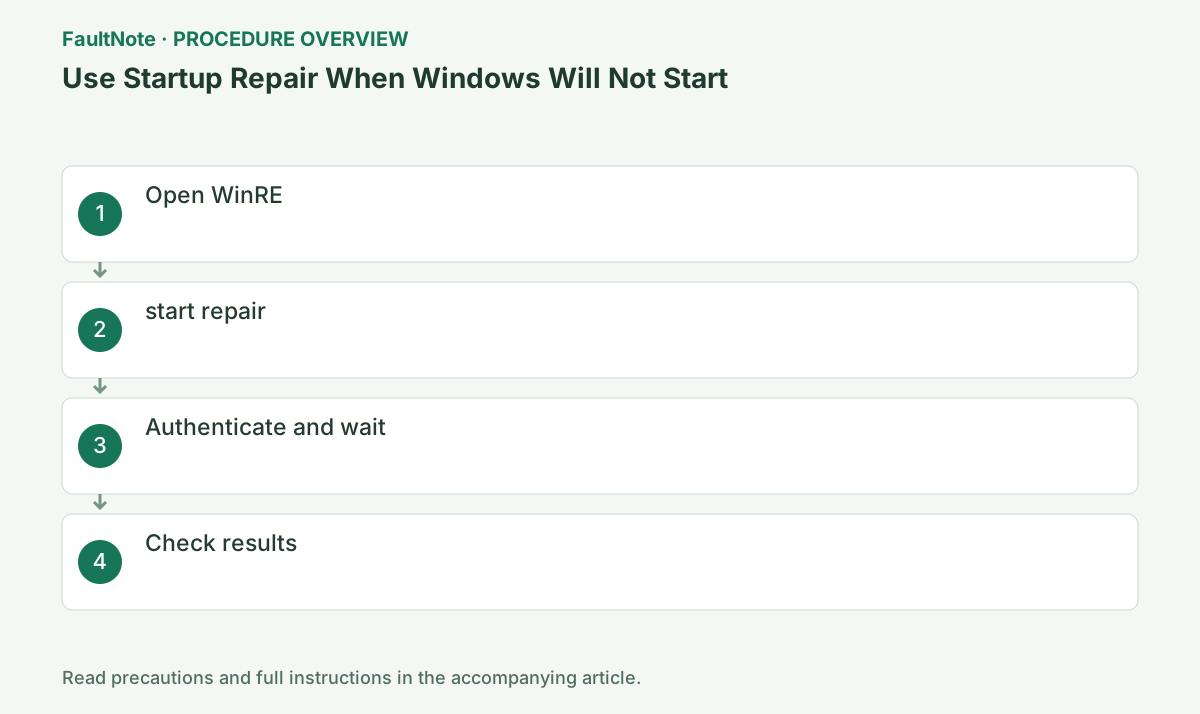
Step-by-step instructions
Record whether startup reaches the manufacturer logo, Windows logo or sign-in screen. A missing-drive message or hardware diagnostic error may not be fixable through Windows Startup Repair. Distinguish an app failure after sign-in from inability to start Windows. Preserve the displayed error.
If a recently added external device can be removed without risking stored data, review that connection. Identify the intended Windows installation on a multi-drive/OS system. Startup Repair investigates startup faults and differs from an erasing reset. Confirm backups and recovery-key storage first when data matters.
If Windows does not start and [Automatic Repair] is displayed, select [Advanced options]. From the sign-in screen, hold down the Shift key and select [Power] → [Restart].
If Windows opens to the desktop, proceed from [Settings] → [System] → [Recovery] → [Advanced startup] → [Restart now]. Confirm that the blue recovery menu is displayed after each operation.
Instead of repeatedly forcing power off, use the displayed automatic repair, Shift+Restart on the sign-in screen, and the settings screen in that order. Also prepare a BitLocker key.
Check before continuingVerdict: If Windows does not start and ``Automatic Repair'' is displayed, select ``Advanced options.'' From the sign-in screen, hold down the Shift key and select [Power] → [Restart]. If Windows opens to the desktop, proceed from [Settings] → [System] → [Recovery] → [Advanced startup] → [Restart now]. Confirm that the blue recovery menu is displayed after each operation.
In Windows Recovery Environment, choose Troubleshoot > Advanced options > Startup Repair. Provide the correct account or BitLocker key if requested. Reset this PC or a file-removal confirmation is not the same operation; go back rather than proceeding through an uncertain erase prompt.
Save work before entering recovery from a working Windows session. If already in recovery, do not repeatedly force power off merely to return there. If recovery itself is unavailable, consult official recovery-media or manufacturer guidance rather than mixing files from another PC.
In the recovery menu, select Troubleshoot > Advanced options > Startup Repair and follow the on-screen instructions to begin. This is a different operation from [Reset this PC].
Select [Startup Repair] instead of [Reset this PC]. If a screen about deleting personal files appears, press [Back] to reselect.
Check before continuingVerdict: Select Troubleshoot > Advanced Options > Startup Repair in the recovery menu and follow the on-screen instructions to begin. This is a different operation from [Reset this PC]. Select [Startup Repair] instead of [Reset this PC]. If a screen about deleting personal files appears, press [Back] to reselect.
Enter the password for the administrator account that you normally use. BitLocker requests use 48 digits that match the key ID, and do not turn off the power during diagnosis.
Official links for this step
- Startup Repair
Review the official requirements, screen names, and limitations for this procedure.
Check before continuingVerdict: Enter your account and BitLocker key if prompted, and do not turn off the power during automatic diagnosis. Enter the password for the administrator account that you normally use. BitLocker requests use 48 digits that match the key ID, and do not turn off the power during diagnosis.
- Startup Repair
Once you can boot normally, save important data. If Windows cannot repair the files, take a photo of the log path shown on the screen and return to [Advanced options].
Command prompt in Advanced options, uninstalling updates, and system restore have different effects. After startup repair fails, choose the next move based on the log and last changes instead of guessing and running continuously.
Check before continuingVerdict: Try normal startup. If Startup Repair reports that it could not repair the PC, record the contents. Once you can boot normally, save important data. If Windows cannot repair the files, take a photo of the log path shown on the screen and return to [Advanced options].
If normal boot and sign-in work, back up needed files and confirm with a normal restart. A remaining failure in one app calls for app-specific diagnosis. Startup Repair completion does not guarantee every app or personal file is healthy; test required functions.
If repair fails, save the full message, target and failed startup stage. Include preceding updates or driver changes when choosing another recovery route. If repetition does not help, prioritize data protection and seek administrator/manufacturer help. Restore, update removal and reinstall have different effects; confirm backups and the target first.
Check the result
- Boots normally to Windows sign-in screen after startup repair
- Repair reports, error statements, and time of occurrence can be recorded even if startup is not possible.
- If BitLocker input was required, a key with the correct key ID was used.
If the problem continues
- If it started after the last quality update, consider [Latest quality update] in WinRE's [Uninstall updates]
- If you have a restore point, check the affected programs in Advanced Options > System Restore before running it.
- If the above does not boot, consider using a recovery drive or installation media. Use a reset or clean install as a last resort after confirming backup and data impact.
- If you cannot enter the recovery screen, check the recovery media and startup method provided by the PC manufacturer. If you need to preserve data, consult the manufacturer or administrator before choosing to initialize.
Scope of this guide
Troubleshooting guide — General diagnostic procedures. It does not describe a specific current incident.
Frequently asked questions
Does Startup Repair delete personal files?
This is a function that automatically diagnoses and repairs the startup configuration, etc., and is different from a reset. However, subsequent recovery measures independently check the data impact.
What if I'm asked for a BitLocker key?
Check the save location on another device and enter the 48 digits that match the key ID on the screen.
Should I keep repeating Startup Repair?
If the result is unchanged, record the failure screen and stage instead of only increasing attempts. If data lacks a backup, discuss preservation before an erasing recovery. Choose another route according to the error and recent changes.
Does a keep-files reset retain applications too?
Startup Repair and reset are separate operations. A keep-files reset still requires checking effects on apps and settings. Preserve licensing, configuration and backups, and read the displayed scope before deciding. It is not an automatic substitute for Startup Repair.
Official sources and dates
Source publication or resolution date: Not specified. Sources checked: 2026-09-05. The check date is not the date the problem first occurred. Interface labels can vary between versions and display languages.
Related troubleshooting guides
Windows errors and troubleshooting →
- PC will not POST with a DRAM LED: check memory on an ASUS motherboard
- The screen brightness changes on its own: telling content-based adjustment apart from ambient-light adjustment
- Hyper-V is missing from Windows Features or cannot be enabled
- Laptop is slow only on battery: check the power mode, energy saver and the maker's cooling mode in that order