Troubleshoot Startup Apps and Drivers in Safe Mode
What to do first
Reboot while holding down Shift and select Safe Mode from WinRE's startup settings.
This is a general troubleshooting guide, not an announcement of a current outage.
Affected products and symptoms
- Product
- Windows
- Versions and conditions
- Windows 11 / Windows 10
Symptoms
- Sign-in or application operation fails during normal startup
- I want to check the effects of additional drivers and resident software.
Causes and conditions
If the symptoms disappear in Safe Mode, additional factors other than the basic driver and default settings may be involved.
Before you start
- Check your account password
- Enable to check BitLocker recovery key from another device
Precautions
- Back up important files in advance
- Check the impact before deleting, initializing, or resetting the network.
Tools and official pages used in this guide
Review the official requirements, screen names, and limitations for this procedure.
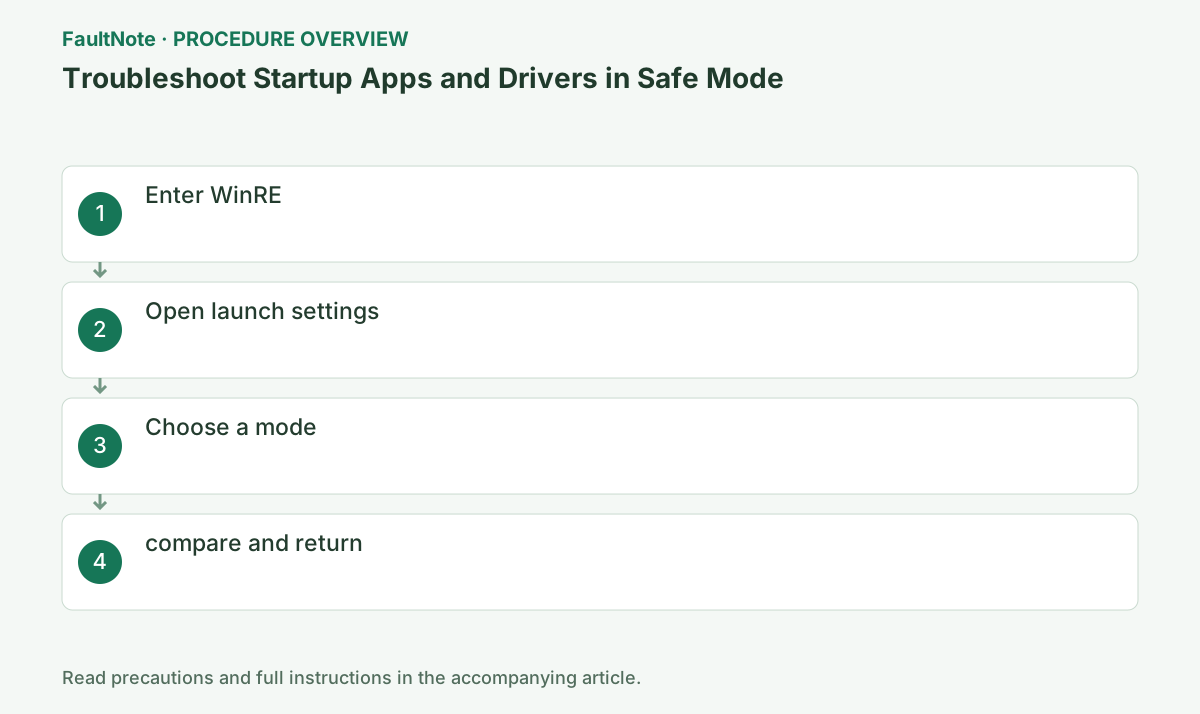
Step-by-step instructions
Record the normal-boot operation, message and time. Choose something comparable in Safe Mode, such as Explorer hanging after sign-in or a local app crashing. Tests involving audio, Bluetooth or advanced GPU facilities may not be comparable because Safe Mode limits functionality.
Safe Mode helps narrow the influence of extra apps or drivers loaded during normal boot. Success there does not identify one culprit. Do not delete startup apps in bulk; first collect a comparable observation. Decide beforehand whether the test requires networking.
If Windows can start, open [Start] > [Power], hold down the Shift key, and select [Restart]. If you cannot sign in, perform the same operation from [Power] at the bottom right of the sign-in screen. Keep holding Shift until you see the blue "Choose an option" screen. When prompted for the BitLocker recovery key, enter the 48-digit key you prepared to continue.
Save work and confirm the account password. PIN or biometric sign-in may not be available in Safe Mode, so do not start with only the PIN known. Have the recovery key available on an encrypted PC. Ask the administrator if organizational credentials or privileges are needed.
Confirm that Startup Settings actually displays the Safe Mode options and choose one suited to the test. After booting, confirm the Safe Mode indication. Merely opening a setting during normal boot is not a comparison. Networking mode does not guarantee that every VPN or wireless driver works as usual.
Select [Troubleshoot] > [Advanced options] > [Startup settings] > [Restart]. If you cannot find Startup Settings, open Show more recovery options. After restarting, if a numbered list of startup methods is displayed, proceed to the next step. [Reset this PC] is not necessary for diagnosis, so do not select it.
For normal diagnosis to isolate resident software and basic drivers, press number 4 or F4. Select 5 or F5 only if checking web browsing or network shares is essential. On the sign-in screen, use the account password from [Sign-in options] instead of the PIN. Make sure that [Safe Mode] is displayed in the four corners of the desktop.
Official links for this step
- Troubleshoot problems signing in to Windows
Review the official requirements, screen names, and limitations for this procedure.
- Troubleshoot problems signing in to Windows
Reproduce the operation that failed during normal startup only once using the same file and the same peripheral device, and record the success/failure and time. If the operation succeeds only in Safe Mode, disable the most recently added drivers, startup apps, and services one by one and start normally to compare. After diagnosis, return to normal mode by selecting [Start] > [Power] > [Restart] and confirm that the Safe Mode labels in the screen corners have disappeared. If it does not return, open msconfig with Win+R, clear [Safe boot] on the [Boot] tab, and restart.
If the same operation succeeds, investigate recently added or updated apps, drivers and background features. If it still fails, extra startup apps alone are not established as the cause; consider Windows or app-specific repair. If a limited feature prevents the test, record it as untested rather than passed or failed.
Restart into normal boot and test the original operation, connectivity and peripherals. If you used a persistent startup configuration, restore it too. Revert recent changes one at a time and restore changes that made no difference. Remaining in Safe Mode is not a completed fix for normal use.
Check the result
- [Safe Mode] is displayed in the four corners of the screen
- Try the same operation for the symptoms that occur during normal startup, and record whether they occur or not.
- Safe mode display usually disappears after reboot
If the problem continues
- If the problem is resolved in safe mode, review recently added drivers, resident apps, and services one by one.
- If the problem persists in safe mode, check the basic Windows configuration, user profile, and hardware.
- If the system does not return to normal startup, the administrator should check whether [Safe Boot] is set in [Boot] in msconfig.
Scope of this guide
Troubleshooting guide — General diagnostic procedures. It does not describe a specific current incident.
Frequently asked questions
Can I sign in with my PIN?
PIN and biometric authentication may not work in safe mode. Have your Microsoft or local account password ready.
Is it safe to use network?
Select F5 only when communication is required for diagnosis. If unnecessary, reduce the additional driver with F4.
Is no audio in Safe Mode another fault?
Safe Mode does not load every driver and service used normally. Do not diagnose an additional audio fault solely from a restricted environment; return to normal boot and test the same device. Use comparable operations to narrow the cause.
Does failure in Safe Mode mean a reset is required?
That result alone does not establish a need to reset. Confirm that the operation was possible and the error matched, then investigate Windows repair or app-specific guidance. For boot failure, use startup recovery guidance and secure data and recovery keys before an erasing option.
Is networking mode equivalent to normal networking?
Not every VPN, wireless driver or background feature necessarily works as during normal boot. Confirm the connection needed by the test first. If unavailable, do not directly compare a communication-app failure with normal boot; record it as untested due to limits and choose a local comparison.
Official sources and dates
Source publication or resolution date: Not specified. Sources checked: 2026-09-05. The check date is not the date the problem first occurred. Interface labels can vary between versions and display languages.