Windows 11: Manage Startup Apps for Faster Sign-in
Organize your startup apps to make signing in easier. Open [Settings] > [Apps] > [Startup] and record the turned-on apps and [Impact]. For a detailed comparison, right-click Start > [Task Manager] > [Startup Apps]. Restart Windows and check the time after sign-in and manual launch of required apps. Also check that the disabled app itself has not been deleted.
Published · Updated · FaultNote editorial policy
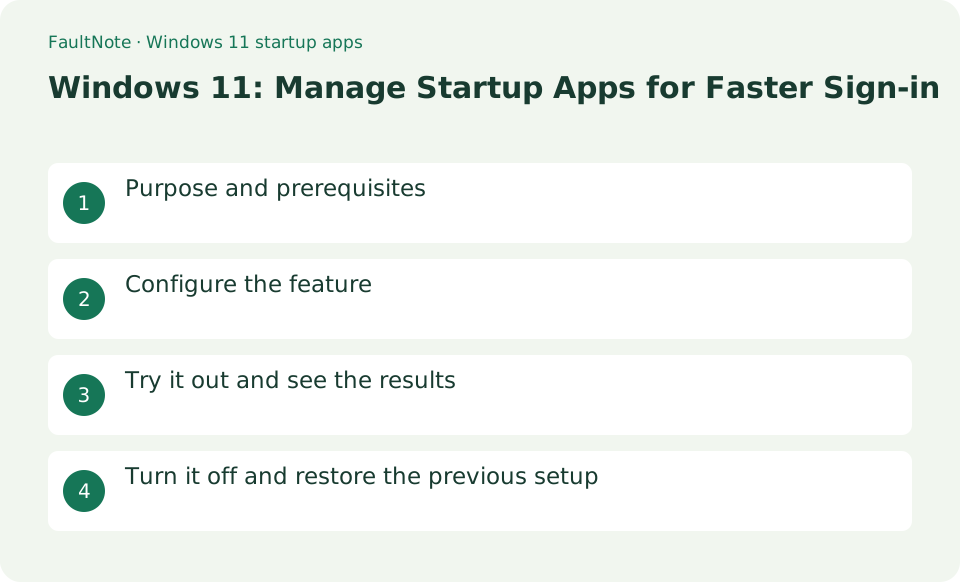
Who this guide is for and what to prepare
- Users who want to streamline daily operations with Windows 11
- Users who want to try out the feature in a way that allows them to restore the settings.
What you need
- Save the file you are working on and try it with test data that does not include personal information.
- [High] is an indicator of CPU/disk usage at startup and is not an evaluation of safety. Do not directly delete the registry in bulk
Choose a practical workflow
Change an occasionally used chat app to manual launch. Record names and current switches before editing. Disabling many entries at once makes lost synchronization or peripheral behavior harder to trace. Start with one understood entry and check its behavior at the next sign-in.
Configure the feature
- Open [Settings] > [Apps] > [Startup] and record the turned-on apps and [Impact]. For a detailed comparison, right-click Start > [Task Manager] > [Startup Apps]
Worked example: open a chat application only when needed
- Open Settings, Apps, Startup and find the intended app. Check publisher or description so a similarly named updater or peripheral utility is not confused with it.
- Turn the entry off, save work and inspect the next sign-in or restart. Do not expect changing startup preferences to quit an already running app.
- After signing in, inspect its window and notification-area state. Launch it manually from Start when needed and check login and notifications work normally.
- Reenable the same entry if needed. If it becomes enabled again, review the application option to open with Windows and make the choices consistent.
Try it out and see the results
Turn off or [disable] only those apps that do not need to start automatically and whose true identity can be confirmed. Check with the owner regarding security, input, synchronization, and business management apps. Restart Windows and check the time after sign-in and manual launch of required apps. Also check that the disabled app itself has not been deleted.
In the [Settings] list, you can separate apps that you use every time and apps that you only need to open when needed. For example, even if you disable a meeting app from auto-starting, you can still open it from Start before a meeting. On the other hand, if you stop the sync app, automatic sync may not start. After making changes, instead of restarting, check the status after signing in to see if the required features have started.
Compare one entry under matching conditions
Record the current list and turn off one application whose purpose you know. At the next sign-in, check that it no longer opens automatically and that needed peripherals and synchronization still work. Compare performance under matching conditions; an impact label is not an observed duration.
Compare matching sign-in methods and conditions. A restart immediately after updates differs from an ordinary start. Even for subjective comparison, use consistent checkpoints such as desktop appearance or app usability. Impact labels are supporting information, not a full account of combined workload or usefulness.
Identify an application and the effects of disabling
Turning off a startup entry usually leaves the application available for manual use. This differs from uninstalling it or stopping a service. If reducing notifications is the goal, review notification settings as well instead of disabling needed synchronization without a reason.
For unfamiliar entries, Task Manager startup-app details can help identify publisher or file location. Do not delete executable files simply because the folder is open. Driver control panels, audio helpers and cloud synchronization may serve a required purpose. Compare unknown entries with the installed product official documentation before disabling.
Review reenabling, communication and synchronization
If an entry turns on again after an update or app launch, check startup preferences inside that application. For an unfamiliar name, inspect the publisher and file location before deciding. If a problem appears, reenable the changed entry and verify recovery after signing in again.
Manual launch can change contact availability. Decide whether phone notifications cover periods when the PC chat app is closed. For synchronization or backup apps, inspect whether disabling creates gaps in delivering updated files to other devices. Reducing unwanted launch activity should not inadvertently stop needed communication or saving.
Check the difference between startup and running processes
Scroll horizontally to see the full table →
| Observed result | First check | Next action |
|---|---|---|
| The window remains immediately after disabling | Close the current application if appropriate | Changing a launch setting and quitting an existing process are separate. |
| It still opens at the next sign-in | Review in-app startup settings | Investigate another launch route and decide whether it is required. |
| Synchronization or a peripheral becomes inconvenient | Restore the changed entry | Check whether it provided a necessary helper feature and reconsider a different item. |
Turn it off and restore the previous setup
Turn the target back on/[enable] on the same screen. Do not delete the main file when dealing with shortcuts in the startup folder.
Limitations and requirements
- [High] is an indicator of CPU/disk usage at startup and is not an evaluation of safety. Do not directly delete the registry in bulk
- If the settings are fixed on an organization-managed PC, check with the administrator instead of using unofficial methods to circumvent the policy.
Frequently asked questions
Will the app be deleted if I turn it off?
It does not uninstall, it only stops automatic startup when signing in. You can open it manually from start.
Will it be faster if I turn everything off?
Even necessary synchronization and resident functions may stop. Check the frequency of use and role and judge on an individual basis.
Can I retain every low-impact item?
The impact label does not determine whether an application is useful to you. An unnecessary low-impact app can be manual, while a needed high-impact synchronization app may be retained.
Are startup applications the only cause of slow sign-in?
No. Updates, storage and network conditions can also matter. Compare before and after under matching conditions; if nothing changes, investigate another cause instead of disabling many unrelated entries.
Sources and verification date
Sources checked: . These sources support the specifications, procedures or prices discussed here. Check each source for applicable conditions and current information.
Related practical guides
- 16 GB or 32 GB RAM? Choose using your Windows workload
- When Smart App Control blocks an app: there is no per-app exception to find
- Windows has three startup modes: what Fast Startup actually loads
- Is quick machine recovery enabled on your PC? The defaults, and the network it actually needs
- Windows now drives the keyboard backlight: native control and autobrightness in 25H2
- Why Device encryption is missing from Settings, answered by System Information