Fix Steam's Failed to Start Game (Missing Executable) error
What to do first
Check security-software quarantine, then verify and download legitimate files from the game's Installed Files page in Steam.
This is a general troubleshooting guide, not an announcement of a current outage.
Affected products and symptoms
- Product
- Steam Client
- Versions and conditions
- Steam Client for Windows (no specific release)
- Error codes and identifiers
- Failed to Start GameMissing Executable
Symptoms
- Launching a game reports a missing executable
- A game will not start after an update
Causes and conditions
Possible causes include a missing executable, a failed or damaged download, or quarantine or blocking by security software.
Before you start
- Save a screenshot of the entire error
- Record the game name and most recent update time
- Confirm your Steam account details and prepare to restart the PC
Precautions
- Do not download .exe or DLL files from unknown sites
- Do not unconditionally exclude the entire game folder from security scanning
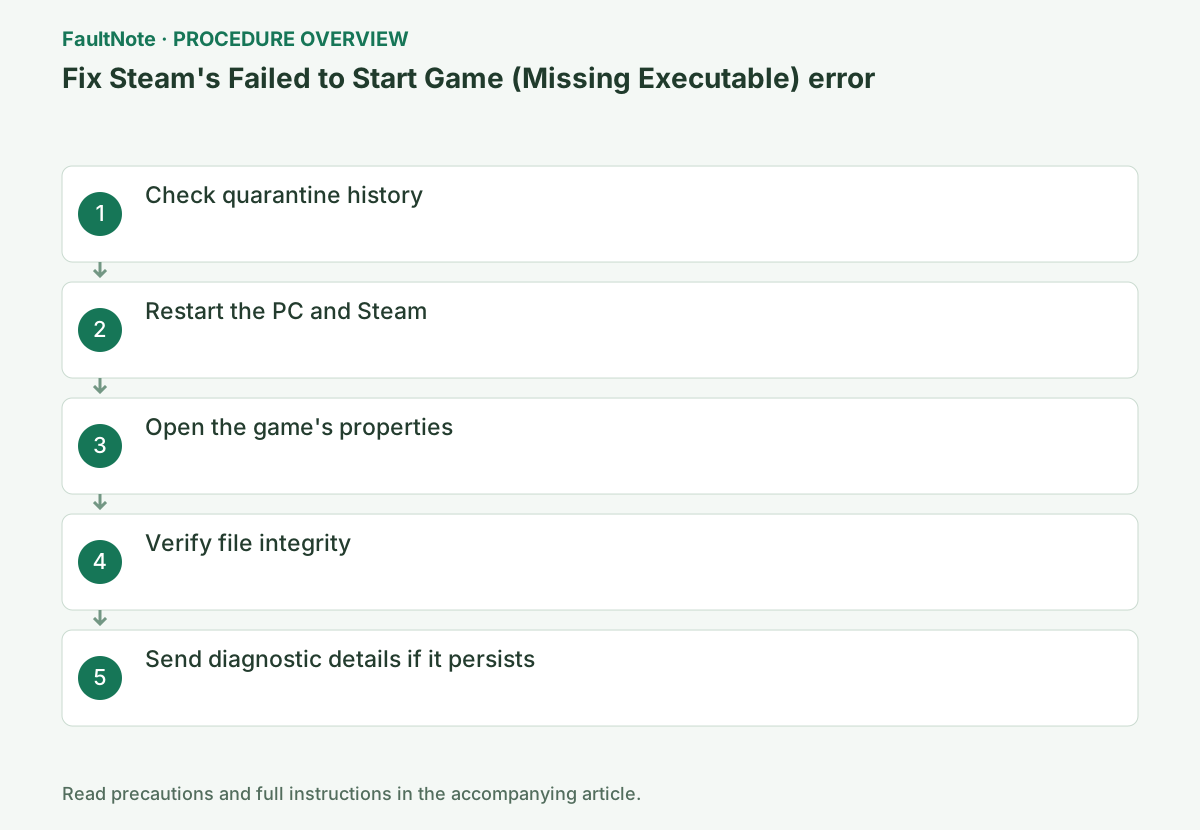
Step-by-step instructions
Save the full error, game, executable, displayed path and recent update. For external storage, check whether the drive is connected with the same letter. Missing files and denied access are different failures; do not label every launch error Missing Executable. Use normal-permission Steam launch as the baseline.
Inspect whether Steam is transferring, unpacking, writing or reporting an error. Zero network speed can coincide with disk work; do not interrupt solely from that reading. Do not manually move files during an update. If the completed update still gives the error, compare file disappearance time with quarantine history.
Match quarantine filename, original path, time and detection. A similar name alone is not the cause. Do not unconditionally allow even a Steam-distributed file without reviewing detection. Use vendor or administrator guidance and report the precise file and detection rather than excluding the whole folder or stopping protection.
Close the game and mod manager and preserve edited files. Use Library > Properties > Installed Files > Verify integrity and let verification and downloads finish. Do not substitute executable or DLL downloads from other sites. Some local configuration files may not verify; judge the missing executable and launch result rather than mismatch count alone.
If the same executable disappears after reacquisition, inspect new quarantine or mod changes. If it remains but a different code appears, record a new failure rather than repeating Missing Executable repair. A game that launches then crashes has progressed to a runtime issue. Pair verification, detection history and code for each attempt.
Before considering reinstall after failed verification, locate developer-documented saves and settings. Cloud support does not rule out sync failures or excluded files, so back up local copies. Limit library operations to the affected game; do not delete userdata or multiple games together. Record old and new drives when comparing storage locations.
Launch normally to the menu or affected scene, exit normally and check another launch for recurrence. If unresolved, give Steam or the developer the error, game, verification result and detection details. Review a System Report before sharing and avoid unnecessary save or account disclosure. Repeated downloads alone are not resolution.
Check the result
- The target operation completes without the original error
- The original game launch or update completes with normal privileges and connectivity
- Saved data and required functions show no new faults
If the problem continues
- If every verification results in quarantine again, ask the security vendor to assess a possible false positive
- If verification cannot finish, investigate cache or storage as a separate Steam download problem
Scope of this guide
Troubleshooting guide — Restore a quarantined legitimate file only after confirming it is safe, or download missing files again through Steam's integrity verification.
Frequently asked questions
Is disabling security software a safe guaranteed fix?
No. Match the file to detection history and use vendor review. Broad exclusions or stopping protection are not the first response.
What if the same file disappears after verification?
Compare verification time with new quarantine and mod changes. Preserve evidence of disappearance instead of merely repeating downloads.
Does this apply to a game on an external SSD?
Check connection, drive letter and library recognition first. Verify accessible files; investigate storage separately if read errors appear.
Is a crash after launch still a missing executable?
Once execution starts, a different problem may remain. Retain verification and the new error and inspect runtime logs, settings or mods.
Official sources and dates
Source publication or resolution date: Not specified. Sources checked: 2026-10-13. The check date is not the date the problem first occurred. Interface labels can vary between versions and display languages.
Related troubleshooting guides
Steam errors and troubleshooting →
- Clear Steam's download cache when downloads or game startup stall
- Repair Steam crashes or missing content by verifying game files
- Troubleshoot Cloud conflict in Steam Client / Steam Cloud
- Troubleshoot Unable to sync in Steam Client / Steam Cloud