Repair Steam crashes or missing content by verifying game files
What to do first
After restarting, verify integrity under the game's Properties → Installed Files, then check the result of downloading replacement files.
This is a general troubleshooting guide, not an announcement of a current outage.
Affected products and symptoms
- Product
- Steam Client
- Versions and conditions
- Steam Client (Windows / macOS / Linux; no specific release)
Symptoms
- The game crashes during play
- Textures or content are missing
- Some features stop working after an update
Causes and conditions
Local game files may be missing or damaged and differ from Steam's distributed files.
Before you start
- Record the crash scene or missing content
- Check in-game saves and cloud sync status
- Allow enough time and network access for verification
Precautions
- Do not verify multiple games simultaneously
- A local configuration file outside verification may show a mismatch; that alone does not establish failure
Tools and official pages used in this guide
Check the settings opened from Library and the caveats when interpreting verification results.
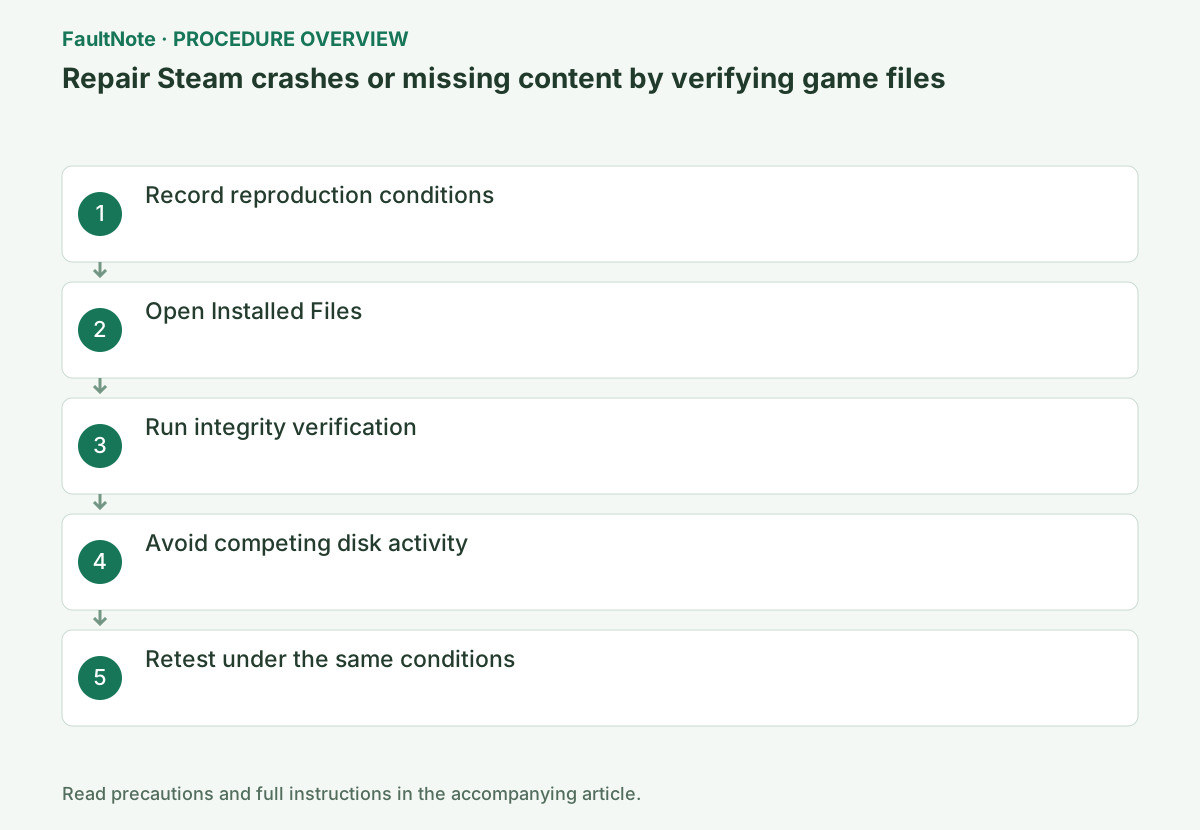
Step-by-step instructions
Record the game, scene, error message and recent updates or mod changes. Finish saving in the game, close the game and Steam, then restart the PC.
Open Steam online and distinguish Steam → Settings at the top left from the game's Properties. When using multiple PCs, close the game on other devices too to avoid simultaneous syncing or updates.
Close the game and mod manager. Back up edited game files and saves in the game-specific location. Verification checks distributed files; it does not simultaneously resolve Cloud conflicts or reset every game setting.
Start verification under Library > game Properties > Installed Files and wait for replacement downloads to finish. Avoid simultaneous verification or intensive disk work. Record the completion message and whether files were reacquired.
Start Steam, right-click the game in Library or select the gear on the game's page, then choose Properties → Installed Files.
Record the game, Steam account, last-used device and displayed time. Before handling saves or installed files, check the developer's documented save location and copy only the necessary data to another folder.
Verification can restore official files directly replaced by mods. Separate-folder mods and user settings may remain, so inspect the installation method and preserve a reversible state. Disabling a mod manager is not necessarily restoration of manual edits. Check the original game first and reintroduce required mods individually.
If the unmodified game starts after verification but crashes when one mod returns, that change becomes a stronger candidate. This is a comparison example, not proof from mere mod presence. If it crashes without mods, retain verification result and time and inspect runtime logs or settings. Avoid restoring several mods together.
Select Verify integrity of game files. It can take several minutes or longer; do not exit Steam or let the PC sleep before it finishes.
After selecting the action, check Downloads at the bottom of Steam and the game's status. Do not exit Steam or shut down until verification, syncing or downloading completes. If an error appears, record the full message.
Official links for this step
- Steam Support: verify integrity of game files
Check the settings opened from Library and the caveats when interpreting verification results.
- Steam Support: verify integrity of game files
During verification, avoid drive optimization, antivirus scanning or verifying another game at the same time. If Steam downloads replacement files, wait until the download finishes.
After completion, launch the game once, check saves, playtime, video and controls, and exit normally through the game's menu. Wait for Steam Cloud to show Up to date before opening it on another device.
Launch the game and repeat the operation with the recorded save, map and graphics settings. If it still fails, give the reproduction details to the game's support team to investigate causes beyond its files.
After completion, launch the game once, check saves, playtime, video and controls, and exit normally through the game's menu. Wait for Steam Cloud to show Up to date before opening it on another device.
Completion check: verification reaches 100% and any required replacement downloads finish. If not, avoid repeating the same operation. If verification does not help, check official guidance for the game's system requirements, OS and GPU driver.
Check before continuingExpected result: repeat the operation using the recorded save, map and graphics settings. If it still fails, send reproduction details to game support. After repair, launch once, check saves, playtime, video and controls, and exit normally. Wait for Steam Cloud to show Up to date before opening another device.
Before reintroducing mods, retest the affected save or scene under the same conditions. A crash resolved after replacement differs from one that persists after successful verification. For the latter, retain time, game version and error message.
Steam notes that some local configuration files can fail verification, so mismatch count alone does not establish damage. If the same file disappears after each launch, inspect quarantine history and mod overwrites.
Check before continuingBefore reintroducing mods, retest the affected save or scene under the same conditions. A crash resolved after replacement differs from one that persists after successful verification. For the latter, retain time, game version and error message.
Distinguish no mismatch with unchanged symptoms, replaced files with improvement, replaced files with unchanged symptoms and verification failing to complete. No mismatch does not limit diagnosis to distribution corruption. After replacement and improvement, retest the scene. For incomplete verification, retain download state, space and client messages separately from crash diagnosis.
If the same file is reacquired every time, check game or mod edits and quarantine. More repeated verification is not a success criterion. For a save-specific crash, compare another scene or a new save if practical and do not delete the original. Give game support version, scene, mod state and verification result.
Check the result
- Verification reaches 100%
- Required replacement files finish downloading
- Crashes or missing content do not recur in the original scene
If the problem continues
- If verification does not help, check official guidance for system requirements, OS and GPU drivers
- For games using mods or an external launcher, also check the developer's verification instructions
Scope of this guide
Troubleshooting guide — Download the missing or damaged files detected by Steam, then check under the same conditions whether crashes or missing content are resolved.
Frequently asked questions
Will this reset my saves too?
Integrity verification checks installed game files. Even so, confirm the location and sync status of important local saves beforehand.
Can I play another game during verification?
To avoid competing load or file use, close the target game and heavy disk tasks and wait for verification to finish.
If verification downloads nothing, does that prove a GPU problem?
No. Settings, mods, saves and launch dependencies remain possible factors. Choose the next check from reproduction conditions and logs.
Can I restore all mods together after verification?
For diagnosis, check the same scene before adding mods and restore one at a time. Preserve changed files and recovery instructions because verification can overwrite some mods.
Official sources and dates
Source publication or resolution date: Not specified. Sources checked: 2026-10-13. The check date is not the date the problem first occurred. Interface labels can vary between versions and display languages.
Related troubleshooting guides
Steam errors and troubleshooting →
- Clear Steam's download cache when downloads or game startup stall
- Fix Steam's Failed to Start Game (Missing Executable) error
- Troubleshoot Cloud conflict in Steam Client / Steam Cloud
- Troubleshoot Unable to sync in Steam Client / Steam Cloud