Classic Outlook: Fix Offline Send and Receive Problems
What to do first
Compare the status bar and button of the classic version and judge based on the difference with webmail.
This is a general troubleshooting guide, not an announcement of a current outage.
Affected products and symptoms
- Product
- Classic Outlook for Windows
- Versions and conditions
- Outlook for Microsoft 365 / 2024 / 2021 / 2019 / 2016(classic)
- Error codes and identifiers
- Working OfflineDisconnected
Symptoms
- It says I'm working offline
- remains in outbox
Causes and conditions
Candidates include offline selection, line disconnection, server failure, and authentication issues.
Before you start
- Check the number of outbox items
- Confirm that you are using classic Outlook, not new Outlook
Precautions
- Avoid duplicate submissions
- Operation is different from new Outlook
Tools and official pages used in this guide
You can see the configuration name, limitations, and updated branches for this procedure on the official page.
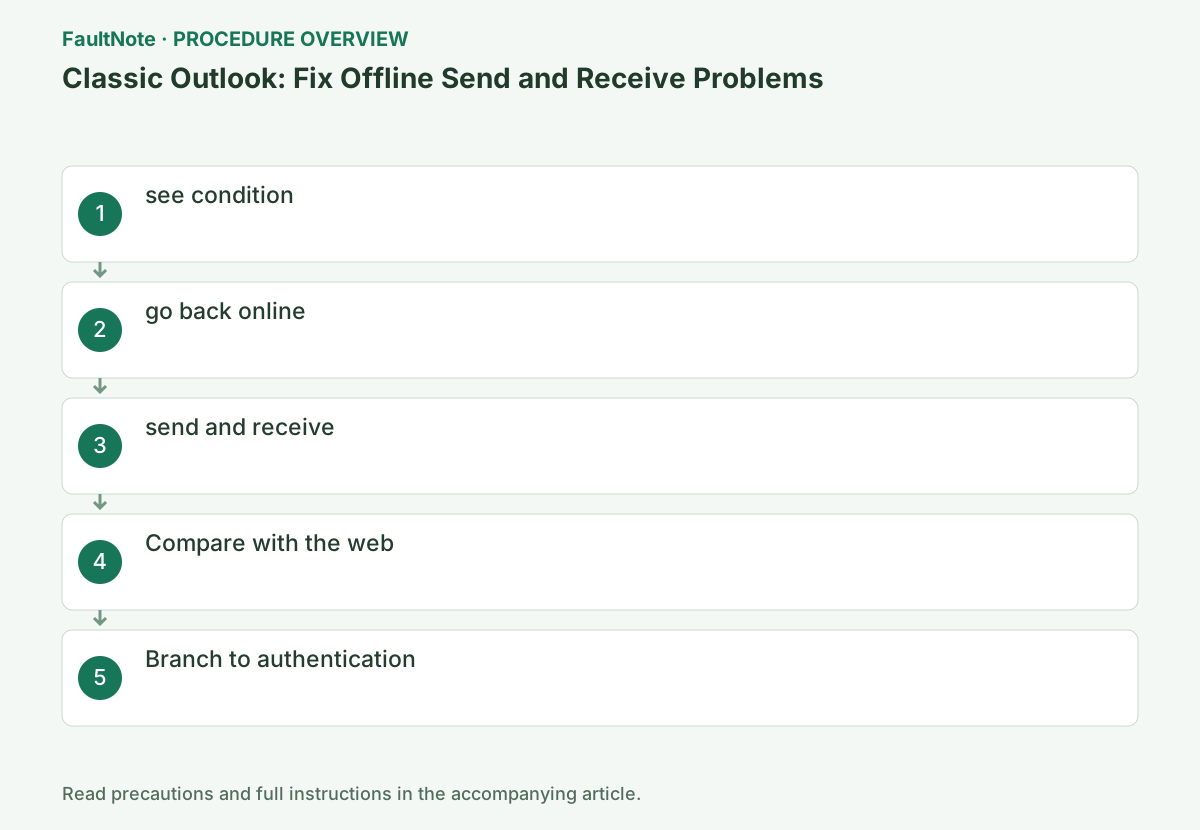
Step-by-step instructions
Review Outbox count and content and preserve anything that should remain unsent. Do not repeatedly use an important work message as a recovery test; prepare a small non-sensitive message.
This guide covers classic Outlook; do not apply its button procedure to another product. Record status, ribbon, and account to separate a mode setting from connection failure.
Record whether the bottom part is [Working offline] or [Disconnected].
Check the status bar at the bottom. [Working Offline] may be a mode switched by the user, and [Disconnected] means that connection to the server is not possible. Do not press the button repeatedly thinking that they are the same display.
Check ``Working Offline'' or ``Disconnected'' in the status bar at the bottom of Outlook, then open the ``Send/Receive'' tab. If there is no indication, do not press the offline button and proceed to another cause of the connection status.
Record Working Offline versus Disconnected accurately and identify the failing account. Classic Outlook's offline toggle affects all mail accounts, so check the others too. New Outlook offline storage settings are different; identify the product before inspecting the ribbon.
Select [Send/Receive] → [Work Offline] and see if the highlighted state and bottom display disappear.
This button switches between online and offline. Check the display after pressing once. If you press this button if you are already online, you will go offline, so please operate while checking the status at the bottom.
Work Offline keeps the same label; use highlighting and status. Pressing it while online takes you offline. Toggle once only when offline is confirmed. If Disconnected remains, investigate connectivity, authentication, and service instead of repeatedly toggling. Record account-specific errors and do not count another working account as recovery.
Execute [Send/Receive All Folders] or F9 to save the entire error message.
Emails left in your outbox may be sent when you reconnect. Check the recipient and content in advance to avoid sending duplicate emails by recreating the same email. If a sending/receiving error occurs, write down the code.
Review Outbox recipients, subject, attachments, and continued need before reconnecting, since queued mail may send automatically. Avoid recreating duplicate messages. Preserve a large stuck attachment message and handle it separately. Run F9 or Send/Receive All Folders, recording final status and codes; distinguish Sent Items movement from delivery verification.
Check if the same account can send and receive messages using webmail in your browser.
Use a official webmail URL provided by your organization. If the problem also fails on the web, prioritize checking for passwords, service failures, account restrictions, etc., and do not respond by deleting your Outlook profile.
Open official webmail and select the same account, not an already signed-in personal account. Web authentication or mail-flow failure calls for service/account checks before deleting Outlook profiles. For web-only success, retain its time with the desktop error. A local-only archive absent from webmail is a separate condition.
If the web connection is successful and only Outlook is disconnected, restart and confirm the password change and authentication request.
If additional authentication is required for your organization account, complete it on the official screen. If you are unable to connect, please inform the administrator of the connection status, sending/receiving errors, and the results of the web version, and proceed to the account repair guide.
Check legitimate Outlook sign-in requests after a password change and avoid unfamiliar credential pages. Ask the administrator about organization authentication or restrictions. Reopen normally and test a small message. If unresolved, carry offline status, codes, account type, and web results into profile repair; retain the old profile and PST first.
Official links for this step
- Classic Outlook for Windows Official Troubleshooting
You can see the configuration name, limitations, and updated branches for this procedure on the official page.
- Classic Outlook for Windows Official Troubleshooting
Send a small test message and confirm receipt and readable content. Record sending-only or receiving-only success separately. Check for duplicates before releasing the original queued mail.
Recheck required meetings or shared mailbox functions. If Disconnected returns, retain the new time and error for the administrator rather than toggling again. Preserve original mail data until verification is complete.
Check the result
- Offline display disappears
- You can receive test emails via a different route.
If the problem continues
- Remove large emails from the outbox after saving them.
- If the web also fails, contact the administrator.
Scope of this guide
Troubleshooting guide — General diagnostic and recovery procedures based on official support. It does not describe a specific current incident.
Frequently asked questions
Why does the button label not change?
The characters are the same and are judged by the background and status bar.
Does the button also fix Disconnected?
Check connectivity, server, and authentication separately from offline mode. Record status and send/receive errors and compare the same webmail account.
Why does Disconnected remain after switching online?
Changing the mode does not necessarily fix connectivity or authentication. Compare the same webmail account, network, and send/receive errors and provide them to the administrator.
Official sources and dates
Source publication or resolution date: Not specified. Sources checked: 2026-10-13. The check date is not the date the problem first occurred. Interface labels can vary between versions and display languages.