Classic Outlook: Fix Missing Search Results
What to do first
Check the search range, index, target store, and synchronization in the classic version.
This is a general troubleshooting guide, not an announcement of a current outage.
Affected products and symptoms
- Product
- Classic Outlook for Windows
- Versions and conditions
- Outlook for Microsoft 365 / 2024 / 2021 / 2019 / 2016(classic)
- Error codes and identifiers
- Indexing Status
Symptoms
- No search results
- Old emails don't show up
Causes and conditions
Suggestions include incomplete index, target store, synchronization period, and search range.
Before you start
- Check the subject and date of known emails on the web
- Confirm that you are using classic Outlook, not new Outlook
Precautions
- Rebuilding takes time and effort
- Extending the synchronization period increases capacity
Tools and official pages used in this guide
You can see the configuration name, limitations, and updated branches for this procedure on the official page.
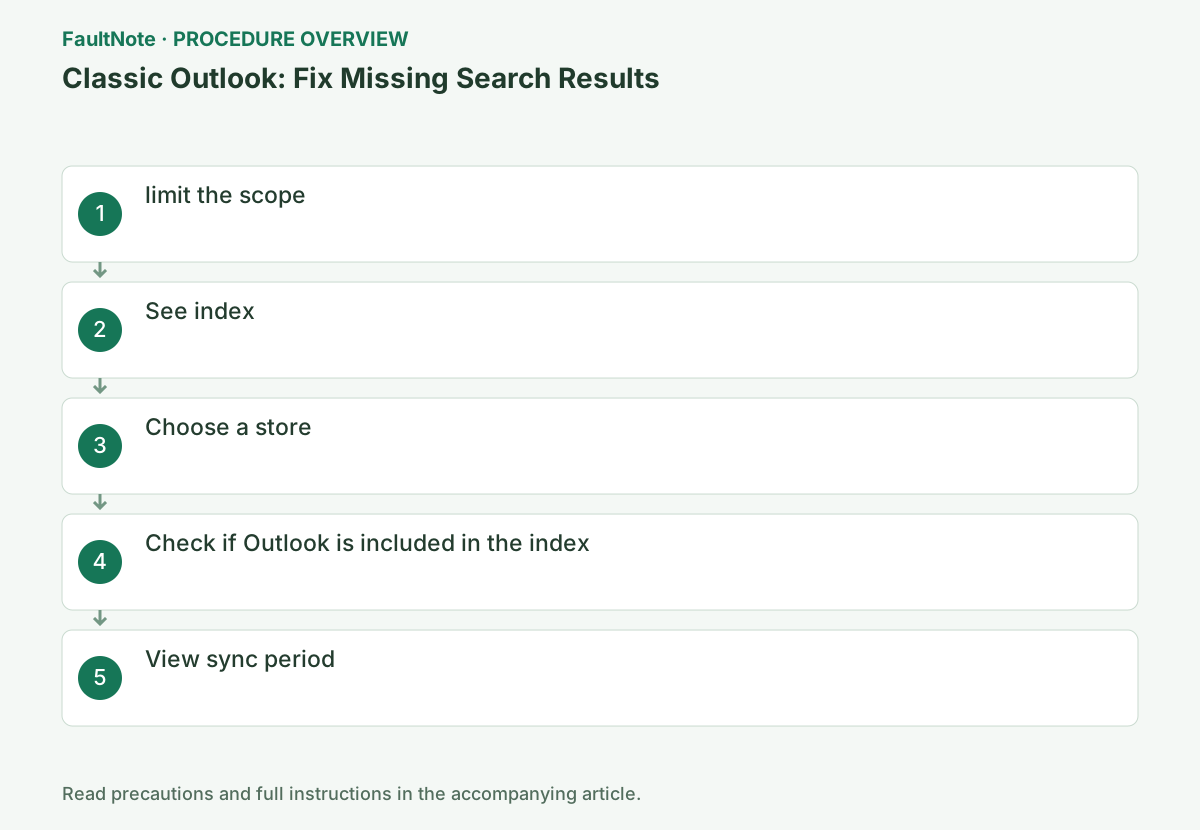
Step-by-step instructions
Use one known message visible on the web or in its actual folder as the comparison target. Inspect archives, Deleted Items, and shared locations as needed; absent search results alone do not establish deletion.
These steps are for classic Outlook. Identify product, account, scope, and filters before investigating its index.
Select the target folder and search for known subjects in [Current folder].
Select the search field to display the search tab and see if there are any filters left. By removing conditions such as date and sender, and making sure to use the subject line within the folder, you can differentiate between incorrect conditions and insufficient indexing.
Select the search field in Outlook and open [Search Tools] → [Indexing Status] on the [Search] tab. Record whether the number of remaining items or "Indexing completed" is displayed.
Record a known message's subject fragment, sender, date, and location, preferably confirmed on the web. Start with Current Folder and clear unintended filters. Identify the actual mailbox or archive before broadening scope. A similarly titled message is not the target. If a shorter term still fails, investigate scope and synchronization.
Record the number of remaining items in [Search Tools] → [Indexing Status] and check if it decreases after 5 minutes.
If the number of indexing items remaining is decreasing, leave Outlook running and wait for it to complete. If you rebuild it many times during processing, the confirmation will take longer, so please record the number of remaining items and the time to see the changes.
Record remaining items and time, then recheck after the documented five minutes. Decreasing items indicate progress; keep Outlook open. New mail or added stores can change counts, so one value does not prove corruption. Avoid repeated rebuilds. For no progress, inspect selected stores and Windows Search; zero items still requires scope and sync checks.
Select the search box, then Search Tools > Locations to Search, and select the required data files or stores. Retry the search.
If you use multiple mailboxes or PSTs, check which data file contains the email you're looking for. If you can't find just the archive, check first to see if you're only searching the current mailbox.
For a shared mailbox or auto-expanded online archive, select the actual folder and use Current Folder. Auto-expanded archive subfolders must be searched separately; rebuilding the local index does not remove this scope limit.
Distinguish PSTs, shared mailboxes, and online archives. Confirm a target PST is open and included. For shared folders or auto-expanded archives, select the actual folder and use Current Folder. Rebuilding a local index does not remove scope restrictions requiring separate subfolder searches. Record which location succeeds and choose the needed access path.
Check the target from Outlook's [File] → [Options] → [Search] → [Indexing Options]. Check if Microsoft Outlook is selected under [Modify], and if you have made changes, wait for completion.
The search results will increase or decrease until you see "Indexing completed". If Microsoft Outlook is already selected, do not check it again, and go back to the remaining number and synchronization period checked in the previous step to determine the cause.
Inspect indexing inclusion without repeatedly removing an already included Outlook entry. Check a suspected stopped Windows Search under official guidance and administrator policy. After changes begin indexing, allow completion and search the same known message. Confirm the need before rebuilding an index that can affect broader Windows searches.
Official links for this step
- Classic Outlook for Windows Official Troubleshooting
You can see the configuration name, limitations, and updated branches for this procedure on the official page.
- Classic Outlook for Windows Official Troubleshooting
Extend the period of past emails by going to [File] → [Account Settings] → Target → [Change] and wait for synchronization.
For cached Exchange accounts, results may differ from local searches for past emails that have not been synced to your PC. Adjust the synchronization period only for accounts that provide that setting and compare the same subject in the web version.
Cached Exchange retention can affect locally searched older mail. Adjust only accounts offering that setting. Longer retention increases sync and disk use, so check capacity and wait. Verify the known older mail arrived before repeating its subject search, recording online and local results separately.
Check index progress/completion, a known subject, older mail, and needed PST/shared locations separately. Zero remaining items alone is insufficient. Document a scope change that makes the target discoverable.
Provide message date/location, query, index count, and web result without publishing mail or PST contents. Include prior rebuild time/results before repeating it.
Check the result
- The number of remaining index items is 0 or decreases.
- Known emails will appear in the results
If the problem continues
- Check Windows Search and what is indexed
- Finally, consider index rebuilding
Scope of this guide
Troubleshooting guide — General diagnostic and recovery procedures based on official support. It does not describe a specific current incident.
Frequently asked questions
Is it the same for new Outlook?
In new Outlook, use [Settings] → [General] → [Search].
Is it normal if the index is 0?
Also check the scope, store, and sync period.
Does zero remaining items mean search is correct?
Not necessarily. Scope, stores, and retention still matter. Search an actually present known message under equivalent conditions.
Official sources and dates
Source publication or resolution date: Not specified. Sources checked: 2026-10-13. The check date is not the date the problem first occurred. Interface labels can vary between versions and display languages.