NVIDIA Control Panel is missing or will not open
What to do first
For DCH, confirm that Control Panel comes through Microsoft Store, then check its requirements and C: save location.
This is a general troubleshooting guide, not an announcement of a current outage.
Affected products and symptoms
- Product
- NVIDIA Control Panel / NVIDIA DCH Display Driver
- Versions and conditions
- Windows 10 version 1803 build 17134 or later; NVIDIA DCH Driver
- Error codes and identifiers
- DCH9NF8H0H7WMLT
Symptoms
- NVIDIA Control Panel is missing even after driver installation
- Control Panel reports that an update is required when opened
- Installation from Microsoft Store fails
Causes and conditions
With DCH drivers, Control Panel is distributed through Microsoft Store rather than included in the driver package. Windows Update service state, connectivity, an unsupported build or a new-app save location outside C: can prevent it from working.
Before you start
- Record the Windows version and build with winver
- Confirm that Device Manager recognizes the NVIDIA GPU
- Make sure you can sign in to Microsoft Store
Precautions
- Do not download a standalone Control Panel from unofficial sites
- Changing the save location also affects future Store app installations
Tools and official pages used in this guide
Check the publisher and product ID 9NF8H0H7WMLT before installing.
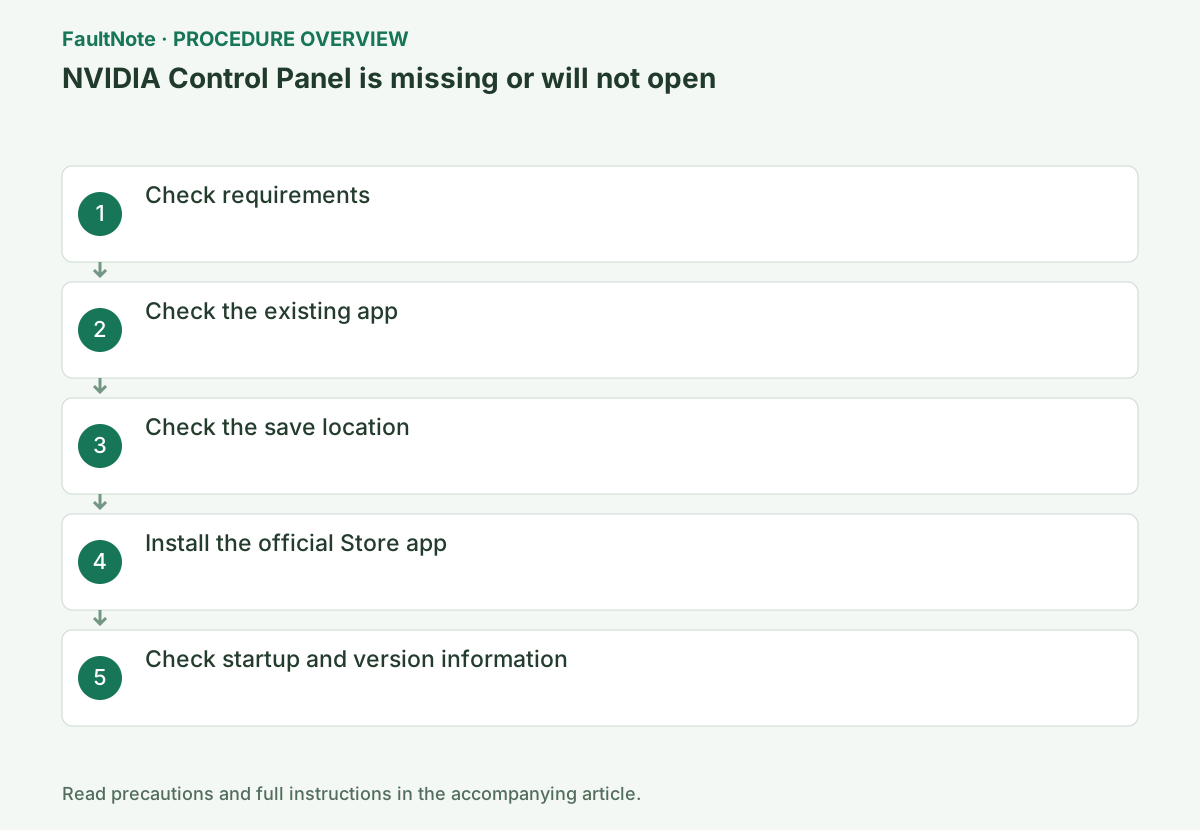
Step-by-step instructions
Use winver to confirm Windows 10 version 1803 build 17134 or later, or a supported newer Windows release. Check for an x64 CPU, NVIDIA GPU and DCH driver.
Also check internet access and ensure Settings → Windows Update is not stopped or showing an error.
Identify the GPU by right-clicking Start → Device Manager → Display adapters. Check the current version in System Information at the lower left of NVIDIA Control Panel. For a laptop, also record the manufacturer's compatibility requirements.
Confirm that Device Manager lists the NVIDIA GPU without warnings, then check installed apps and Microsoft Store for NVIDIA Control Panel. Absence from the desktop context menu does not by itself establish a missing driver.
For DCH drivers, Control Panel is distributed as a Store app. If the GPU is undetected, reinstalling the app alone will not resolve detection. On managed PCs with Store restrictions, ask about the approved deployment route.
Search for NVIDIA Control Panel in Settings → Apps → Installed apps. If present but showing an update error on launch, uninstall it from its three-dot menu.
Match the product family, product, Windows 10/11 64-bit and Game Ready/Studio type to the PC. For an article about a specific release or hotfix, use its stated version rather than substituting the newest number on the general downloads page.
Separate absent Start results, absent installed-app entry, failure to open and missing NVIDIA settings after opening. For a context-menu-only absence, test Start first. For an absent app, check official Store acquisition. If the app opens without expected settings, inspect GPU detection and driver version before reacquiring it.
For Store acquisition failures, record connectivity, Windows Update state and error code. NVIDIA describes DCH app requirements; not every Store error is fixed by reinstalling a driver. If other Store apps also fail, retain that comparison and investigate Store separately. Do not substitute unofficial apps with similar names.
If Control Panel will not open with DCH, go to Settings → System → Storage → Advanced storage settings → Where new content is saved.
Set New apps will save to to the C: drive and apply the change. NVIDIA states that DCH Control Panel needs to be installed on C:.
Check that Windows shows NVIDIA Corporation as the installer's digital signature publisher. If the guide specifies Express or Custom, choose that option, and do not open other GPU apps before completion.
Search Microsoft Store for NVIDIA Control Panel and select the official app with product ID 9NF8H0H7WMLT. Avoid third-party apps with similar names.
After restarting Windows, recheck the version in NVIDIA Control Panel or NVIDIA App. Retry the original scene at the same resolution and graphics settings. If it is not improved, record the GPU, driver version, game and time before further diagnosis.
Official links for this step
- NVIDIA Control Panel in Microsoft Store
Check the publisher and product ID 9NF8H0H7WMLT before installing.
Check before continuingThe official NVIDIA Control Panel in Microsoft Store page or signed download opens, and its product, OS and version requirements match this PC.
- NVIDIA Control Panel in Microsoft Store
Open NVIDIA Control Panel from Start. In System Information at the lower left, confirm that Driver Type is DCH and the driver version is displayed.
Success means the intended version remains after restarting, Device Manager has no warning, and the original task completes. On failure, record the new code and do not keep repeating installation.
Completion check: Control Panel opens from Start, and System Information shows DCH and the driver version. If not, avoid repeating the same operation. If the Store download fails, resolve Windows Update and Store errors first.
Check before continuingExpected result: open NVIDIA Control Panel from Start and confirm DCH and the driver version in System Information. After restarting, the intended version should remain, Device Manager should have no warning, and the original task should complete. Record any new code instead of repeating installation.
Launch the app from Start and confirm NVIDIA GPU settings are available. Save original values before changes and check the intended application behavior. An installed-app entry alone is not completion.
Save the Store error for download failure or the startup message for launch failure. Match official Store availability with supported driver state before looking for another distribution.
Check before continuingLaunch the app from Start and confirm NVIDIA GPU settings are available. Save original values before changes and check the intended application behavior. An installed-app entry alone is not completion.
Record display connections and the intended GPU. Laptop displays routed through integrated graphics need not expose every option seen on an add-in desktop GPU. Compare OEM specifications instead of treating a missing example menu as proof of damage. Identify which GPU owns the intended operation.
After the app opens, test the original settings operation and preserve original values. Confirm effects in the intended game. If app acquisition succeeds while the GPU has warnings, record app success separately from driver health. For recurrence after restart, retain time, version and Store state rather than calling a brief launch complete.
Check the result
- Control Panel opens from Start
- System Information shows DCH and the driver version
- Microsoft Store has no pending update for the app
If the problem continues
- If downloading from the Store fails, resolve Windows Update and Store errors first
- Standard drivers do not need the Store version; consider reinstalling the official NVIDIA driver
Scope of this guide
Troubleshooting guide — Meet the NVIDIA DCH driver, supported Windows, running Windows Update and C: save-location requirements, then install Control Panel from the Store.
Frequently asked questions
Do I need the Store app even after installing the driver?
With DCH drivers, Control Panel is distributed through Microsoft Store.
Can I install it on D:?
NVIDIA states that DCH Control Panel must be installed on the C: drive.
Must I reinstall if the desktop context-menu entry is missing?
Not necessarily. Check whether the app opens from Start and whether the GPU is detected; separate menu visibility from a missing application.
Are fewer display options on a laptop always a fault?
Options may depend on GPU and display routing. Compare detection, OEM specifications and the target setting; option count alone does not establish a fault.
Official sources and dates
Source publication or resolution date: 2021-09-29. Sources checked: 2026-10-13. The check date is not the date the problem first occurred. Interface labels can vary between versions and display languages.
Related troubleshooting guides
NVIDIA GeForce errors and troubleshooting →
- NVIDIA App fails to install a graphics driver
- Halo: Campaign Evolved instability with GeForce 610.xx
- Smart Access Memory becomes disabled after installing Adrenalin 26.8.1
- Intermittent Starfield crashes from Adrenalin 26.8.1 are fixed in 26.9.1