NVIDIA App fails to install a graphics driver
What to do first
Finish Windows Update, close potentially interfering apps, and use a custom clean installation of the official NVIDIA driver.
This is a general troubleshooting guide, not an announcement of a current outage.
Affected products and symptoms
- Product
- NVIDIA App / GeForce Driver
- Versions and conditions
- Windows 10 / 11; GeForce Driver (no specific release)
- Error codes and identifiers
- Installation failed
Symptoms
- A driver update in NVIDIA App fails
- A generic error appears before installation finishes
Causes and conditions
Windows Update or background GPU monitoring, tuning, video or 3D apps can interfere with registration of driver components.
Before you start
- Record the GPU model and current driver version
- Save your open work
- Check that Windows Update is not waiting for a restart
Precautions
- A clean installation resets custom NVIDIA settings
- Do not start 3D apps or tuning tools during installation
Tools and official pages used in this guide
Specify the GPU family, Windows version and driver type. For a rollback, search explicitly for the required release instead of the latest one.
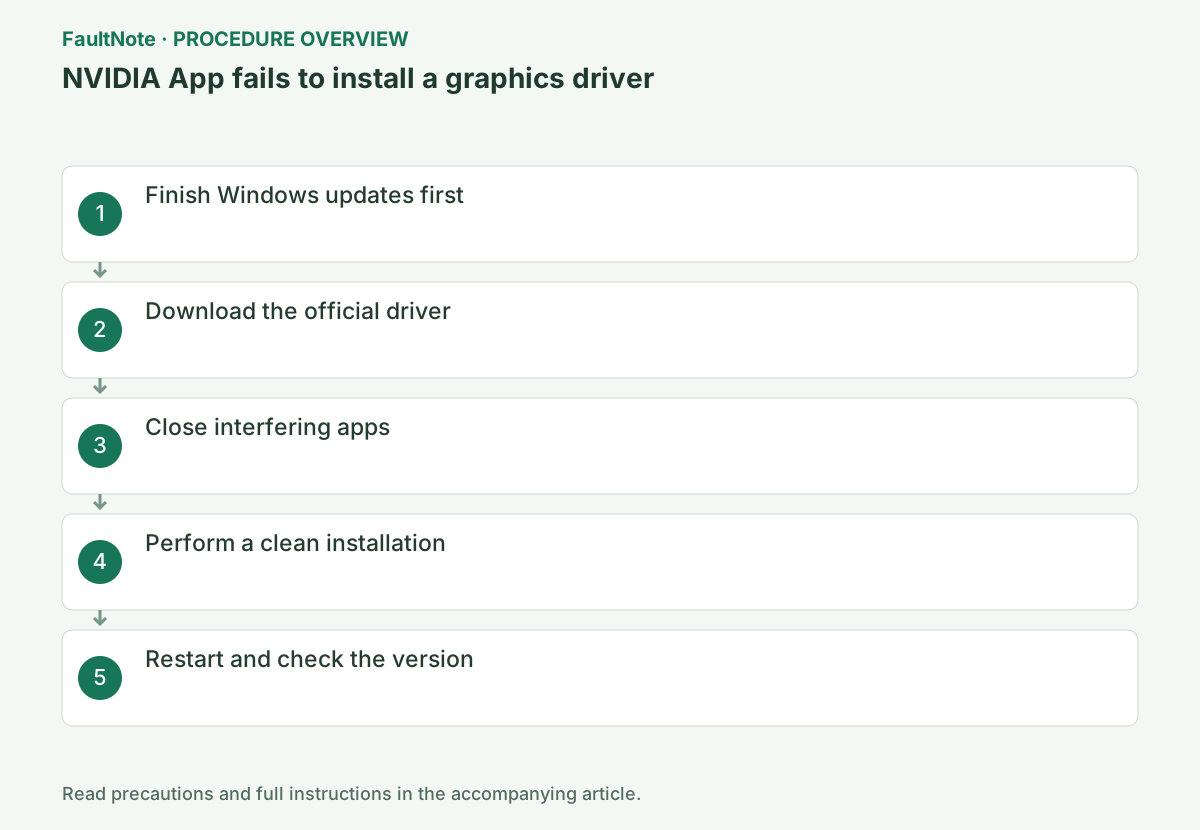
Step-by-step instructions
Open Settings → Windows Update and wait for ongoing updates to finish. Restart first if required, wait a few minutes after signing in, then recheck the update state.
Identify the GPU by right-clicking Start → Device Manager → Display adapters. Check the current version in System Information at the lower left of NVIDIA Control Panel. For a laptop, also record the manufacturer's compatibility requirements.
Save the NVIDIA App error and time, GPU model, Windows version and existing driver version. Download a matching standalone package from NVIDIA and wait for completion. Distinguish a failed download from failure during installation.
Before Custom > clean installation, record changed NVIDIA Control Panel settings. Close games and recording apps and avoid simultaneous GPU installers.
On NVIDIA's Game Ready Drivers page, select the GPU family, Windows version and driver type, then download the official installer. Check any manufacturer-specific driver requirements for a laptop.
Match the product family, product, Windows 10/11 64-bit and Game Ready/Studio type to the PC. For an article about a specific release or hotfix, use its stated version rather than substituting the newest number on the general downloads page.
Official links for this step
- NVIDIA driver downloads
Specify the GPU family, Windows version and driver type. For a rollback, search explicitly for the required release instead of the latest one.
Check before continuingThe official NVIDIA driver downloads page or signed package opens, and its product, OS and version requirements match this PC.
- NVIDIA driver downloads
If App and standalone releases differ, improvement could come from the version or route. Where available, use the same supported release and record its filename. Treat switching Game Ready and Studio as another change. Official standalone installation guidance does not establish that all distribution families suit every workload.
Distinguish an App failure before downloading, a setup failure after downloading and the same component failing in standalone setup. If standalone succeeds, check the driver and investigate remaining App behavior separately. If both stop at the same stage, preserve that message instead of attributing it solely to download routing.
Close browsers, video players, games, 3D apps, GPU monitoring and tuning tools. Check Task Manager to ensure the relevant apps are no longer running.
Check that Windows shows NVIDIA Corporation as the installer's digital signature publisher. If the guide specifies Express or Custom, choose that option, and do not open other GPU apps before completion.
Right-click the installer → Run as administrator and use the default extraction folder. Select Custom (Advanced), check Perform a clean installation and continue.
After restarting Windows, recheck the version in NVIDIA Control Panel or NVIDIA App. Retry the original scene at the same resolution and graphics settings. If it is not improved, record the GPU, driver version, game and time before further diagnosis.
Restart the PC when installation finishes. In NVIDIA Control Panel → System Information or NVIDIA App, confirm the version has changed to the downloaded release, then retry the operation that failed.
Success means the intended version remains after restarting, Device Manager has no warning, and the original task completes. On failure, record the new code and do not keep repeating installation.
Completion check: the installer reaches its completion screen, and the driver version after restarting matches the downloaded package. If not, avoid repeated installation; use NVIDIA's Installer Issues instructions to examine NVIDIA services and processes when generic failures continue.
Check before continuingExpected result: restart after completion, check the downloaded version in NVIDIA Control Panel → System Information or NVIDIA App, and retry the failed operation. The version should persist, Device Manager should have no warning, and the task should complete. Record any new failure code rather than repeatedly installing.
After restart, verify the actual driver version and restore required resolution, refresh rate and application settings. Retest the original symptom under the same conditions and record App and standalone results separately.
If standalone setup fails at the same stage, report filename, GPU, OS and failed component. Restore a saved compatible driver if new display faults appear rather than repeating clean installation.
Check before continuingAfter restart, verify the actual driver version and restore required resolution, refresh rate and application settings. Retest the original symptom under the same conditions and record App and standalone results separately.
Save component selections and whether clean installation was enabled. Include HDMI audio checks if the monitor provides sound. Record refresh rate, color and application settings beforehand and restore required settings first. Changed defaults alone do not establish the same driver fault as the original symptom.
After setup and restart, check target GPU version, display, audio and the original app in sequence. For recovery, obtain the supported older official package and retain the new version and regression. Repeated clean installs obscure settings comparisons; capture a repeated failure instead. DDU or OS reinstallation is not an automatic next action.
Check the result
- The installer reaches its completion screen
- After restarting, the driver version matches the downloaded package
- Device Manager shows no warning for the GPU
If the problem continues
- If generic failures continue, use NVIDIA's Installer Issues instructions to check NVIDIA services and processes
- Enable installer logging and provide the logs to NVIDIA Support
Scope of this guide
Troubleshooting guide — Manually clean-install the latest compatible Game Ready Driver for the GPU and check the version after restarting.
Frequently asked questions
Do I have to uninstall NVIDIA App?
Try a clean installation with the official standalone installer first. Consider addressing the existing NVIDIA apps if generic failures persist.
Is a brief black screen normal?
Switching display drivers can cause flickering or a brief black screen. If the display does not return for a long time, assess the state before forcing any action.
Does standalone installation success mean that NVIDIA App is repaired?
It confirms driver installation, but not necessarily App downloads or notifications. Also check the original App operation.
Does changed color or FPS after clean setup mean failure?
Separate reset settings from recurring runtime faults. Restore required recorded settings and retest equivalent conditions. If new faults remain, also record results of restoring a compatible older package.
Official sources and dates
- NVIDIA App driver installation failed. How do I manually clean install the NVIDIA driver for my graphics card? ↗
- Solving NVIDIA Installer Issues ↗
Source publication or resolution date: 2026-05-26. Sources checked: 2026-10-13. The check date is not the date the problem first occurred. Interface labels can vary between versions and display languages.
Related troubleshooting guides
NVIDIA GeForce errors and troubleshooting →
- Halo: Campaign Evolved instability with GeForce 610.xx
- NVIDIA Control Panel is missing or will not open
- Smart Access Memory becomes disabled after installing Adrenalin 26.8.1
- AMD Software Error 182: graphics driver installation stops
AMD, Intel and NVIDIA driver installation errors →