Microsoft Store: Fix App Download and Update Failures
What to do first
Recover by updating, verifying account, resetting cache, and repairing the app.
This is a general troubleshooting guide, not an announcement of a current outage.
Affected products and symptoms
- Product
- Microsoft Store
- Versions and conditions
- Windows 11 / Windows 10
- Error codes and identifiers
- wsreset.exe
Symptoms
- The download or installation does not progress
- The app does not appear in search results
Causes and conditions
Possible causes include the Store cache, pending updates, account, region or age restrictions, and device compatibility.
Before you start
- Record the target app name and error
- Check date, time and regional settings
Precautions
- Resetting may erase app data
- Do not obtain the app from an unofficial source
Tools and official pages used in this guide
You can see the configuration name, limitations, and updated branches for this procedure on the official page.
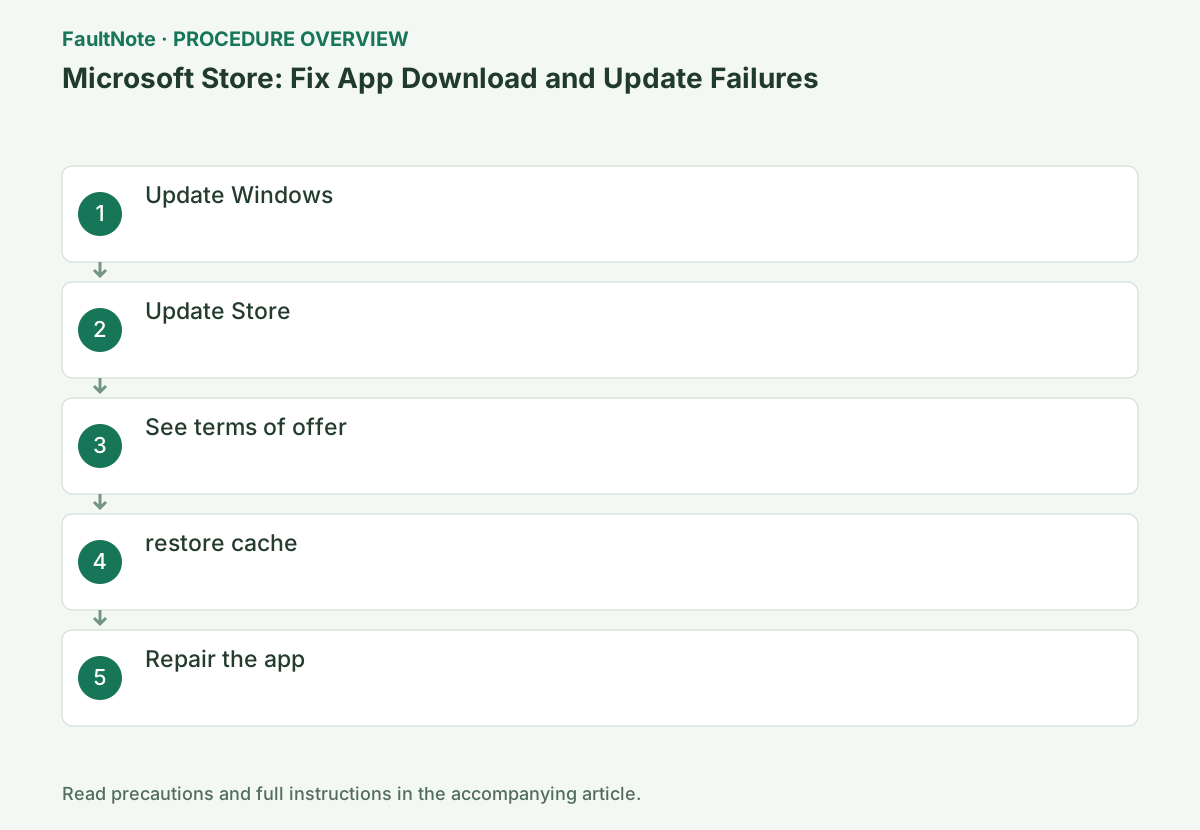
Step-by-step instructions
Record app, publisher, listing, and error and separate discovery, purchase, download, and post-install launch failure. Launch-only problems need their own check rather than being called Store acquisition failure.
Compare under the same account/device conditions and check managed distribution requirements. Do not substitute an unofficial same-named package.
Apply from [Settings] → [Windows Update] → [Check for updates] and restart.
In Windows 10, proceed from [Settings] → [Update & Security] → [Windows Update]. If there is a restart waiting, please complete it first and check the status once instead of starting the same download repeatedly.
Open [Library] at the bottom left of the Microsoft Store and note the status and display code of the target app row. Depending on whether all apps stop or just one, don't press multiple pending updates at the same time.
Record the target item status, code, and listing and separate one-app from all-app failures. Save work and complete a pending Windows restart. Test one target before repeatedly queuing updates. Investigate reported capacity at the relevant destination or temporary-processing drive. Another app's success does not verify the target.
Official links for this step
- Microsoft Store Official Troubleshooting
You can see the configuration name, limitations, and updated branches for this procedure on the official page.
- Microsoft Store Official Troubleshooting
Select [Library] → [Get updates] in the Store.
Depending on the version of the Store, it will be displayed as [Download] → [Check for updates]. If an update for the app itself is presented, wait for it to complete, then reopen the Store and try acquiring the target app.
Use the Store library or download screen to check updates, allowing for changed labels. Run available updates once and wait; reopen after a Store self-update. Check connectivity or legitimate sign-in prompts as needed. Store updating and the target downloading are separate checks; inspect the target completion state.
Check your profile account and region, age, compatibility, and organization restrictions.
Determine if all apps or just specific products are failing. If only a specific app fails, check the app's required OS, supported devices, region of availability, and account conditions, and do not change settings to circumvent restrictions.
Check supported Windows/device, region, and account conditions on the listing. Missing search results differ from an interrupted download. Match any purchasing account. Do not falsify region or identity to bypass age or organization restrictions. Cache resets cannot make an unsupported device compatible; ask about the approved organization distribution route.
Run wsreset.exe with Win+R and wait until the empty screen closes and Store starts.
This is the command you enter in Run. A normally empty command screen appears for a while and then closes. There is no need to open another window and repeat the same command during execution.
Run wsreset.exe once and wait for the blank window to close and Store to open. Lack of visible progress is not a reason for parallel runs. This differs from an individual app data Reset. Retry under the same account and retain changed codes. If it does not complete, record time and display for the next official step instead of deleting system folders.
wsreset.exeGo to [Settings] → [Apps] → Target → [Advanced options] and select [Repair] first if available.
Select the target from [Installed apps] in Windows 11, or [Apps and features] in Windows 10. Unlike [Repair], [Reset] has an effect on data, so please check the precautions before selecting it from the beginning.
Identify whether the target is Store itself or an installed app before opening advanced options. Use available Repair first and test. Reset affects data, so preserve individual app saves/settings first. If that deployment has no advanced options, consult product guidance instead of forcing a button. Repair does not override eligibility restrictions.
Verify target acquisition/update completion and launch. For an update, check its installed version too. A working Store or successful unrelated app installation is not target recovery.
Restore necessary settings after a successful initial launch. For remaining failures, provide error, eligibility, account type, and repairs to the administrator or publisher. Verify recovery of any local data affected by Reset separately.
Check the result
- Open details page in Store
- Target download or update completes
If the problem continues
- If repair does not fix the problem, reset after checking the impact.
- Check with the administrator/publisher for organization restrictions and regional non-provision.
Scope of this guide
Troubleshooting guide — General diagnostic and recovery procedures based on official support. It does not describe a specific current incident.
Frequently asked questions
Will wsreset erase data?
This is a Store cache reset, which is different from resetting individual apps.
It doesn't appear in the search.
Check region, age, compatibility, organization settings, and end of distribution.
Are wsreset and app Reset the same?
No. wsreset addresses Store cache, while an individual app Reset affects its data. Identify the target and preserve needed data first.
Official sources and dates
- I can't find or install an app from Microsoft Store ↗
- Repair apps and programs in Windows ↗
- Microsoft Store doesn't open ↗
Source publication or resolution date: Not specified. Sources checked: 2026-10-13. The check date is not the date the problem first occurred. Interface labels can vary between versions and display languages.