Safely troubleshoot Chrome NET::ERR_CERT_DATE_INVALID
What to do first
Do not bypass the certificate warning; determine whether the device clock or site is responsible.
This is a general troubleshooting guide, not an announcement of a current outage.
Affected products and symptoms
- Product
- Google Chrome
- Versions and conditions
- Chrome for computer
- Error codes and identifiers
- NET::ERR_CERT_DATE_INVALID
Symptoms
- Chrome says the connection is not private
- An HTTPS site does not open
Causes and conditions
The device date or time zone may be wrong, or the site certificate may be outside its validity period.
Before you start
- Record the error code, URL, and time
- Stop entering passwords or making payments
Precautions
- Do not ignore the warning and proceed
- Do not install an unknown root certificate
Tools and official pages used in this guide
Check the official page for exact setting names, limitations, and updated decision paths.
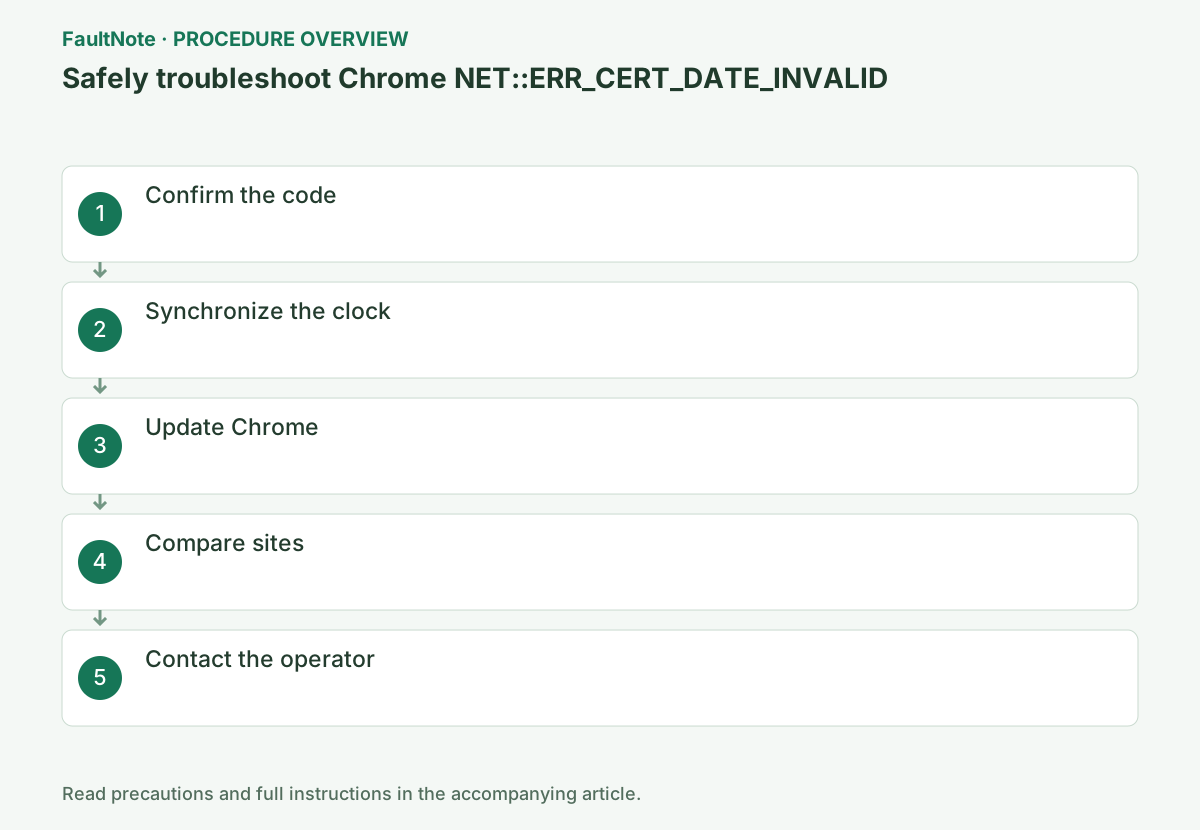
Step-by-step instructions
Check the time zone and time as well as the year and date. Where manual configuration is required, use a trusted reference and inspect the displayed clock after synchronization before retrying.
Retain any Windows synchronization failure. Do not change a managed time source independently. If the clock drifts significantly after each restart, investigate device timekeeping rather than repeatedly changing browser settings.
When comparing a phone, check its clock and network too. A mobile-data phone and inspected work PC do not isolate a PC clock fault. Record those conditions. Investigate recurring clock resets instead of repeatedly bypassing warnings. Verify both correct time and warning-free access to the original URL.
Check before continuingRetain any Windows synchronization failure. Do not change a managed time source independently. If the clock drifts significantly after each restart, investigate device timekeeping rather than repeatedly changing browser settings.
Use Advanced only to inspect the message; record the code and do not proceed.
Record the Your connection is not private page and code. Even after opening Advanced, do not select any option that bypasses the warning, and do not enter credentials or payment information.
Record the error code, certificate host, and current PC time together. Do not force the connection through Advanced; correct the Windows clock first.
Record the URL with NET::ERR_CERT_DATE_INVALID and distinguish other certificate codes. Advanced may expose details but is not permission to bypass. Stop credential, payment, and file submissions and use a legitimate alternative contact. If visible, note whether the certificate name matches the domain; familiar branding alone does not validate the connection.
Official links for this step
- Official Google Chrome troubleshooting
Check the official page for exact setting names, limitations, and updated decision paths.
- Official Google Chrome troubleshooting
Right-click the clock, select Adjust date and time, check the date, time, and time zone, and choose Sync now.
On Windows 11, open Settings > Time & language > Date & time. Check the year, month, day, and time zone, use automatic settings and synchronization, then confirm that the correct current time appears before retrying.
In Windows 11, inspect Settings > Time & language > Date & time, including time zone. Use automatic settings where available and check Sync now results. A different region can shift displayed time. Record sync failures and check connectivity without independently changing a managed time server. Reopen the page after correction.
If the clock is correct and only one site fails, record any visible certificate validity dates and domain. The operator controls the certificate; do not adjust your PC clock to fit its validity period.
For several simultaneous failures, compare another device on the same network. Distinguish device-only from shared-network behavior and provide the results to whoever manages security software or organizational inspection.
Check before continuingFor several simultaneous failures, compare another device on the same network. Distinguish device-only from shared-network behavior and provide the results to whoever manages security software or organizational inspection.
Open ⋮ > Help > About Google Chrome, update, and retry.
After updating, close the affected page and open the correct URL in a new tab. If the same code remains on one site after correcting the clock, the provider may need to check the certificate expiration or other site-side condition.
Save work and complete any Chrome relaunch, then open the correct URL in a new tab. If a correct clock and updated browser still show the code on one site, the visitor cannot change its certificate validity; report the domain and time. Do not move the clock backward just to fit the certificate.
Open several known HTTPS sites. If many show the error, ask the administrator to inspect the device and network.
If many HTTPS sites are affected, corporate traffic inspection or the device certificate environment may be involved. Record whether the behavior changed after installing organization or protection software, and do not manually install an unfamiliar certificate.
Use identifiable official HTTPS sites for comparison. For multiple failures, test another device on the same network; device-only and shared-network results direct different investigations. Record inspection or security products and recent changes. Do not trust a page requesting an unfamiliar certificate installation without verification from the legitimate administrator.
If the clock is correct and only one site fails, give its operator the URL, code, and time and wait for correction.
Tell the operator that the clock is synchronized correctly and include results for other sites. Until the certificate is corrected, do not submit credentials or files to that site; use another contact method published through an official channel.
Report the URL, code, synchronized device time, and site/device comparisons, redacting account details from images. After a fix, retest the original HTTPS URL and verify any official domain move. Confirm recovery without a bypass through the required page. Recurring clock drift after restart is a separate device issue.
After correction, open the original correct HTTPS URL and confirm it loads without a certificate warning. If it redirects, verify that the destination domain officially belongs to the service.
A page displayed through a warning bypass is not verified recovery. After a clock correction, check time again after restarting; while awaiting a site fix, use the operator's official contact channel.
Check before continuingA page displayed through a warning bypass is not verified recovery. After a clock correction, check time again after restarting; while awaiting a site fix, use the operator's official contact channel.
Check the result
- The device is synchronized to the correct time
- The correct domain opens without a warning
If the problem continues
- On a company device, do not add a certificate yourself
- Retry after correction is complete
Scope of this guide
Troubleshooting guide — A general diagnostic and recovery procedure based on official support; it does not indicate a current specific incident.
Frequently asked questions
Can I proceed through Advanced?
No. Correct the clock or certificate at the source.
Only one site fails. What should I do?
Give the code and time to the site operator.
Can I move my clock backward to use the site?
Do not change the clock to suppress the warning. Keep correct current time and have the operator correct certificate validity. An incorrect clock also affects other authentication.
Official sources and dates
Source publication or resolution date: Not specified. Sources checked: 2026-10-13. The check date is not the date the problem first occurred. Interface labels can vary between versions and display languages.