Windows now drives the keyboard backlight: native control and autobrightness in 25H2
A laptop keyboard backlight has long been the preserve of the maker's utility and a function key. Microsoft states that keyboard backlight integration is supported from Windows 11 version 25H2, build 26200.7922. This guide was written on 2026-09-21 from that document and keeps to the parts a reader can act on: where the settings live, what automatic adjustment to ambient light requires, the dimming that Energy Saver applies, how external keyboards are treated, and what happens on hardware that does not support the integration. The source is an implementation guide for device makers, so nothing here touches HID report structures or descriptors.
Published · Updated · FaultNote editorial policy
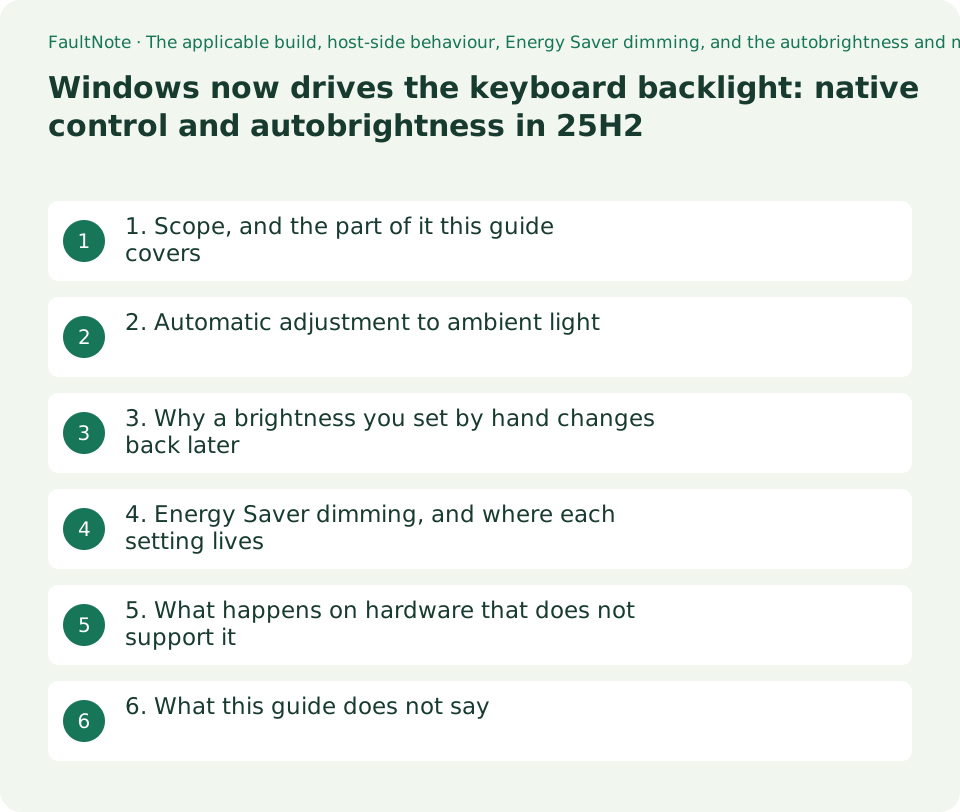
Who this guide is for and what to prepare
- Anyone who wants to control a laptop keyboard backlight without the manufacturer's utility
- Anyone who wants it to light up automatically in a dark room, or wants it to stop changing by itself
- Anyone checking whether an external keyboard's backlight can be driven from Windows
What you need
- Check your Windows version and build (winver)
- Check whether the machine has an ambient light sensor
- Be able to open the Keyboard and the Power & battery pages in Settings
1. Scope, and the part of it this guide covers
The document gives the scope in one line: Keyboard backlight integration support is available in Windows 11, version 25H2, build 26200.7922 or higher. On earlier builds none of this applies.
What it covers is limited as well: This guide covers simple global keyboard backlights only, where a single brightness level applies to the entire keyboard. For keyboards with zoned or per-key RGB lighting, refer to Dynamic Lighting instead.
So designing a colour scheme and being able to see the keys in a dark room are two different mechanisms inside Windows. The first is covered in a separate guide on this site.
The source is an implementation guide for device makers. This guide keeps to the host side, meaning Windows behaviour and settings, and does not touch HID report IDs or descriptors.
2. Automatic adjustment to ambient light
The condition is stated: In devices such as laptops that contain both a keyboard backlight and an Ambient light sensor , Windows supports automatic adjustment of keyboard backlight brightness. Without the sensor, the feature has nothing to work from.
External keyboards are covered too: This feature is also supported for external keyboards when they are attached to devices with ambient light sensors. The sensor is on the PC, not in the keyboard.
The setting is named: Settings, Bluetooth & devices, Keyboard, Keyboard backlight, and the item Change keyboard brightness automatically when lighting changes, which the document says may be toggled on compatible devices.
The document also notes that this is distinct from Adaptive brightness for displays. Changing the display's setting does not change what the keyboard does.
03. Why a brightness you set by hand changes back later
Pressing a keyboard brightness button while autobrightness is on starts a temporary override: If an input button is pressed while Keyboard Backlight Autobrightness is enabled, a temporary manual override of the autobrightness algorithm will be initiated.
That override has a range. As the document describes it, a band is created around the ambient light reading at the moment you pressed, extending a proportion above and below it, and your chosen brightness holds while the light stays inside that band. In the worked example, pressing at 120 lux produces a lower bound of 48 lux and an upper bound of 192 lux.
When the ambient reading crosses the bounds of that band, the override is cancelled and autobrightness resumes. Pressing the button again recalculates the band from the latest reading.
In practice: a brightness you set by hand holds until the light around you changes materially. Switch the room lights on, or move to a window, and it returns to automatic. If you do not want that, the coherent action is to turn the autobrightness item itself off.
4. Energy Saver dimming, and where each setting lives
The other host behaviour documented is dimming on battery saving: Windows supports automatically dimming the keyboard backlight when Energy Saver mode is enabled.
The default is given: By default, the feature applies a 70% multiplier to the keyboard backlight brightness when Energy Saver is enabled. If the keys look dimmer on battery, this is a candidate explanation.
The setting is under Settings, System, Power & battery, Energy saver, as Lower keyboard brightness when using energy saver, which the document says may be toggled on compatible devices.
The table collects the settings this guide has covered. The item names are quoted from the source.
Scroll horizontally to see the full table →
| What you want | Where it lives (as the source names it) | Condition |
|---|---|---|
| Adjust automatically to the light in the room | Bluetooth & devices > Keyboard > Keyboard backlight > Change keyboard brightness automatically when lighting changes | A device with both a keyboard backlight and an ambient light sensor; for an external keyboard, the host must have the sensor |
| Turn the battery-saving dimming on or off | System > Power & battery > Energy saver > Lower keyboard brightness when using energy saver | Compatible devices. The default applies a 70% multiplier |
| Set colours or per-zone effects | Outside this document (Dynamic Lighting) | Devices with zoned or per-key RGB |
| None of these items appears | — | Check that the build is 25H2 26200.7922 or later and that the hardware supports the integration |
5. What happens on hardware that does not support it
The document describes the fallback from the device's side: If the device is connected to a host that does not support keyboard backlight control — indicated by the absence of a Set Level output report at startup or connection time — the device may fall back to direct local brightness control for its input buttons.
In other words, on a host without this support the keyboard may go back to changing its own brightness from its own buttons, exactly as keyboards have always done.
Which means whether the item appears in Windows depends on both the build and the hardware. If it is missing, suspecting only one of the two will not settle it; winver answers the build half.
Before buying, the thing to look for is a manufacturer statement that the product supports this integration. Where there is no such statement, this site assumes neither support nor its absence.
06. What this guide does not say
It does not say whether the items appear on any particular model. Nothing was checked on a test machine.
It does not cover the device side: HID report structures, descriptors or the brightness curve arithmetic. Most of the source is about exactly that, and none of it helps a reader choose a setting.
It does not cover changing the defaults through the registry. The source documents that, but it goes beyond what the settings pages expose and depends on the device and OEM configuration.
It does not assert the Japanese names of the settings. The source uses English names and the Japanese interface was not checked.
0Limitations and requirements
- The stated scope is Windows 11 version 25H2 build 26200.7922 or higher. Earlier builds are out of scope.
- Autobrightness requires an ambient light sensor. For an external keyboard, the sensor is expected to be in the host device.
- This document does not cover zoned or per-key RGB. Colour is a different mechanism.
- Setting names are quoted in the source's English. The Japanese interface was not checked.
- Everything quoted here was read on 2026-09-21.
Frequently asked questions
Can I control the keyboard brightness without the manufacturer's utility?
Microsoft states that keyboard backlight integration is supported from Windows 11 version 25H2, build 26200.7922. On supported hardware the items appear on the Keyboard and Power & battery pages in Settings.
Can it light up automatically in a dark room?
The document says automatic adjustment is supported on devices that have both a keyboard backlight and an ambient light sensor. The toggle is under Bluetooth & devices, Keyboard, Keyboard backlight.
Does autobrightness work with an external keyboard?
The document states it is also supported for external keyboards when they are attached to devices with ambient light sensors. The sensor is expected to be on the PC.
The keyboard dims when I unplug the charger.
Energy Saver dimming is on by default, applying a 70% multiplier to the backlight brightness. It can be toggled under System, Power & battery, Energy saver.
Sources and verification date
Sources checked: . These sources support the specifications, procedures or prices discussed here. Check each source for applicable conditions and current information.
Related practical guides
- Running RGB peripherals without vendor software: how to spot Dynamic Lighting support
- Mechanical Keyboard Switches: Red, Brown and Blue Force and Sound Compared, Plus Which Switches Fit a Hot-Swap Board
- Wake on approach, lock on leave: telling Windows presence sensing from an OEM lookalike
- USB-C Monitor Not Working or Stuck at a Low Refresh Rate: Check DP Alt Mode and Lane Allocation
- Measure Laptop Battery Wear: Reading the Windows Battery Report and Deciding When to Replace
- Single-cable USB-C monitors: match the monitor's supply wattage against your laptop's rating